Connect Klaviyo to Chatarmin so contacts, properties, and activity stay in sync between WhatsApp marketing and your email CRM.

When to use it

Use this setup when you want Chatarmin to read Klaviyo segments and lists, push WhatsApp opt-in status and other properties to Klaviyo profiles, or trigger WhatsApp flows from Klaviyo events and webhooks. Open the connect page at https://chatarmin.com/dashboard/klaviyo/connect.

Chatarmin and Klaviyo integration branding on the connect page

Connect with OAuth

Chatarmin connects to Klaviyo through OAuth. You sign in on Klaviyo’s site and approve the permissions Chatarmin needs.
1

Start the connection

On the Klaviyo connect page, click Connect now.
2

Continue on Klaviyo

Klaviyo opens in your browser. If you see a notice that the app has not been reviewed by Klaviyo’s partner team, click Continue when you started the connection from Chatarmin.
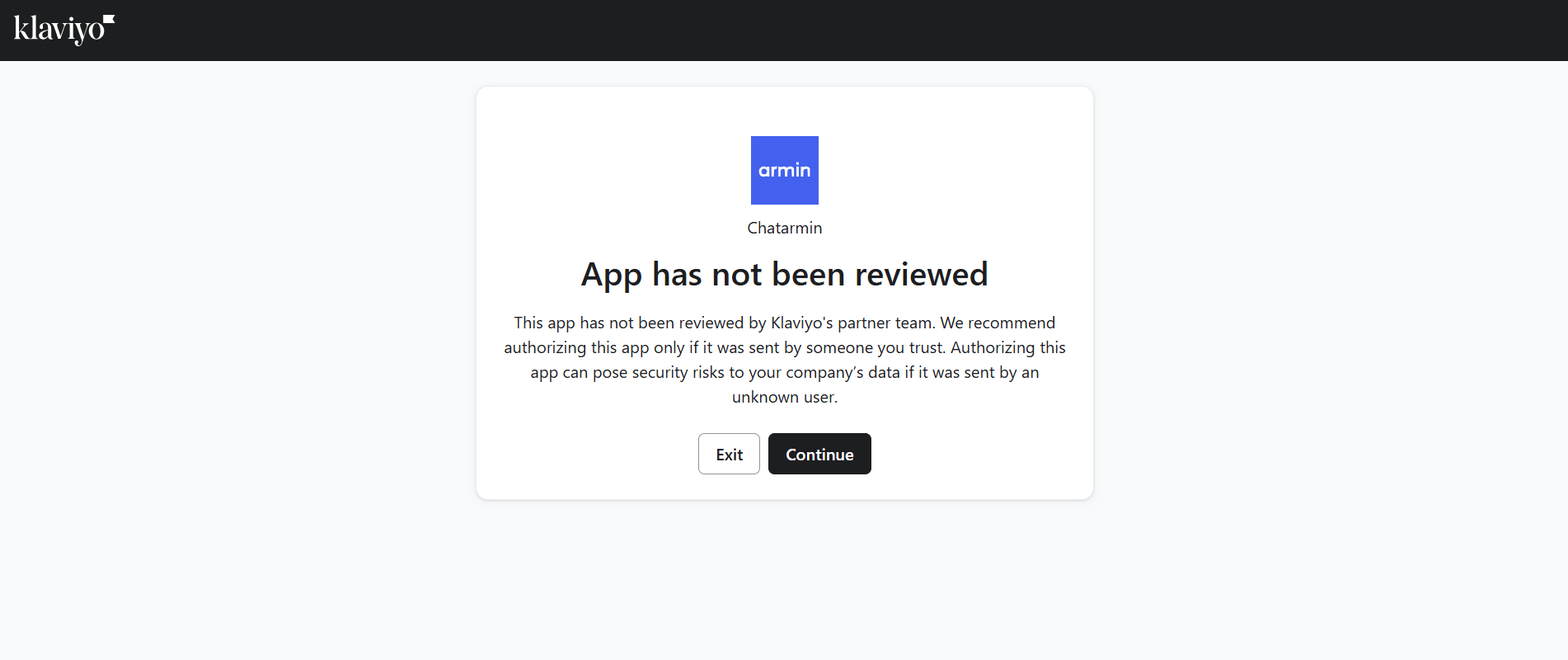
Klaviyo OAuth screen with Continue to authorize Chatarmin
3

Select your Klaviyo account

Choose the Klaviyo account you want to link to Chatarmin, then click Select.
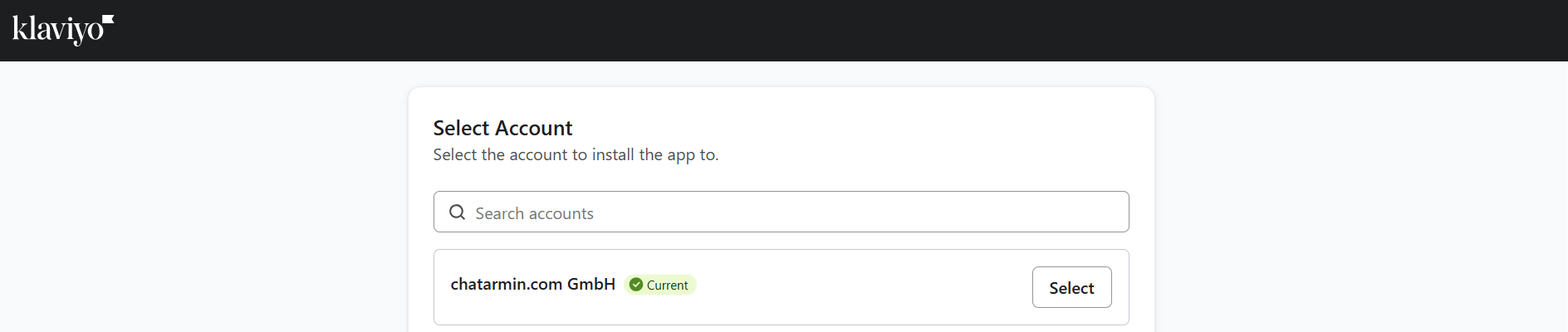
Klaviyo Select Account screen during Chatarmin OAuth
4

Allow access

Review the permissions and click Allow. You return to Chatarmin when the connection succeeds.
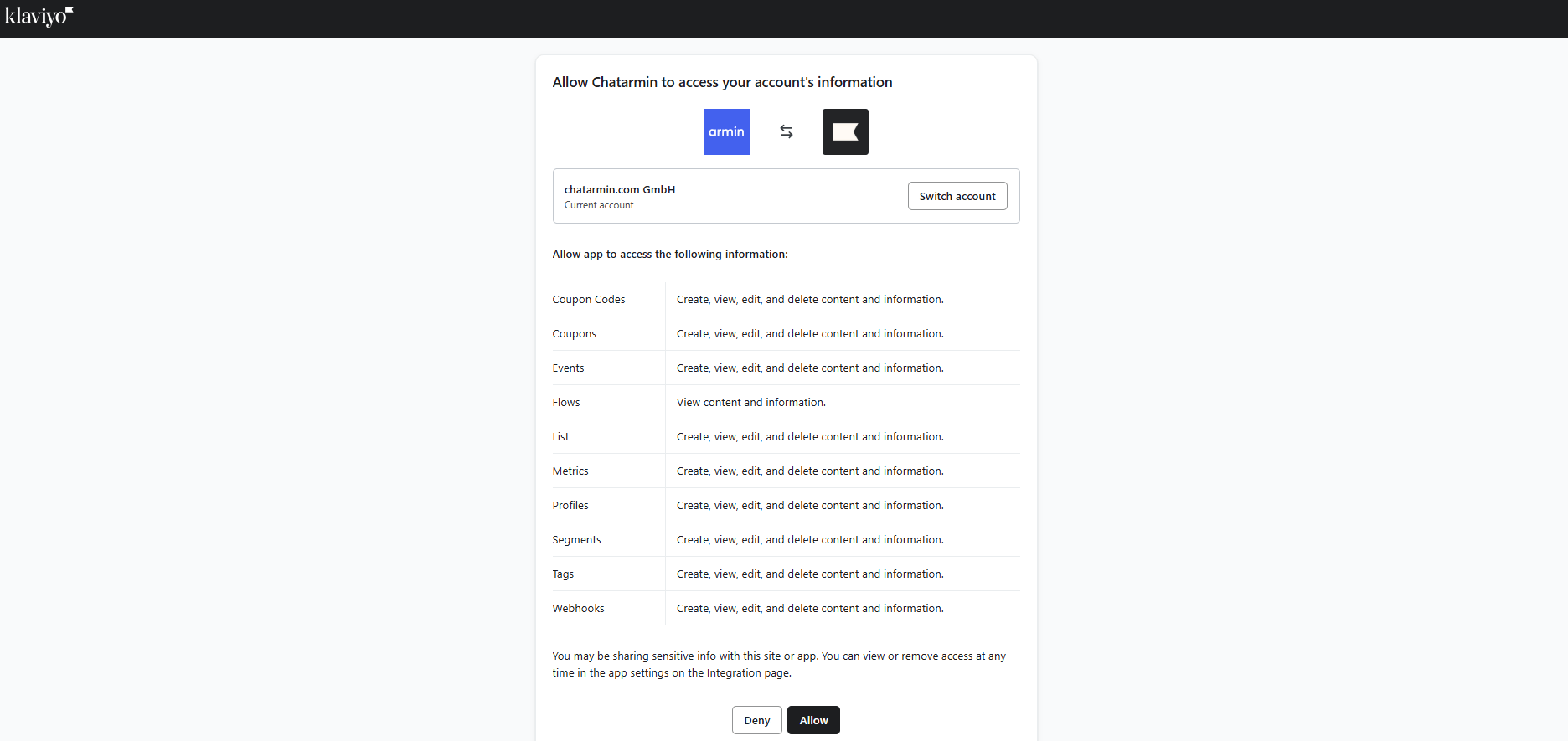
Klaviyo permissions screen to allow Chatarmin access
After a successful connection, Chatarmin shows that you are connected to Klaviyo via OAuth.

Configure property sync

After OAuth succeeds, configure how Chatarmin writes WhatsApp consent to Klaviyo:
  1. Under Automatic sync of properties, keep Sync chatarmin consent to property enabled unless your team uses a different setup.
  2. Confirm the Klaviyo custom property name (default: chatarmin_whatsapp).
  3. Click Save settings.
These settings match the options on the Klaviyo connect page. For what gets synced automatically and how to enrich profiles from flows, see Klaviyo integration and How to update properties.

Troubleshooting

Missing subscription scope: If Chatarmin shows that your Klaviyo connection is missing the required subscription scope, click Reconnect on the connect page and complete OAuth again so all features work.
If you still use a Private API Key connection, Chatarmin prompts you to switch to OAuth. Click Re-connect now and follow the same OAuth steps above. Private API keys are deprecated by Klaviyo; OAuth is the supported method going forward. To remove the integration, click Disconnect on the connect page and confirm. See also How to disconnect integrations.

Next steps