Welcome to the Template Engine Guide. This document will help you understand how to use our template engine for dynamic content generation. The template engine supports various conditional statements and loops to customize your templates effectively.

Where can this be used?

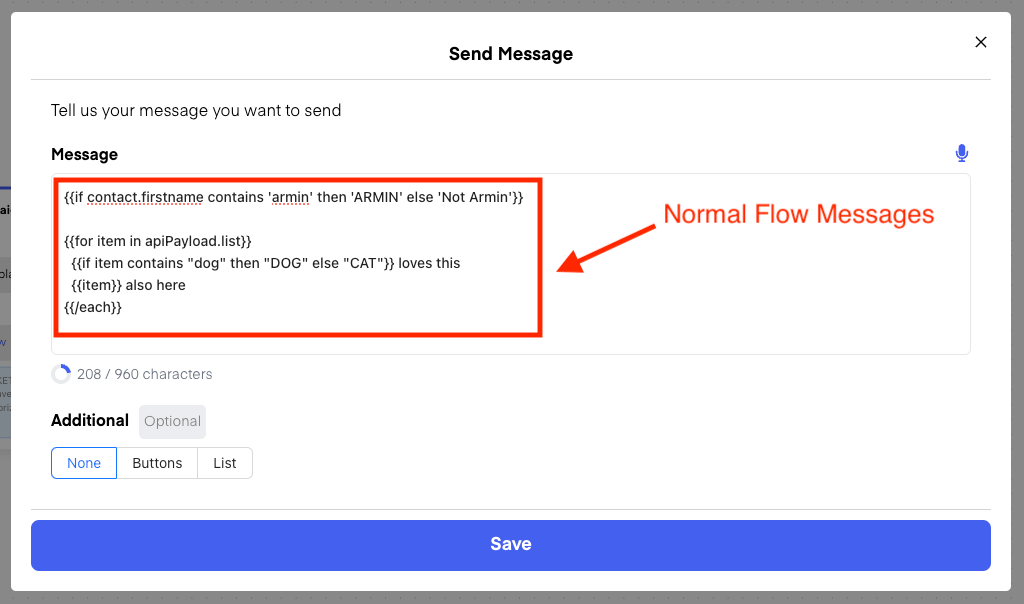
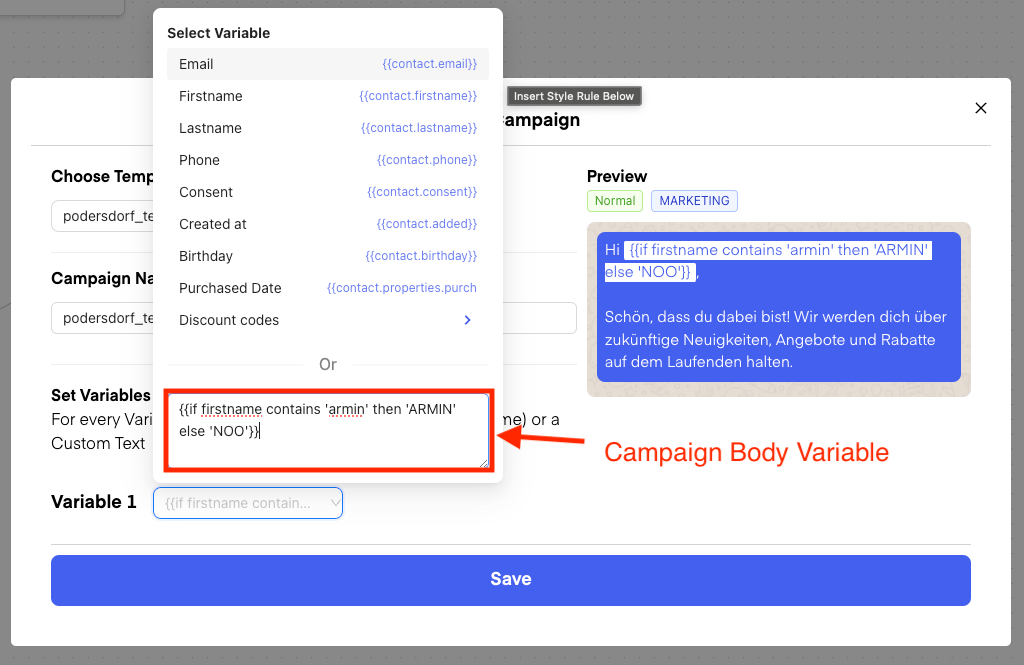
In Flow Messages: Chatarmin help center image In Campaigns/Templates: Chatarmin help center image
Syntax

Currently, there are two options to make use of conditional rendering:
  • If/Else rendering
  • For loop / List rendering

If/Else rendering

The syntax for this looks like so:
So the structure would be: if <Variable> <Condition> then ‘<Text>’ else ‘<Text>‘

Different types of Conditions:

  1. contains:
    Example:#&#123;&#123;if contact.firstname contains 'dog' then 'Doglover' else 'Catlover'&#125;&#125;
  2. isTrue:
    Example:#&#123;&#123;if contact.dog isTrue then 'Doglover' else 'Catlover'&#125;&#125;
  3. isEmpty: e.g.
    Example: #&#123;&#123;if apiPayload.food isEmpty then 'No Food' else 'Still food'&#125;&#125;
  4. equals:
    Example: #&#123;&#123;if contact.pet equals 'dog' then 'DOG' else 'CAT'&#125;&#125;

For loop / List rendering

Here, the syntax look like so:
Here, I could for example also combine the above if/else inside the For Loop:

Accessing Variables

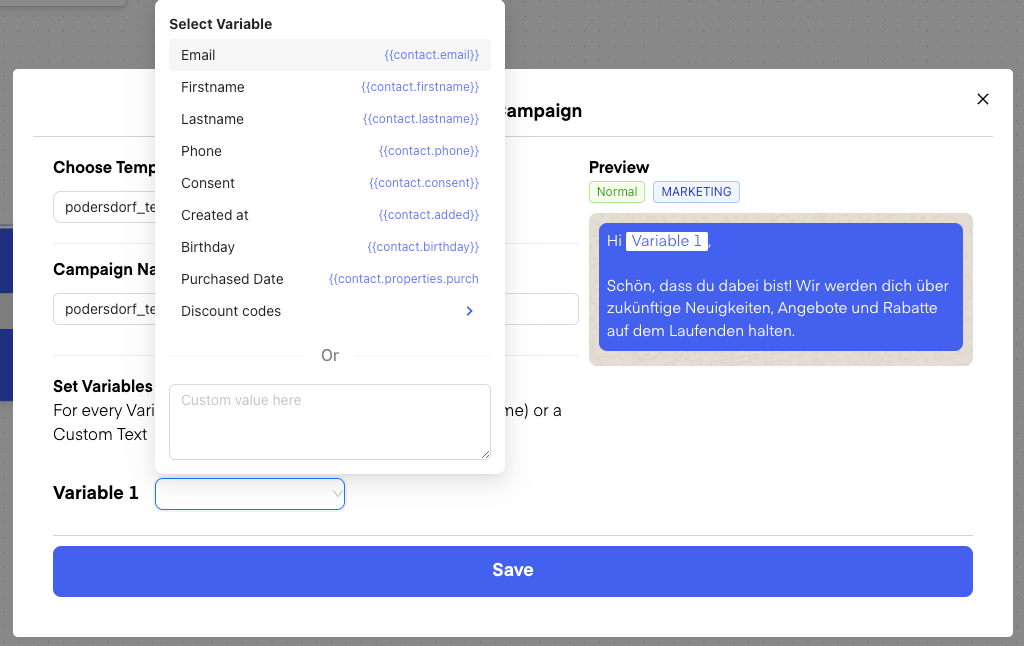
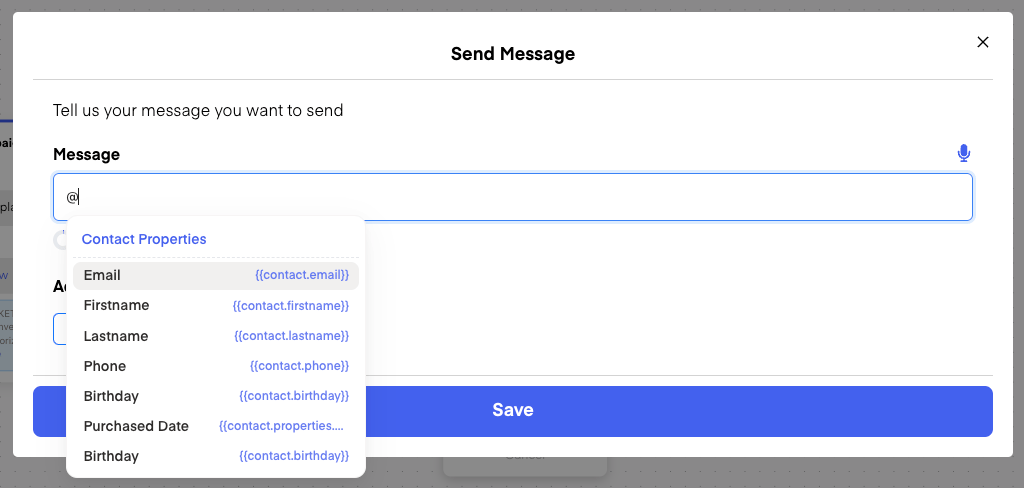
When setting Variables through the Dropdown in Campaigns: Chatarmin help center image You can see, how you can access which exact properties. In “normal Messages” of a Flow, you can see them, when you type in ”@” in the Textinput: Chatarmin help center image
Examples

Here are some examples and their outputs so you can get a bit of a feeling:

Example 1

Example 2

Example 3

You can also use nested/multiple if/else: