
💡 Why Integrate Zendesk?

- Your support team handles WhatsApp chats in Zendesk
- Your marketing team works in Chatarmin
- Customers interact via one WhatsApp number
- You can convert support leads into marketing leads
- And generate long-term retention revenue
🔧 Zendesk Connection
- Log in to Chatarmin and navigate to:
https://chatarmin.com/dashboard/zendesk/connect - Copy and enter your Zendesk Domain and click “Connect Zendesk” and authorize access.
- In your Zendesk dashboard, go to Settings > Apps and Integrations > Zendesk Support Apps.
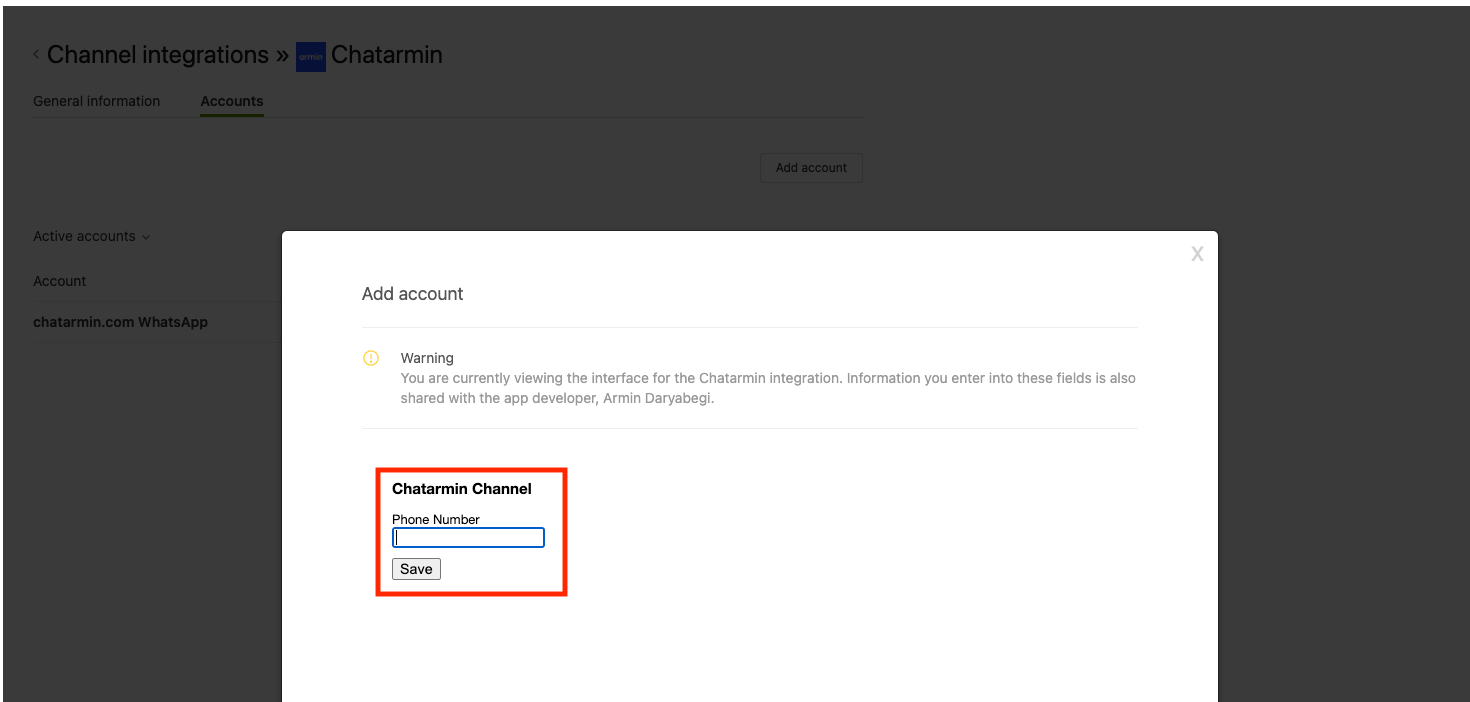
- Open the Marketplace, search for Chatarmin, and install the app. You will need your WhatsApp number and our API Key, both can be found on your Chatarmin Profile.
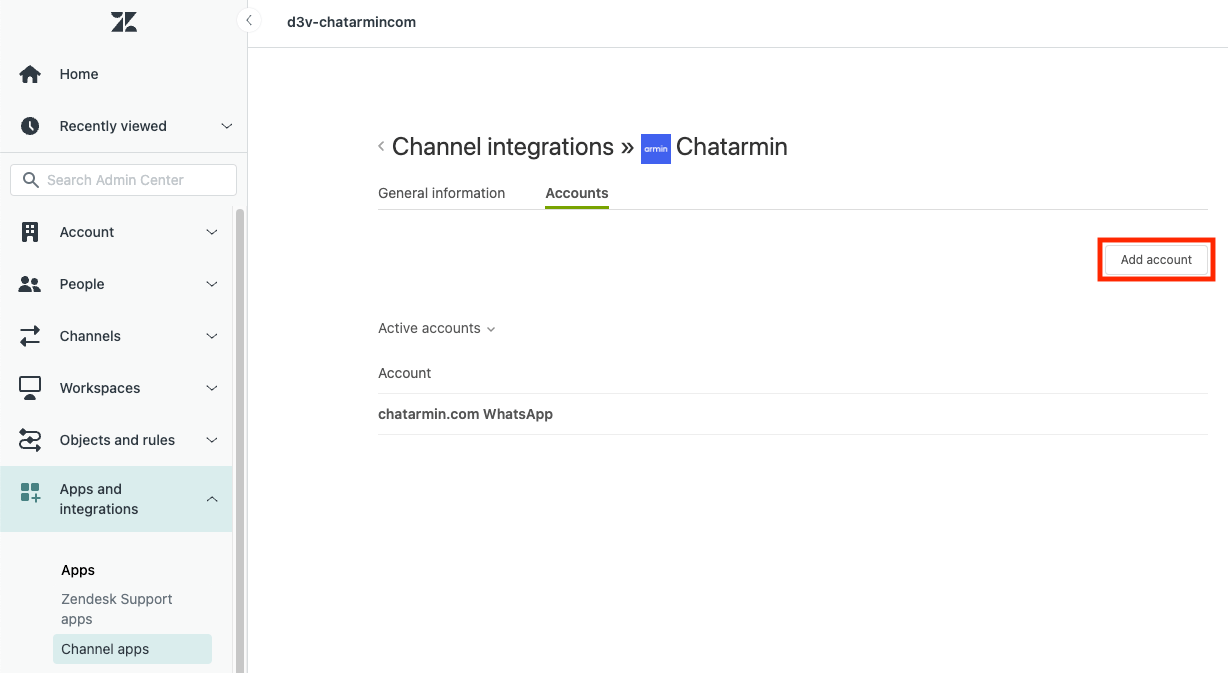
- On the Marketplace, go to Channel Apps > Chatarmin > Accounts and click Add Account to link your WhatsApp number.
Source: Chatarmin, Q3 2024
➕ Optional: Multi-Number Setup
If you want to connect multiple WhatsApp numbers, create one Chatarmin account per number and repeat the above steps.
Creating a Zendesk Ticket
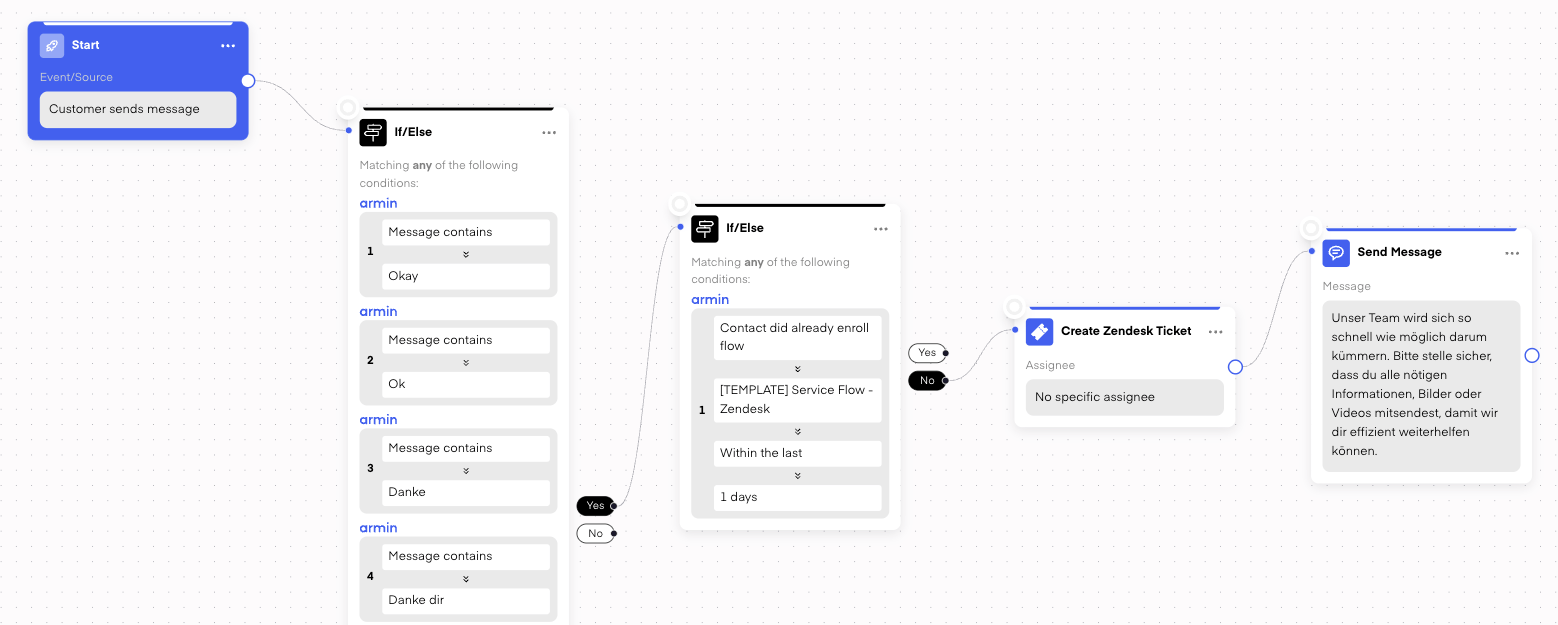
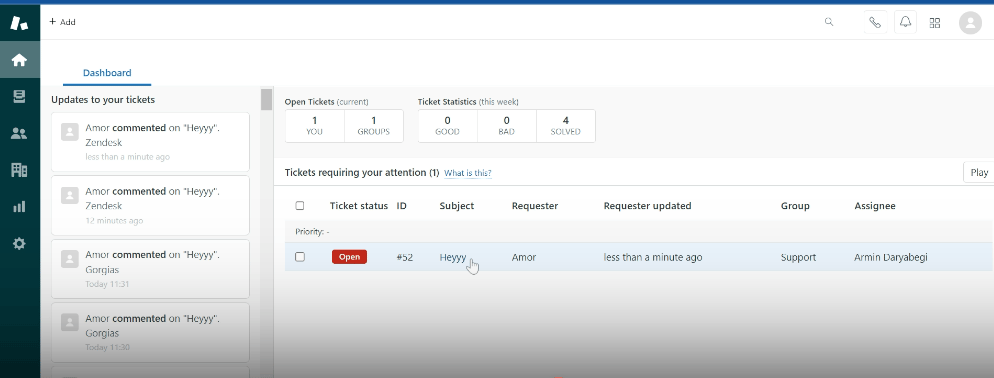
Chatarmin allows you to automatically create Zendesk tickets from incoming WhatsApp messages, with flexible filtering options:
- Exclude messages like “thanks” or “ok” that don’t require support
- Avoid duplicate tickets by skipping users who already created a ticket within the last day.
🔄 Restart Conversations
After 24 hours, the free messaging window closes. This means:
- You can no longer send free-form messages to the customer.
- Conversations can only be restarted using pre-approved message templates.
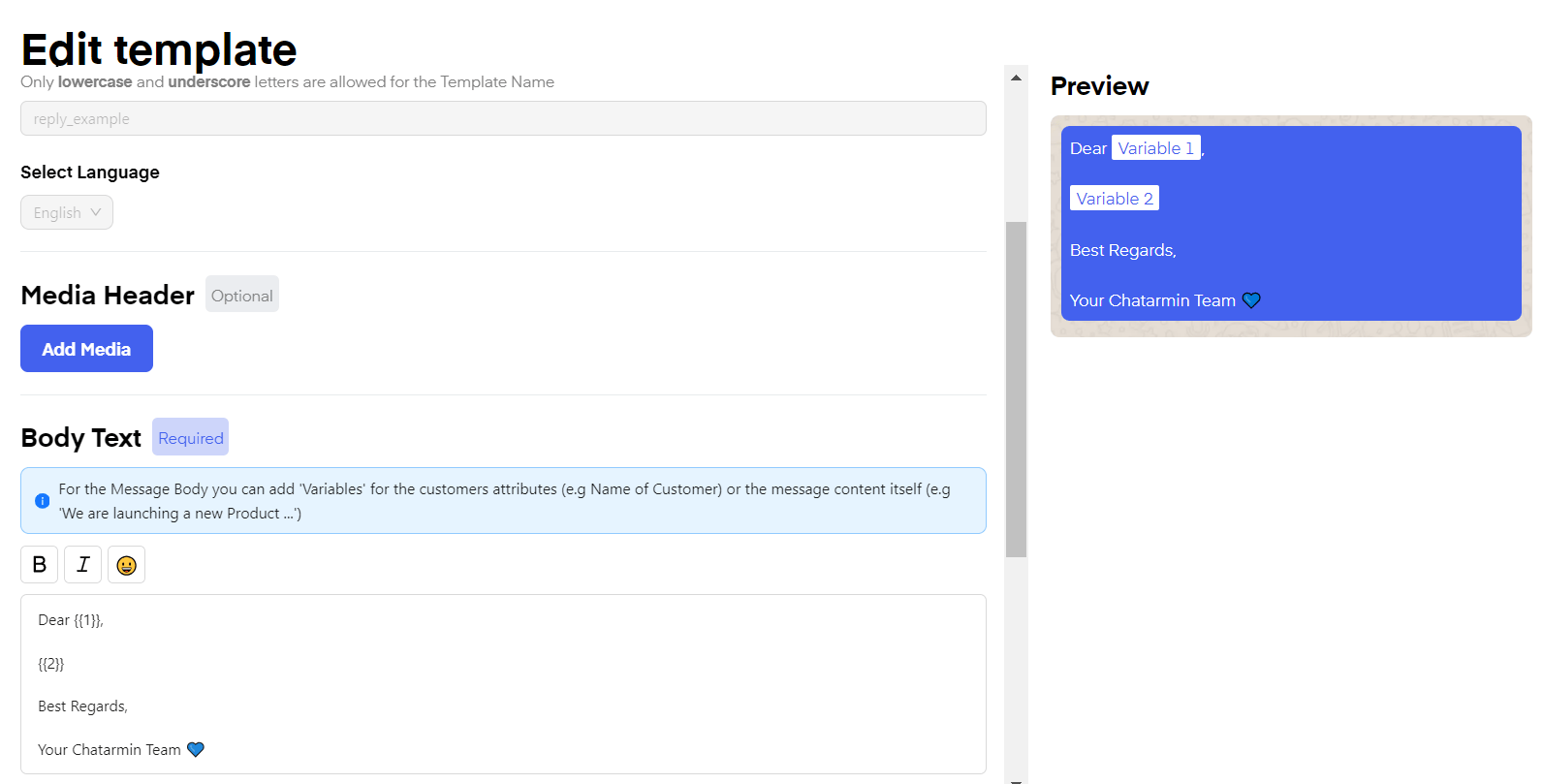
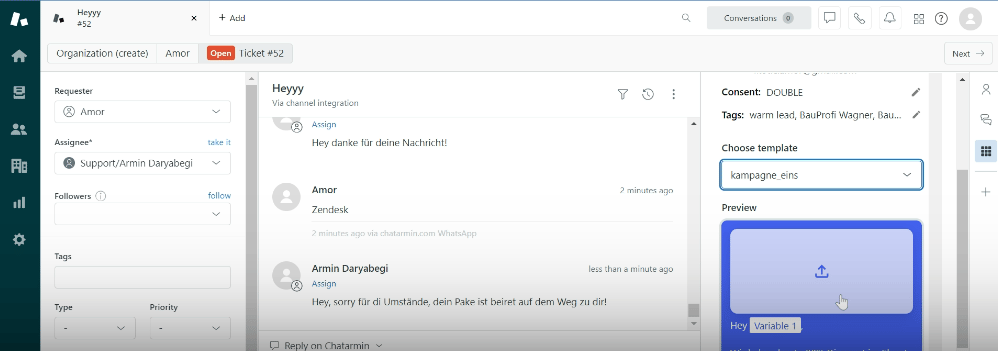
The customer must reply to the template message to reopen the messaging window and continue the conversation. For more information about the 24-hour messaging window, see here: 24-h Window
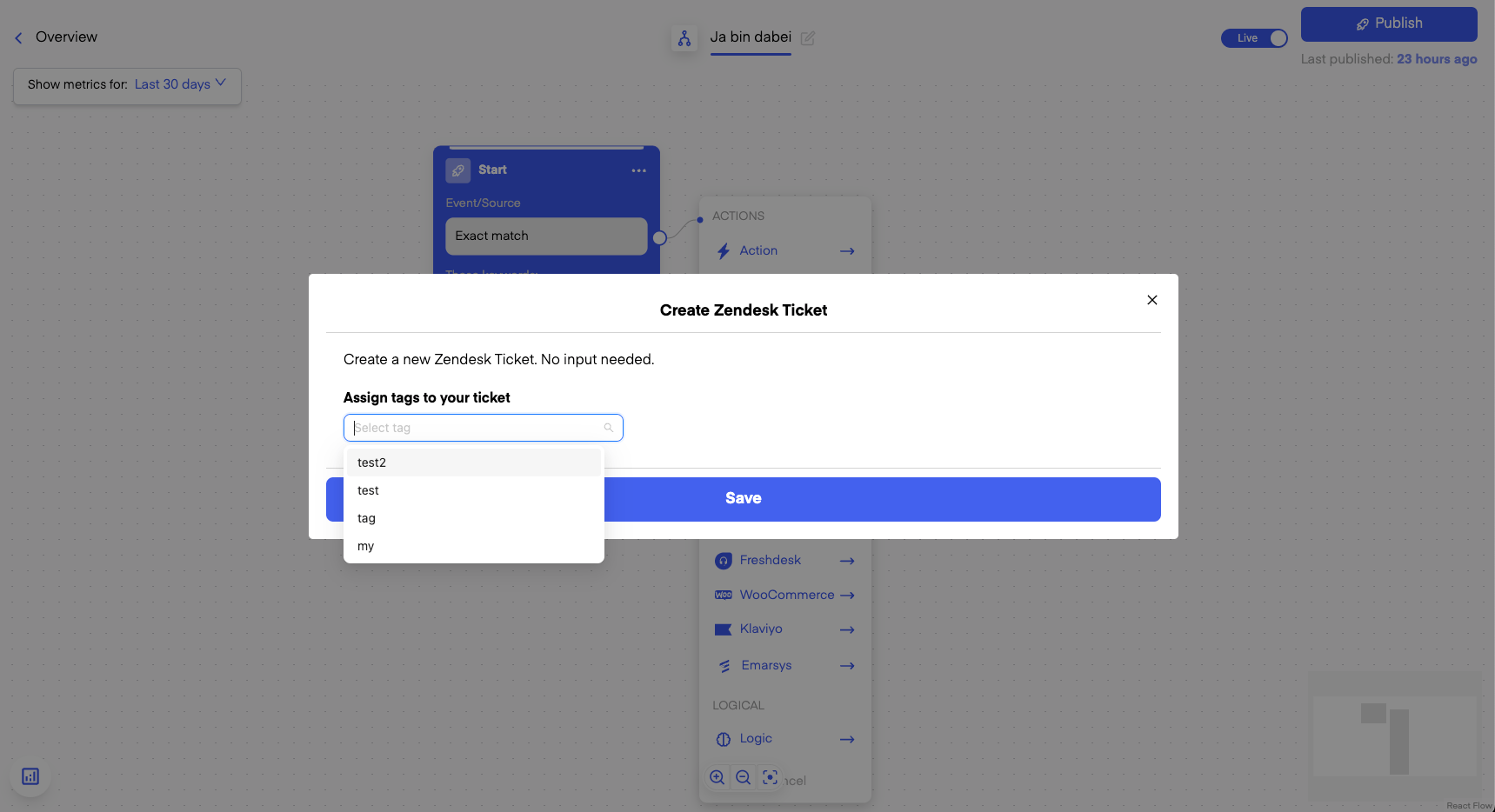
Automatically Tagging Chats of a Zendesk Ticket
You can automatically detect message intent, such as questions like “Do I have an order?”, and:
- Apply custom tags to the Zendesk ticket (e.g. ReturnOrder)
- Route tickets to specific inboxes or views in Zendesk
- Enable sales or support teams to respond faster and close conversations more effectively
- Chatarmin’s If/Else logic in Flows
- Automated ticket tagging
- Zendesk view filters based on tags
🔁 Trigger WhatsApp Flows from Zendesk
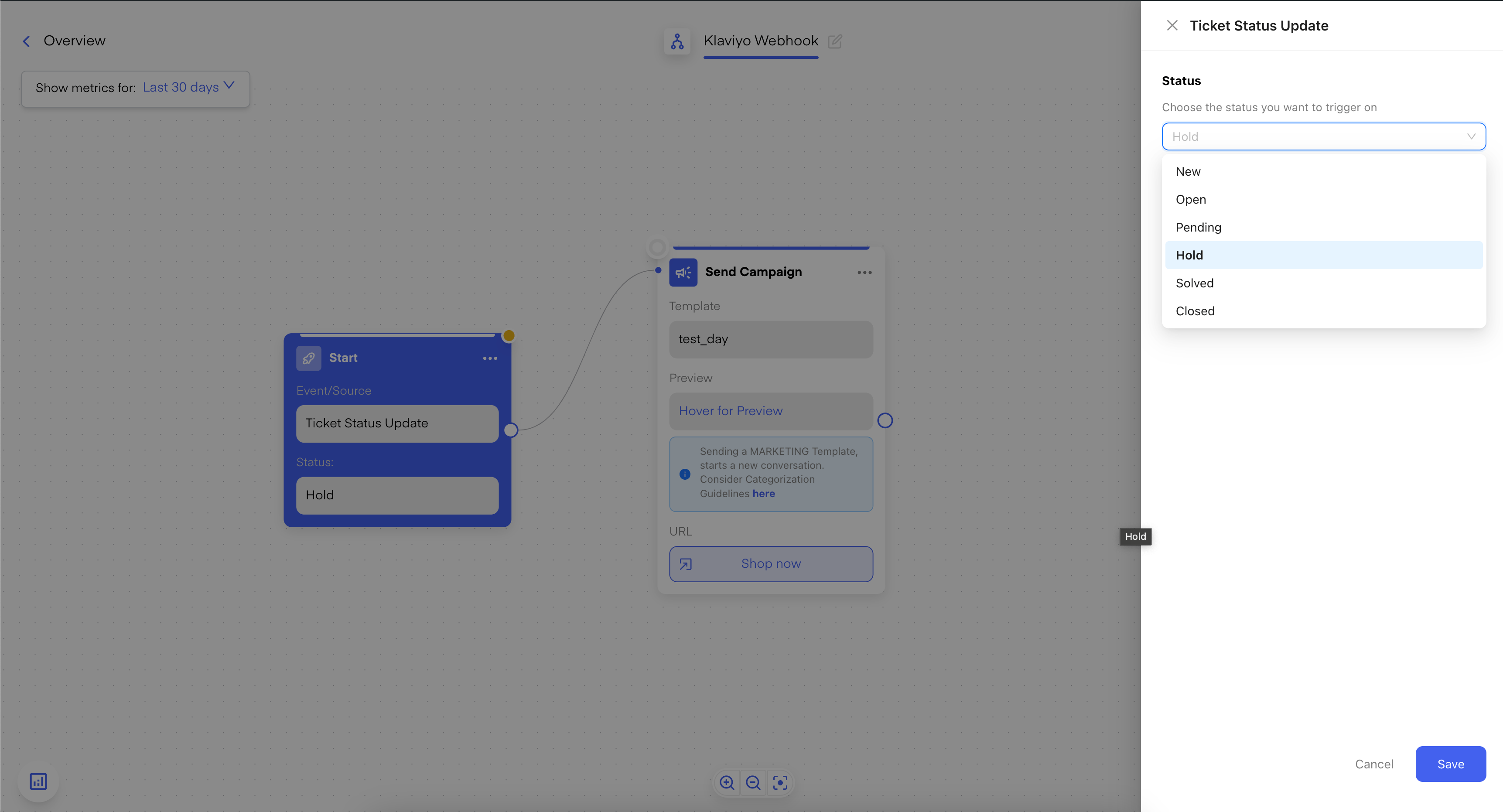
You can not only trigger Zendesk tickets from Chatarmin Flows, but also automatically trigger Chatarmin Flows based on Zendesk ticket status updates, such as:
- solved
- closed
- Upsell and cross-sell flows
- NPS or satisfaction surveys
- Service rating requests
- Lead enrichment and qualification
- Opt-in status upgrades (SOI → DOI)
- Other personalized follow-up automations
🔊 Voice Messages in Zendesk
Voice messages from WhatsApp are imported into Zendesk and can be played directly.