🔗 Why integrate Gorgias?

🔌 How to connect Gorgias with Chatarmin
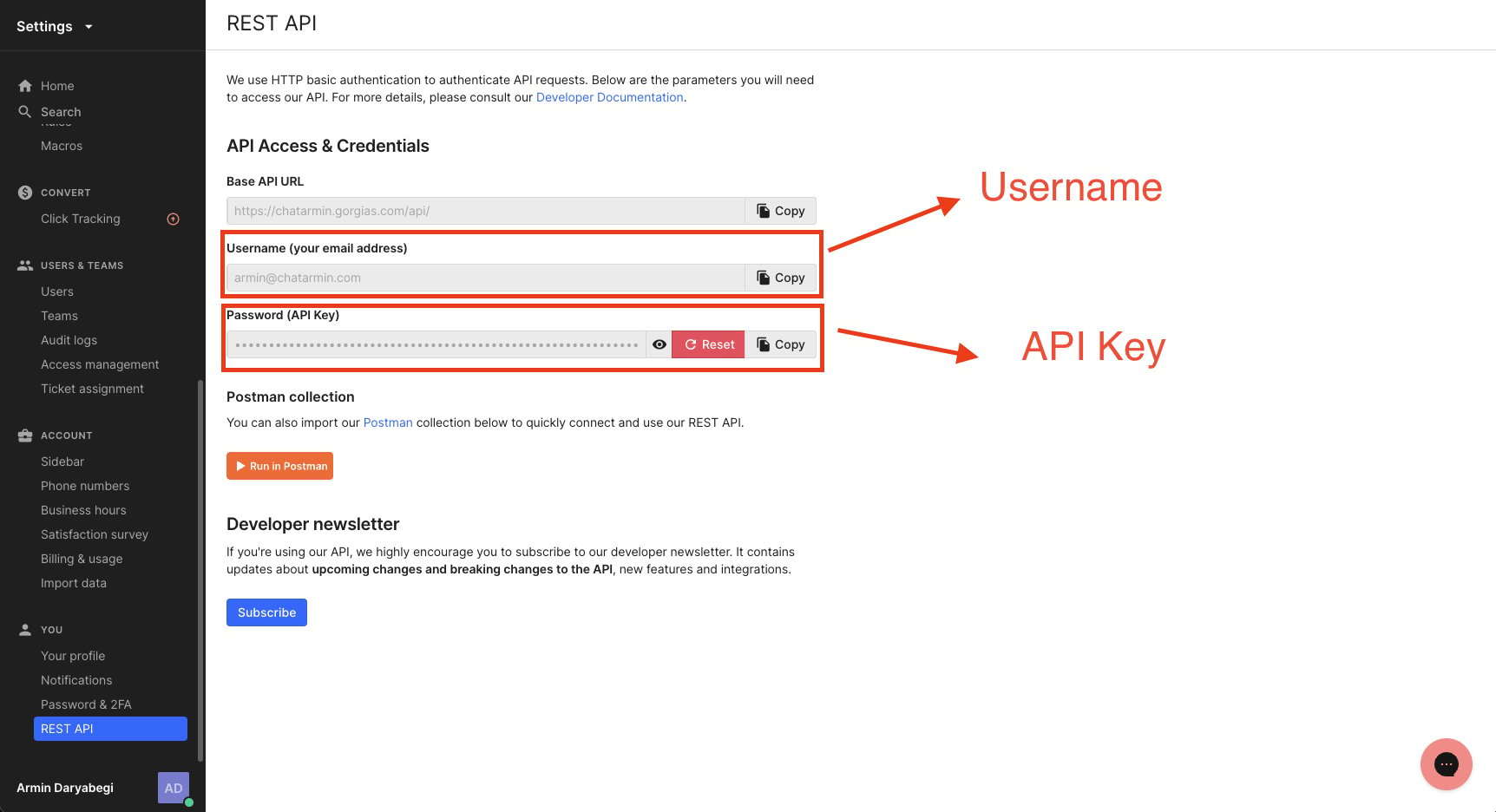
1. Get your API Key Go to your store’s Gorgias API Settings:
🔗
https://<your-domain>.gorgias.com/app/settings/api
Copy your username (email) and API Key from there.
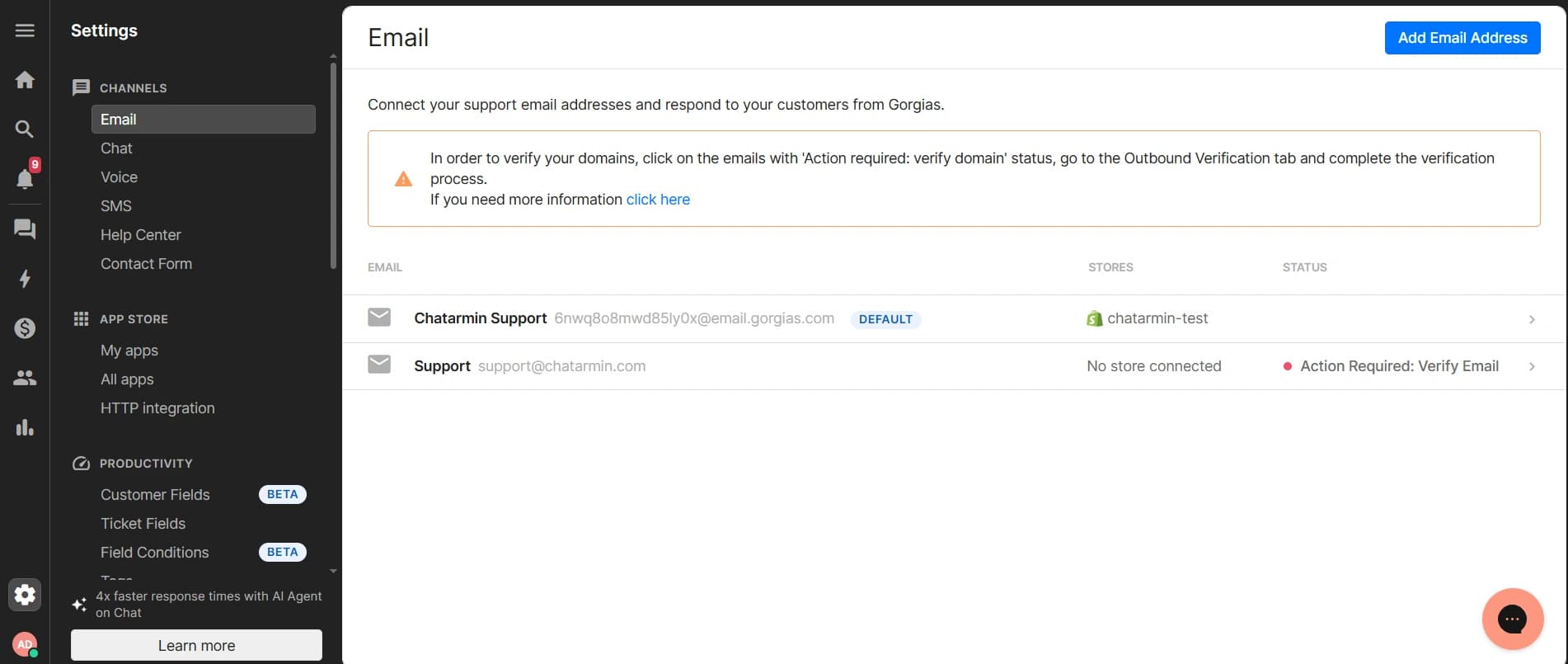
Here you will see all the support email addresses connected to your Gorgias inbox
Gorgias Integration: Overview & Functionalities
Watch this video to understand Chatarmin’s Gorgias-Integration live in action:
Different ways to reply in Gorgias
Reply through “Email Field”
To reply directly from the email field in Gorgias, switch the WhatsApp icon in the message window to Email and enter gorgias@chatarmin.com as the recipient address.The message you send will then be automatically forwarded by Chatarmin as a WhatsApp message to the customer. This way, you can conveniently reply to WhatsApp support conversations directly from Gorgias without switching tools.
Source: Chatarmin
Through Chatarmin’s Gorgias integration, you can:
- Create Gorgias tickets from anywhere within your customer’s WhatsApp journey
- Solve WhatsApp support tickets directly in Gorgias using the Chatarmin widget
- Enrich and convert leads within Gorgias based on incoming WhatsApp conversations
- Use one WhatsApp Business Account (WABA) for both support and marketing
- your support team works in Gorgias, while CRM and marketing operate from Chatarmin
- Generate more top-of-funnel leads
- Increase bottom-of-funnel revenue through seamless collaboration between support and marketing
📘 Creating a Gorgias Ticket
Do you want to know how to create a Gorgias Ticket in Chatarmin?
Checkout this Guide to find out more!
💬 Restart Conversations in Gorgias
If you can no longer reply to a customer via WhatsApp, the reason is that the 24-hour messaging window has closed. After this period, WhatsApp restricts direct messages.
To restart the conversation, you need to send a template message first. Only after the customer replies can you continue the conversation via regular text messages.
How to set this up
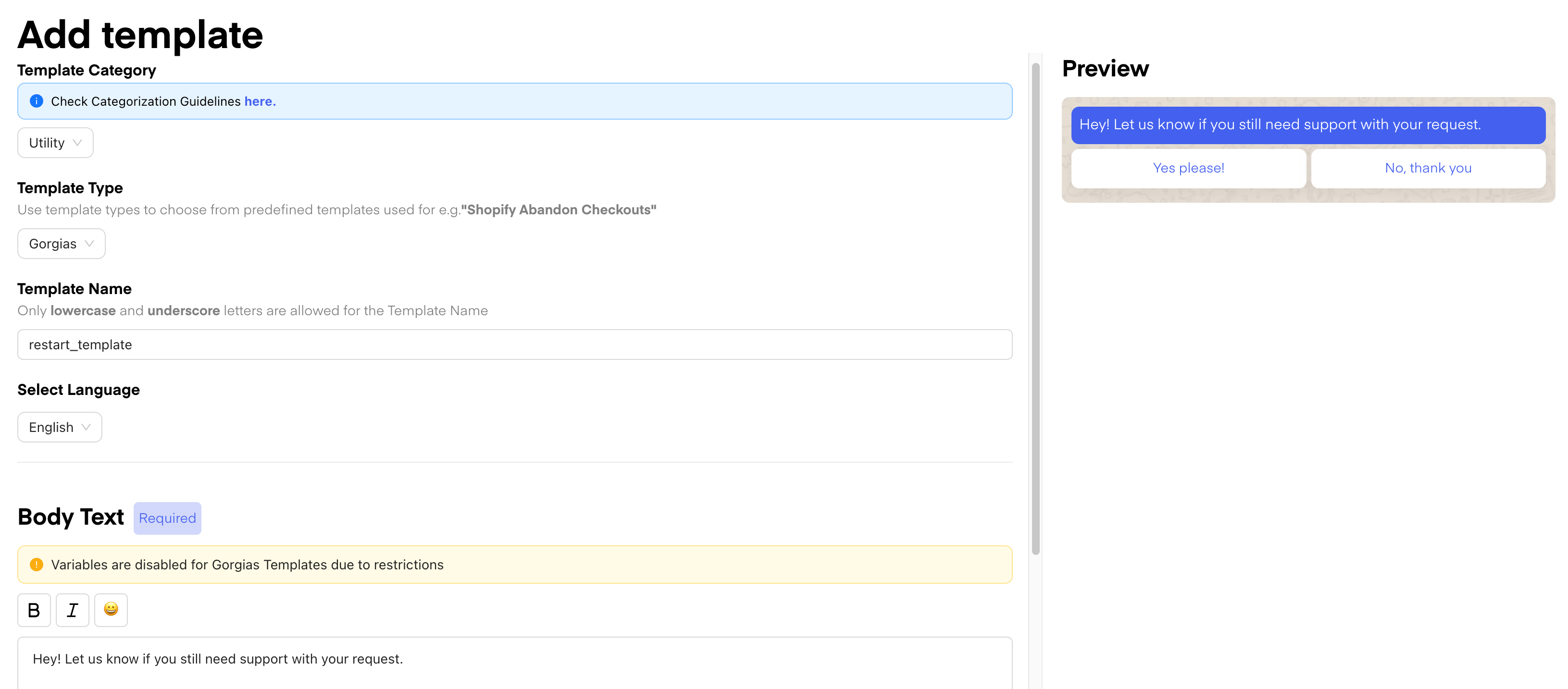
- In Chatarmin, create a template with the template type set to Gorgias.
- Use this template in Gorgias to send a message like:
“Hey, is your request still open?” - Once the customer responds (e.g., “Yes”), you can reply normally via text.