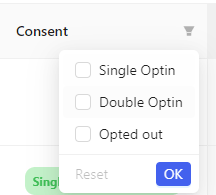
Contacts
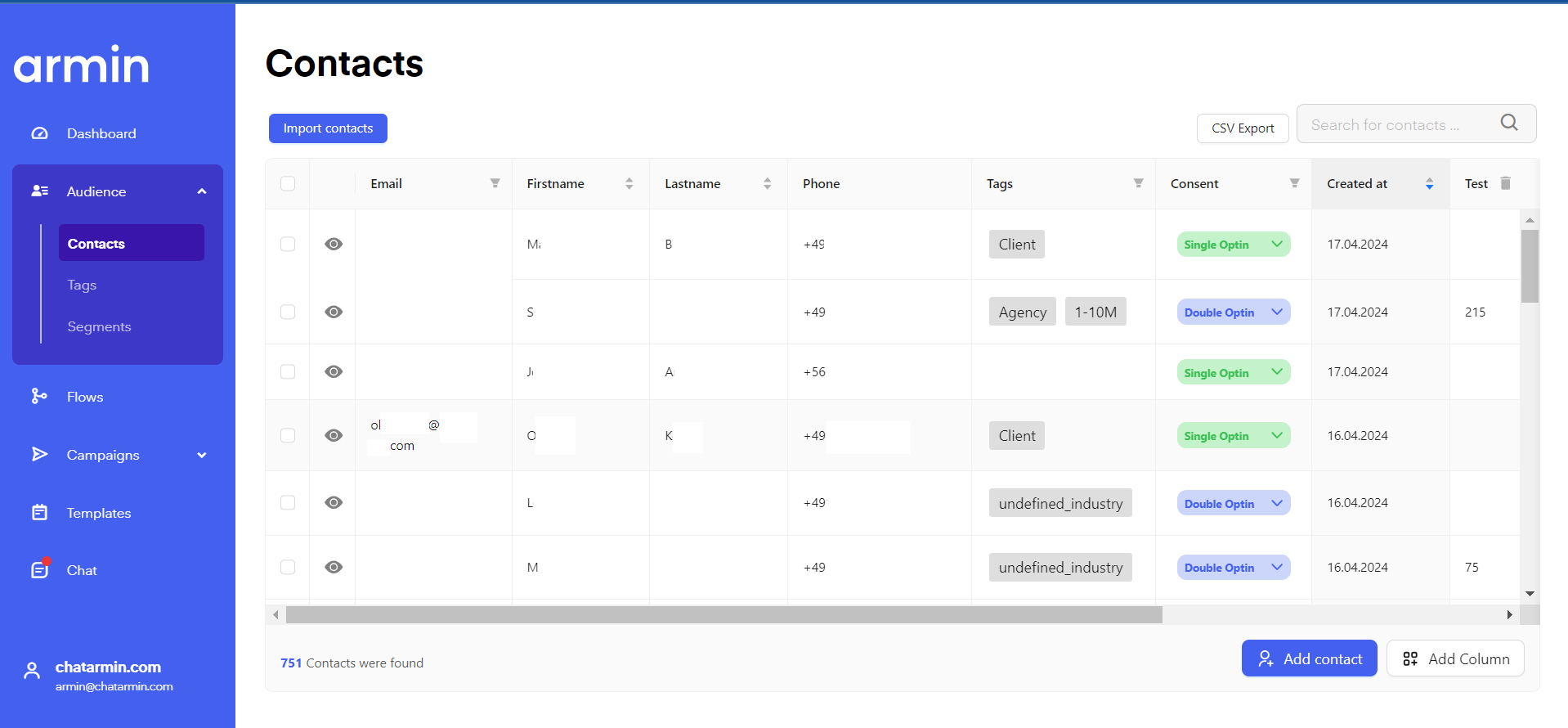
Import Contacts
To import a CSV file with your contacts from another CRM follow this step-by-step guide.
- Go to “audience”
-
Click “import contacts”

-
Drag&Drop your CSV file into the field or click on the field choose your CSV file and click “open”
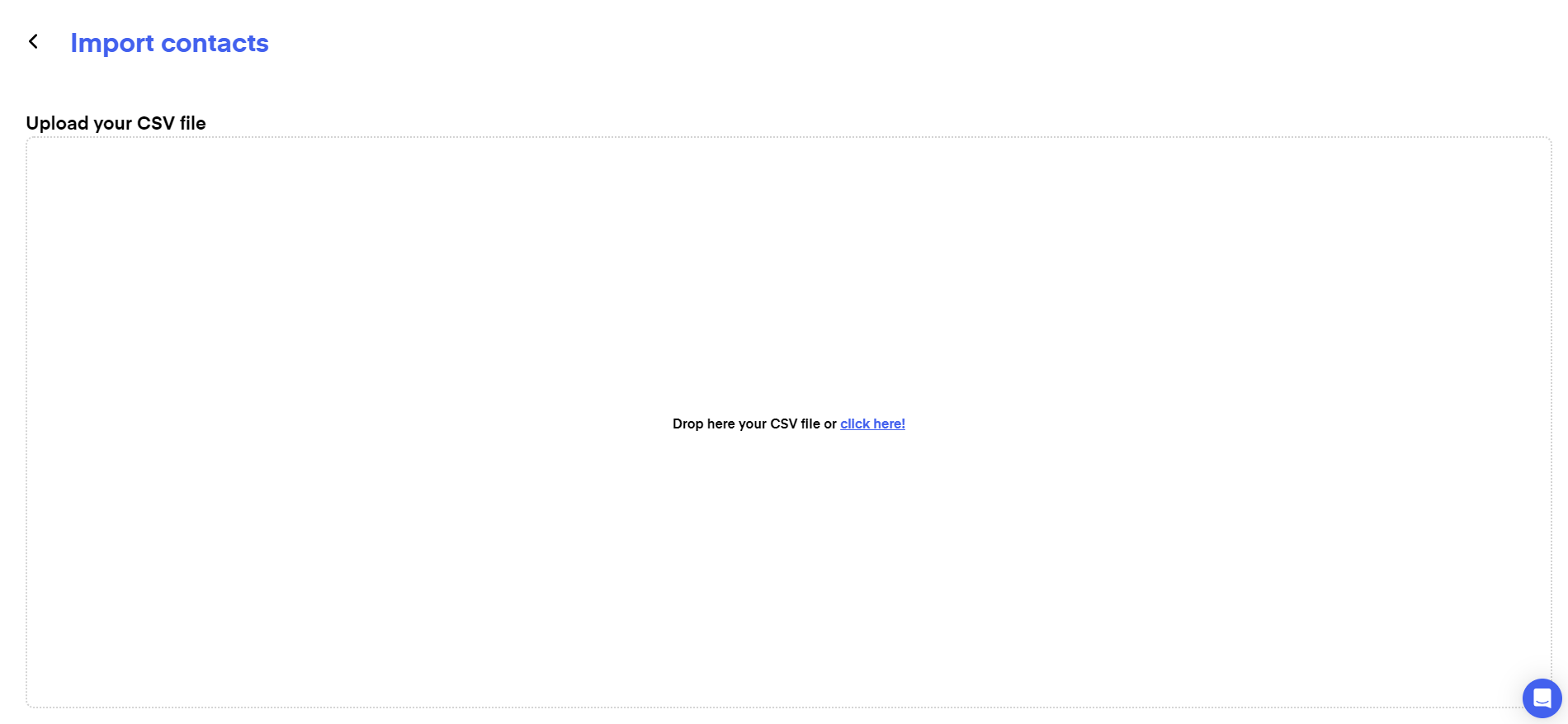
- Assign the columns of your data to our table fields and click continue
- If there are invalid fields, correct the errors or skip those rows
- Choose whether you want to replace the duplicates or update them with additional info
- Choose a tag for the imported list, eg. “Imported” and click “finalize import”
Export Contacts
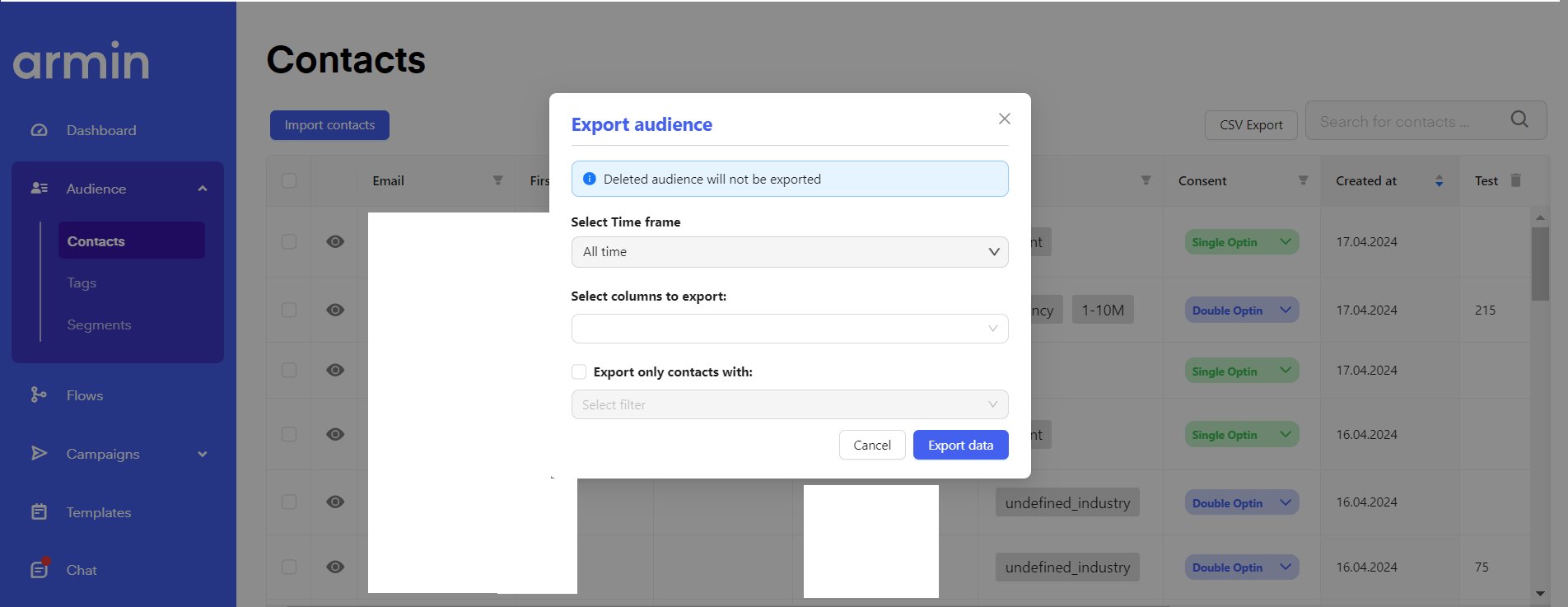
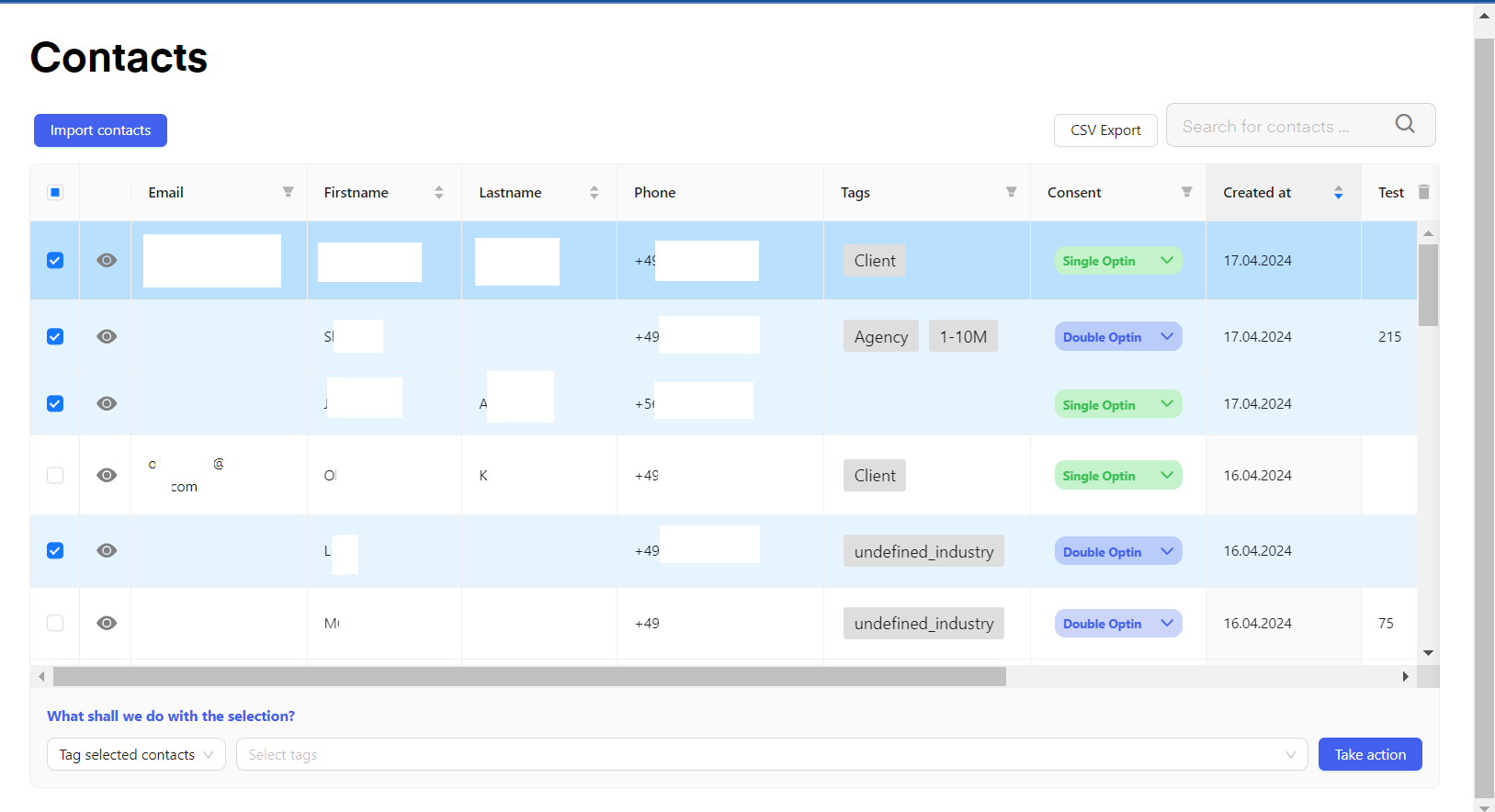
You can manually export your Chatarmin to use them as a CSV file or import them into other tools by clicking “CSV Export”. Then choose which timeframe you want to export your audience from, which columns you want to export, and optionally whether you want to export specific Tags or Segments.
Add Contact


Add Column

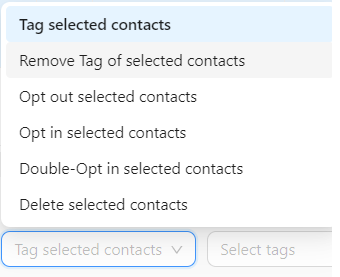
Edit contacts
Filter