
Shopware 6 Chatarmin Integration
Installation
Watch the Video Guide here:Create Role
First go to Settings → System → Users & permissions → Create new role. Make sure to give the new role the following permissions:- Catalogues → Products: View
- Customers → Orders: View
- Marketing → Promotions: Create, Read & Update
- Orders → Orders: View
- Settings → Shipping: View
Obtain your API Credentials
Go to your Shopware Settings → System → Integrations → Add integration. You should see a window, like in the image below now. Enter a Name (1), leave the Switch (2) off and select the previously created Role (3).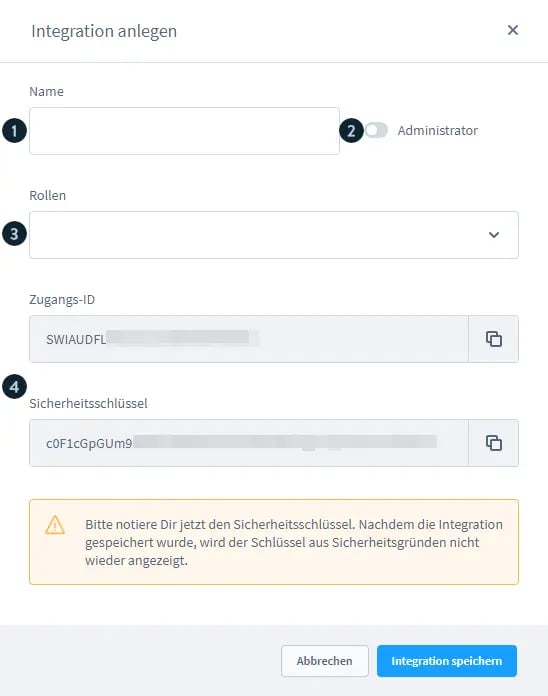
Benefits of the Integration
Revenue Attribution
Now, whenever you have a Link/CTA to your Shop, inside a Flow or Campaign, you can now see the orders attributed to WhatsApp/Chatarmin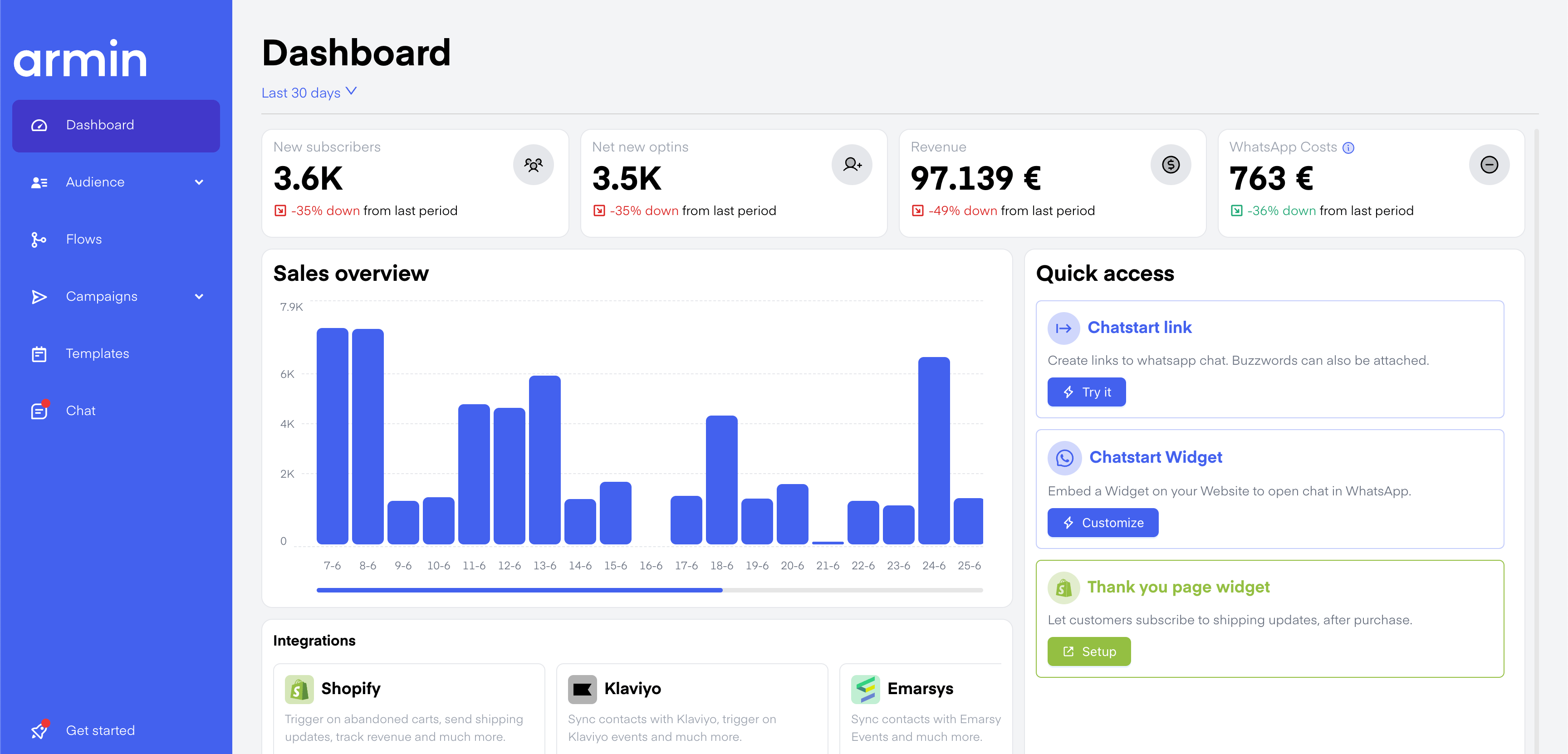
Order Paid Flow Trigger
With that Trigger you can start flows when an order was successfully paid. Those can be used for:- Upselling
- Getting reviews
- Thank you message
- Retarget in 30-60 days for re-ordering product?
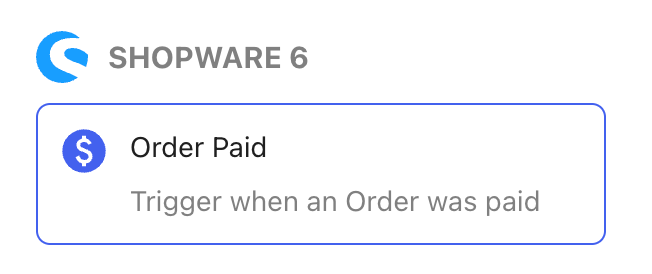
- For every customer: So this would trigger for every customer, who has given their phone number at checkout. This does not necessarily mean, that they also have Opt-in in Chatarmin.
- Only Single/Double-Optin: This would trigger only for those contacts, who are already in Chatarmin & marked with an Opt-in
Abandon Checkout
Check out this video by our developer, to setup your Shopware 6 plugin, which enables you to create Shopware 6 abandoned checkout flows via WhatsApp.
*Source: Chatarmin, Q3 2024
* To activate Shopware 6 Abandoned Checkout Flows, follow these steps:
- Visit your Shopware 6 integrations page
- Download the Chatarmin Plugin.
- Install and activate the Chatarmin Plugin
- Paste in the API Key from the Chatarmin Shopware6 Page into the Plugin
-
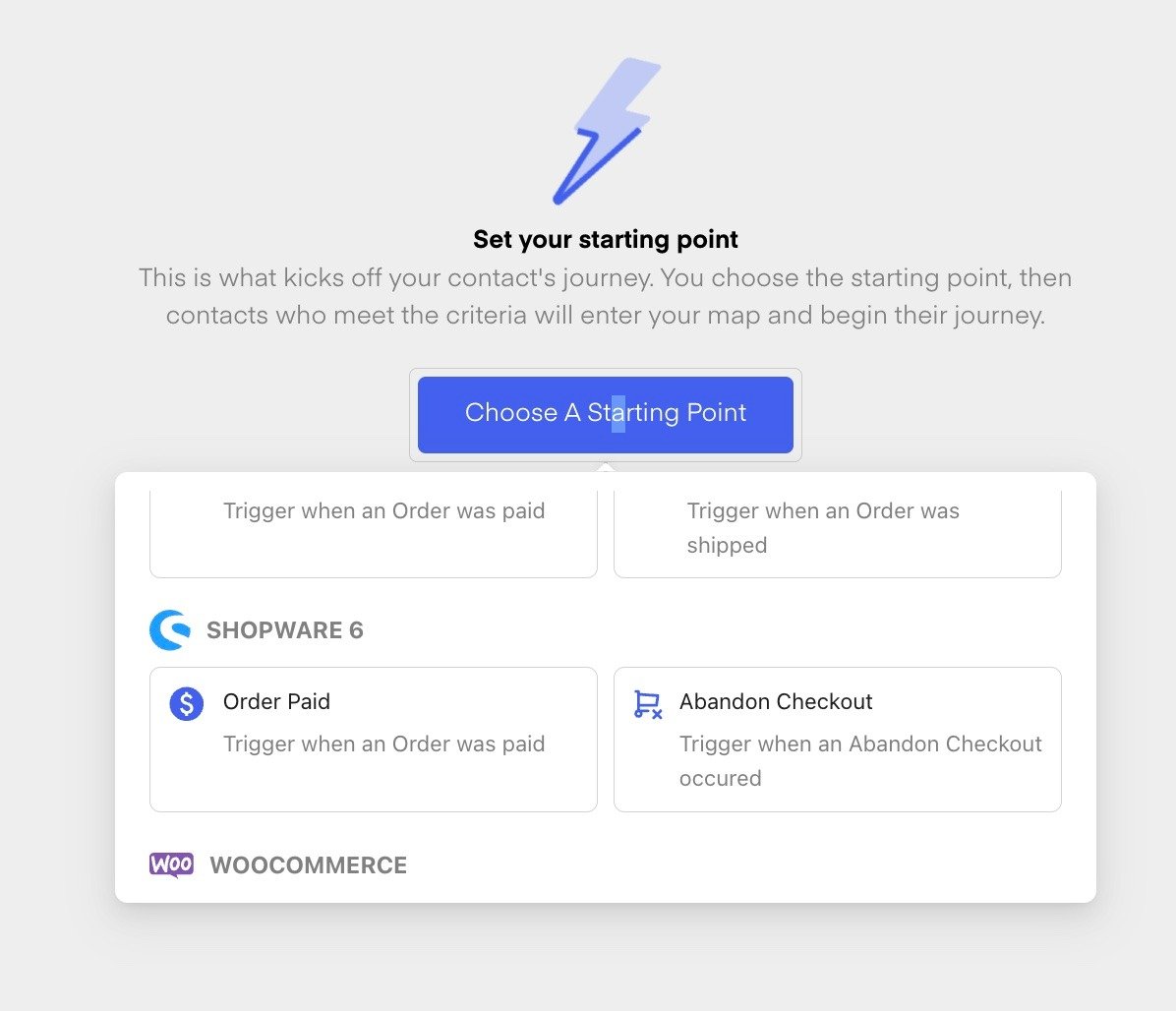
Feel free to choose “Abandoned Checkout” in the flow-trigger-menu.
-
Create a dedicated “Shopware 6 abandoned checkout” template and use it as a Shopware6-flow-action.
Choose flow action: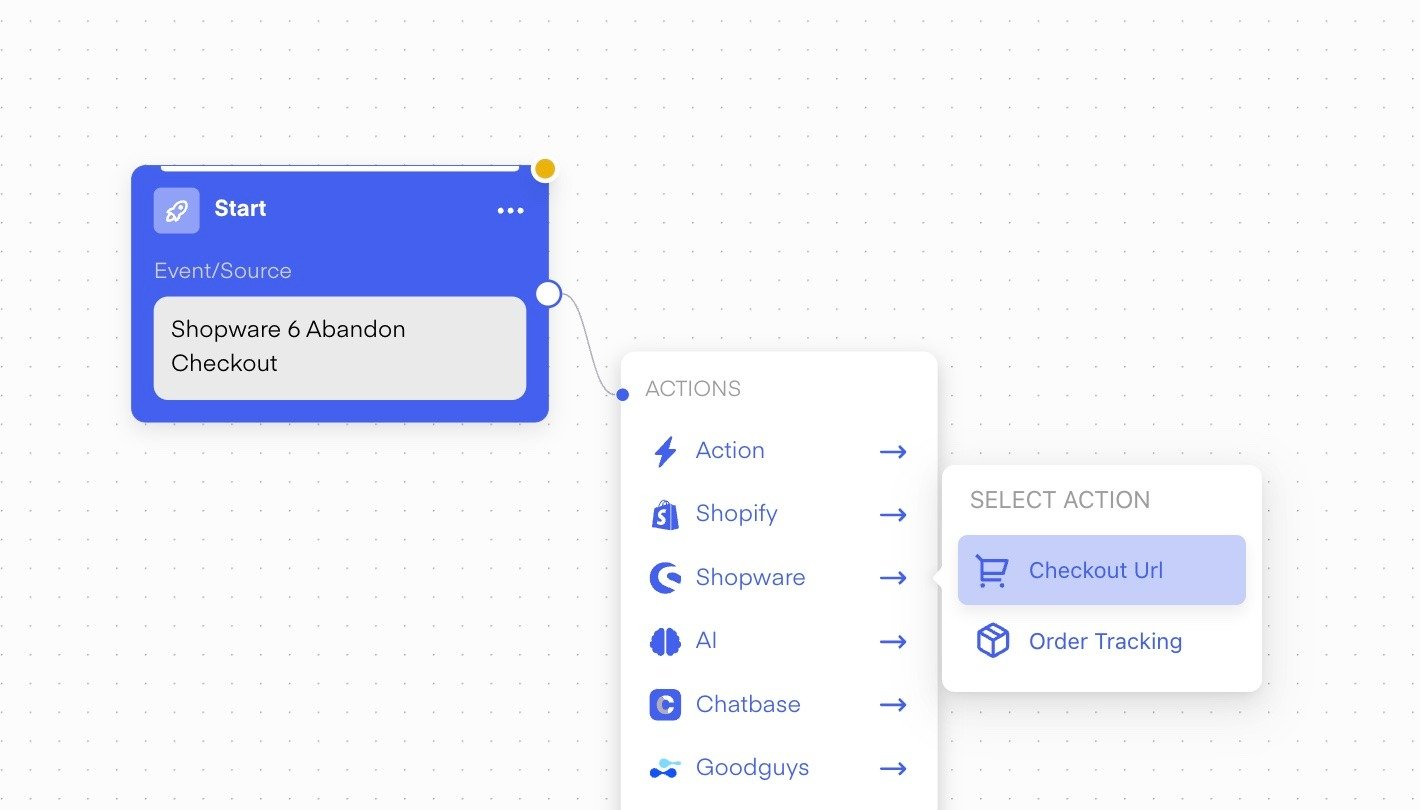
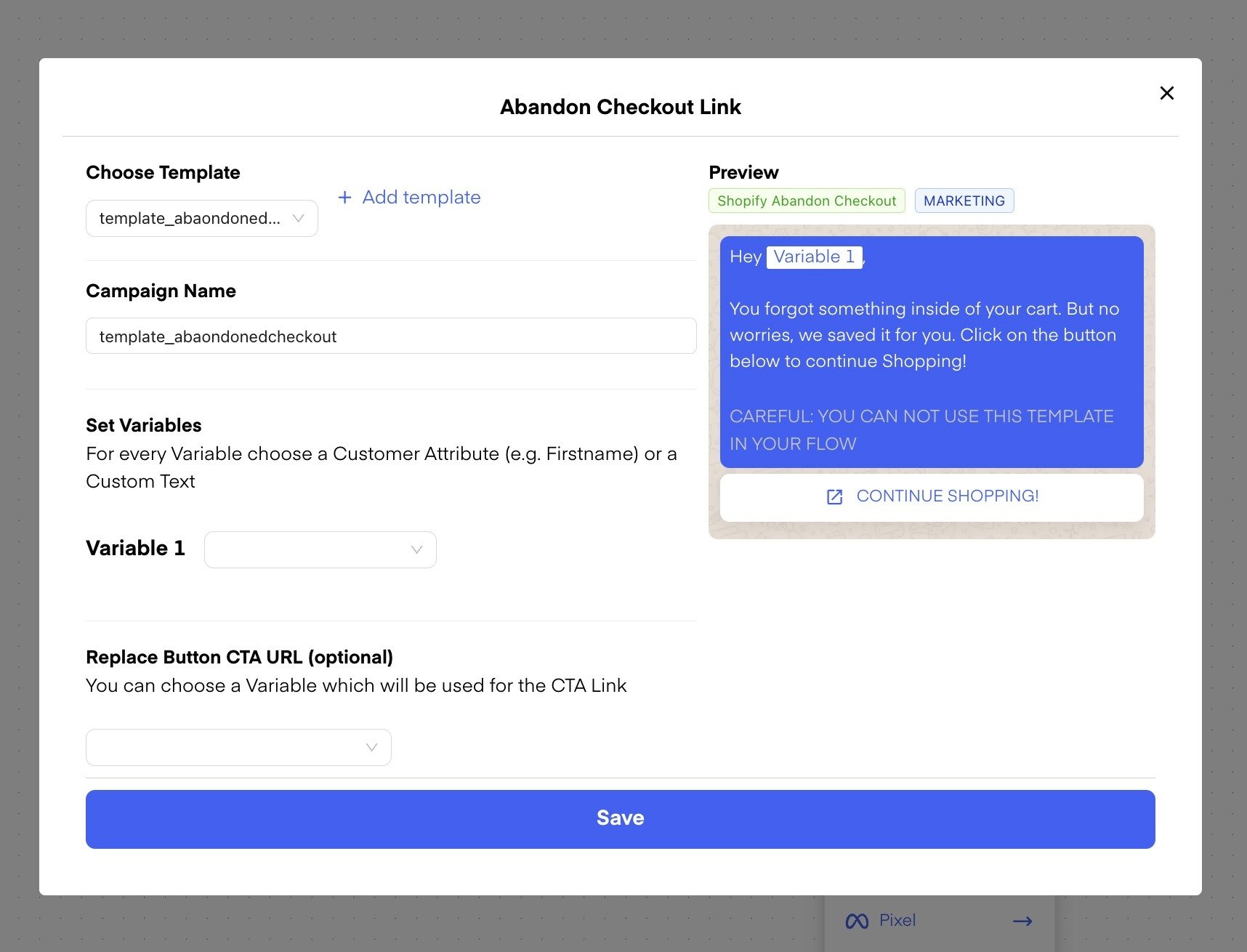
- Make sure to test the flow! And go live, print revenue and generate more leads!
ATTENTION: Make sure your phone number optins are activated in checkout! Otherwise we cannot fetch customers’ phone numbers from checkout, in order to trigger abandoned checkout automations! Here’s a video explaining the process:
Source: Chatarmin, Q3 2024
Shipment Tracking
Watch this Video on how to setup Shipment Tracking on WhatsApp: