Video Guide

If you prefer a Video, rather than text, we got you covered:

Connect Chatarmin to Intercom

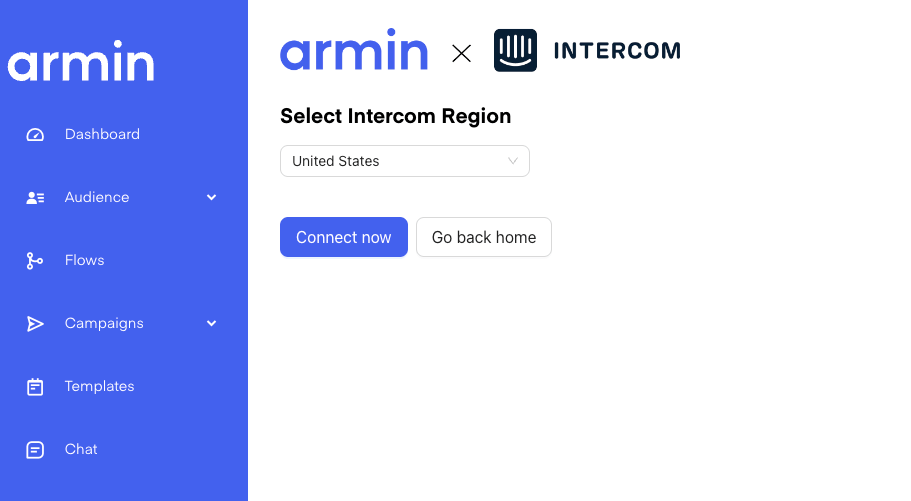
First of all, you will need to install the App in Intercom. Once you have done that, navigate to our Intercom Connect Page and connect to your Intercom Account: Chatarmin help center image
Use the Intercom x Chatarmin Integration

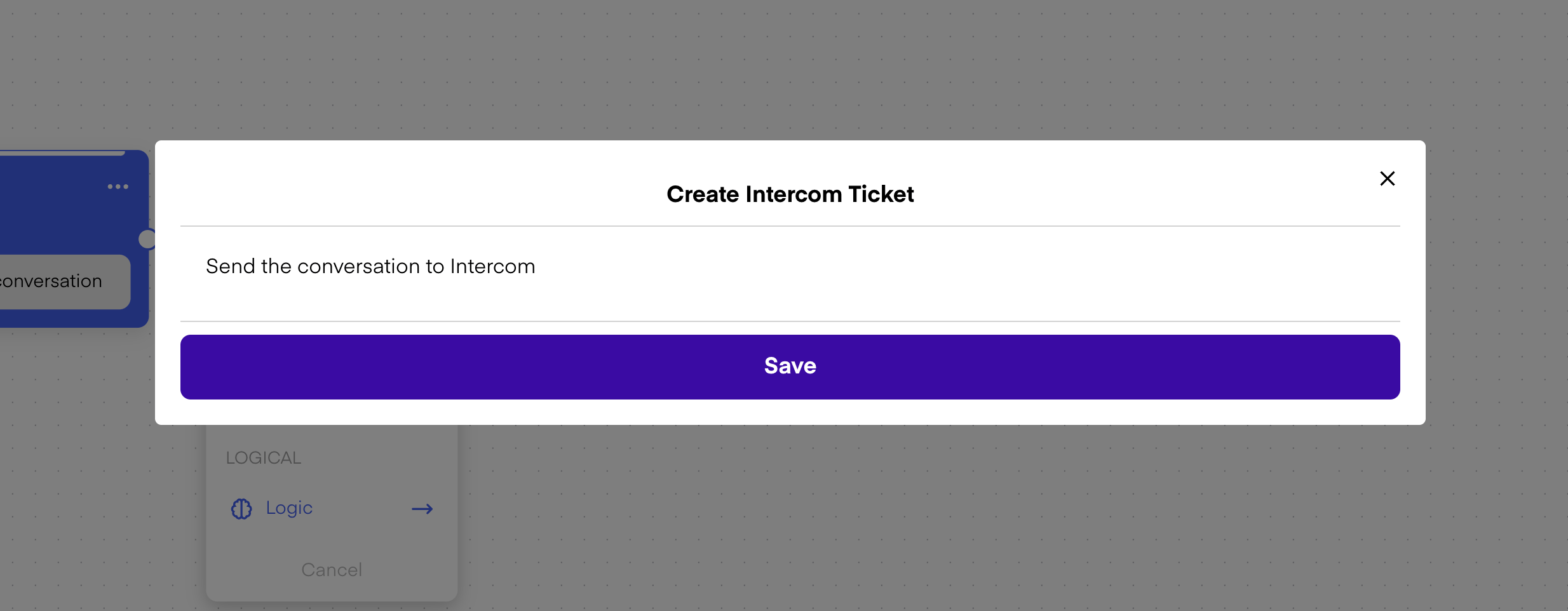
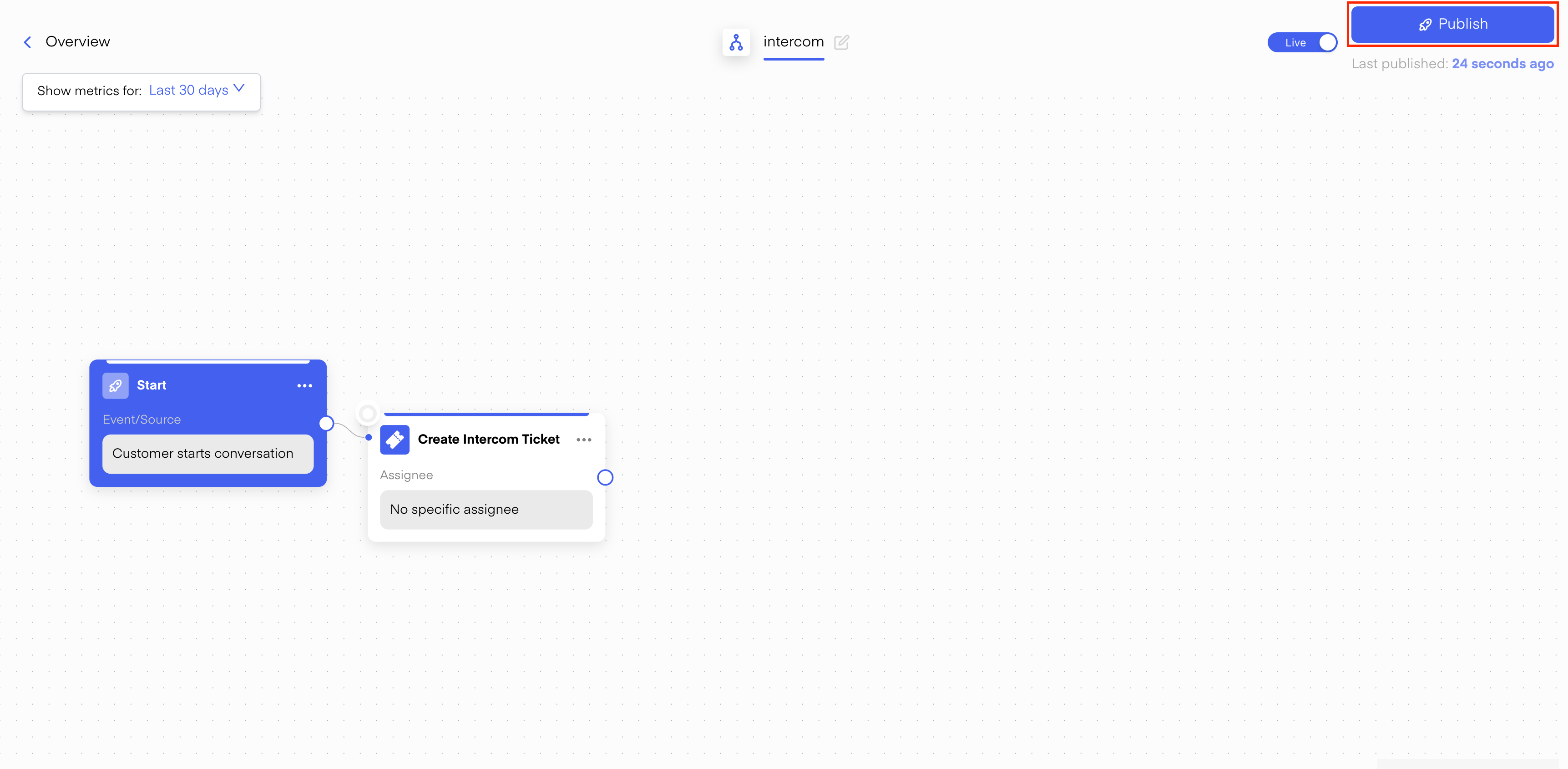
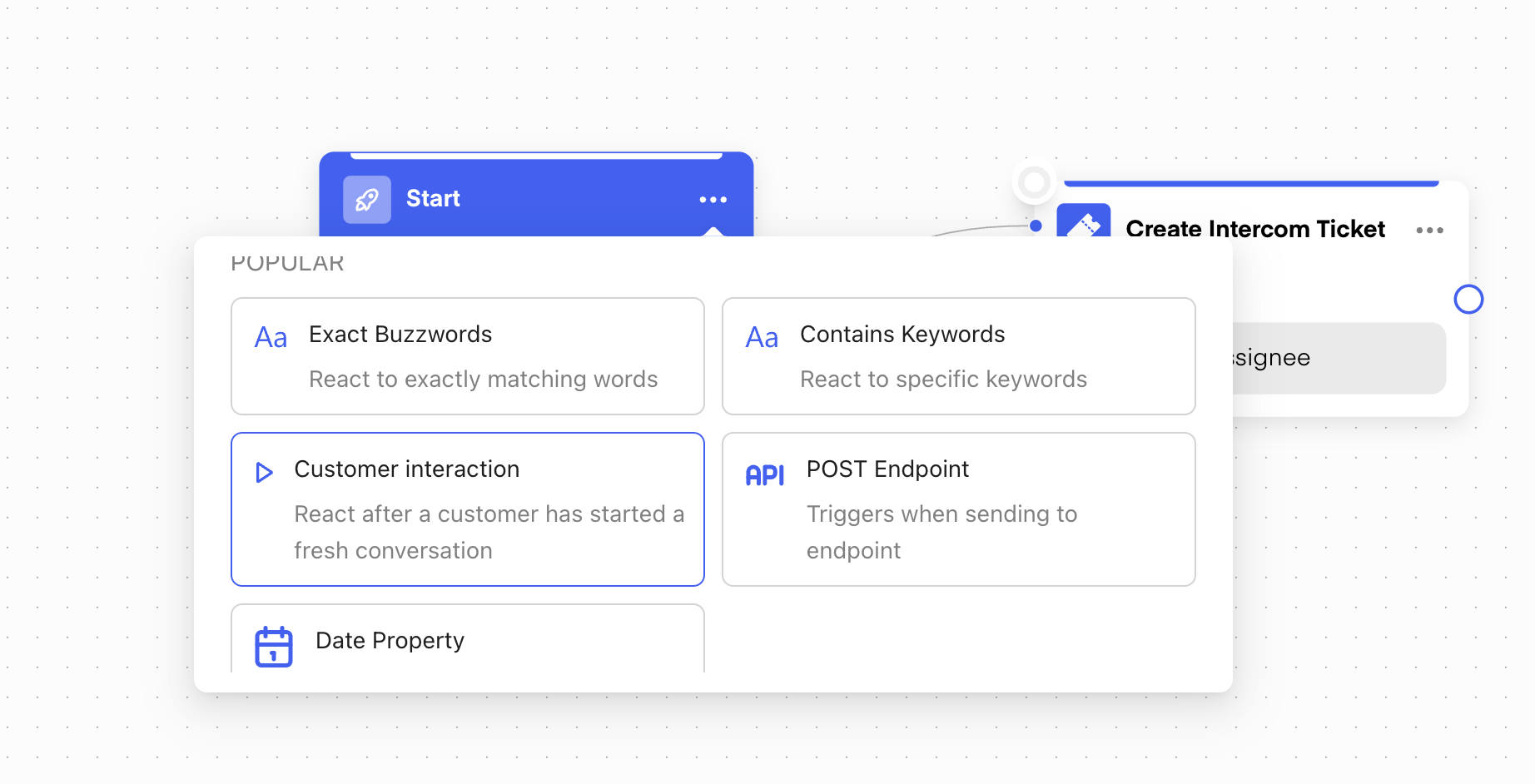
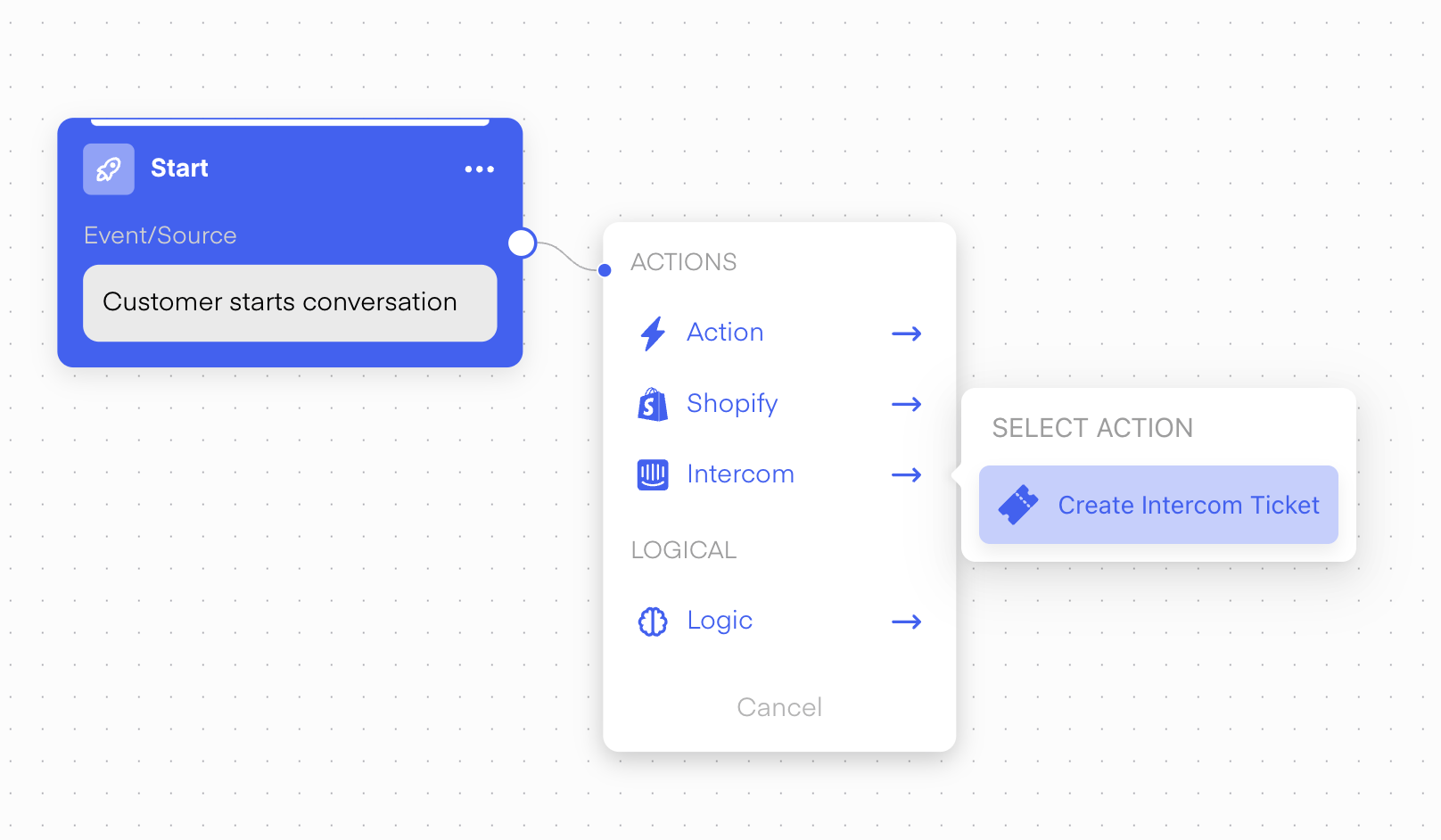
Once you have successfully connected the Integration, navigate to Flows -> Create Flow -> Create from Scratch Then give your Flow a Name and choose the Trigger “Customer starts conversation”: Chatarmin help center image Next, you will need to add a Flow-Action -> Intercom -> Create Ticket: Chatarmin help center image Chatarmin help center image Last, you will need to publish the flow: Chatarmin help center image
Testing your Integration

Now you can test your Integration by sending a WhatsApp Message from your Phone to your WhatsApp Business Account (of the company) Congratulations! You have integrated Intercom successfully! 🥳

Official Intercom Documentation on Chatarmin Intercom App: Intercom WhatsApp integration

Here is the official documentation regarding the Chatarmin Intercom app, on the Intercom app marketplace.