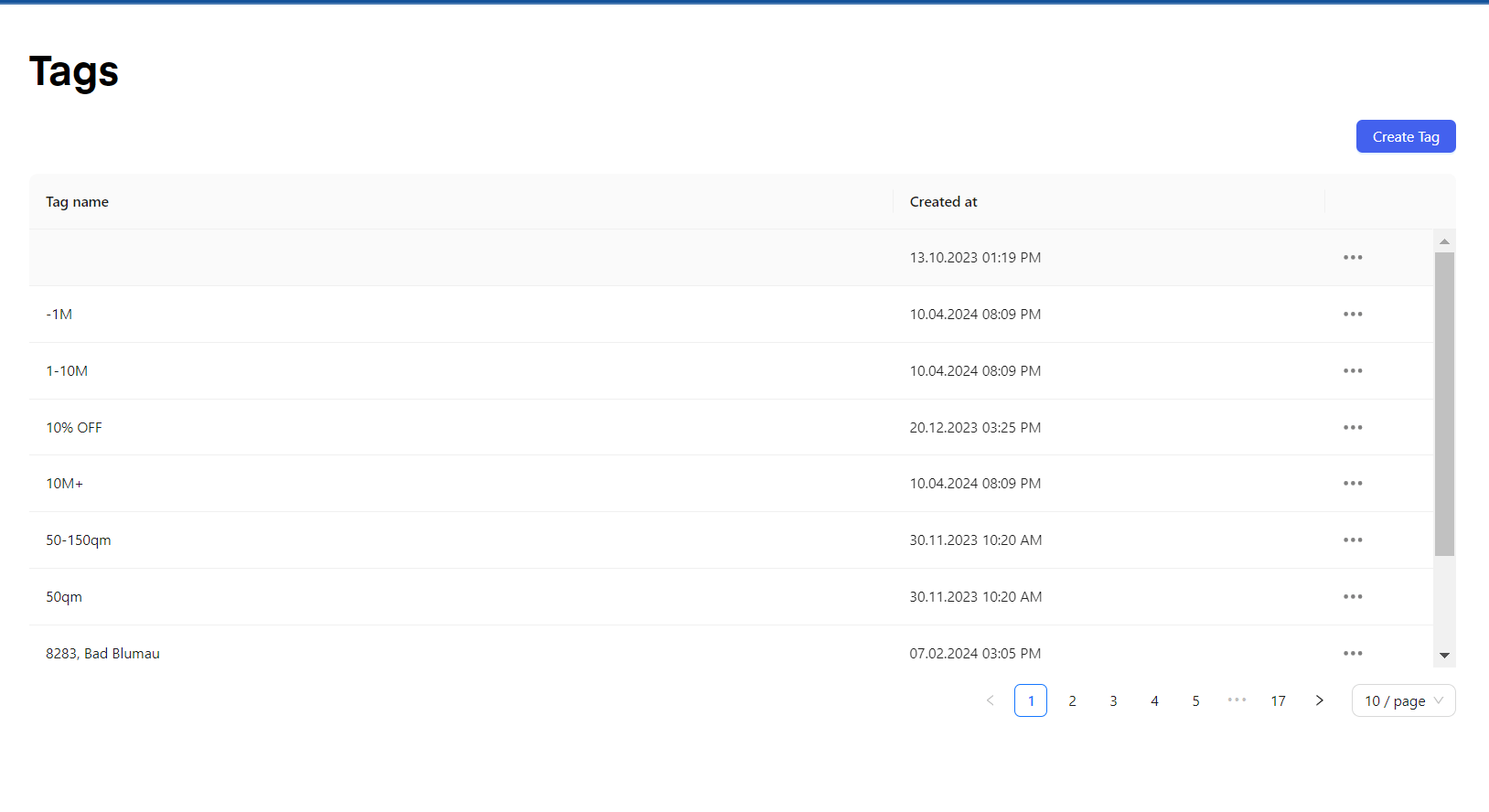
Tags
Tags are used to be able to segment your customers according to their specific information. You can manually tag your customers in the “Contacts feature”, directly inside of “Tags”, inside of the “Chat” feature, or automatically inside of an enrolled flow, by choosing the action “Add Tag” to tag a customer according to their specific data and inputs.
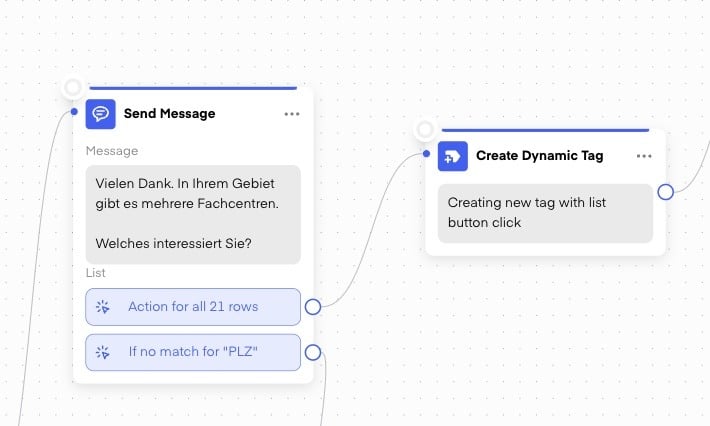
Dynamic Tagging
After lists, you can “dynamically tag” clients, so you don’t have to create static tags for each option. See our clients’ BAUHAUS solution here, whereupon we match infinite locations with the geographical location of user, only offering the max-list-size of 10 options, combined with “dynamic tagging”.
This also means, you don’t have to update static tags according to “choice fluctuation” in the future.
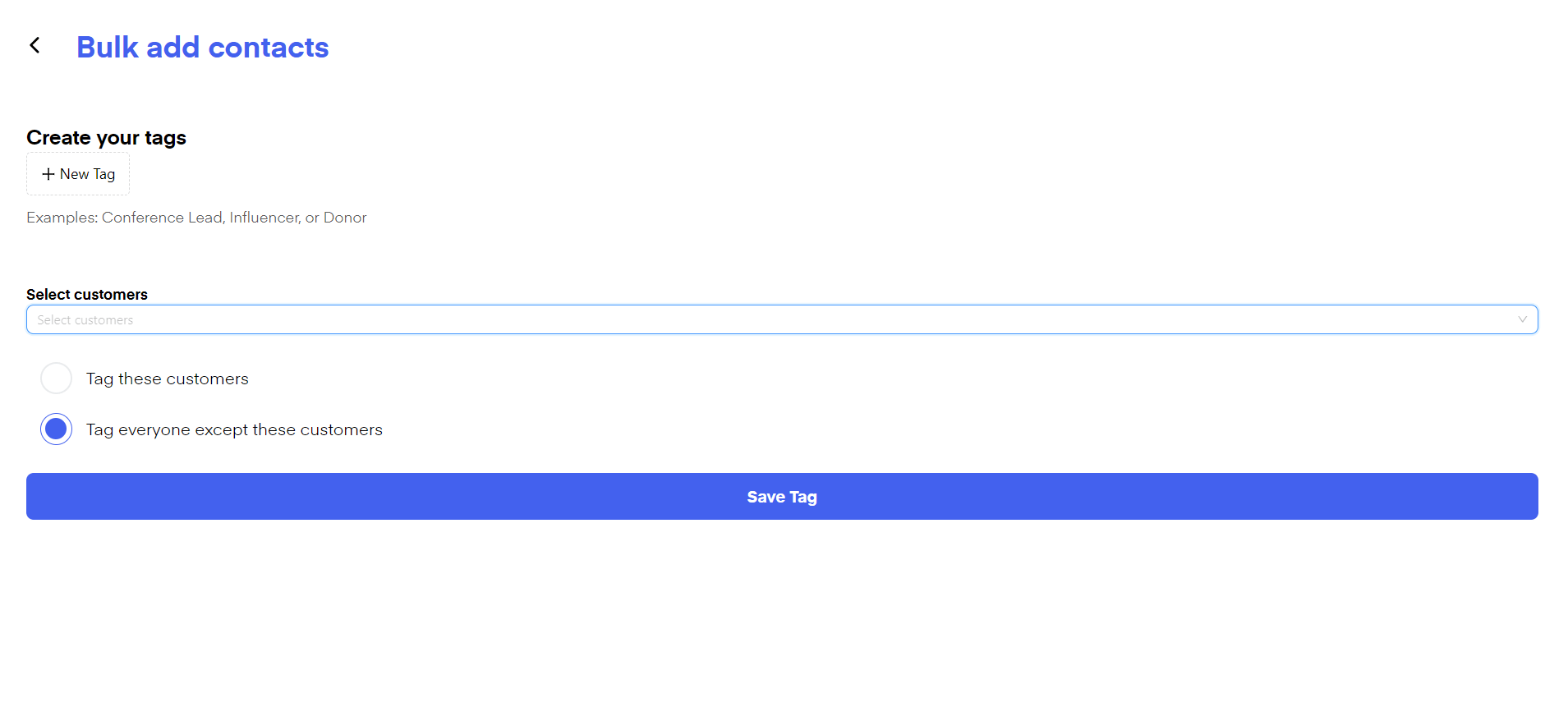
Bulk Tagging
- Click on “Create Tag”.
- Click “New Tag”.
- Choose “Tag these customers” or “Tag everyone except these customers”.
- Click on the dropdown menu “Select Customers” and choose “Select all” or manually choose the customers you want to include or exclude in the bulk tagging.
-
Click “Save Tag”