Video guide on how Chatarmin WhatsApp catalog works
Source: Chatarmin, Q3 2024
Video on how you can integrate the product catalog with Chatarmin AI
Source: Chatarmin, Q3 2024
Create a WhatsApp catalog
First, go to the META Commerce Manager and create your first Catalog: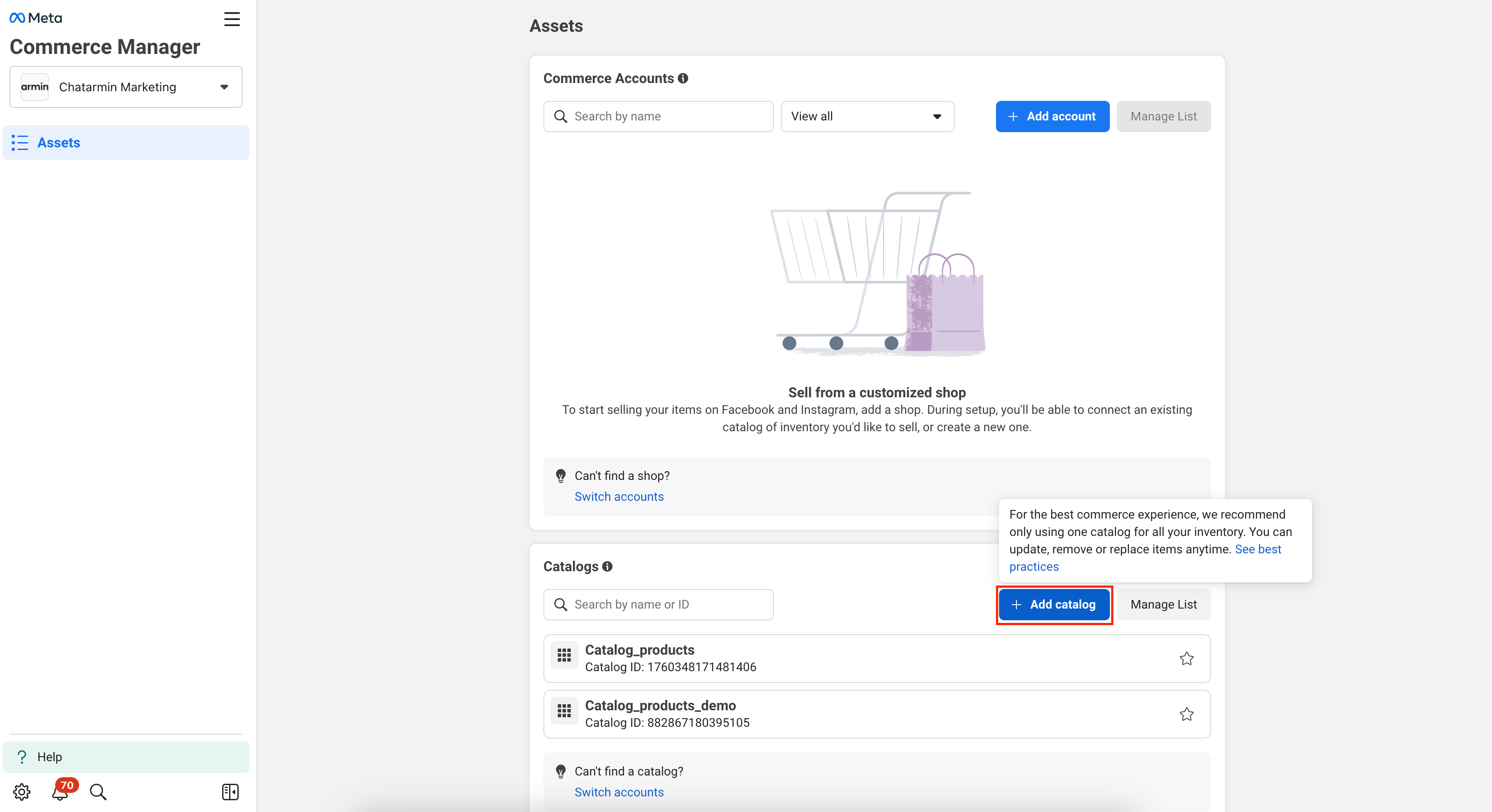
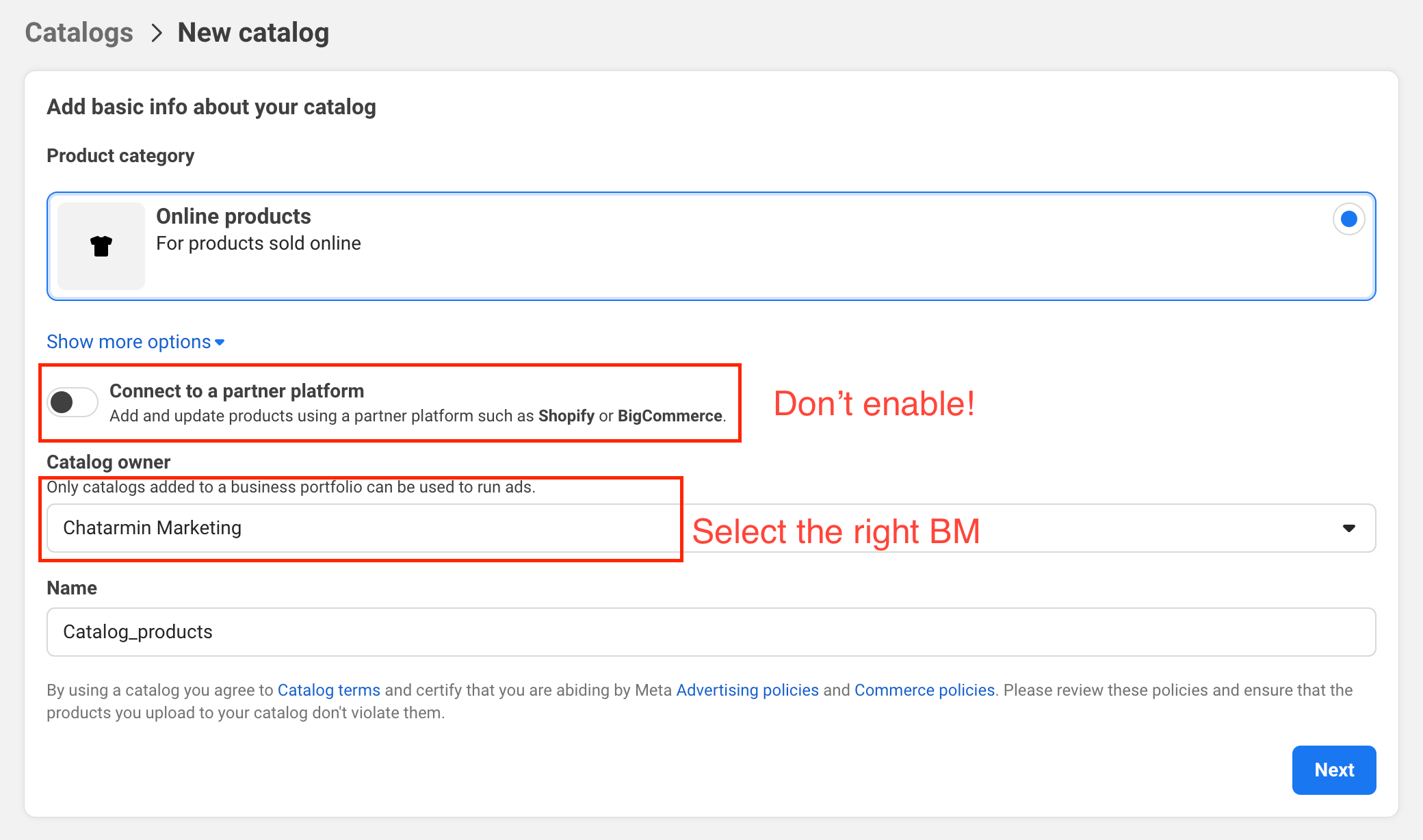
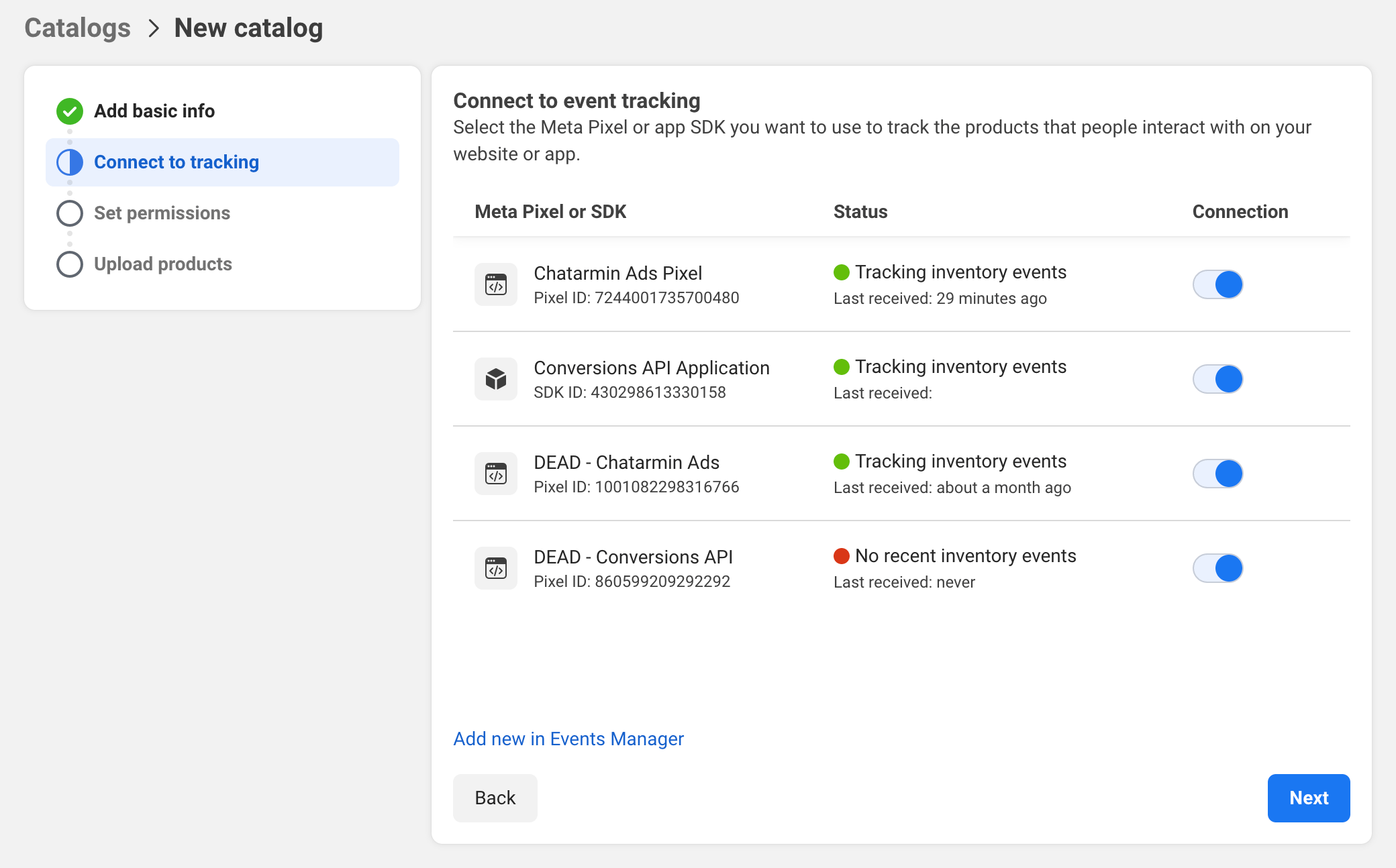
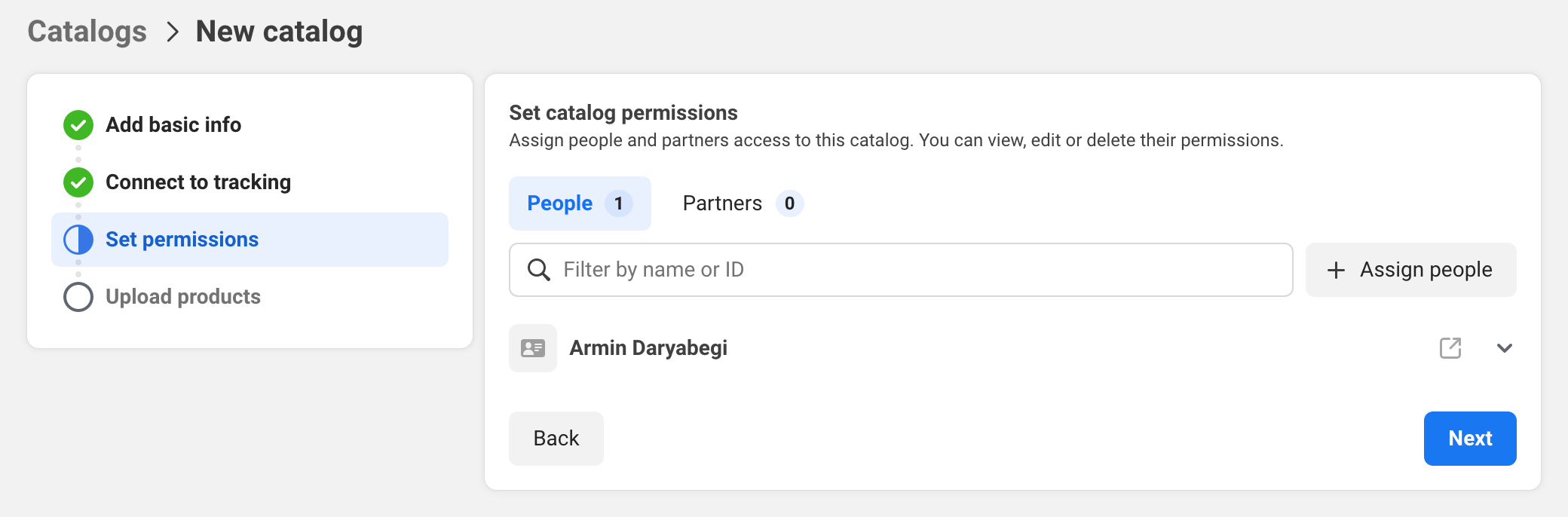
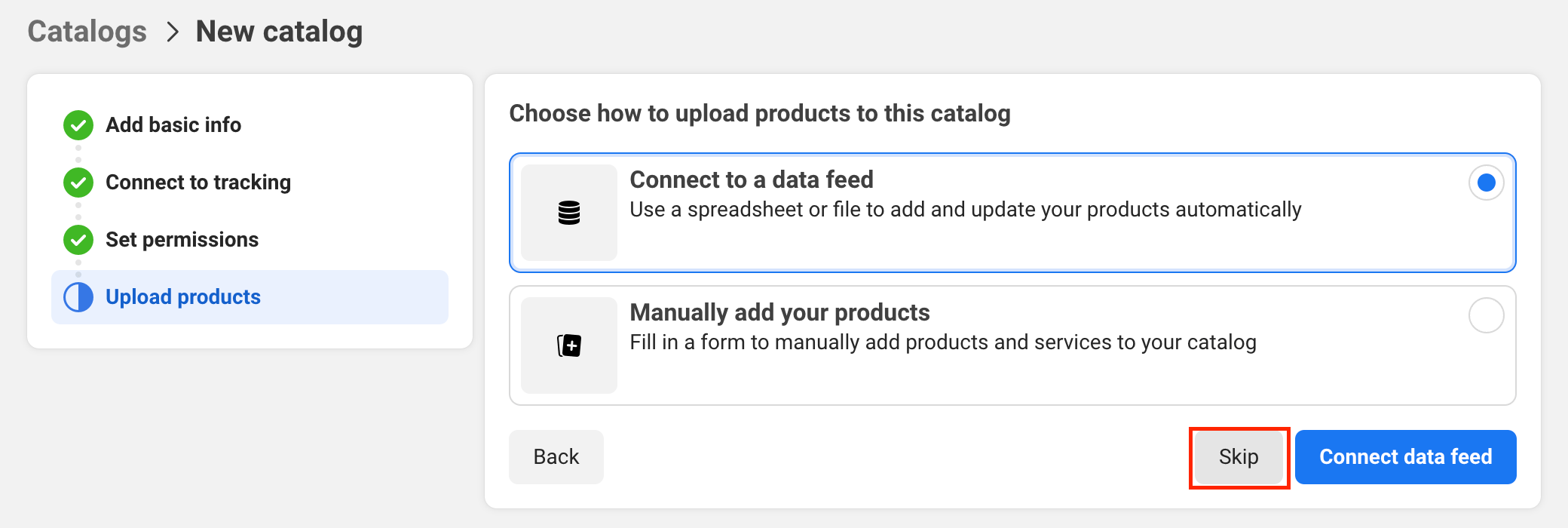
Connect Catalog to Chatarmin/WhatsApp
Next, go to WhatsApp Accounts → Select WhatsApp Account → Click on WhatsApp Manager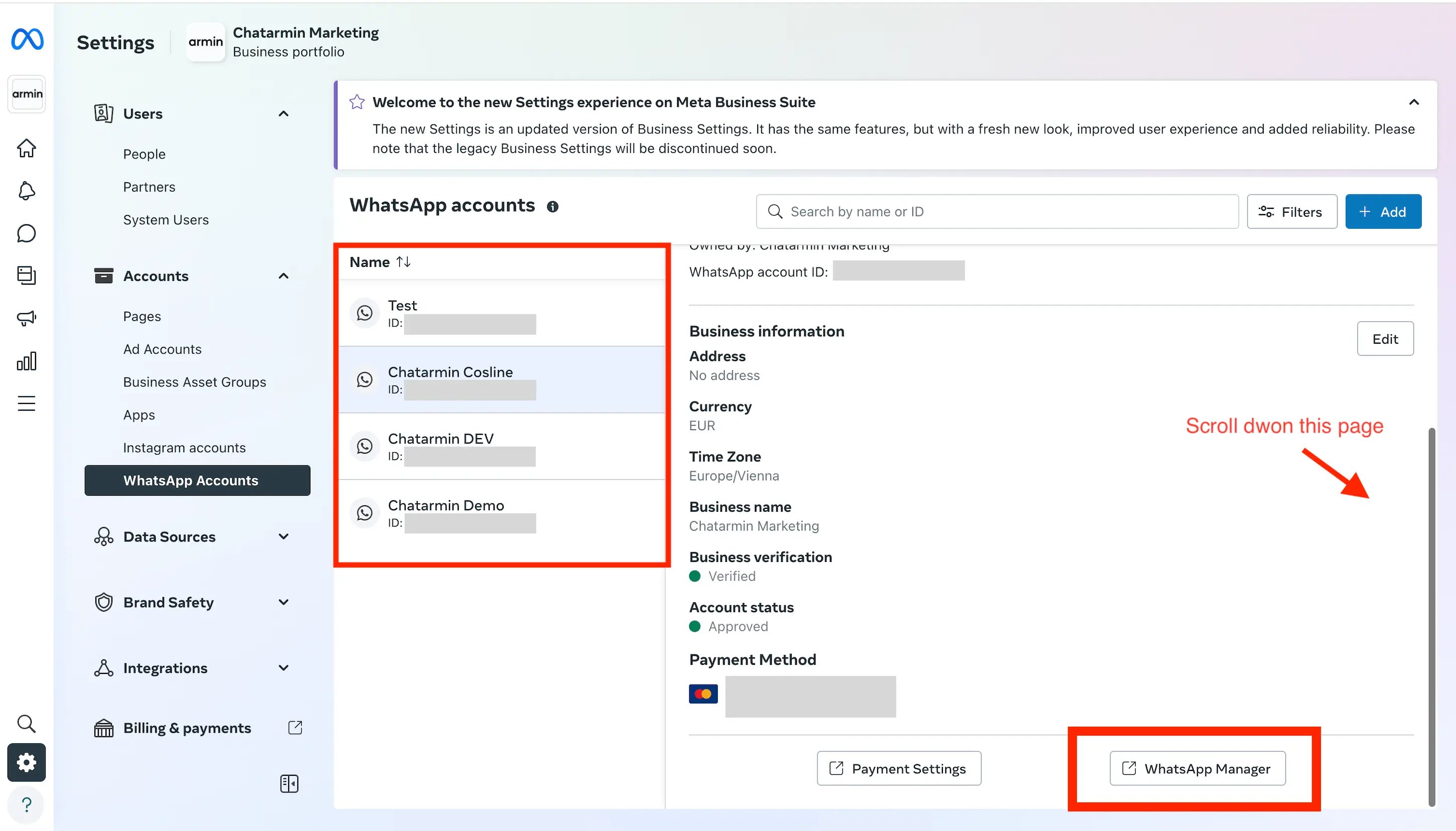
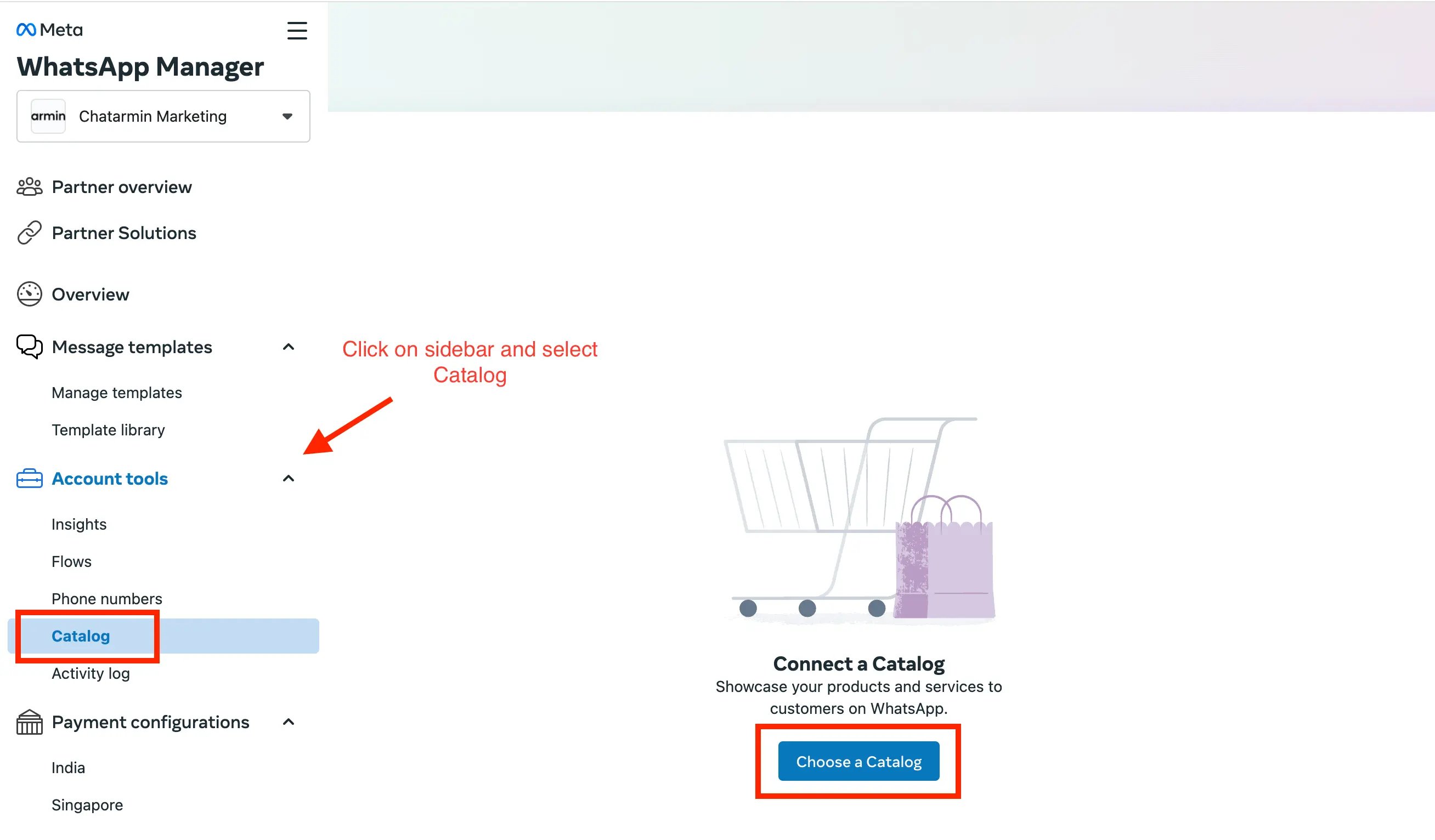
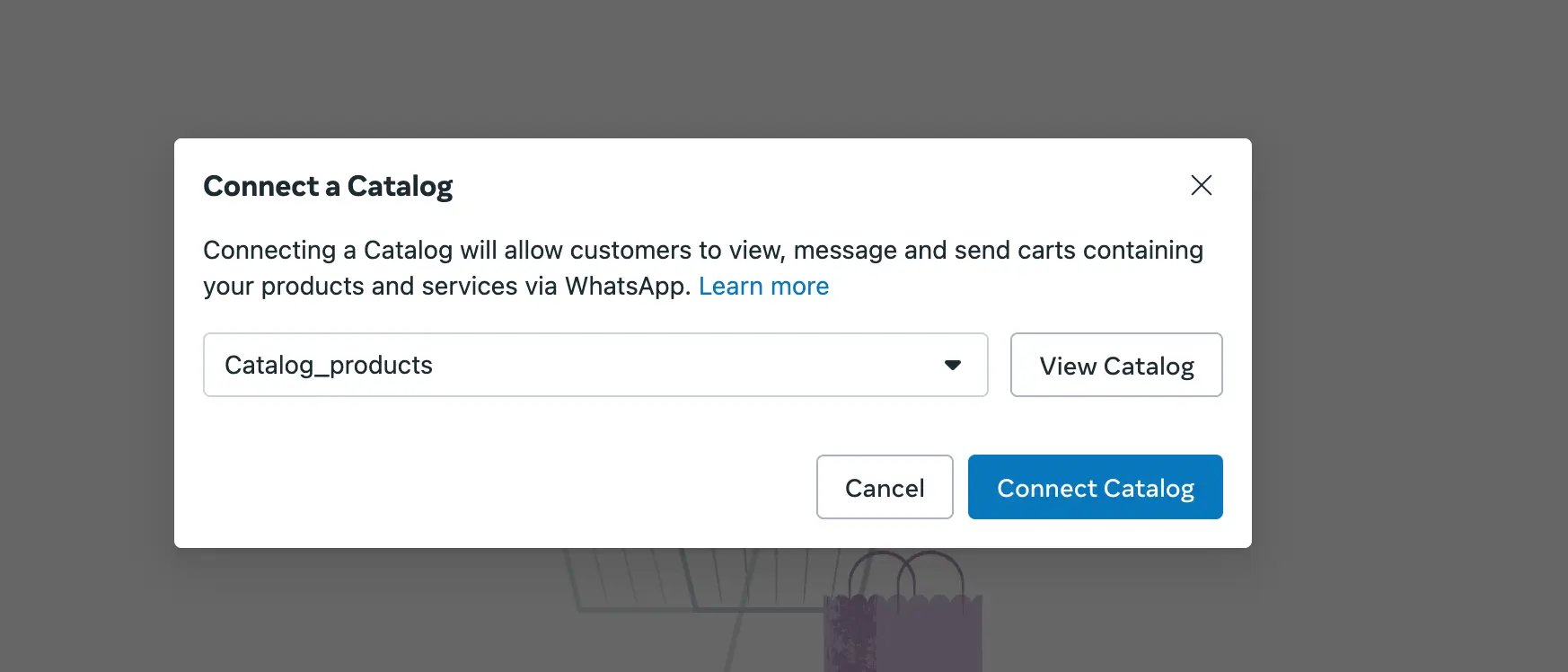
Configure Catalog in Chatarmin
Next we can go to Chatarmin -> Settings -> WhatsApp CatalogGrant permissions
If you haven’t granted permissions yet, please follow this step to do so. Unless you already did, you can skip that step: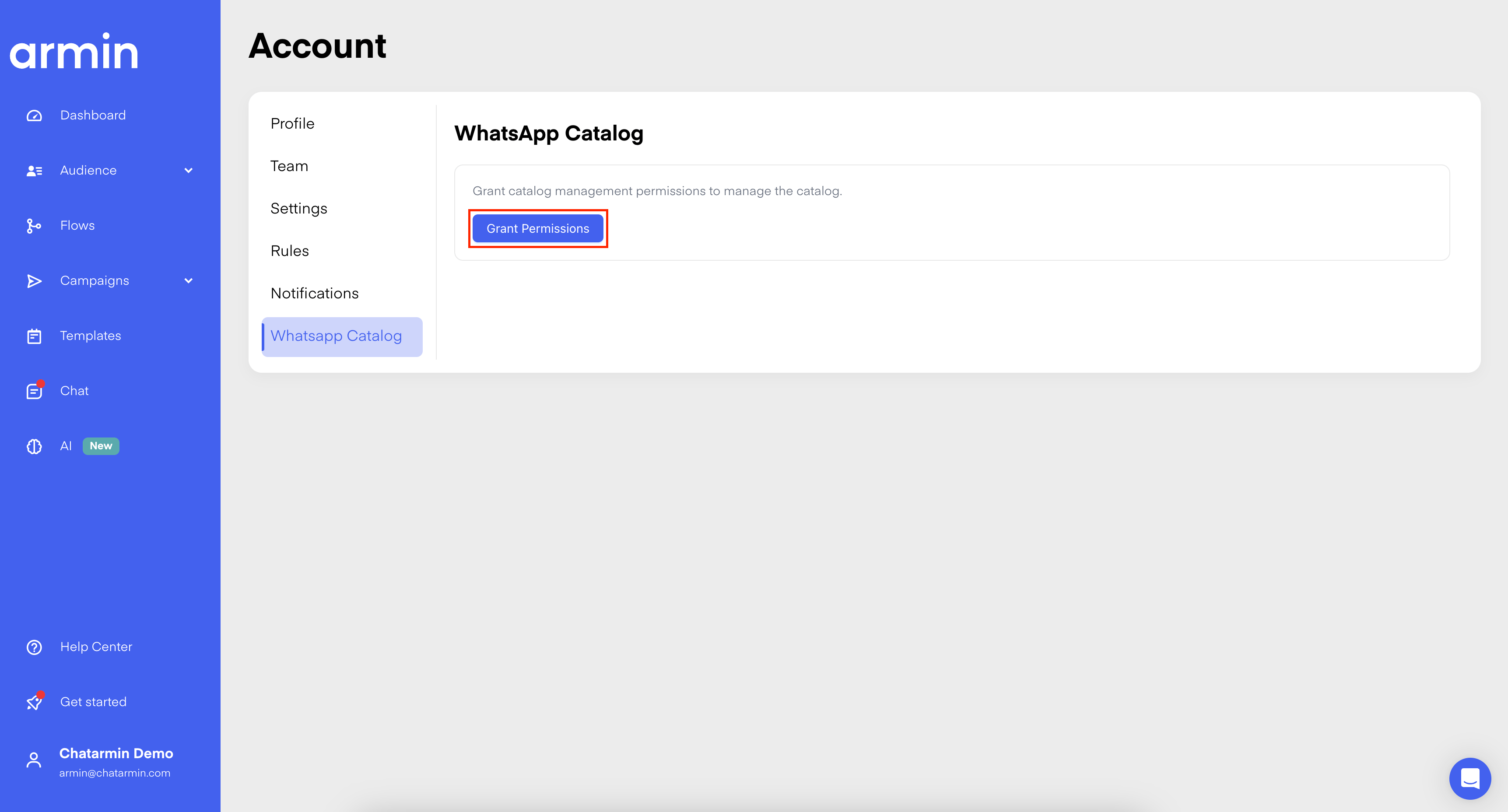
Sync Catalog with Shop-Integration
When connected, you should now have the possibility to sync the Catalog with your Shop-Integration: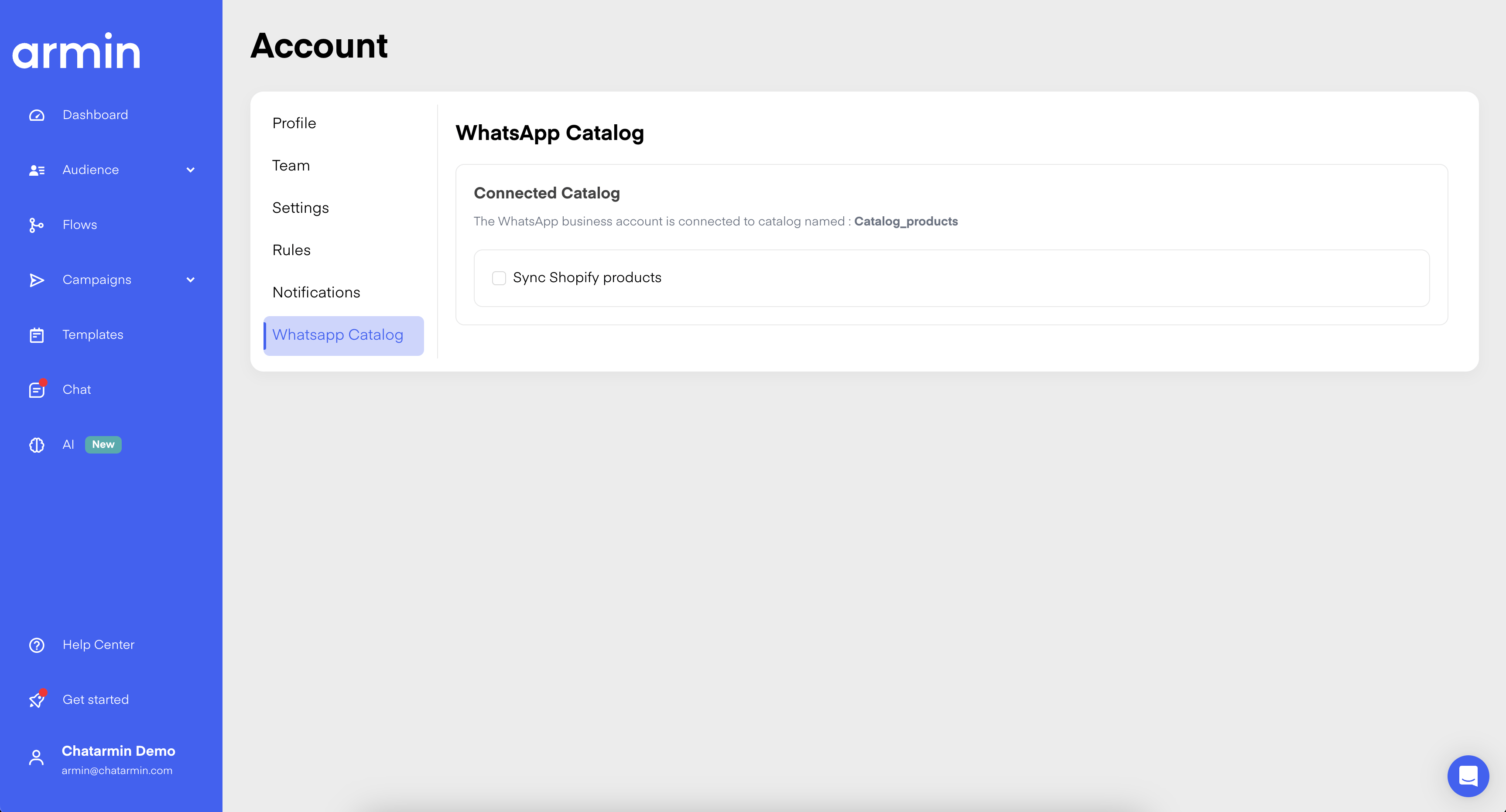
Usage of the Catalog in Chatarmin
In-Chat Selling
Now, you can use, so called “Product-Messages”, to send your customers a cart of products: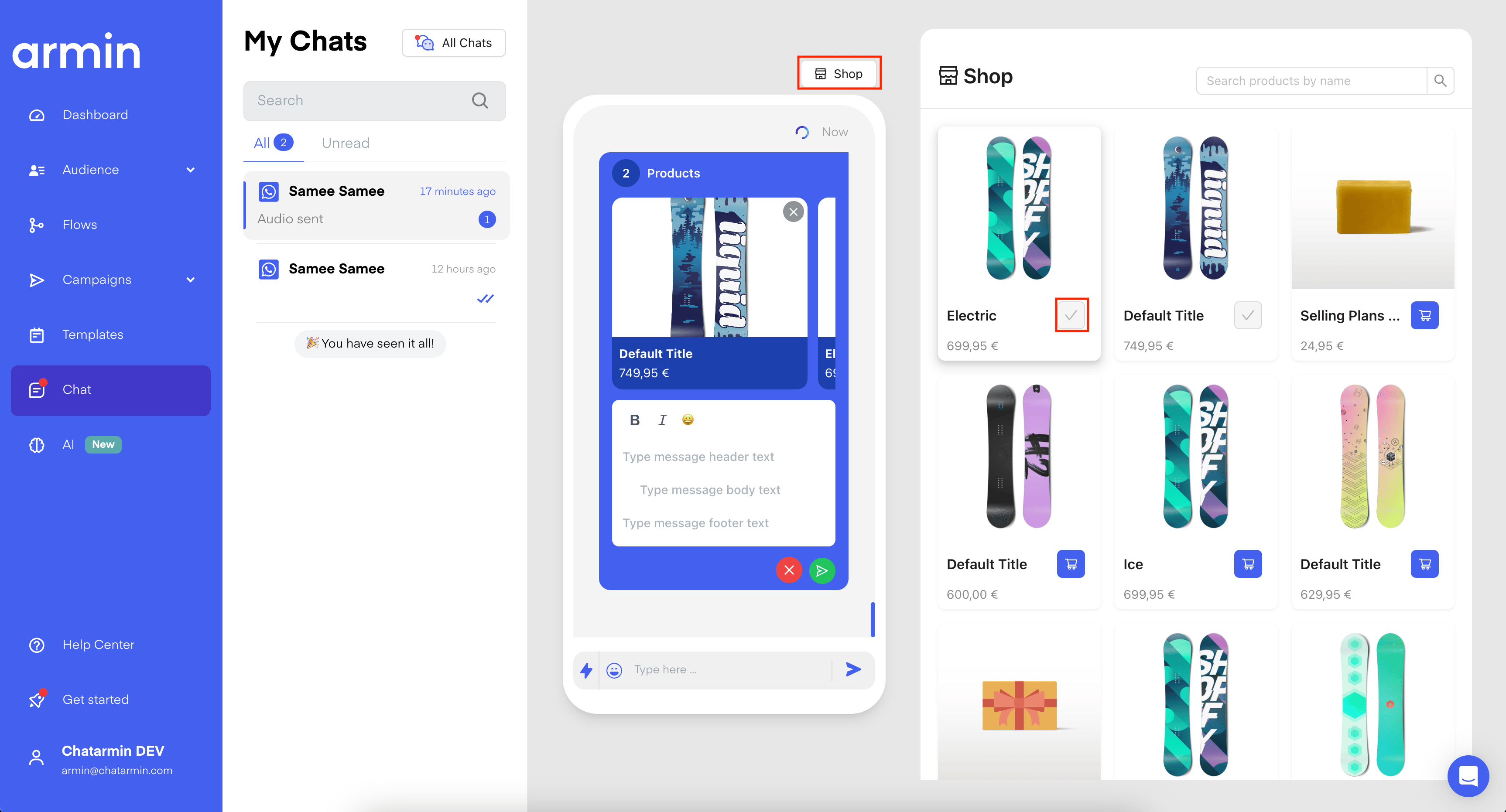
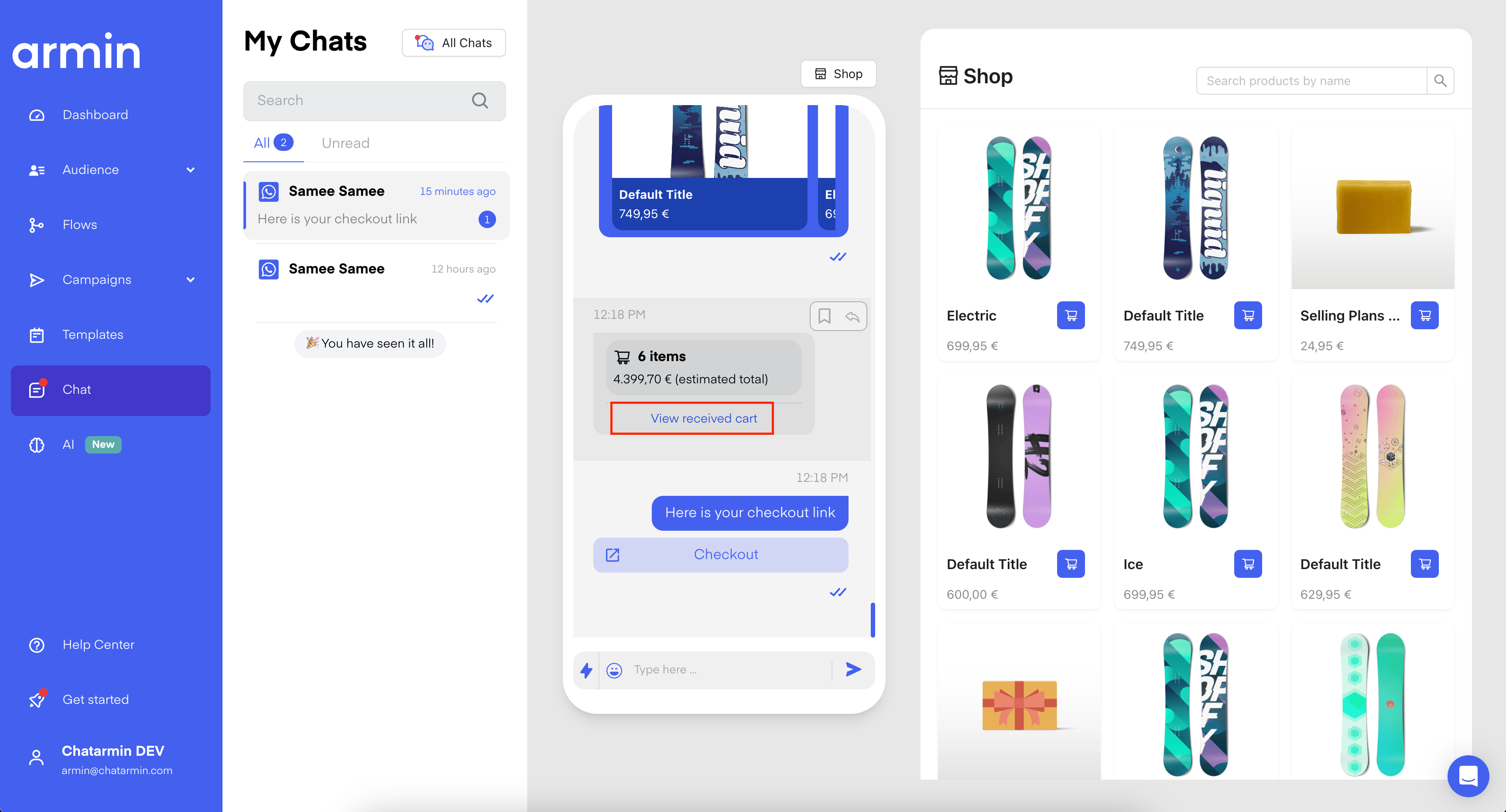
React to an Order, placed by a customer
Example of an order placed by the order: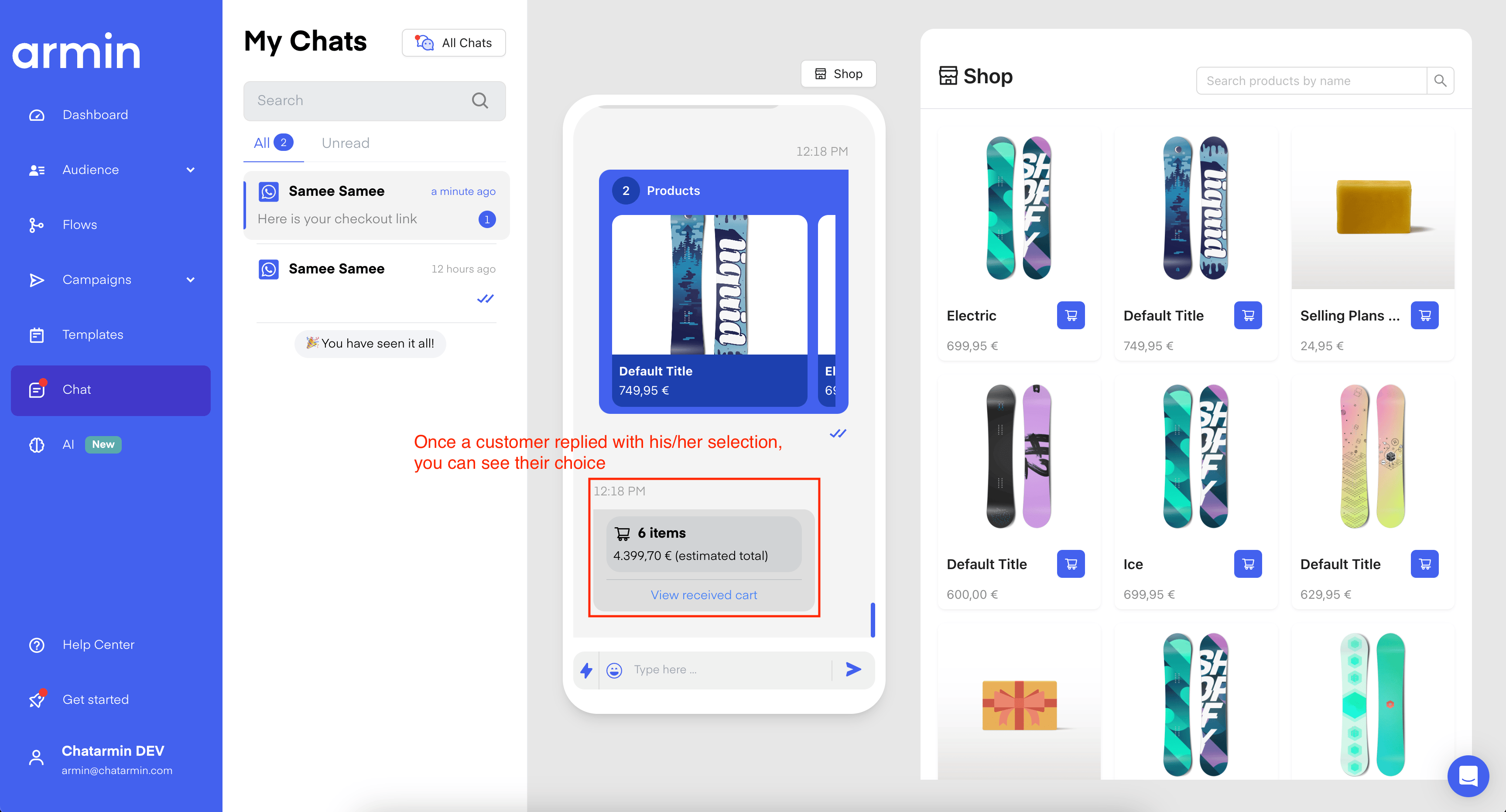
Automatically answer with Flows
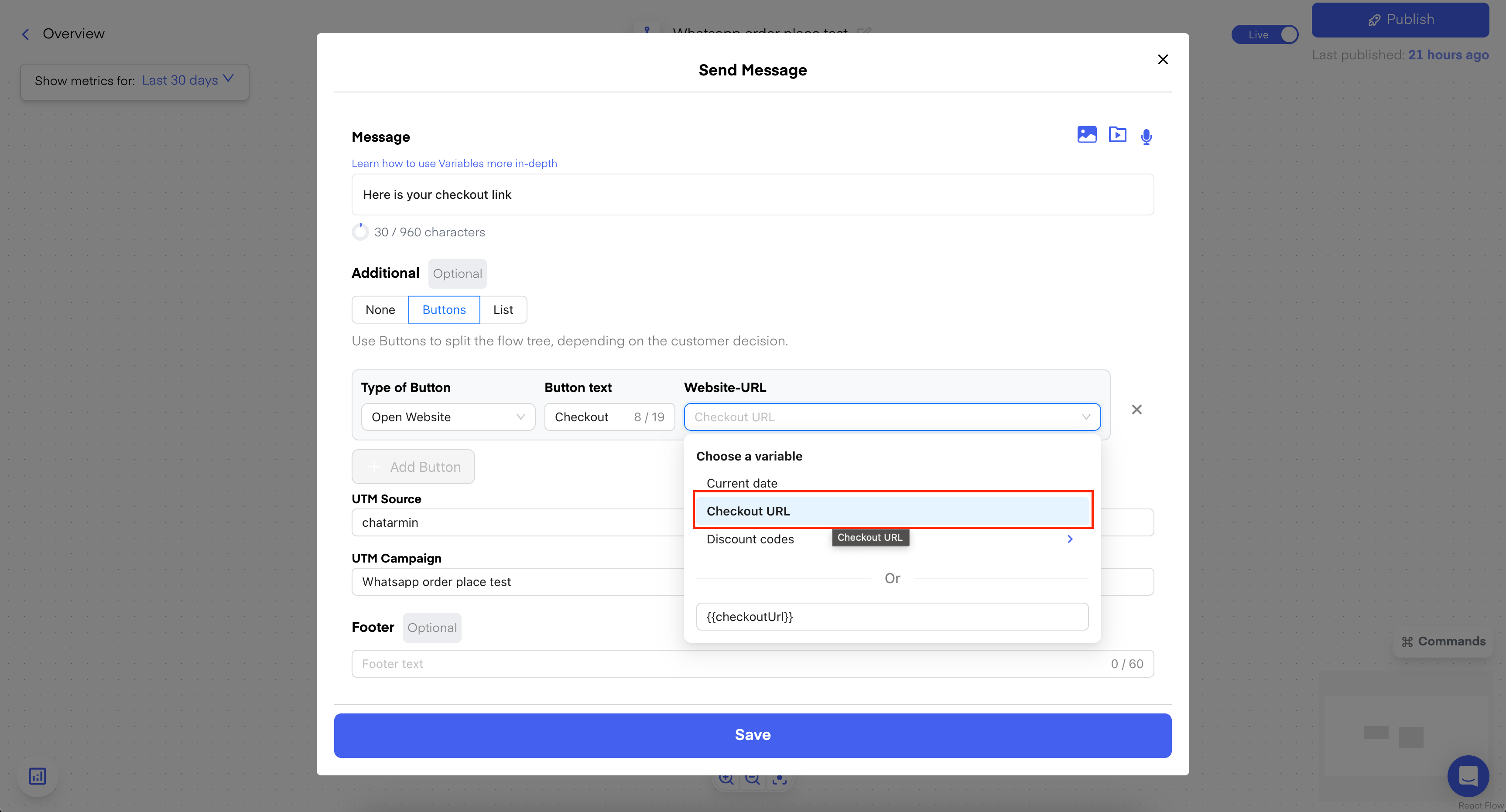
When a customer select their products in WhatsApp, we can use a new Flow-Trigger, to react to those Messages and send an “instant Checkout-Link”. This Flow would look like the following: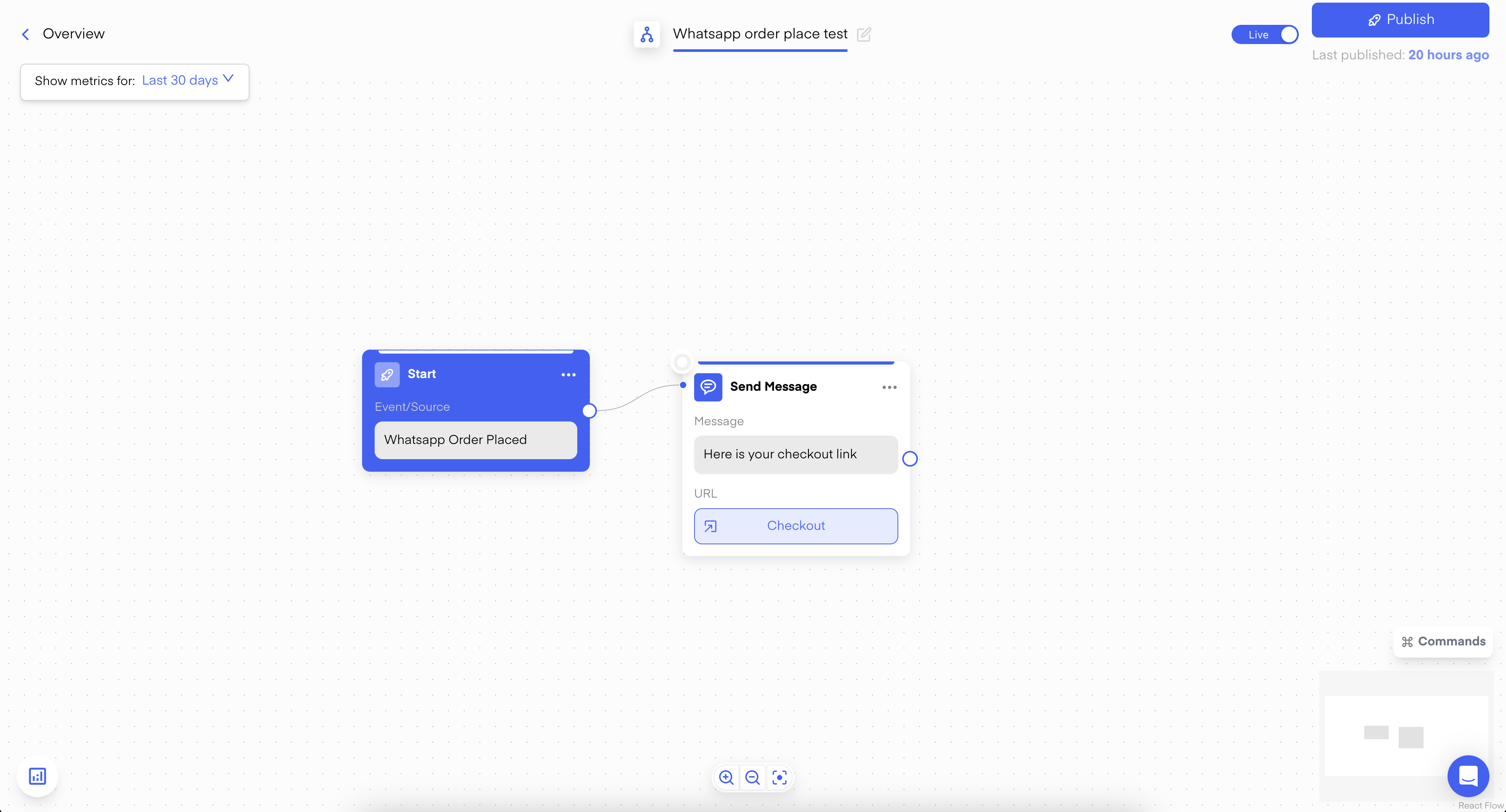
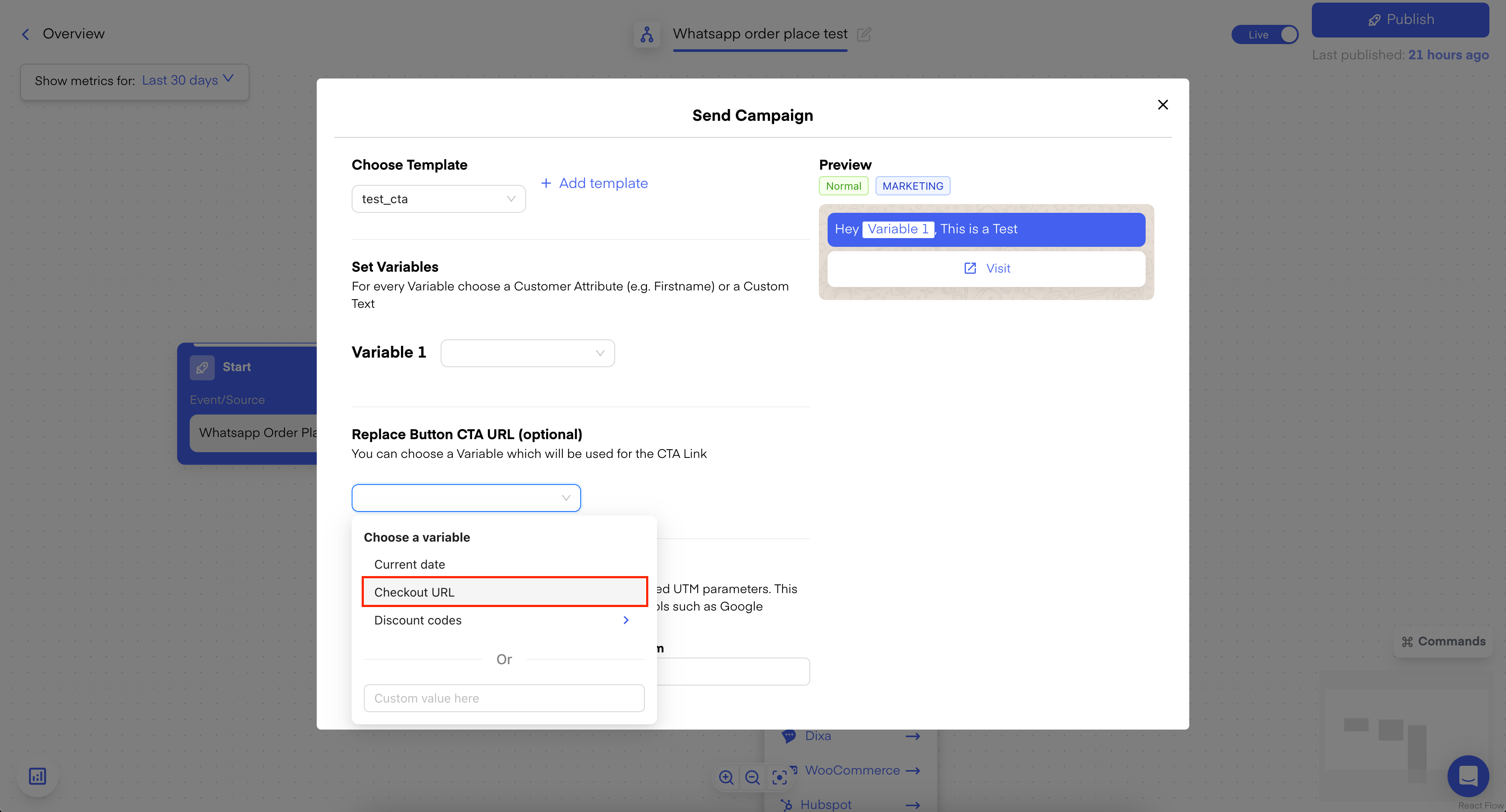
Manually send in-Chat
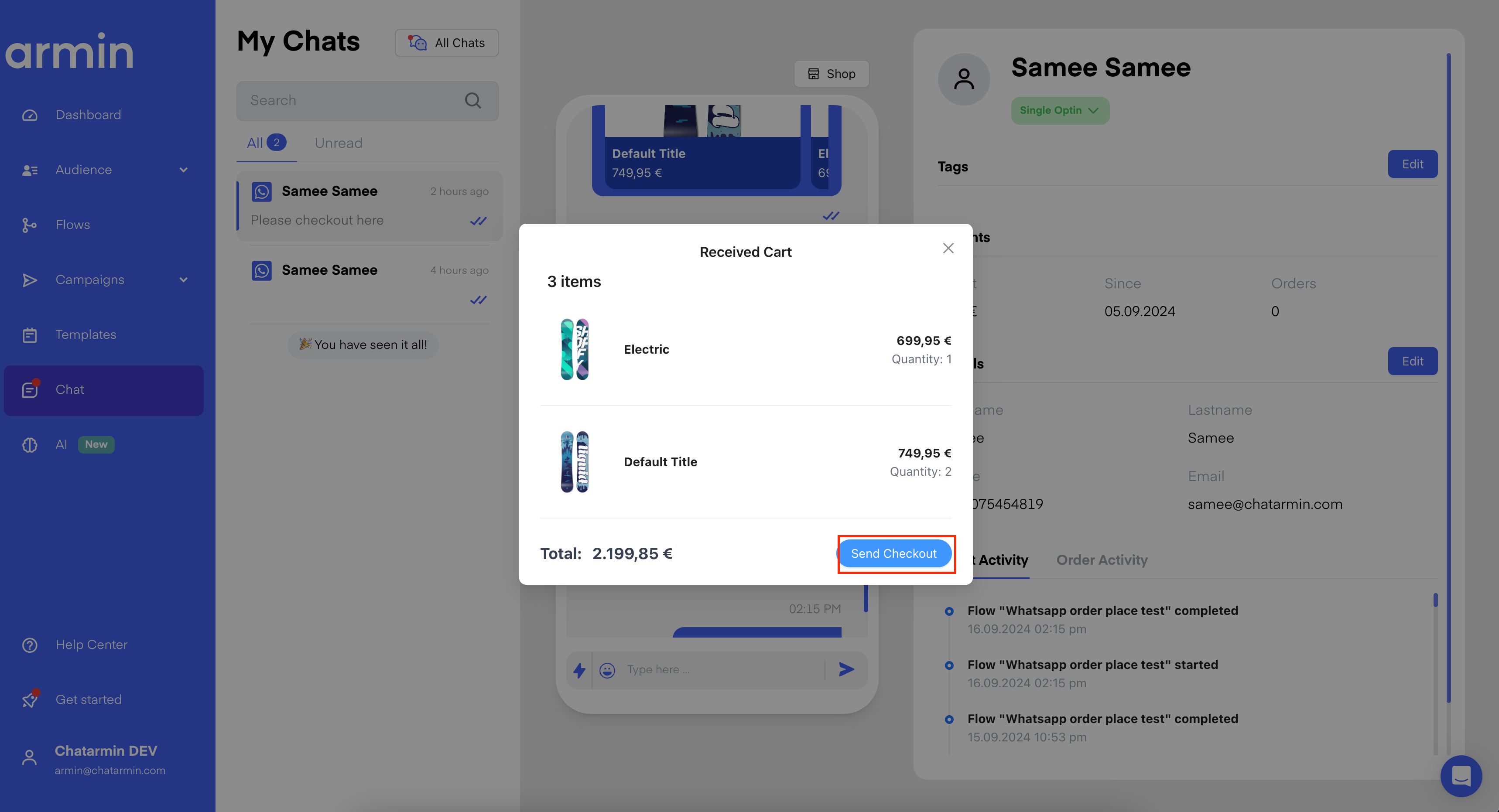
You can also send the Checkout-Link manually, by clicking “View received cart”: