
Chat
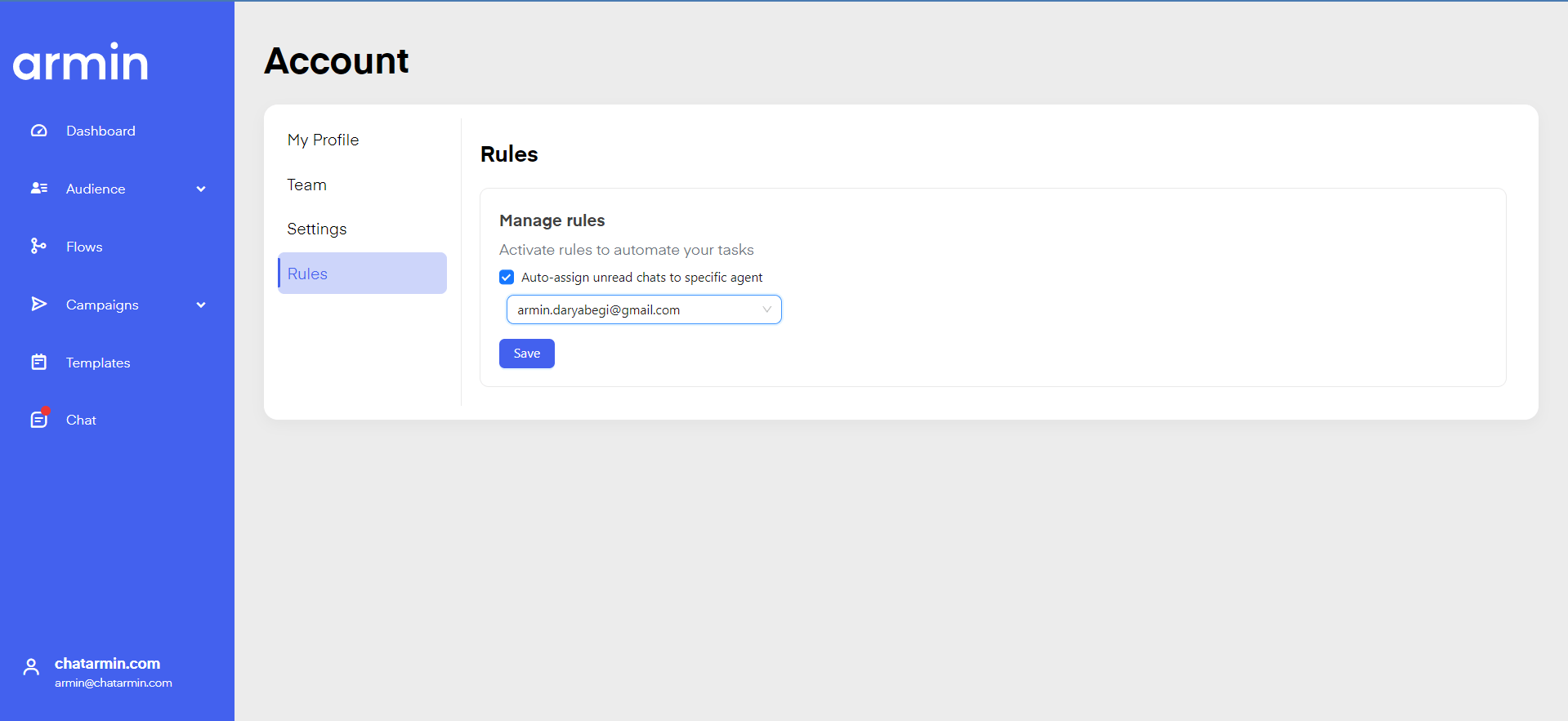
In the sidebar, you can see a red dot icon if you have unread chats. A “Chat” is unread if your lead has written a personalized message - so sent messages by clicking buttons will not be marked as unread. A chat is marked as read once you reply to the client or manually mark the conversation as read.
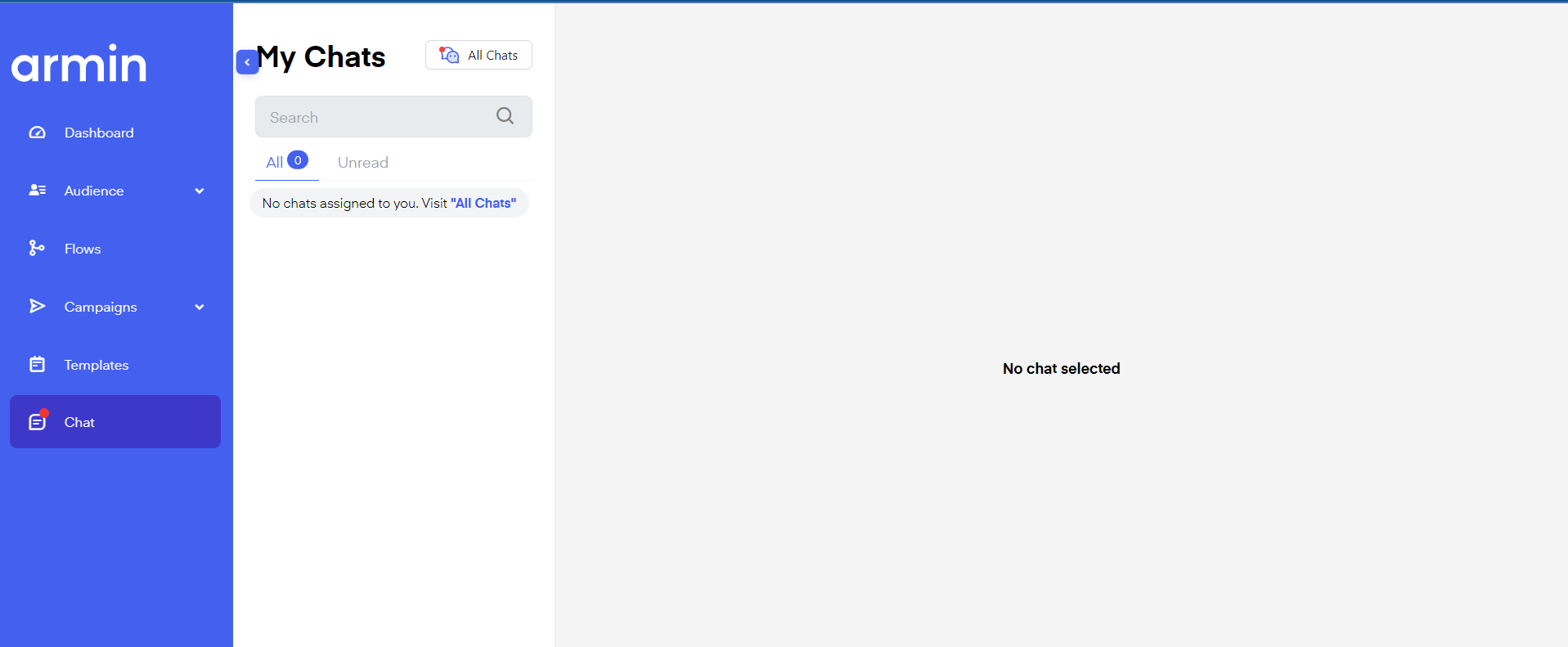
My chats
Under “My chats” you will only see chats specifically assigned to your login user. An account can have unlimited users of your company working on it. To see “All Chats” click on the icon next to my chats, there you will be able to see chats not assigned to your login/agent.
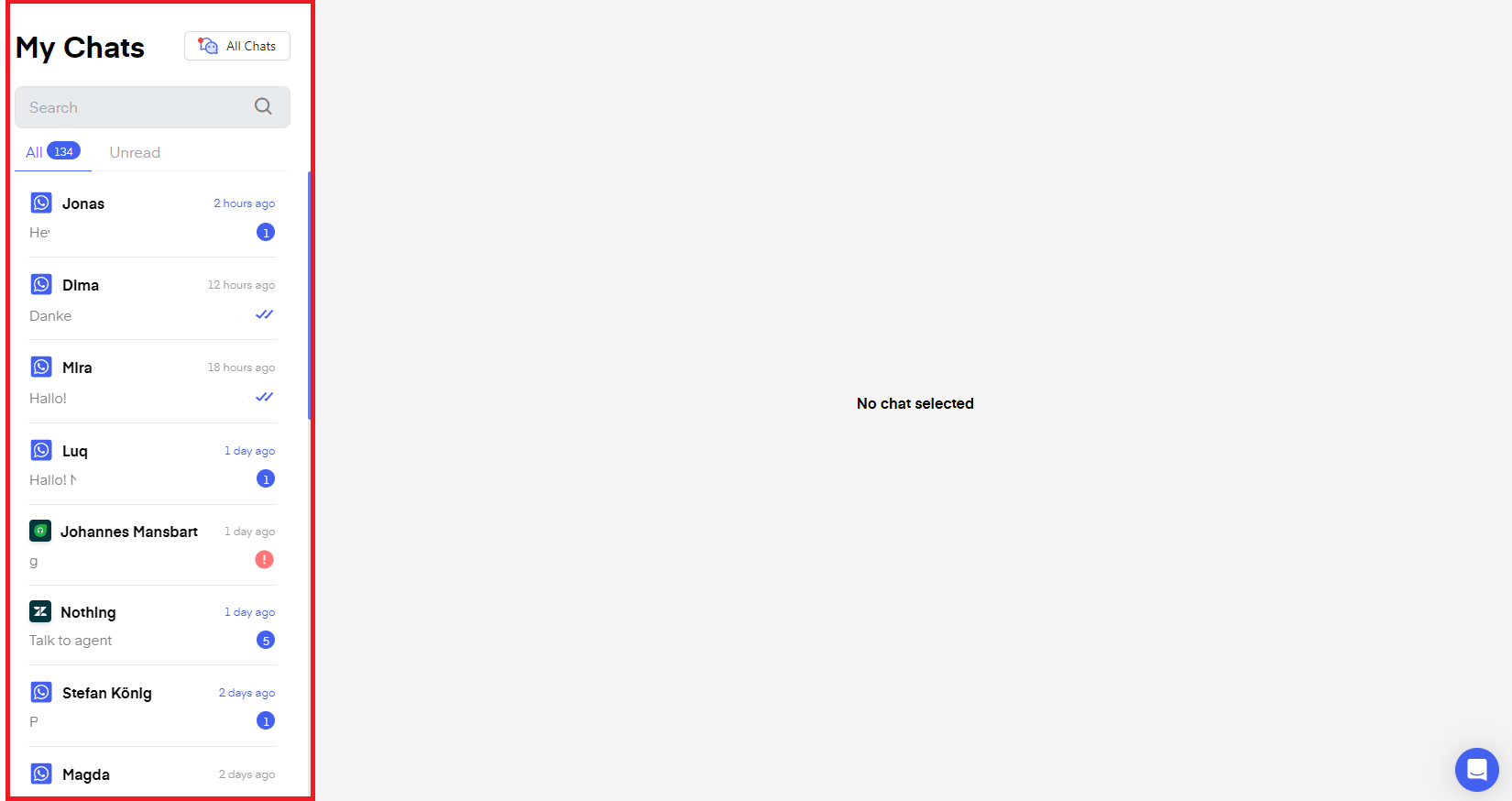
All Chats
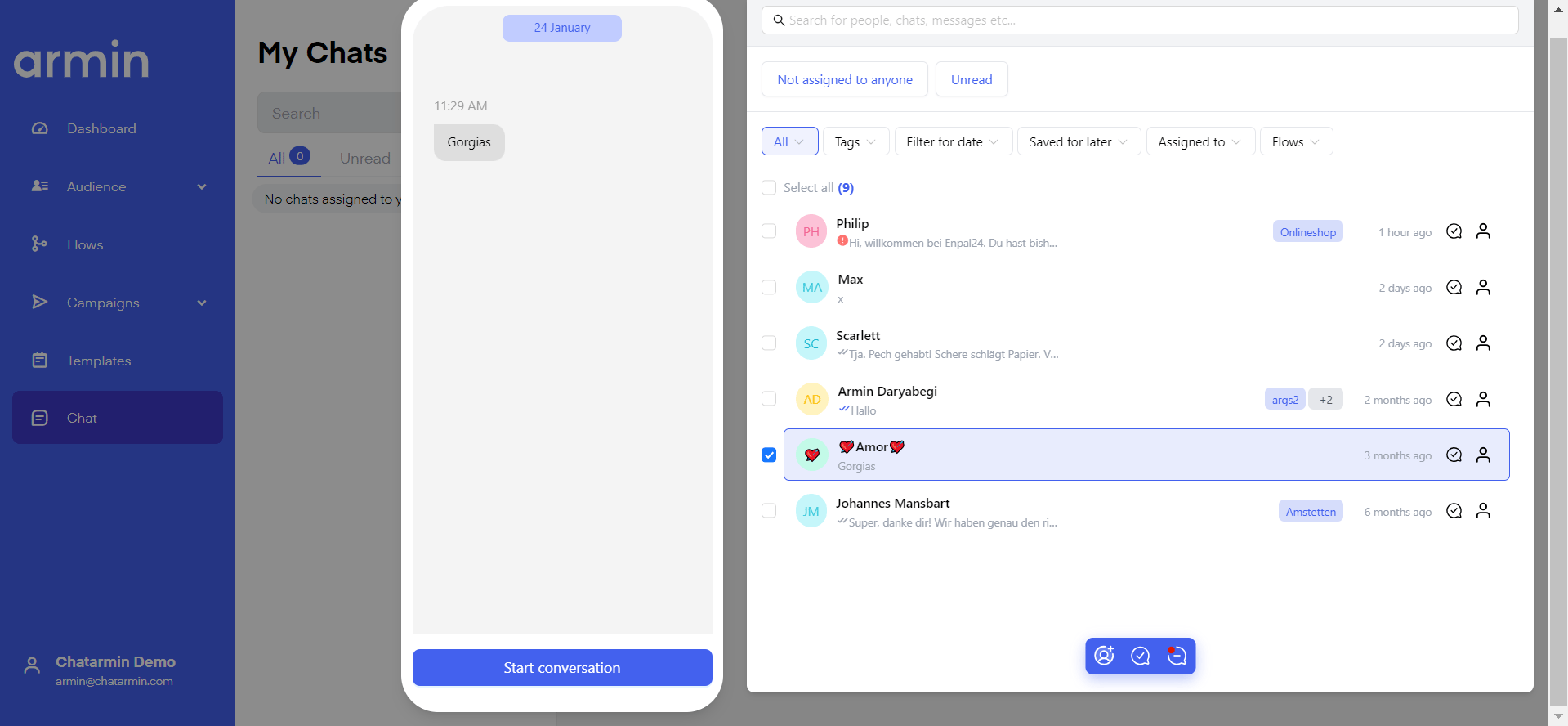
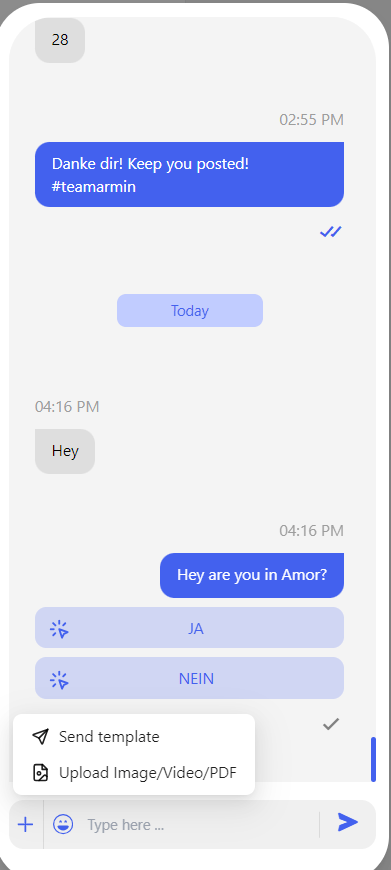
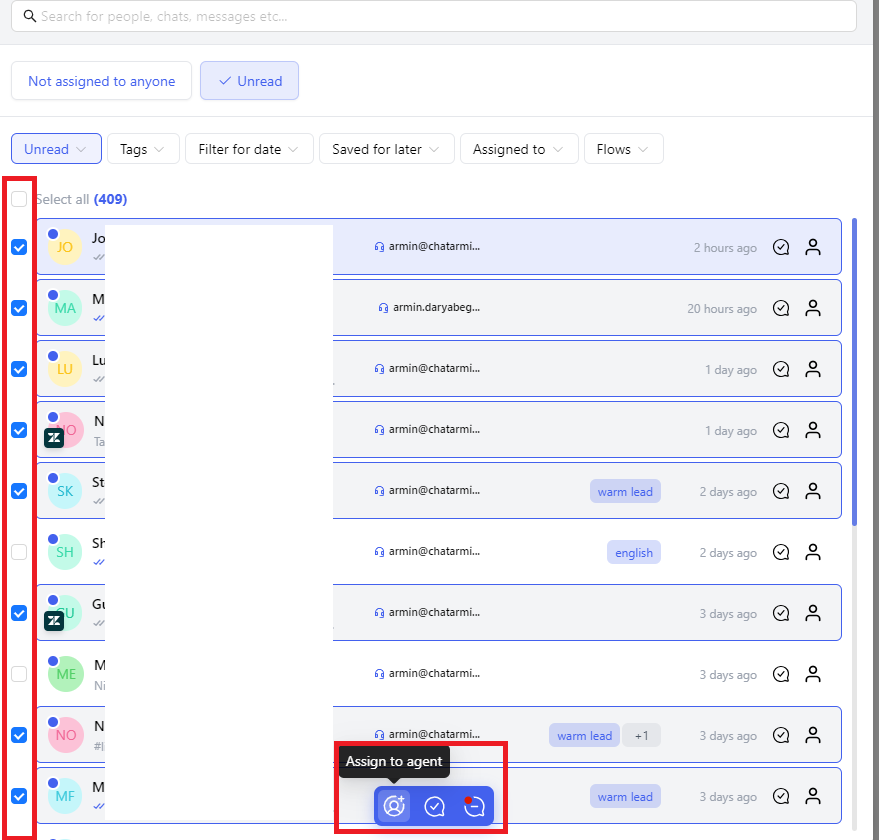
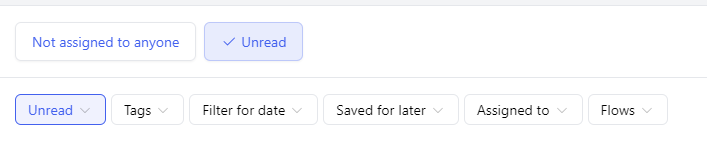
Chat: Filter
On the top you have various filters you can use to find specific chats such as:

Advanced Filters: Decentralised Support Features
Watch this video to understand how you can
- enable your POS retail stores and partners to use WhatsApp-support locally
- enable your multiple countries to scale on WhatsApp, all from one number
- enable support & sales to do dezentralised support & marketing campaigns to their dedicated audience
- integrate with all our system partners like HubSpot, Salesforce, zendesk, Gorgias, Freshdesk, Intercom, Ominsend, Shopify, Shopware, WooCommerce and many, many more.
- and much, much more..
*Source: Chatarmin, Q2 2024
* Pair this with your integrations and Chatarmin’s AI and use the most professional WhatsApp Franchise Setup in the world.
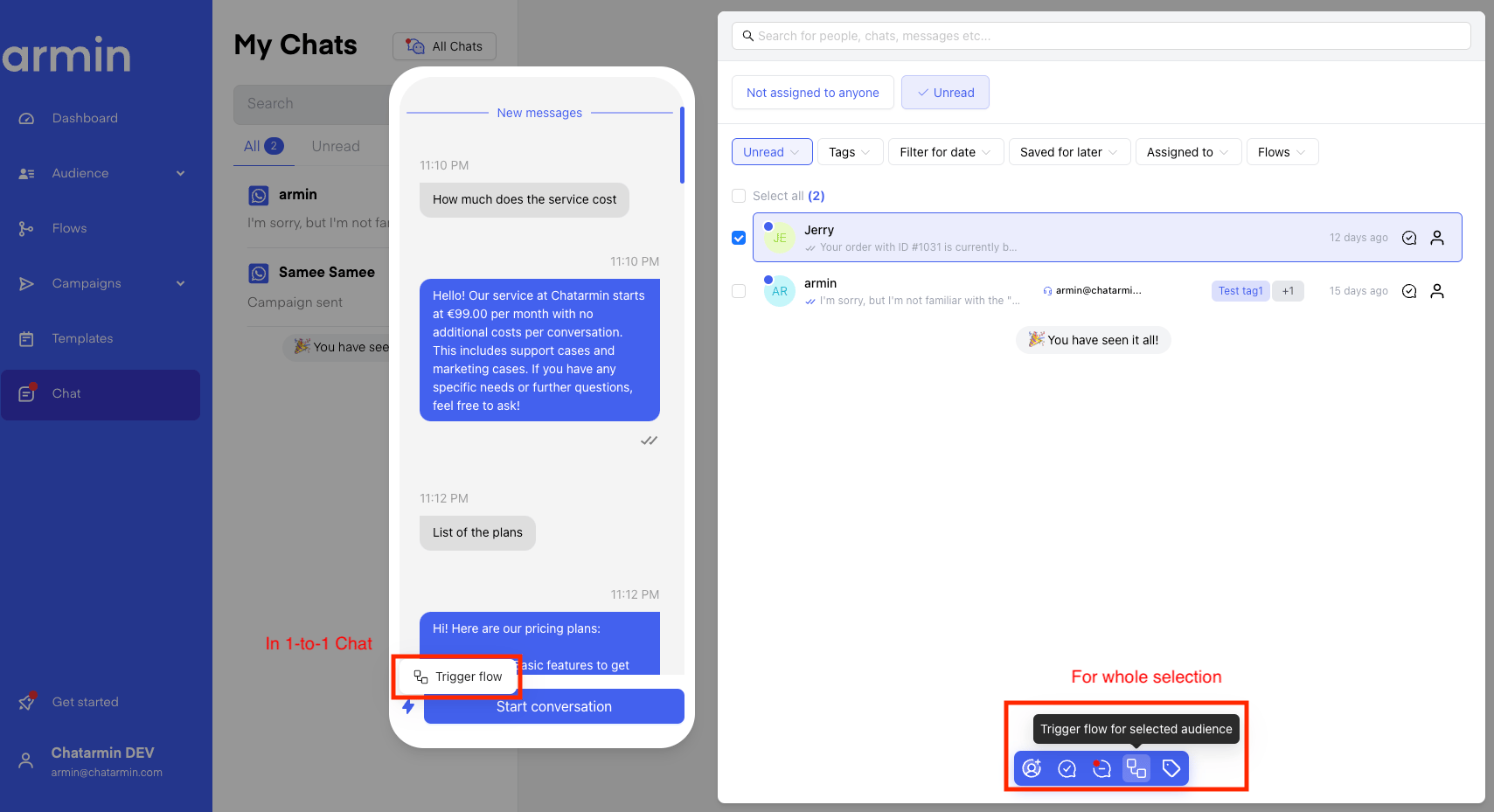
Customer Support: Trigger flows manually out of chats
It is possible to manually trigger flows for individual users, when in chat. This is sometimes useful, if you want to send users into:
- AI-chat
- dedicated user-journeys
- more sophisticated flows
- multi-day-user-journeys
- standardized lead-enrichment-flows
Flows: Trigger flows out of other flows
Here’s what it looks like to trigger flows from within flows:
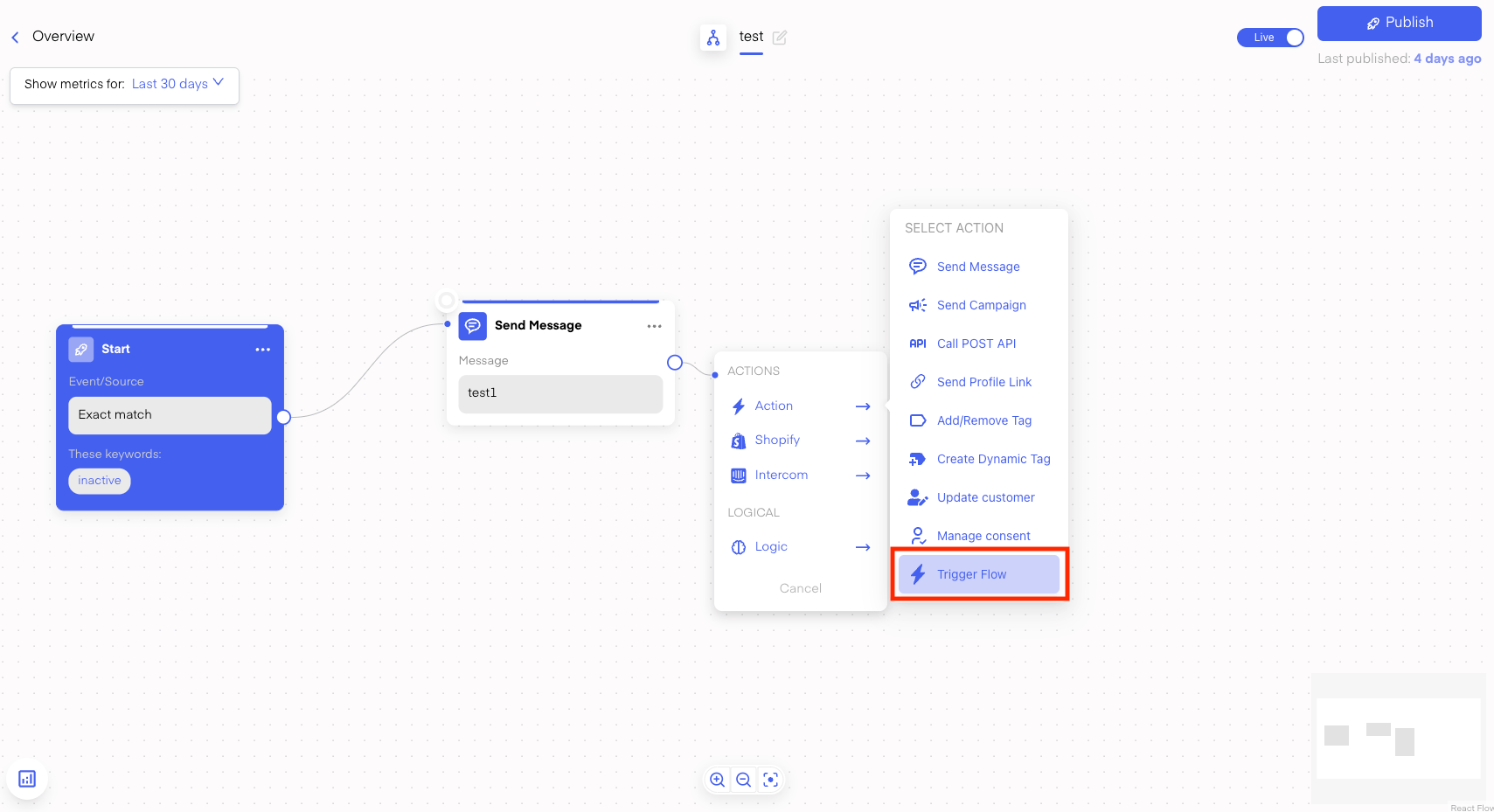
- don’t always wanna work with buzzwords to enter flows
- build multiple flows for the same user journey
- don’t wanna work with multiple flows to achieve the same
- don’t wanna use separate flows to guide the user in the same automation