
Connect Braze
1
Create a Braze REST API key
In Braze, open Settings → APIs and Identifiers and create a REST API key with these permissions:
users.trackusers.export.idsusers.identifyusers.export.segmentsegments.listcustom_attributes.get
2
Enter your credentials in Chatarmin
In Chatarmin, open Integrations → Braze → Connect. Enter the REST API key and your Braze REST endpoint. For example, an EU endpoint can be 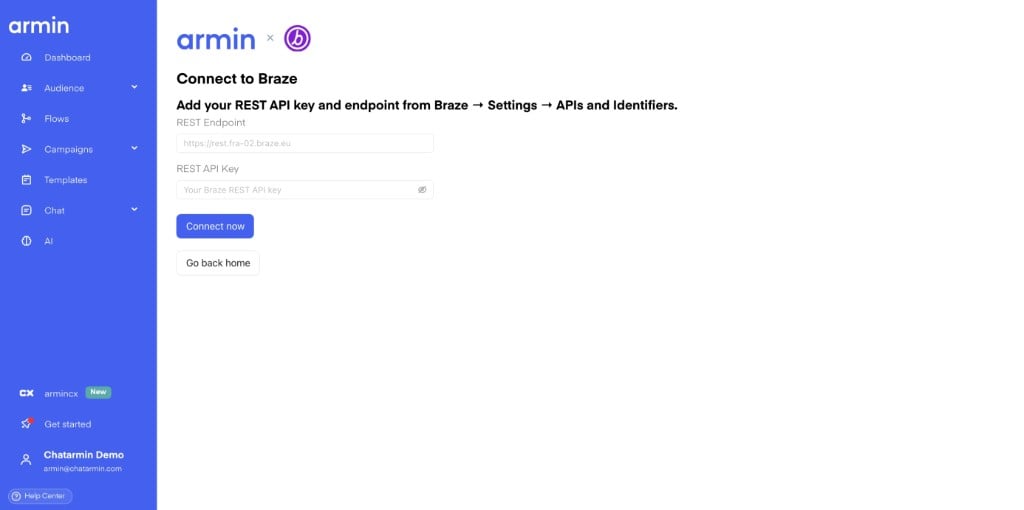
https://rest.fra-02.braze.eu.3
Configure consent sync
After Chatarmin verifies the connection and loads your Braze segments, choose whether to sync WhatsApp consent automatically. You can change the Braze custom attribute used for consent; the default is
chatarmin_whatsapp.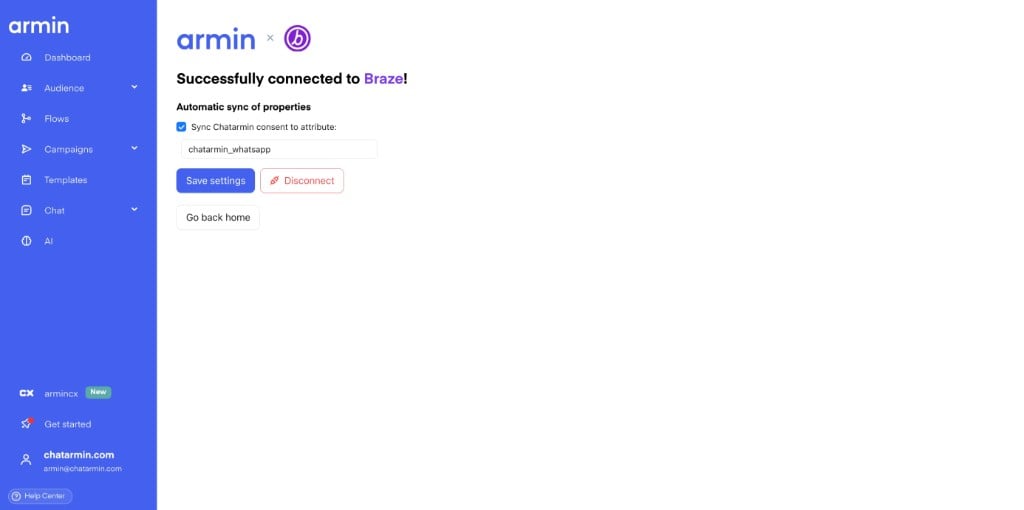
Contact sync
When a contact changes in Chatarmin, the integration can update the matching Braze profile. Chatarmin matches profiles using phone number, email address, or the contact’s external ID. The following data is synchronized:- WhatsApp consent to your configured attribute, such as
chatarmin_whatsapp - Chatarmin tags to
Chatarmin_Tagsand the tag count toChatarmin_Tag_Count - Custom contact properties with the
chatarmin_prefix - Birthday to
chatarmin_birthday - First name, last name, email address, and phone number to standard Braze profile fields
Use Braze segments in audiences
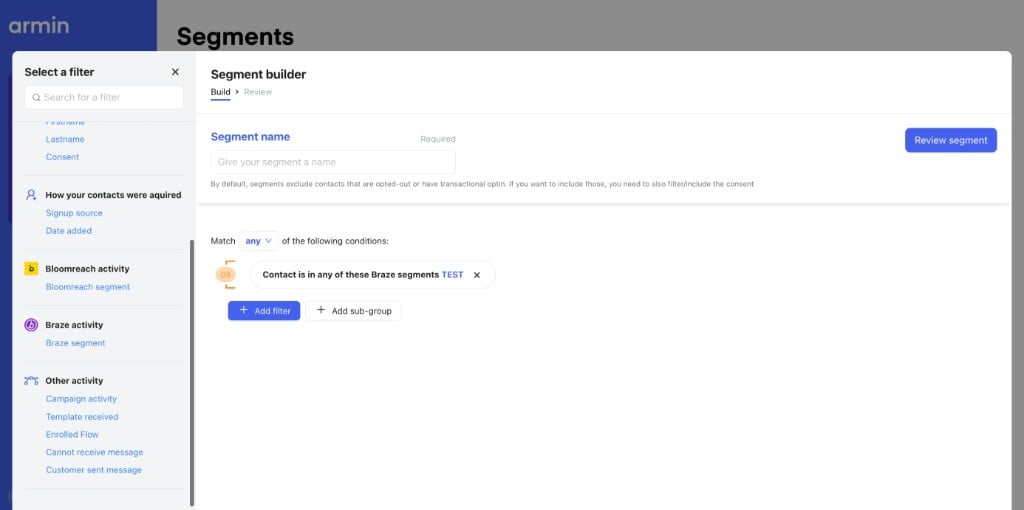
In Chatarmin, open Audience → Segments and add a Braze segment filter. You can select contacts who are:- in any selected Braze segment
- in all selected Braze segments
- not in any selected Braze segment
- not in all selected Braze segments
Use Braze in Flows
Update Braze properties
Add the Update Braze Properties action to update custom attributes on a contact’s Braze profile. For example, save a sport preference, birthday, or another custom field collected in the Flow.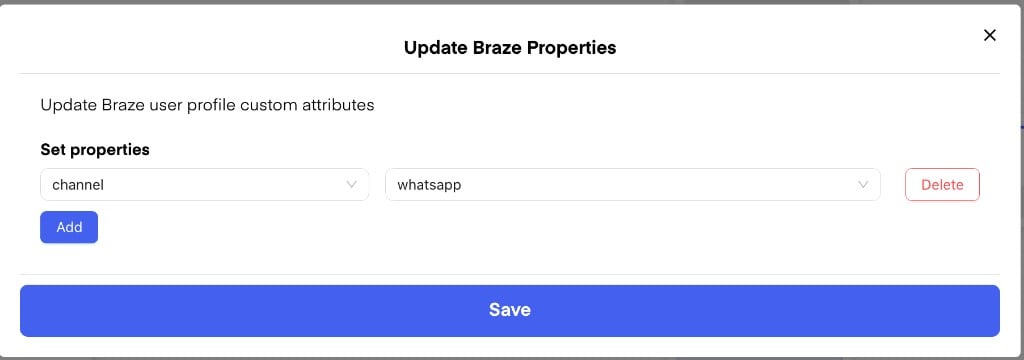
Branch with Braze data
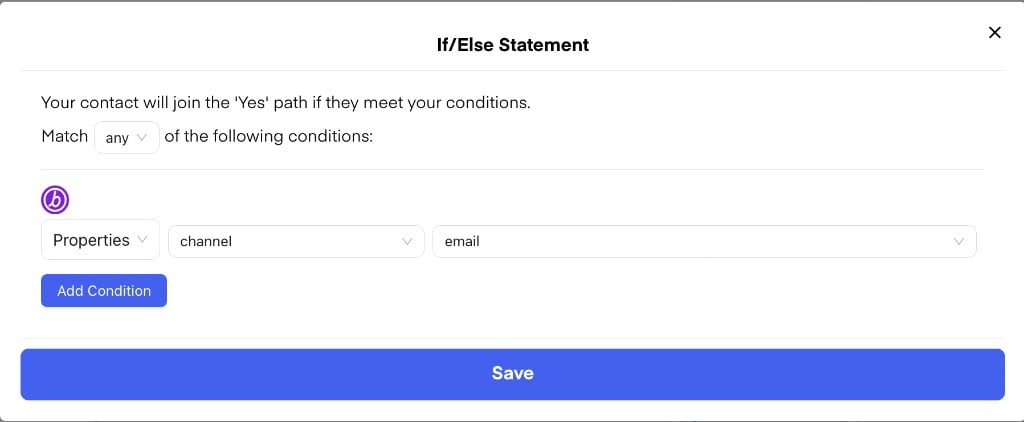
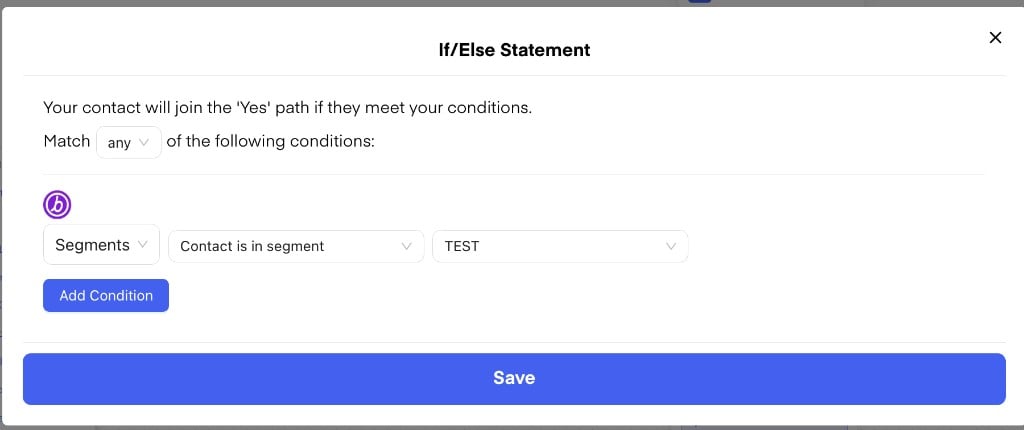
Use an If/Else step with:- Braze Properties to branch on a custom attribute, such as
chatarmin_whatsapp - Braze Segments to check whether the contact is or is not in a selected segment
Track Chatarmin activity in Braze
Chatarmin sends these events to the Braze user profile:Chatarmin - Flow enrolledwhen a contact enters a Chatarmin FlowChatarmin - Updated Profilewhen Chatarmin synchronizes or updates the profile
Example journey
- Connect Braze with your REST API key and endpoint.
- A contact opts in to WhatsApp in Chatarmin, and consent syncs to Braze.
- Chatarmin tags appear in Braze as
Chatarmin_Tags. - Create a Chatarmin audience using the Braze segment Lapsed Users and WhatsApp consent.
- Send a WhatsApp campaign or enroll the audience in a Flow.
- Branch the Flow using a Braze segment or property.
- Update a Braze custom attribute from the Flow.
- Review Flow enrollment events and updated attributes on the Braze profile.
Frequently asked questions
Do I need a developer to connect Braze?
Usually not. You need a Braze REST API key with the required permissions. Your Braze administrator or IT team may need to create it.Is synchronization instant?
Contact updates synchronize shortly after they change in Chatarmin. Braze segment membership can take a few minutes to process.Can I send WhatsApp messages to a Braze segment?
Yes. Create a Chatarmin segment filtered by Braze segment membership, then use it in a campaign or Flow.Does Braze show WhatsApp activity?
Yes. Braze receives Flow enrollment and profile update events as well as the synchronized profile attributes.Does this work with Braze EU?
Yes. Enter the REST endpoint for your Braze instance, such ashttps://rest.fra-02.braze.eu.