Segments - General
Segments
"Segments" are used to be able to segment your audience and use the segments inside of your "Flows" or "Campaigns" to send out personalized content to specific user cohorts.
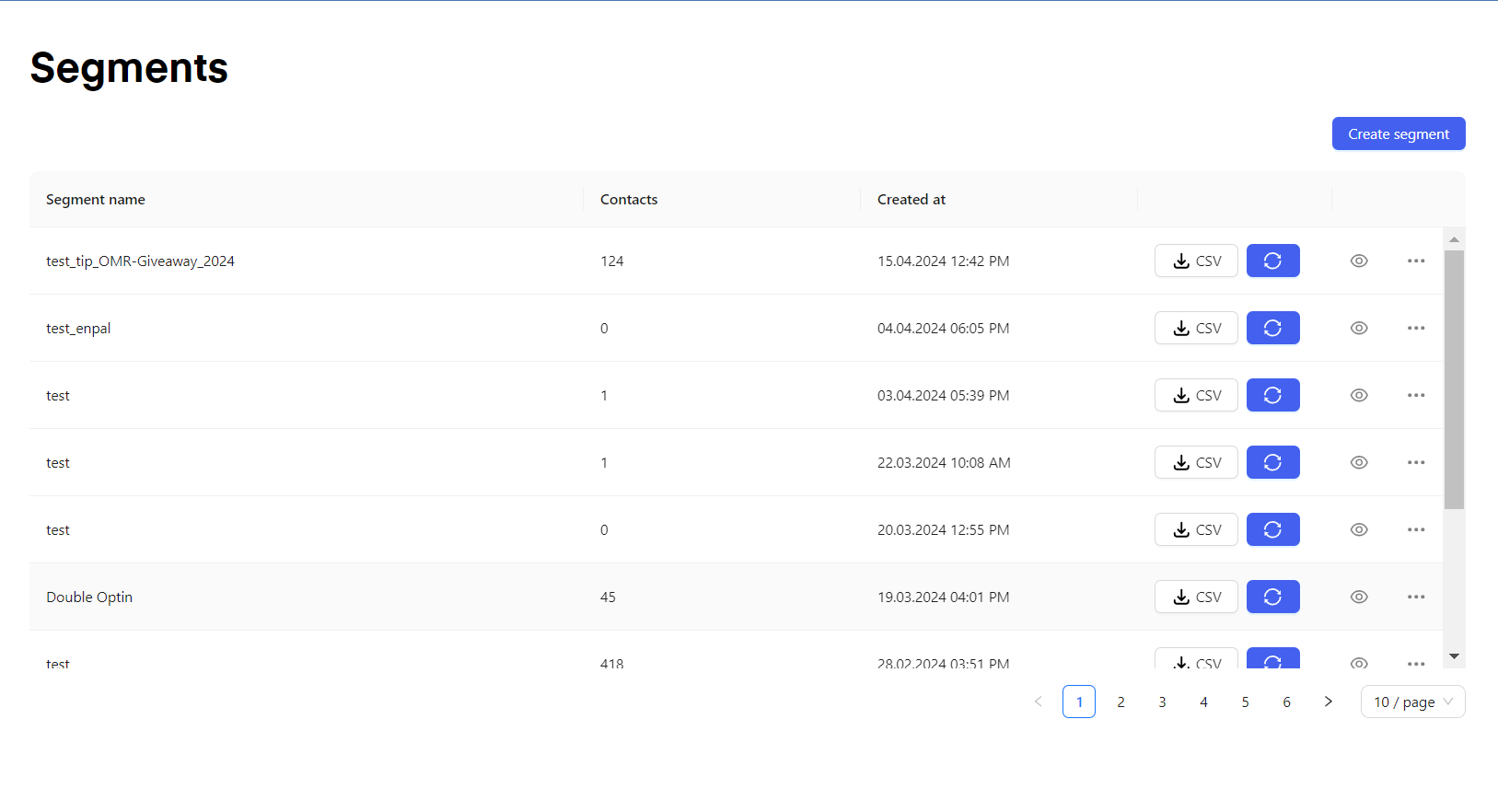
You can click on the "CSV" Icon to export a specific segment as a CSV file.

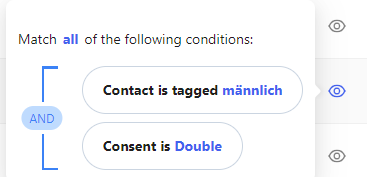
If you hover over the eye icon you can see what the specific segment is using as filters to include/exclude specific users.
Alternatively here is a video explaining the "Segments" feature:
Samples
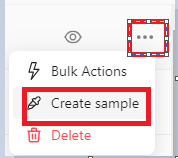
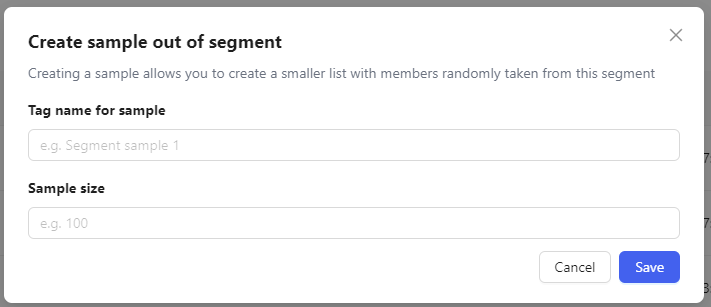
By clicking on the three dots and clicking "Create sample" you can create a specific sub-segment by creating a sample size. E.g. If 1000 users are in a segment and you create a sample of 100, you will create a subsegment with 100 randomized users of the previous segment. This can be useful to test campaigns on a smaller sample size.
Alternatively here is a video explaining the "Segments" feature:
Creating a new Segment
Start by clicking "Create Segment" on the top right corner.
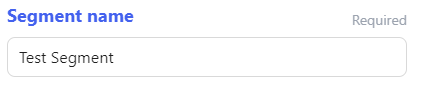
Give your Segment a name to find it easier afterward, e.g. when you want to send out a campaign to this specific Segment or use it inside a Flow with an IF/ELSE split.
Click "Add filter group"
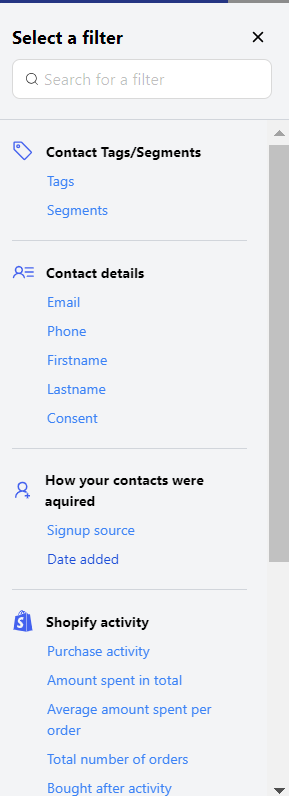
You can now choose one or multiple filters from the sidebar on the left to include inside of your Segment.
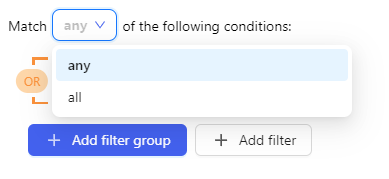
You can then choose to match "any" or "all" conditions. If you choose "any" a lead will be included in the segment if he/she matches one or more of the given conditions. If you chose "all" the lead will only be included if he/she matches all of the given conditions.
Once done with creating your segment you can click "Review Segment"
Your created Segment will then be shown with all its included leads.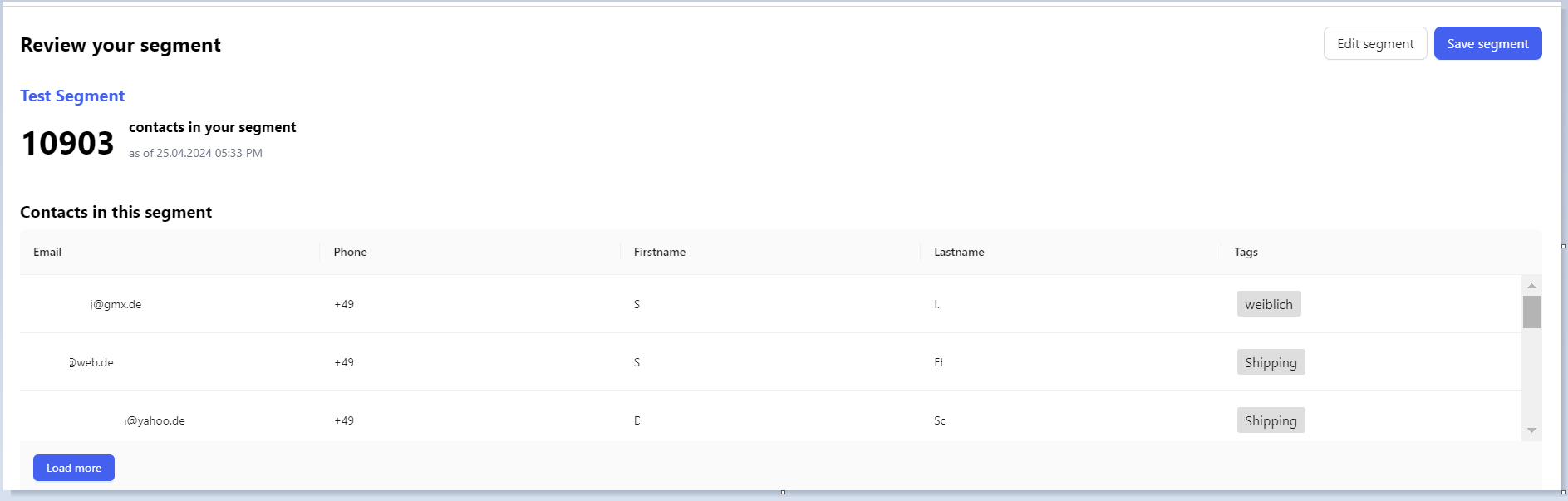
You can click "Save Segment" to finalize your segment or "Edit Segment" if you want to include or exclude more conditions.