.png?token=eyJraWQiOiJzdG9yYWdlLXVybC1zaWduaW5nLWtleV9lMzQ5MTRlYi01NjlkLTRkNGYtODNhNi04MzFjODU0MzRlNmIiLCJhbGciOiJIUzI1NiJ9.eyJ1cmwiOiJoZWxwLWNlbnRlcnMvQXJtaW5fTG9nb19UcmFuc3BhcmVudF9CbHVlXygyKS5wbmciLCJpYXQiOjE3NjgzMzcwNzUsImV4cCI6NDkyMTkzNzA3NX0.3JpSAbn8b4OIktmPg9GDxJEMLAXlQn2ASxDwpEE7DbI)
Two-Factor Authentication (2FA) in Chatarmin
🔐 Why 2FA Matters
Two-Factor Authentication (2FA) adds an extra layer of protection to your Chatarmin account. Even if someone gets your password, they can’t log in without the second verification step. This simple but powerful feature safeguards your customer data, campaign settings and automations, as well as your personal and team login credentials.
🛡️ How to Set Up 2FA in Chatarmin
Step 1 – Open Your Account Settings
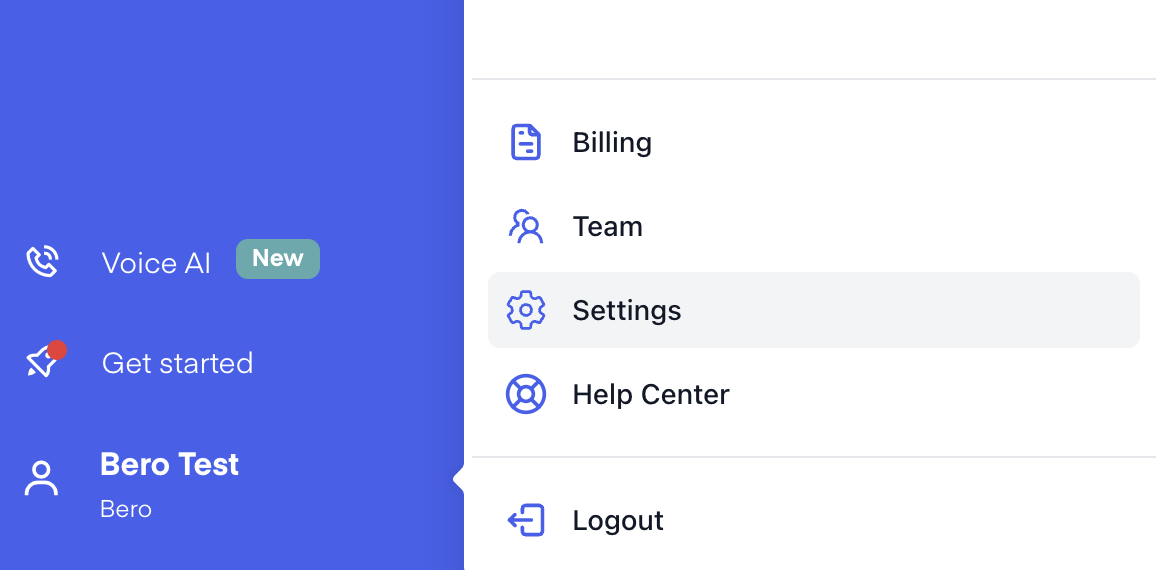
Log in to your Chatarmin account, click on your Account in the navigation, and then select Settings.
Step 2 – Find the 2FA Option
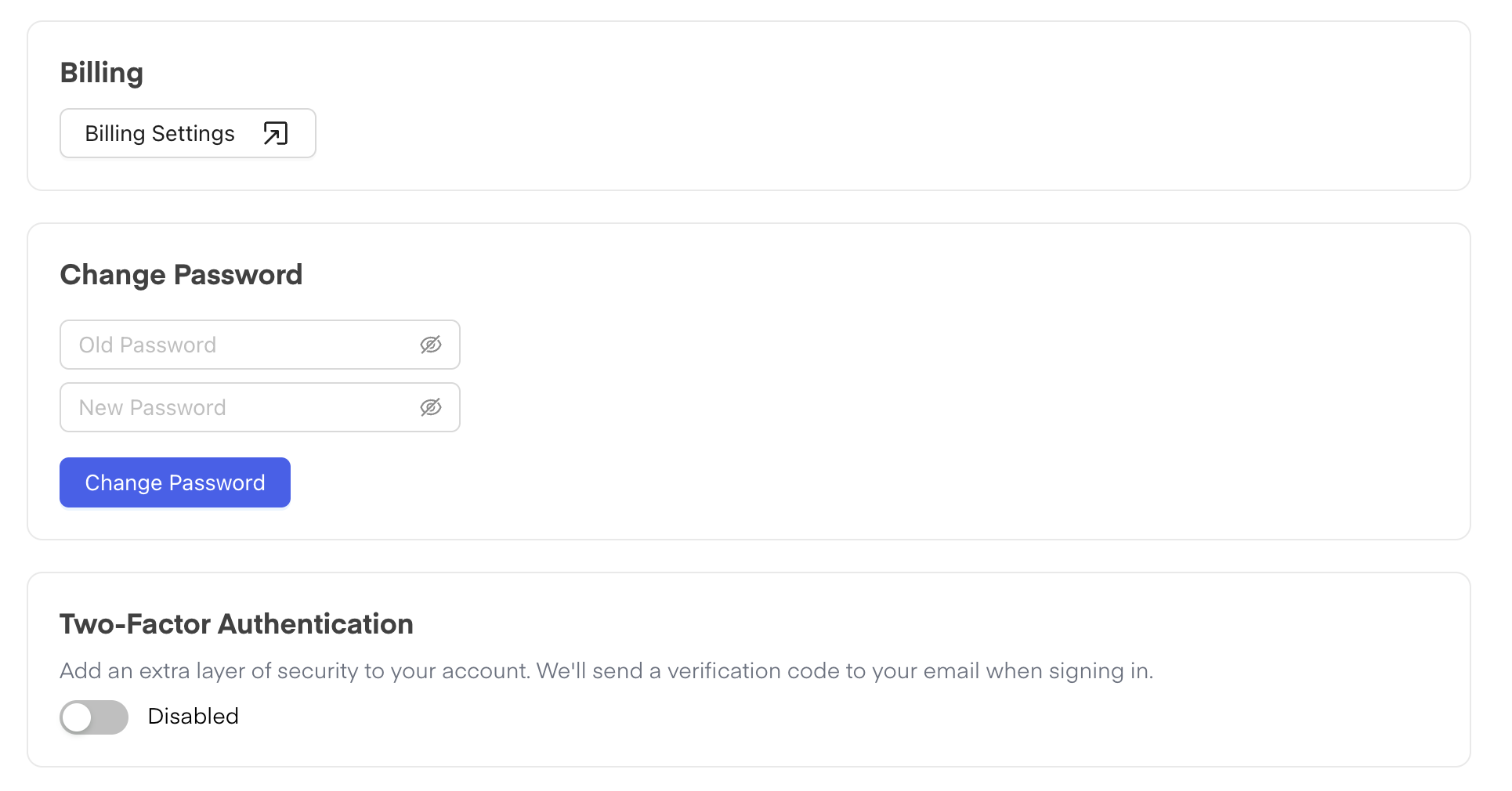
Scroll down until you reach the Two-Factor Authentication section, then click Enable Authentication.
Step 3 – Verify Your Email
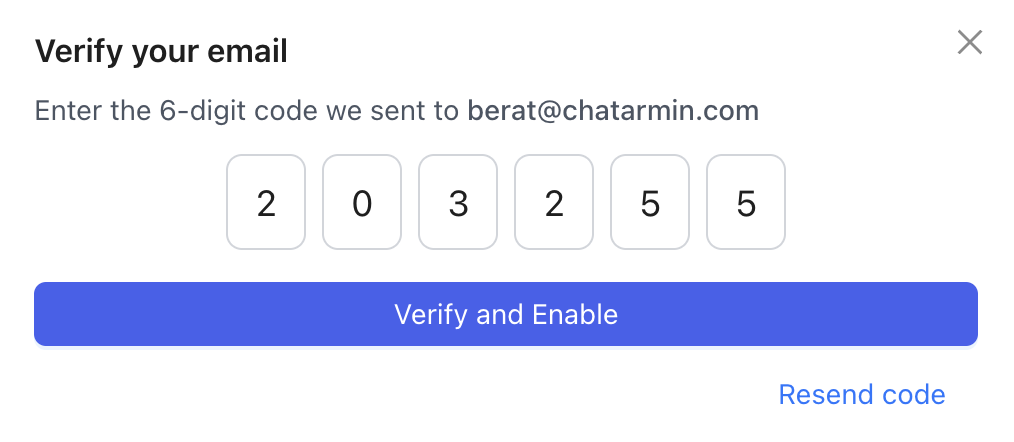
A verification code will be sent to your admin email 📧. Enter the code into the field provided and click Confirm to activate 2FA.
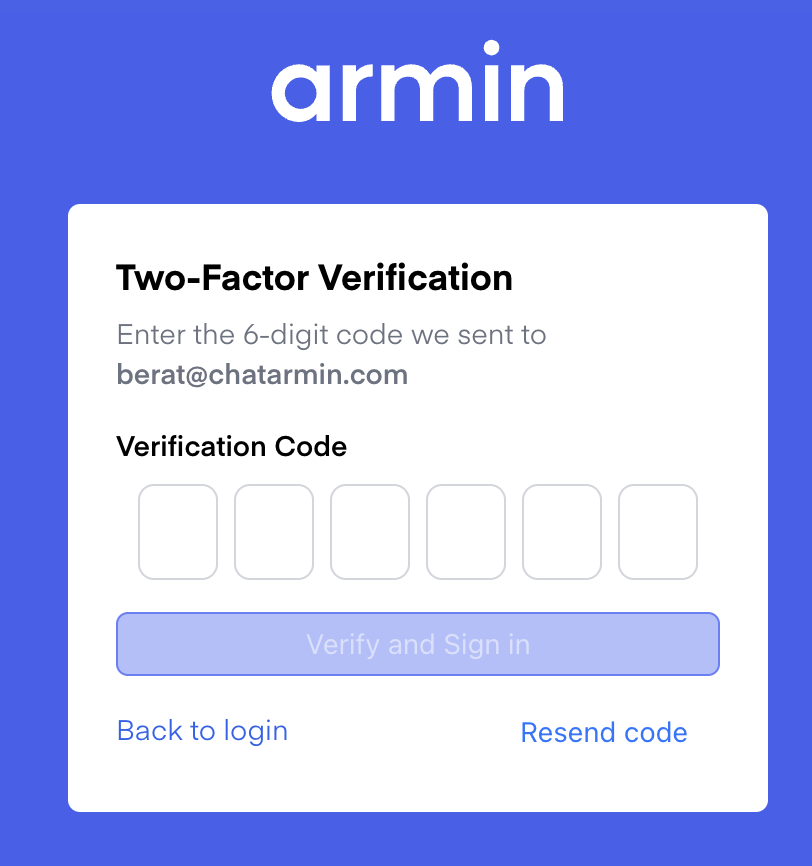
Step 4 – Use 2FA When Logging In
From now on, every time you log out and log back in, you will be asked for a 2FA code. This code will be sent to your admin email each time you log in.