> ## Documentation Index
> Fetch the complete documentation index at: https://help.chatarmin.com/llms.txt
> Use this file to discover all available pages before exploring further.
# How to use Variables from a third-party (webhook) inside your Flows
> Chatarmin guide: How to use Variables from a third-party (webhook) inside your Flows
You can either watch the [Video-Guide](https://www.loom.com/share/00231f55eeed4aaebbb587cb105569a8?sid=d9920467-81e3-417c-9c96-e4073e0b1b04) above or check-out the steps below!
# Choosing the correct Flow Trigger
When you want to use Variables passed through a third-party, your Flow Trigger has to be of type **POST-Endpoint** or **Klaviyo Webhook.** You can create a new flow [here](https://chatarmin.com/dashboard/flows/create)
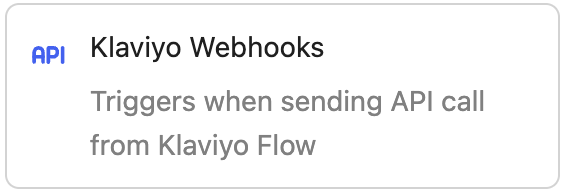
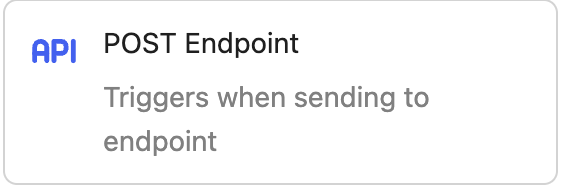 After selecting your trigger, you will need to pass in the **Payload Body when configuring your trigger,** so that the Tool (Chatarmin) knows, which Variables will/can be used. An example of that payload would be:
```
{
"email": "{{ person.email }}",
"phone":"{{person.phone_number}}",
"tracking_url":"{{event.trackingURL}}"
}
```
# Selecting Variables in Flows
## In Templates
Now, after you have configured your **Trigger** with the correct **Payload Body** and clicked on **Save**, you can add **"Send Campaign"** as the next step and select a Template:
After selecting your trigger, you will need to pass in the **Payload Body when configuring your trigger,** so that the Tool (Chatarmin) knows, which Variables will/can be used. An example of that payload would be:
```
{
"email": "{{ person.email }}",
"phone":"{{person.phone_number}}",
"tracking_url":"{{event.trackingURL}}"
}
```
# Selecting Variables in Flows
## In Templates
Now, after you have configured your **Trigger** with the correct **Payload Body** and clicked on **Save**, you can add **"Send Campaign"** as the next step and select a Template:
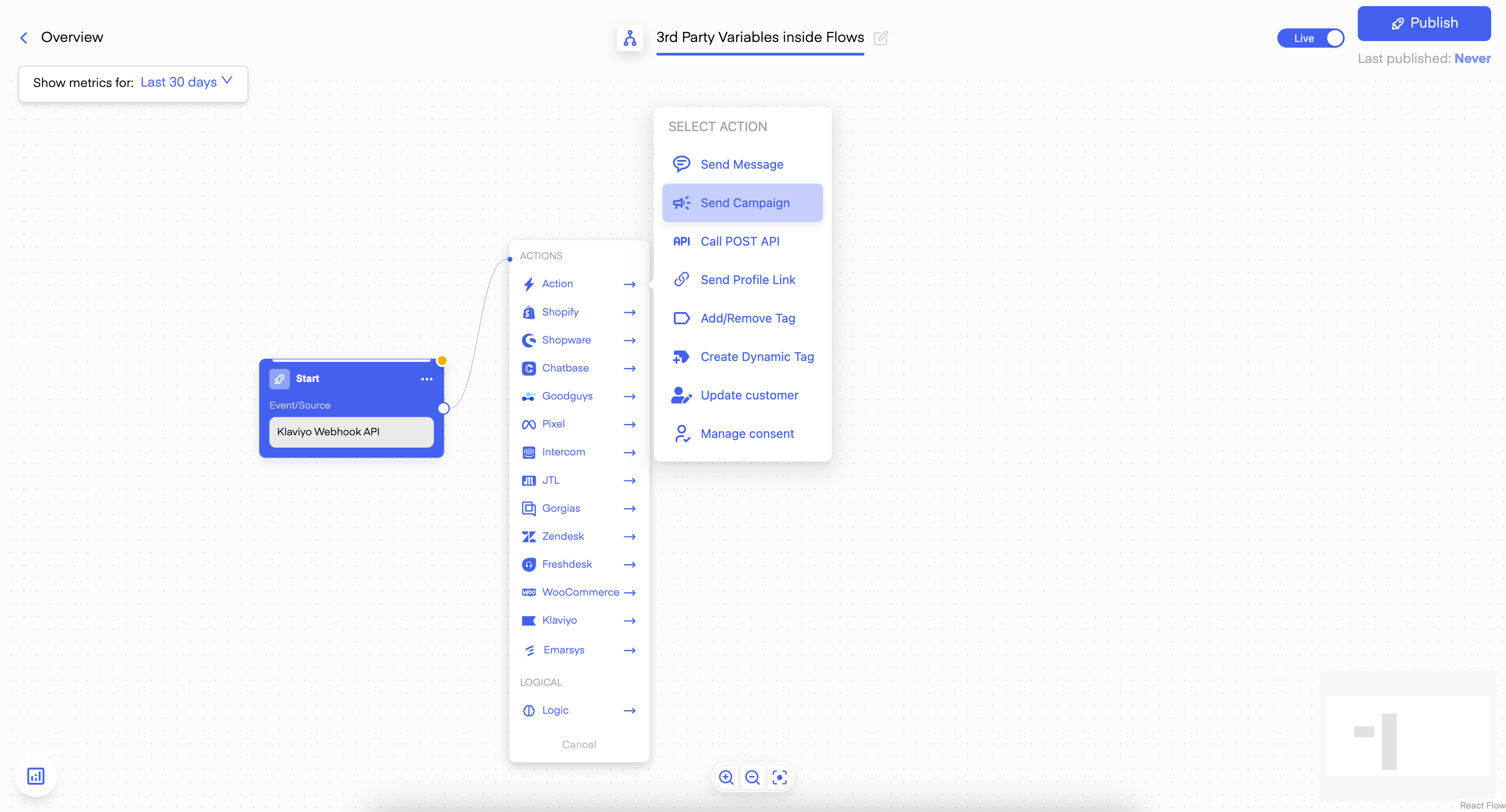 After selecting your Template -> Select your Variables:
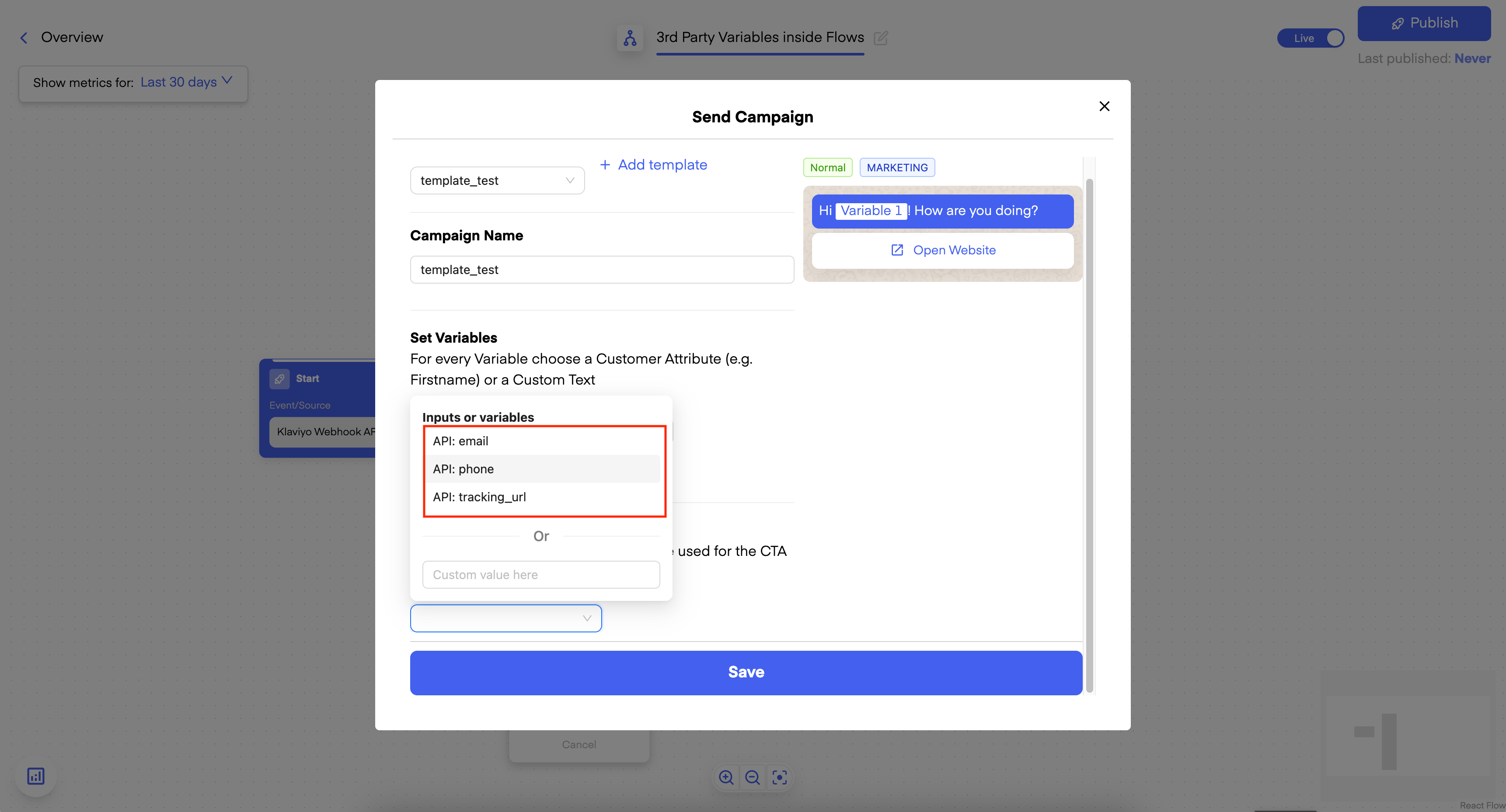 Now, after Publishing your Flow, you can test your Flow and see that the passed Variables will be used!
## In normal Messages
You can also use them in "Send message". Just type the key "@" in the Field and you will see all the available Variables:
Now, after Publishing your Flow, you can test your Flow and see that the passed Variables will be used!
## In normal Messages
You can also use them in "Send message". Just type the key "@" in the Field and you will see all the available Variables:
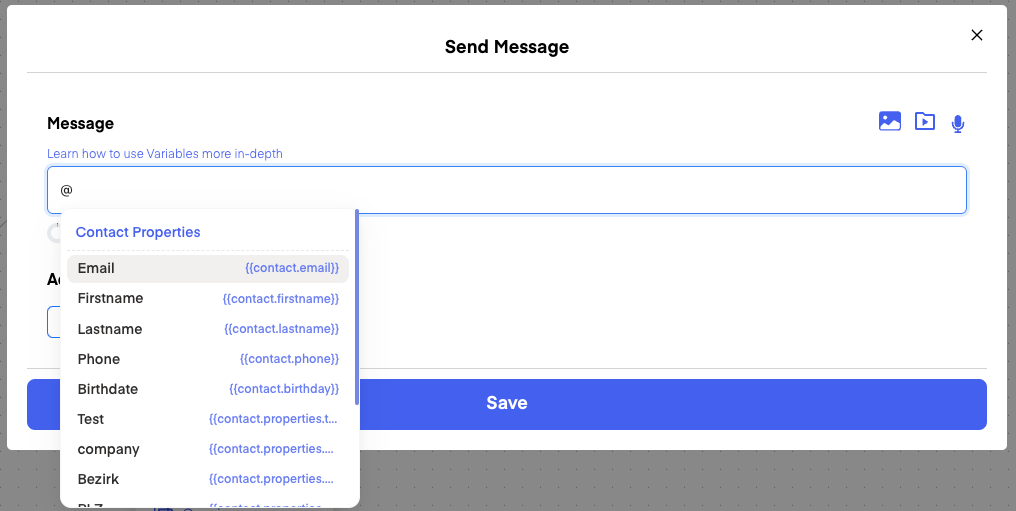 So you could pass a `"message"` variable in your POST Body and then access just the message!