> ## Documentation Index
> Fetch the complete documentation index at: https://help.chatarmin.com/llms.txt
> Use this file to discover all available pages before exploring further.
# How to accept the Request to migrate Cloud API to Marketing Messages API
> Chatarmin guide: How to accept the Request to migrate Cloud API to Marketing Messages API
## **🚨** Important: Request will only be visible and acceptable for Admin Users
> **Good to know:** Accounts that haven't accepted the migration yet are billed a **7% surcharge** on their Meta costs. Accepting the request removes it, no other changes to your setup.
## ⚙️ How to set it up (for META Users Only)
Here's your step-by-step tutorial on how to approve the request:
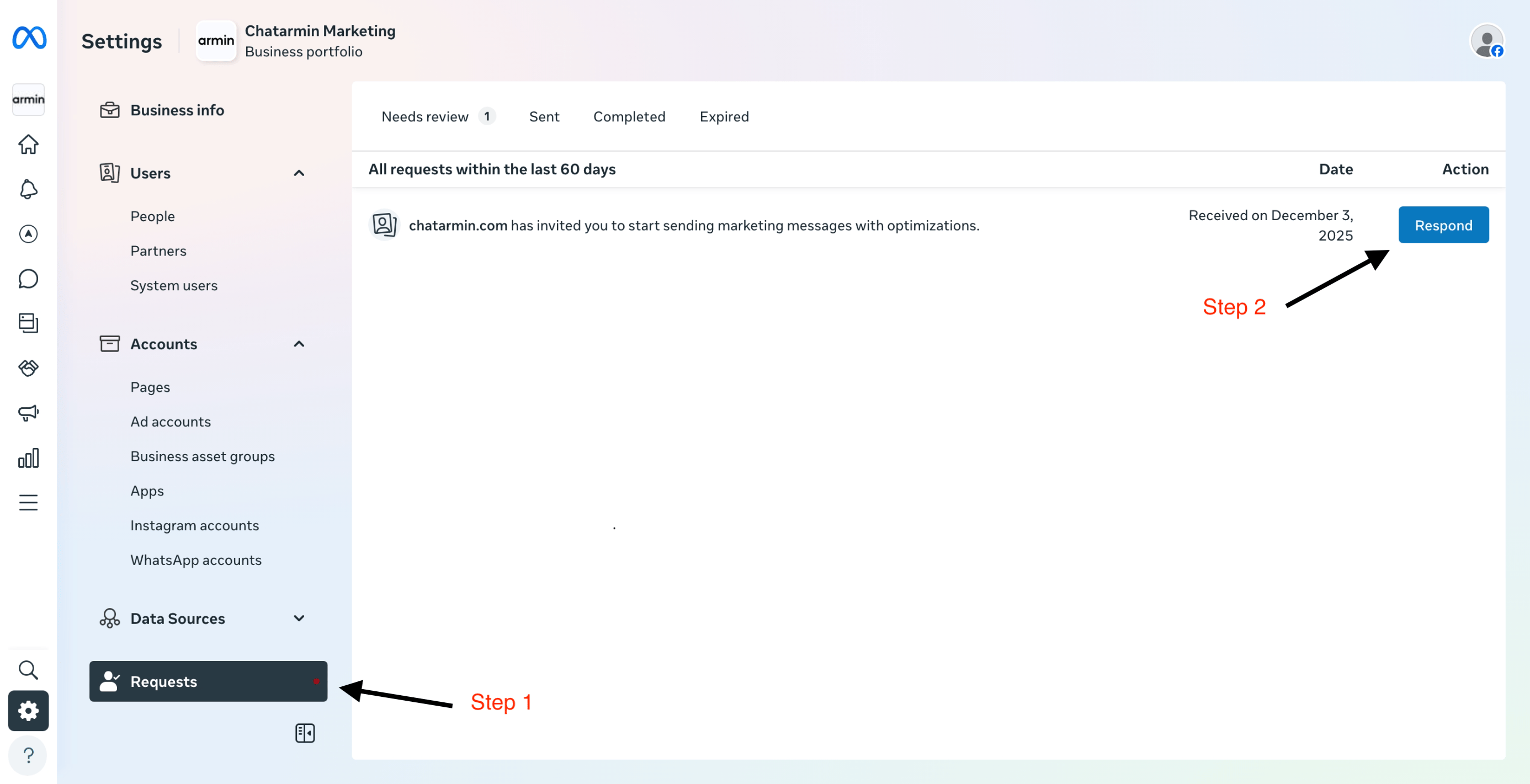
1. Go to Settings -> Requests
2. Click on the Button 'Respond'
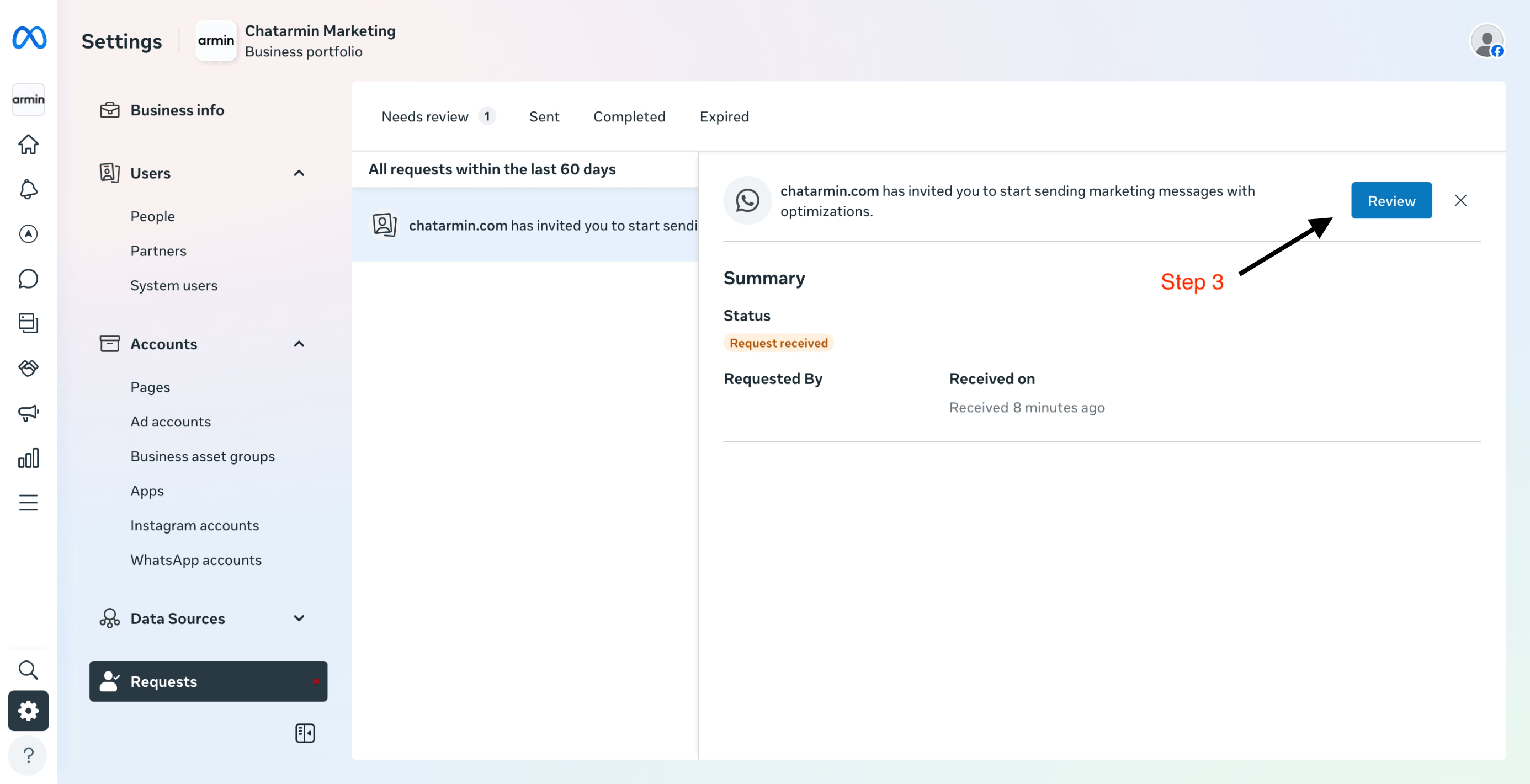
 3. Click on 'Review'
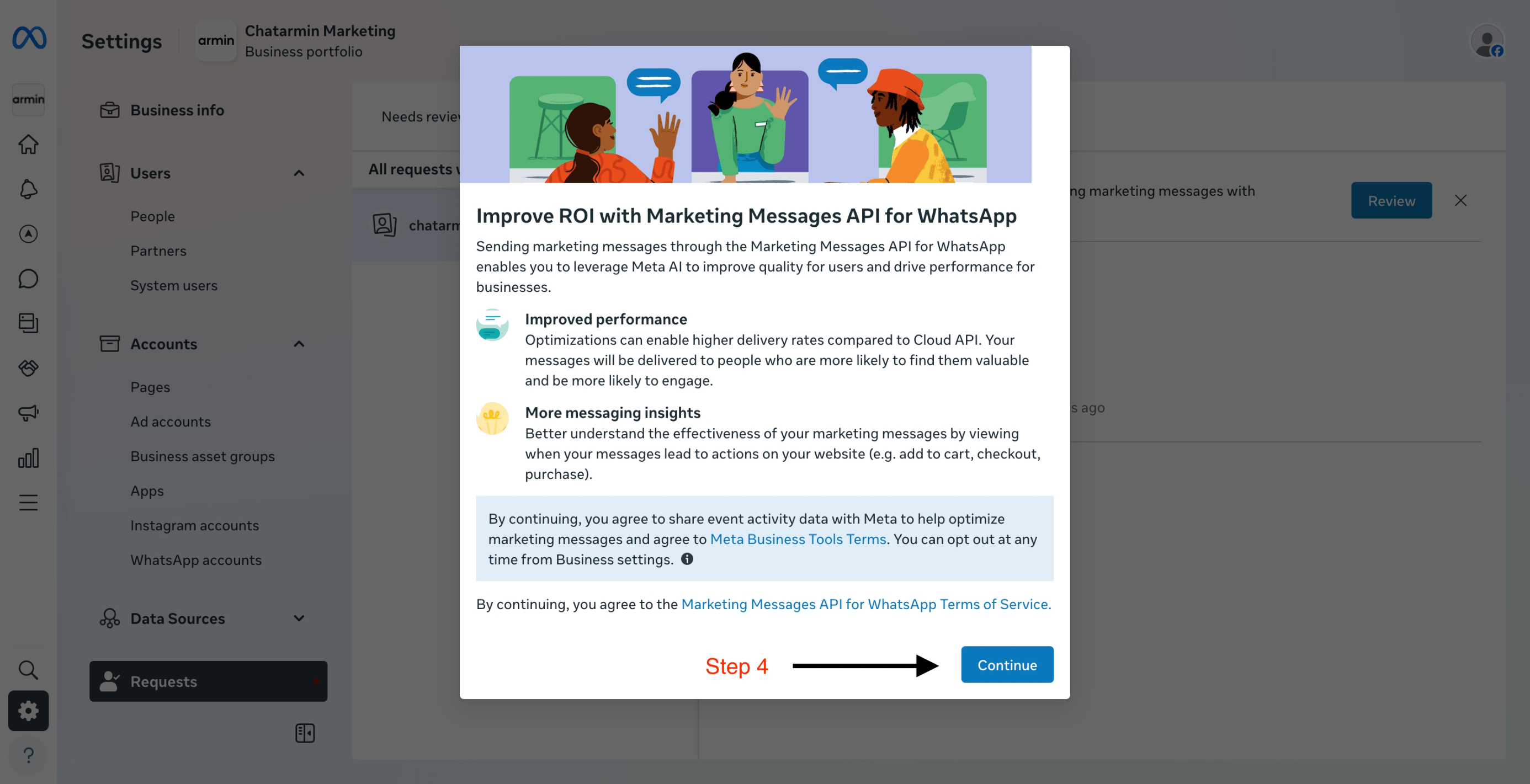
 4. Click on 'Continue'
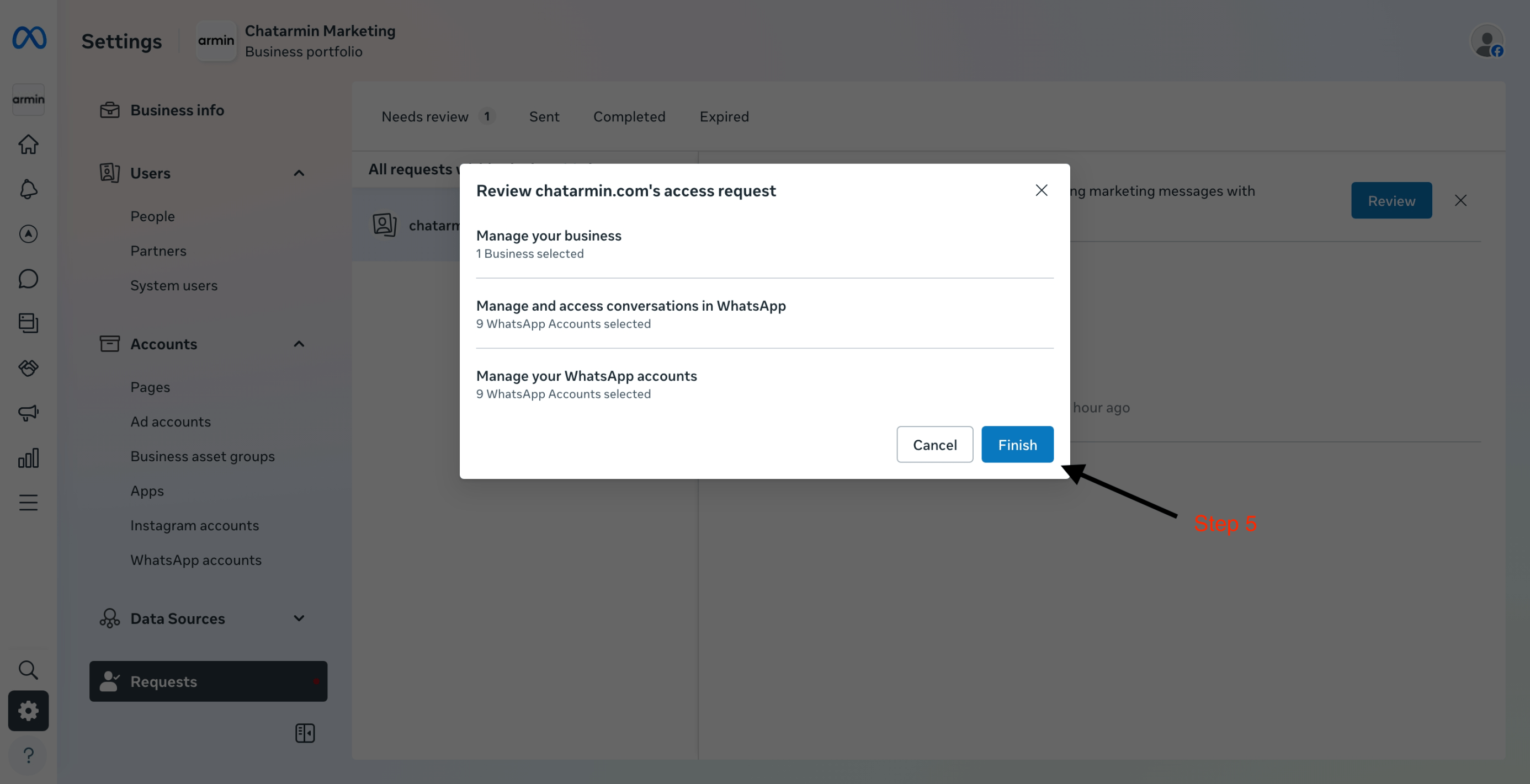
 5. Finish up the request by clicking on the designated button
 > **Good to know:** You need full **Admin** access in your Meta Business Manager to see and respond to this request, not a limited employee role. If you're not sure what access level you have, check under Business Settings → People.
***
## ⚙️ How to set it up (for 360Dialog Users Only)
Refer to the following article, in order to enable the new Marketing Messages API: 👇
[https://docs.360dialog.com/partner/messaging-and-calling/sending-marketing-messages/onboarding-and-sending-messages#self-onboard-using-whatsapp-manager](https://docs.360dialog.com/partner/messaging-and-calling/sending-marketing-messages/onboarding-and-sending-messages#self-onboard-using-whatsapp-manager)
**You're all set and good to go!**
> **Good to know:** You need full **Admin** access in your Meta Business Manager to see and respond to this request, not a limited employee role. If you're not sure what access level you have, check under Business Settings → People.
***
## ⚙️ How to set it up (for 360Dialog Users Only)
Refer to the following article, in order to enable the new Marketing Messages API: 👇
[https://docs.360dialog.com/partner/messaging-and-calling/sending-marketing-messages/onboarding-and-sending-messages#self-onboard-using-whatsapp-manager](https://docs.360dialog.com/partner/messaging-and-calling/sending-marketing-messages/onboarding-and-sending-messages#self-onboard-using-whatsapp-manager)
**You're all set and good to go!**