> ## Documentation Index
> Fetch the complete documentation index at: https://help.chatarmin.com/llms.txt
> Use this file to discover all available pages before exploring further.
# Choose & Change Your WhatsApp Display Name
> Chatarmin guide: Choose & Change Your WhatsApp Display Name
***
## 🛠️ How to Choose or Change Your WhatsApp Display Name in Facebook Business Manager
***
If you haven’t set a display name yet, want to update your current one, or if your existing display name was **rejected or blocked by Meta**, you can easily manage this through **Facebook Business Manager**. Just follow the steps below:
## ✅ Step-by-Step Guide
## 1. Go to Facebook Business Manager
Open this link to access your WhatsApp Manager Account:\
[https://business.facebook.com/latest/settings/](https://business.facebook.com/latest/settings/)
## 2. Navigate to **WhatsApp Accounts**
In the left-hand sidebar, click on **“WhatsApp Accounts".**
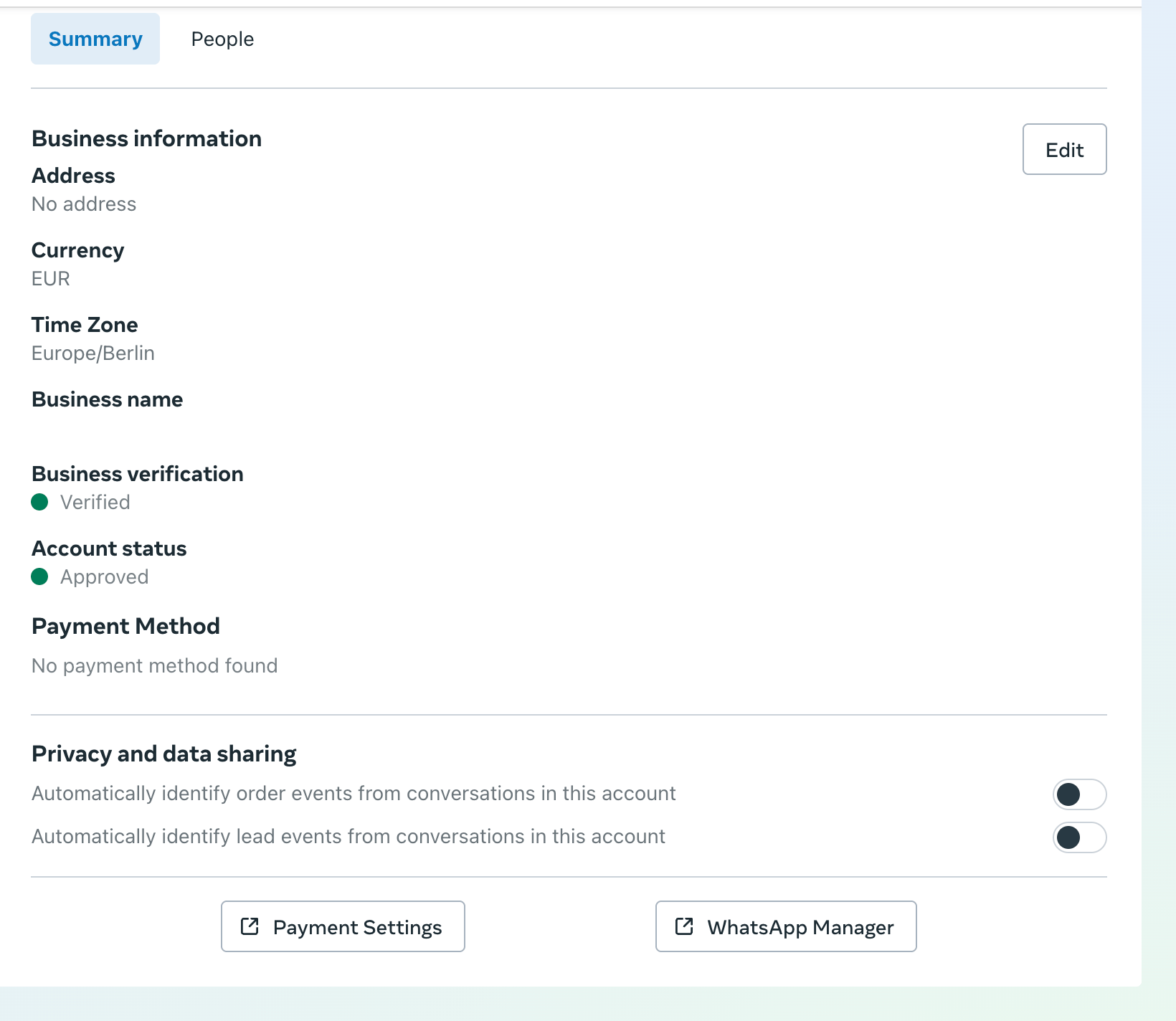 ## 3. Open **WhatsApp Manager**
After selecting your WhatsApp Account, click on **“WhatsApp Manager”** to manage settings for your connected numbers.
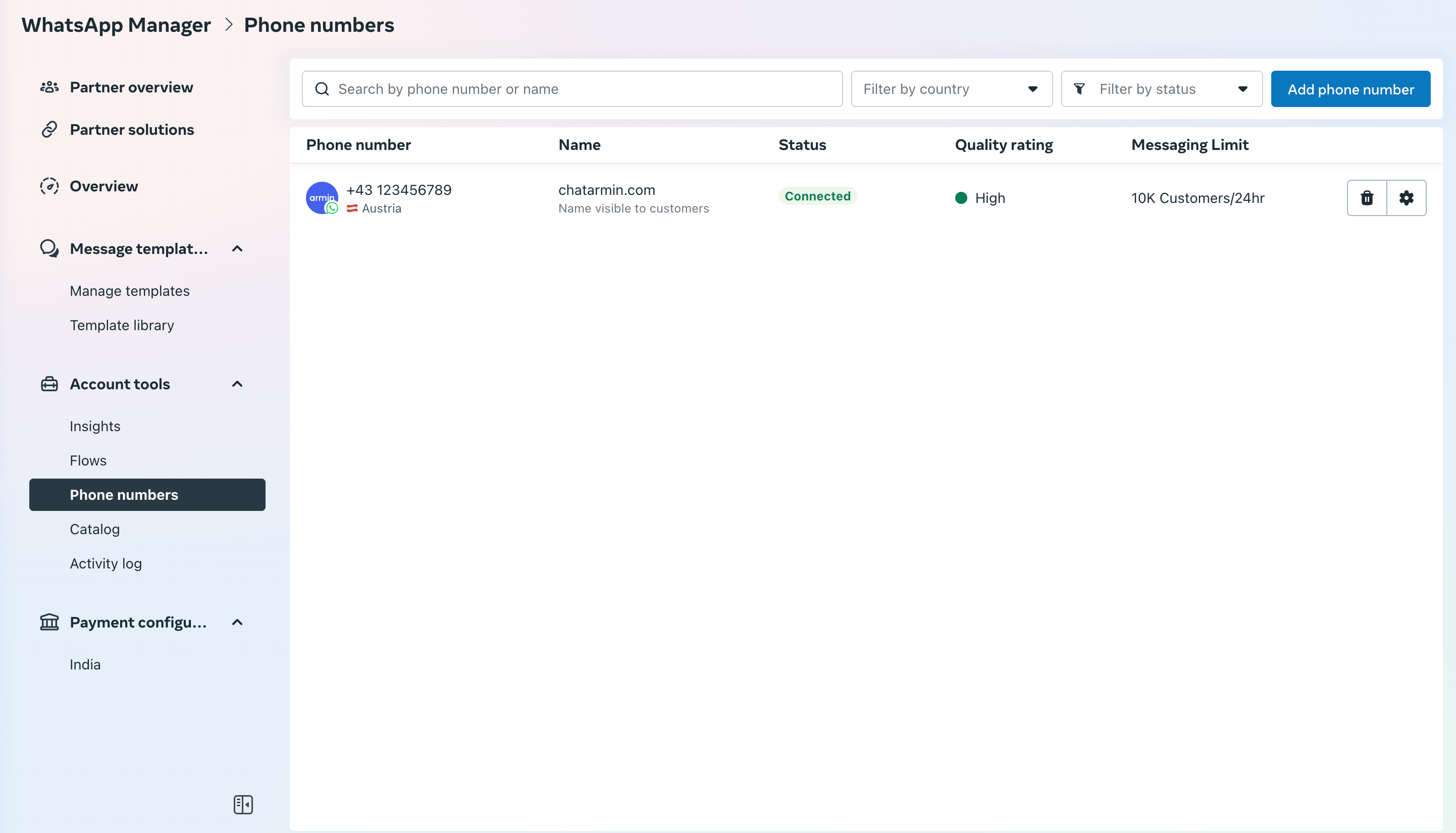
## 4. Select Your Phone Number
You’ll see a list of phone numbers linked to your account. Click on the number for which you want to update the display name.
## 3. Open **WhatsApp Manager**
After selecting your WhatsApp Account, click on **“WhatsApp Manager”** to manage settings for your connected numbers.
## 4. Select Your Phone Number
You’ll see a list of phone numbers linked to your account. Click on the number for which you want to update the display name.
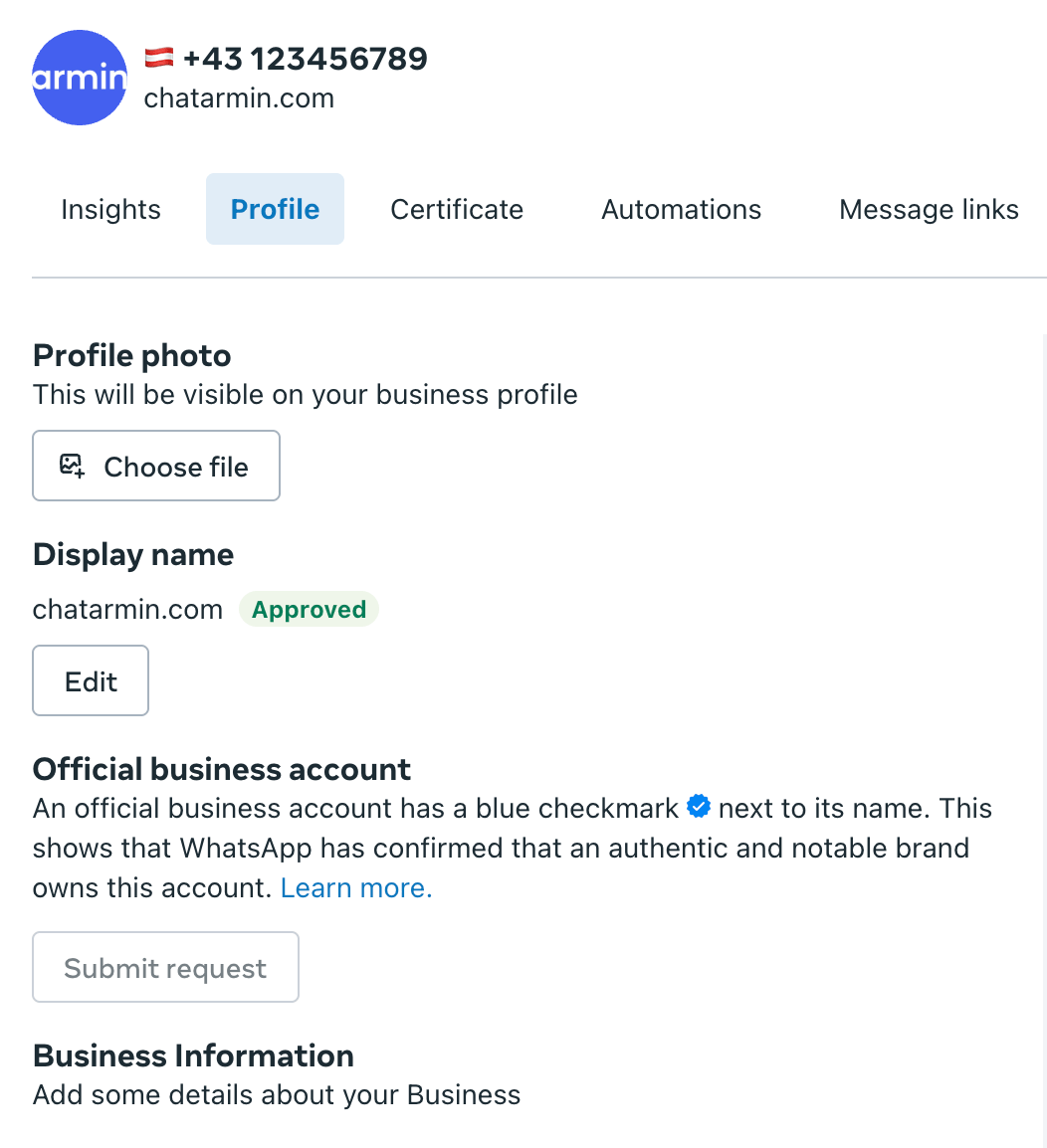
 ## 5. Open the **Profile** Tab
Once inside the phone number settings, go to the **“Profile”** section.
## 5. Open the **Profile** Tab
Once inside the phone number settings, go to the **“Profile”** section.
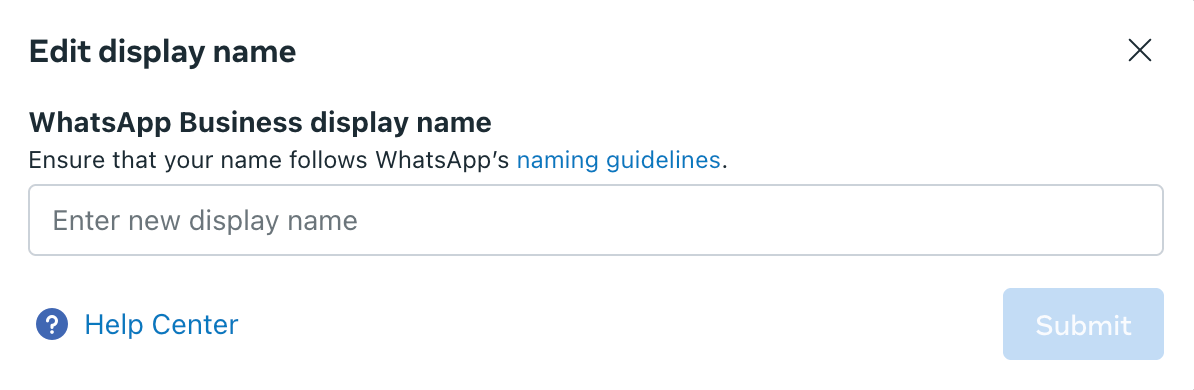
 ### 6. Click **“Edit Display Name”**
Here’s what you can do in this section:
* If no display name is set yet, **add a new one**.
* If your current name was **rejected or blocked**, you can **submit a new version**.
* You can also update your **existing display name** at any time if needed.
### 6. Click **“Edit Display Name”**
Here’s what you can do in this section:
* If no display name is set yet, **add a new one**.
* If your current name was **rejected or blocked**, you can **submit a new version**.
* You can also update your **existing display name** at any time if needed.
 ## ⚠️ Important: Follow Meta's Naming Guidelines
Before submitting, make sure your chosen display name follows Meta’s official naming policy: [Meta Display Name Guidelines](https://www.facebook.com/business/help/757569725593362)
## ⏳ Approval Timeline
Once submitted, Meta typically reviews display names around **1 business day**.\
You can track the status in the **Profile tab** of your WhatsApp number in Business Manager.
## ⚠️ Important: Follow Meta's Naming Guidelines
Before submitting, make sure your chosen display name follows Meta’s official naming policy: [Meta Display Name Guidelines](https://www.facebook.com/business/help/757569725593362)
## ⏳ Approval Timeline
Once submitted, Meta typically reviews display names around **1 business day**.\
You can track the status in the **Profile tab** of your WhatsApp number in Business Manager.