> ## Documentation Index
> Fetch the complete documentation index at: https://help.chatarmin.com/llms.txt
> Use this file to discover all available pages before exploring further.
# Business Account Has Been Locked – How to Fix It
> Chatarmin guide: Business Account Has Been Locked – How to Fix It
***
## **⚠️ Why You’re Seeing This**
***
Your WhatsApp Business messaging capabilities have been **restricted** due to activity that does not comply with the [WhatsApp Business Terms of Service](https://www.whatsapp.com/legal/business-terms/).
This restriction is applied by **Meta** and can occur if:
* Your account violated WhatsApp Business policies
* Suspicious or unusual activity was detected
* Your account is under review by Meta
***
## **🔍 Check the Restriction on Meta**
***
### Step 1 - Open the Restriction Overview
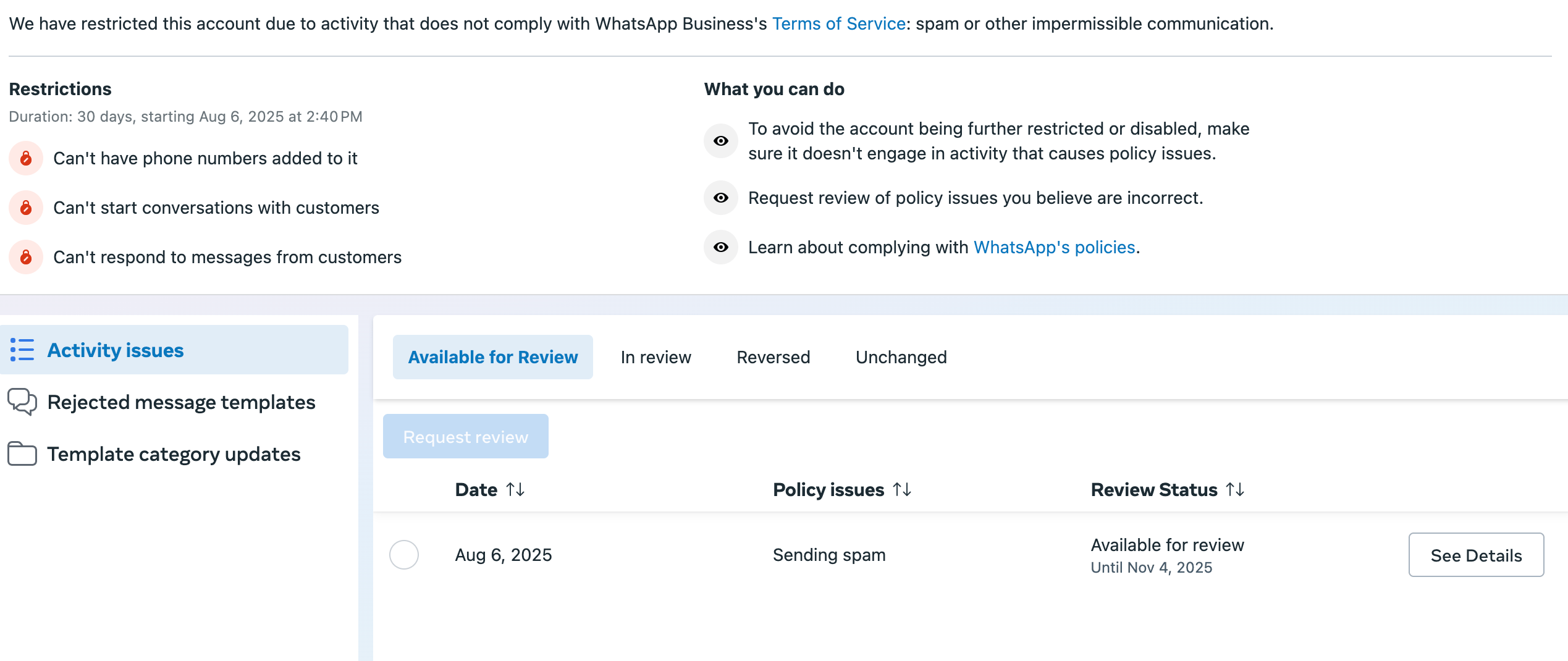
1. Go to your [Meta WhatsApp Manager – Phone Numbers](https://business.facebook.com/latest/whatsapp_manager/phone_numbers/).
2. You will see a **brief description** of the restriction next to the affected phone number.
3. To find the **exact reason**, click [**View details in Business Support Home**](https://business.facebook.com/business-support-home/)**.**
 ### Step 2 – Review the Detailed Violation
1. In Business Support Home, you will see an **overview** of your account restriction.
2. This includes:
* The **type of violation**
* **Why** the restriction was applied
* **How long** the restriction will last
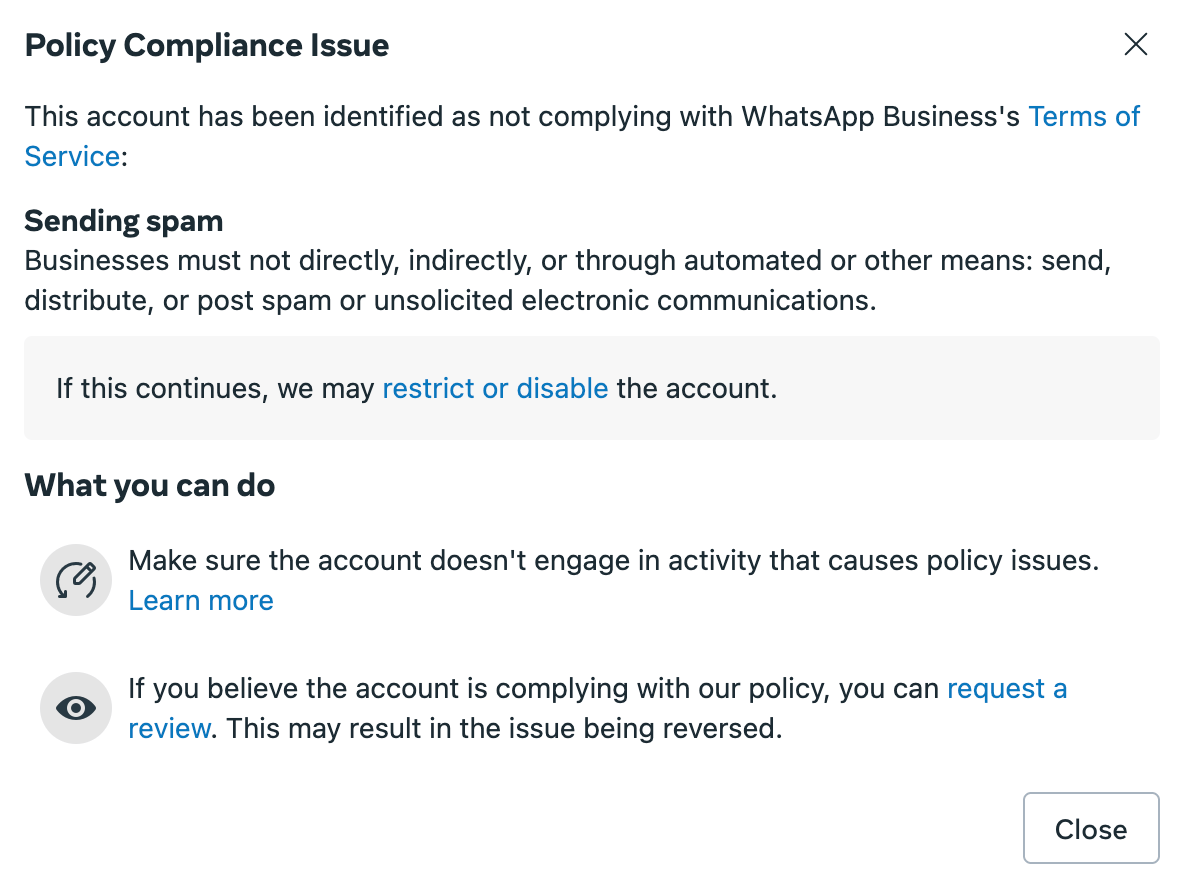
3. Under **“Available for Review”**, you can see the specific restriction and click **Details** to view additional guidance and possible next steps.
### Step 2 – Review the Detailed Violation
1. In Business Support Home, you will see an **overview** of your account restriction.
2. This includes:
* The **type of violation**
* **Why** the restriction was applied
* **How long** the restriction will last
3. Under **“Available for Review”**, you can see the specific restriction and click **Details** to view additional guidance and possible next steps.
 ### Step 3 – Request a Review from Meta
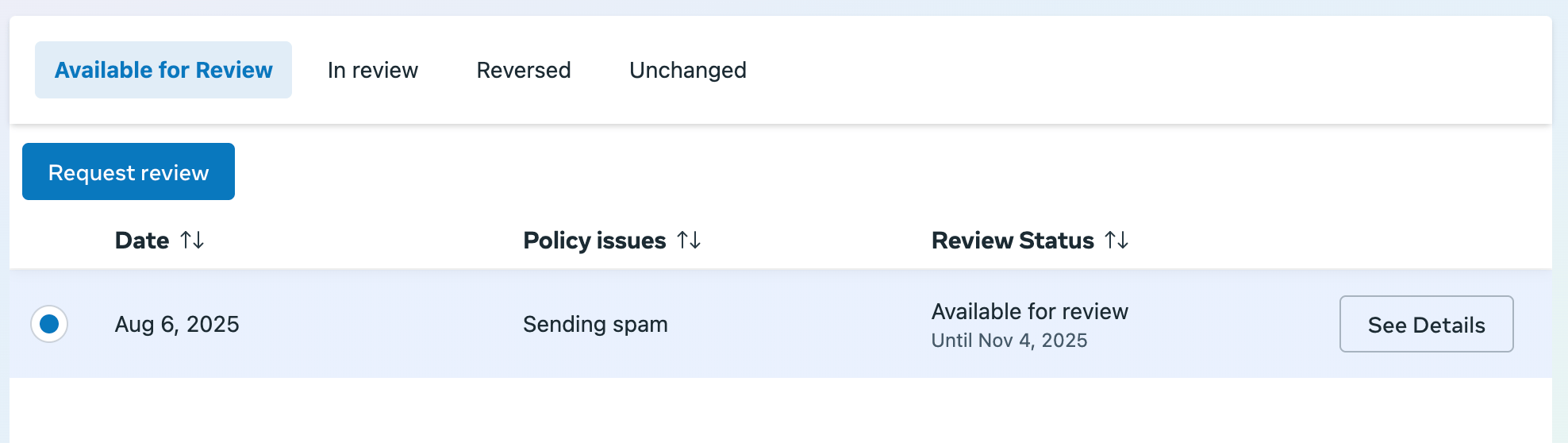
If you believe the restriction is **unjustified**, you can request a **review directly through Meta**:
### Step 3 – Request a Review from Meta
If you believe the restriction is **unjustified**, you can request a **review directly through Meta**:
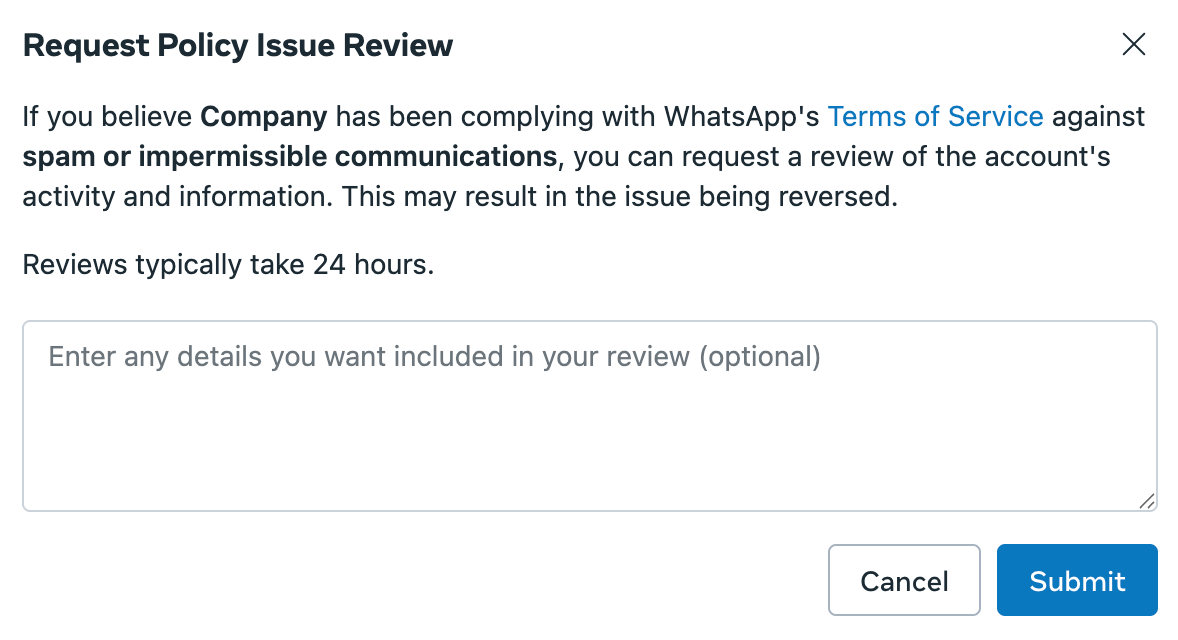
 1. Provide all important information about your account and the restriction.
2. Include all details so Meta can accurately assess your case.
1. Provide all important information about your account and the restriction.
2. Include all details so Meta can accurately assess your case.
 ## **🚨 Important Notes**
* If your account has been blocked and **Meta does not approve your review**, Chatarmin **cannot lift the restriction**.
* This restriction is **enforced by Meta**, not Chatarmin.
* For guidance on what to do if your account is blocked in Chatarmin, see this article: [Meta Blocked Account](/meta-related/what-to-do-when-your-meta-account-has-been-blocked).
* While restricted, **no outgoing messages** can be sent via WhatsApp.
## **🚨 Important Notes**
* If your account has been blocked and **Meta does not approve your review**, Chatarmin **cannot lift the restriction**.
* This restriction is **enforced by Meta**, not Chatarmin.
* For guidance on what to do if your account is blocked in Chatarmin, see this article: [Meta Blocked Account](/meta-related/what-to-do-when-your-meta-account-has-been-blocked).
* While restricted, **no outgoing messages** can be sent via WhatsApp.