> ## Documentation Index
> Fetch the complete documentation index at: https://help.chatarmin.com/llms.txt
> Use this file to discover all available pages before exploring further.
# Zendesk Integration
> Chatarmin guide: Zendesk Integration
***
## 💡 Why Integrate Zendesk?
***
 By connecting Chatarmin with Zendesk:
* Your **support team** handles WhatsApp chats in Zendesk
* Your **marketing team** works in Chatarmin
* Customers interact via **one WhatsApp number**
* You can **convert support leads into marketing leads**
* And generate **long-term retention revenue**
***
## 🔧 Zendesk Connection
***
1. Log in to Chatarmin and navigate to:\
[https://chatarmin.com/dashboard/zendesk/connect](https://chatarmin.com/dashboard/zendesk/connect)
2. Copy and enter your Zendesk Domain and click **“Connect Zendesk”** and authorize access.
3. In your Zendesk dashboard, go to **Settings** > **Apps and Integrations** > **Zendesk Support Apps**.
4. Open the **Marketplace**, search for **Chatarmin**, and install the app. You will need your WhatsApp number and our API Key, both can be found on your Chatarmin Profile.
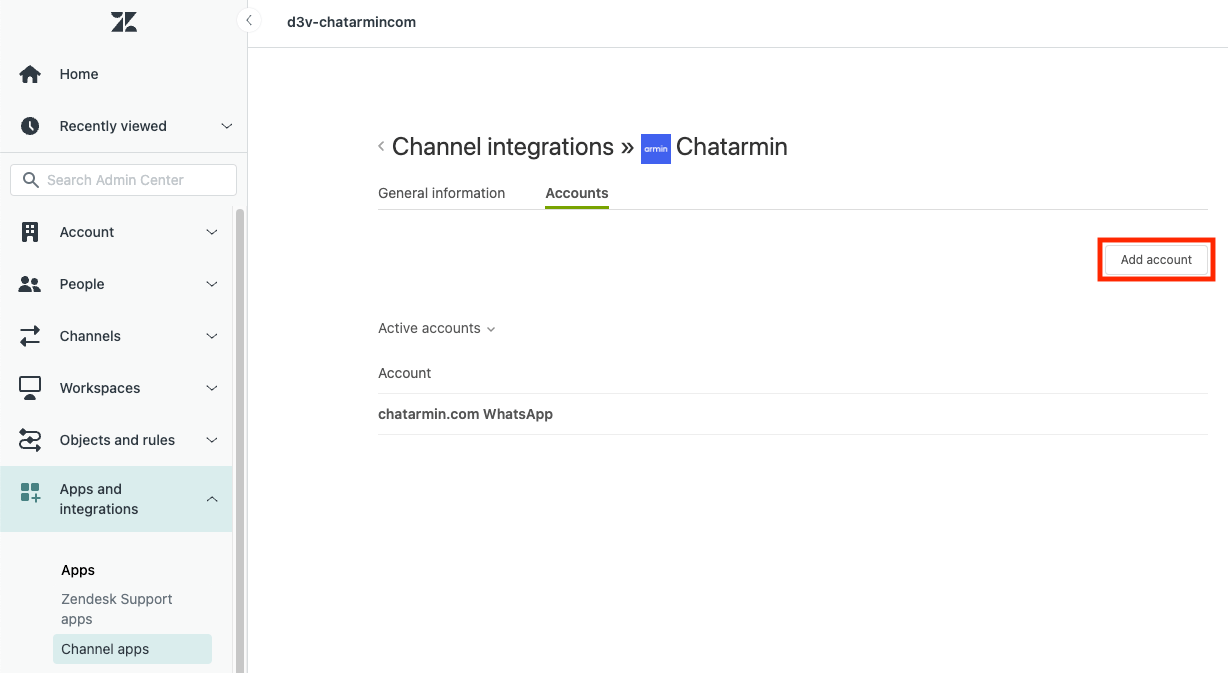
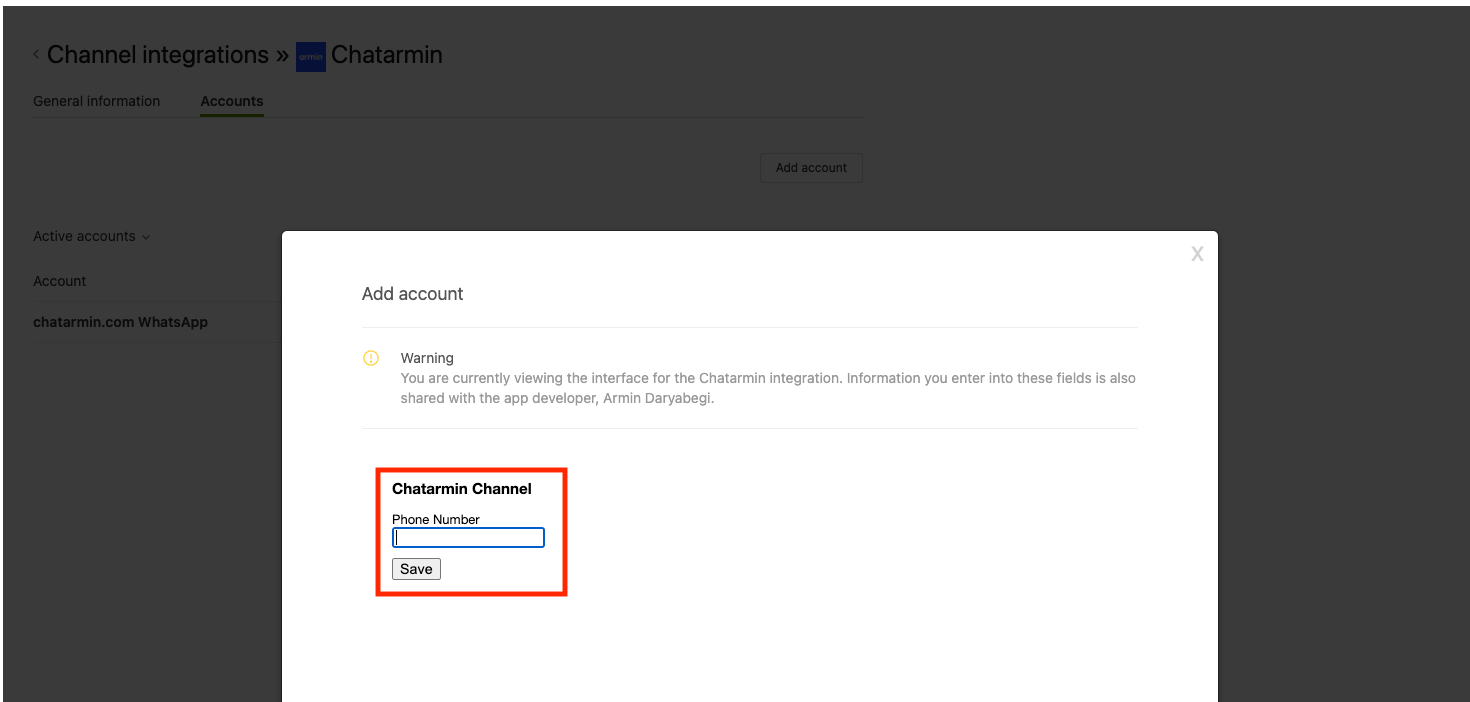
5. On the **Marketplace,** go to **Channel Apps** > **Chatarmin** > **Accounts** and click **Add Account** to link your WhatsApp number.
🎥 Prefer a video?
*Source: Chatarmin, Q3 2024*
***
## ➕ Optional: Multi-Number Setup
***
If you want to connect **multiple WhatsApp numbers**, create one Chatarmin account per number and repeat the above steps.
By connecting Chatarmin with Zendesk:
* Your **support team** handles WhatsApp chats in Zendesk
* Your **marketing team** works in Chatarmin
* Customers interact via **one WhatsApp number**
* You can **convert support leads into marketing leads**
* And generate **long-term retention revenue**
***
## 🔧 Zendesk Connection
***
1. Log in to Chatarmin and navigate to:\
[https://chatarmin.com/dashboard/zendesk/connect](https://chatarmin.com/dashboard/zendesk/connect)
2. Copy and enter your Zendesk Domain and click **“Connect Zendesk”** and authorize access.
3. In your Zendesk dashboard, go to **Settings** > **Apps and Integrations** > **Zendesk Support Apps**.
4. Open the **Marketplace**, search for **Chatarmin**, and install the app. You will need your WhatsApp number and our API Key, both can be found on your Chatarmin Profile.
5. On the **Marketplace,** go to **Channel Apps** > **Chatarmin** > **Accounts** and click **Add Account** to link your WhatsApp number.
🎥 Prefer a video?
*Source: Chatarmin, Q3 2024*
***
## ➕ Optional: Multi-Number Setup
***
If you want to connect **multiple WhatsApp numbers**, create one Chatarmin account per number and repeat the above steps.
 ***
## Creating a Zendesk Ticket
***
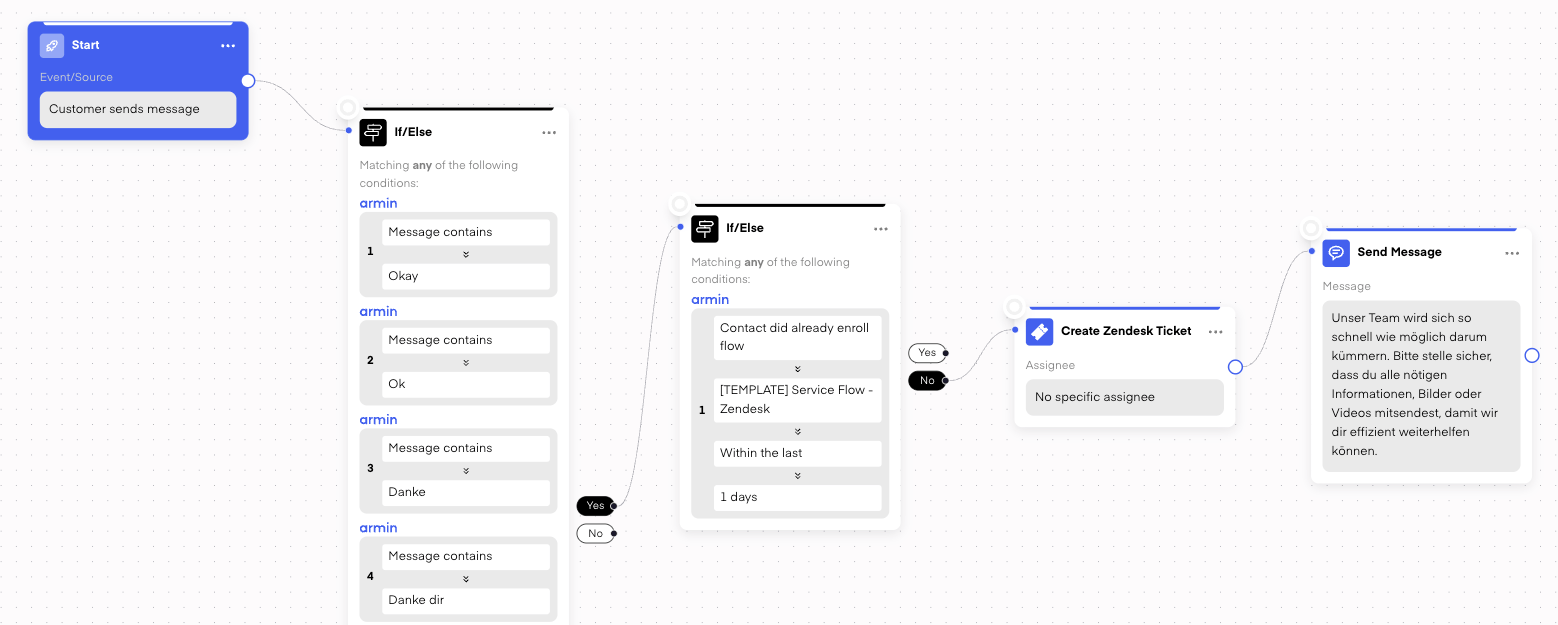
Chatarmin allows you to automatically create Zendesk tickets from incoming WhatsApp messages, with flexible filtering options:
* Exclude messages like "thanks" or "ok" that don't require support
* Avoid duplicate tickets by skipping users who already created a ticket within the last day.
***
## Creating a Zendesk Ticket
***
Chatarmin allows you to automatically create Zendesk tickets from incoming WhatsApp messages, with flexible filtering options:
* Exclude messages like "thanks" or "ok" that don't require support
* Avoid duplicate tickets by skipping users who already created a ticket within the last day.
 You can combine this flow with a DOI and email check to qualify leads, collect verified contact data, and follow up via email.
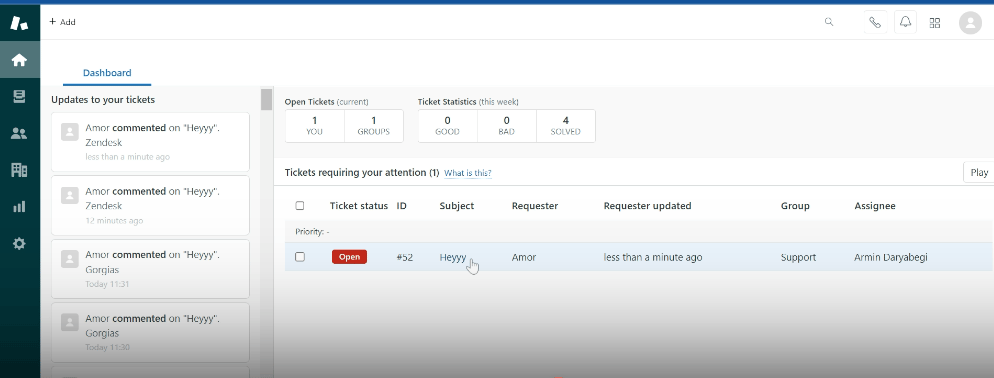
Created tickets appear directly in your Zendesk dashboard, where you can manage and reply to them as usual.
You can combine this flow with a DOI and email check to qualify leads, collect verified contact data, and follow up via email.
Created tickets appear directly in your Zendesk dashboard, where you can manage and reply to them as usual.
 *Source: Chatarmin, Q3 2024*
***
## 🔄 Restart Conversations
***
After **24 hours**, the free messaging window closes. This means:
* You can no longer send free-form messages to the customer.
* Conversations can only be restarted using **pre-approved message templates**.
These templates can be sent **directly from Zendesk** if you want to respond to a customer inquiry after the 24-hour window.
*Source: Chatarmin, Q3 2024*
***
## 🔄 Restart Conversations
***
After **24 hours**, the free messaging window closes. This means:
* You can no longer send free-form messages to the customer.
* Conversations can only be restarted using **pre-approved message templates**.
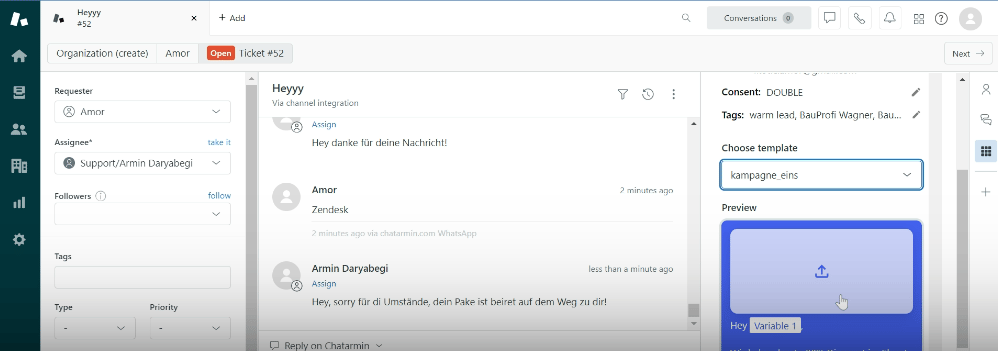
These templates can be sent **directly from Zendesk** if you want to respond to a customer inquiry after the 24-hour window.
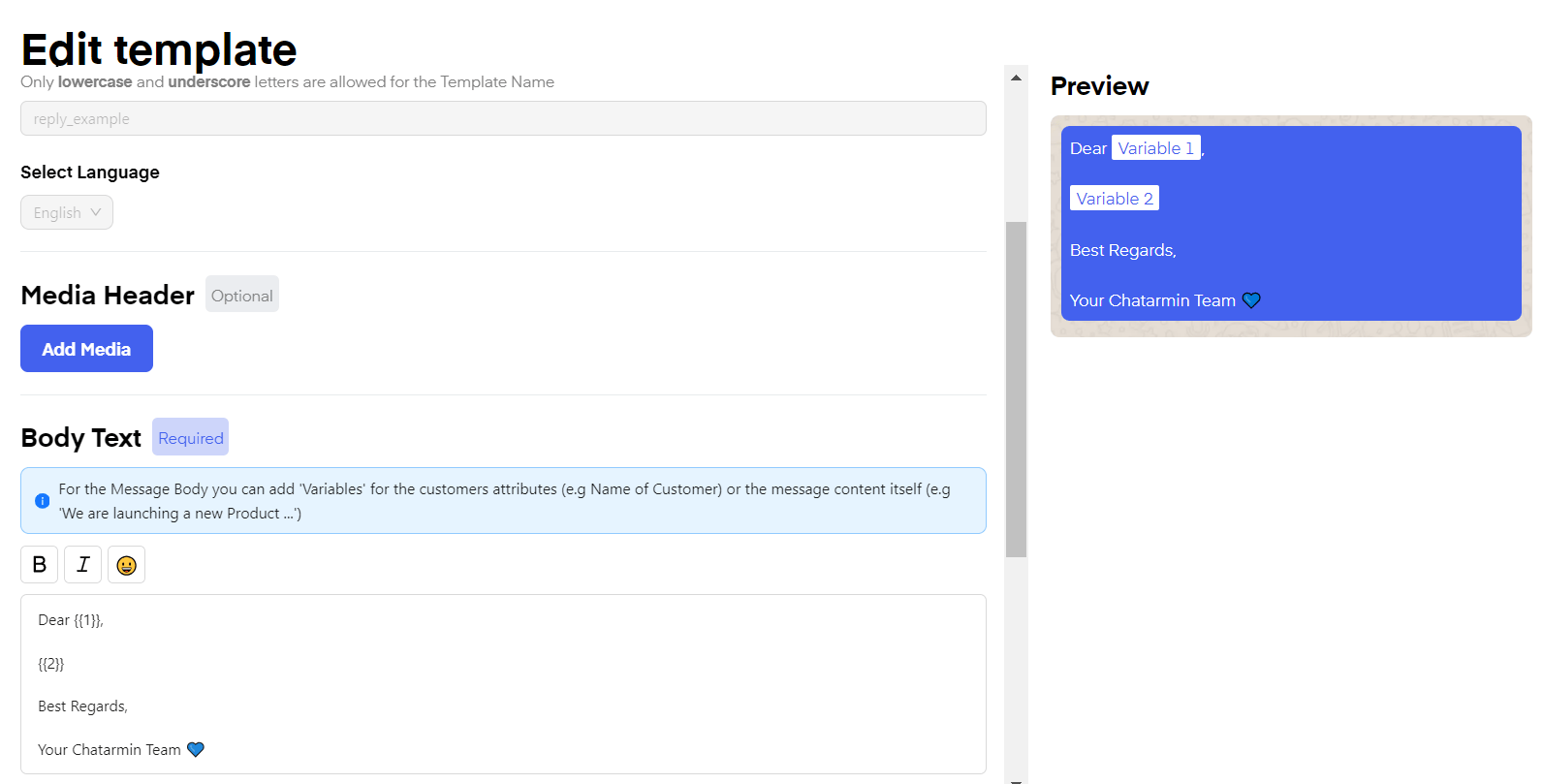 **Important:**\
The customer must reply to the template message to reopen the messaging window and continue the conversation.
For more information about the 24-hour messaging window, see here: [24-h Window](/meta-related/what-is-the-24-hour-window)
**Important:**\
The customer must reply to the template message to reopen the messaging window and continue the conversation.
For more information about the 24-hour messaging window, see here: [24-h Window](/meta-related/what-is-the-24-hour-window)
 *Source: Chatarmin, Q3 2024*
***
## Automatically Tagging Chats of a Zendesk Ticket
***
You can automatically **detect message intent**, such as questions like *"Do I have an order?"*, and:
* **Apply custom tags** to the Zendesk ticket (e.g. ReturnOrder)
* **Route tickets** to specific inboxes or views in Zendesk
* Enable sales or support teams to **respond faster** and **close conversations more effectively**
*Source: Chatarmin, Q3 2024*
***
## Automatically Tagging Chats of a Zendesk Ticket
***
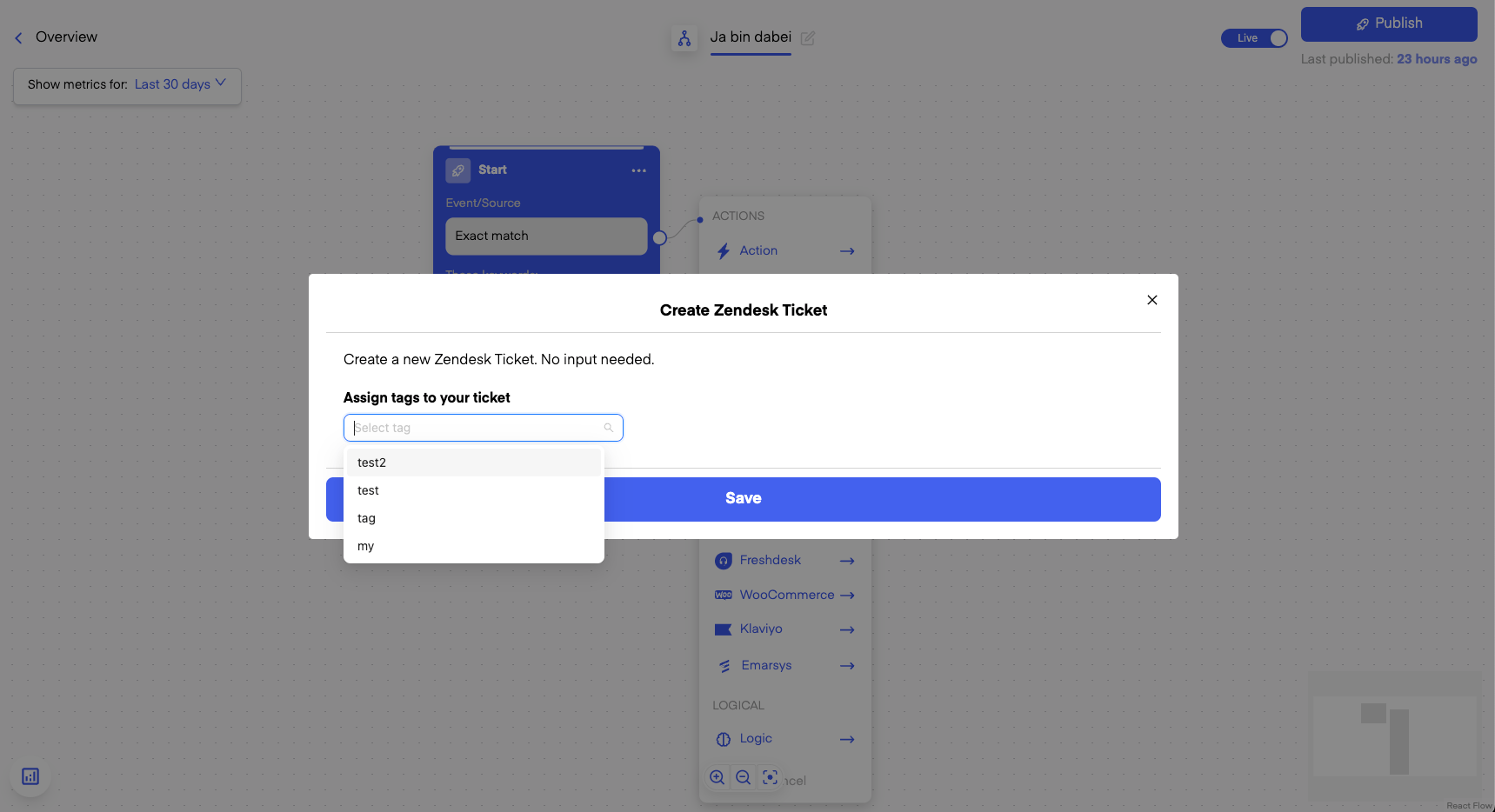
You can automatically **detect message intent**, such as questions like *"Do I have an order?"*, and:
* **Apply custom tags** to the Zendesk ticket (e.g. ReturnOrder)
* **Route tickets** to specific inboxes or views in Zendesk
* Enable sales or support teams to **respond faster** and **close conversations more effectively**
 *Source: Chatarmin, Q2 2024*
This setup is fully configurable using:
* Chatarmin’s **If/Else logic** in Flows
* **Automated ticket tagging**
* Zendesk **view filters** based on tags
✅ A simple and efficient way to prioritize valuable WhatsApp conversations and improve response handling.
***
## 🔁 Trigger WhatsApp Flows from Zendesk
***
You can not only **trigger Zendesk tickets from Chatarmin Flows**, but also **automatically trigger Chatarmin Flows** based on **Zendesk ticket status updates**, such as:
* solved
* closed
This allows you to run fully automated **post-service journeys**, including:
* Upsell and cross-sell flows
* NPS or satisfaction surveys
* Service rating requests
* Lead enrichment and qualification
* Opt-in status upgrades (SOI → DOI)
* Other personalized follow-up automations
*Source: Chatarmin, Q2 2024*
This setup is fully configurable using:
* Chatarmin’s **If/Else logic** in Flows
* **Automated ticket tagging**
* Zendesk **view filters** based on tags
✅ A simple and efficient way to prioritize valuable WhatsApp conversations and improve response handling.
***
## 🔁 Trigger WhatsApp Flows from Zendesk
***
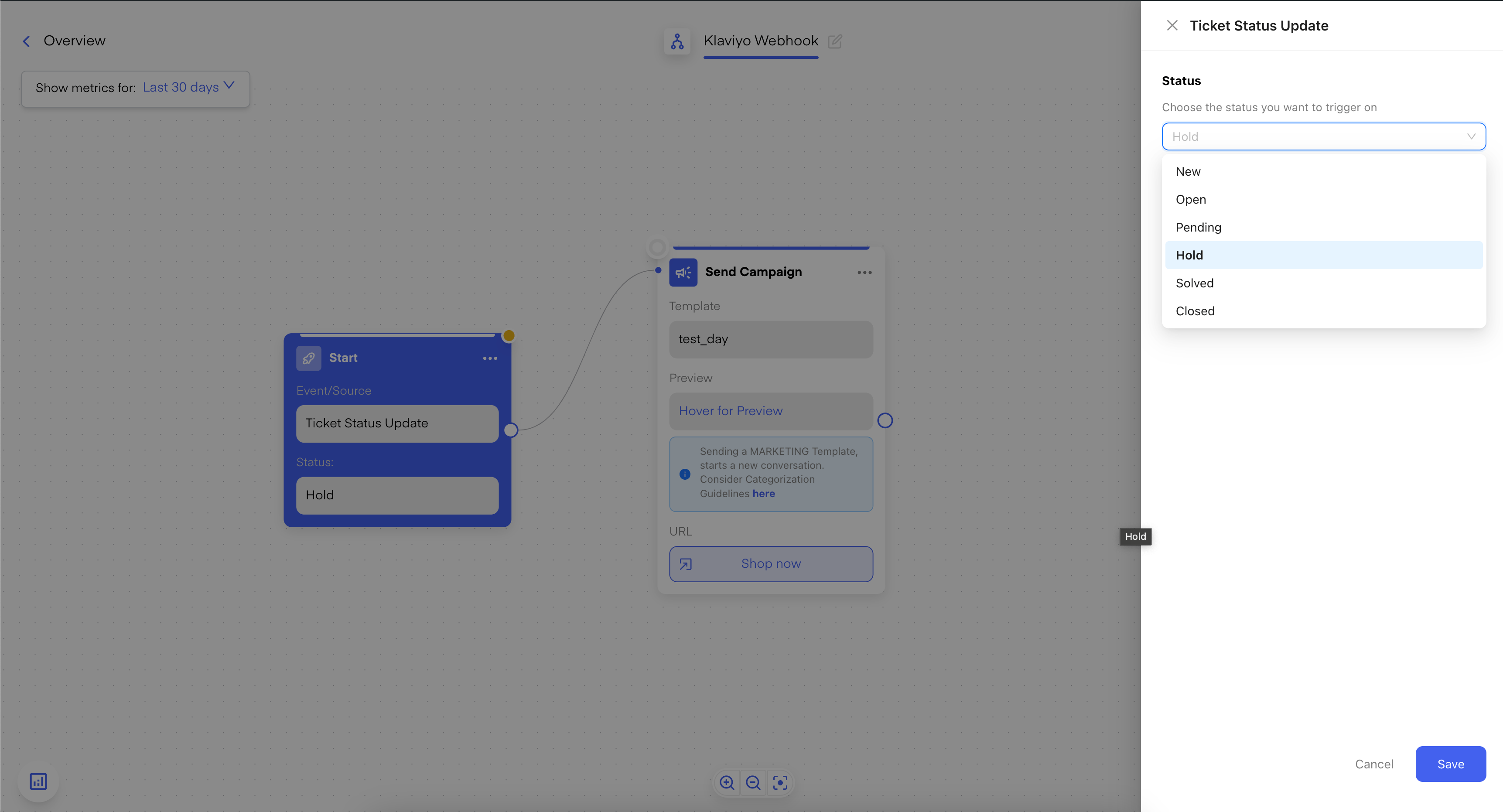
You can not only **trigger Zendesk tickets from Chatarmin Flows**, but also **automatically trigger Chatarmin Flows** based on **Zendesk ticket status updates**, such as:
* solved
* closed
This allows you to run fully automated **post-service journeys**, including:
* Upsell and cross-sell flows
* NPS or satisfaction surveys
* Service rating requests
* Lead enrichment and qualification
* Opt-in status upgrades (SOI → DOI)
* Other personalized follow-up automations
 *Source: Chatarmin Q3 2024*
***
## 🔊 Voice Messages in Zendesk
***
**Voice messages from WhatsApp are imported into Zendesk** and can be played directly.
*Source: Chatarmin Q3 2024*
***
## 🔊 Voice Messages in Zendesk
***
**Voice messages from WhatsApp are imported into Zendesk** and can be played directly.