> ## Documentation Index
> Fetch the complete documentation index at: https://help.chatarmin.com/llms.txt
> Use this file to discover all available pages before exploring further.
# How to integrate Meta Pixel to Chatarmin
> Chatarmin guide: How to integrate Meta Pixel to Chatarmin
# Video Guide
# Step-by-Step Guide
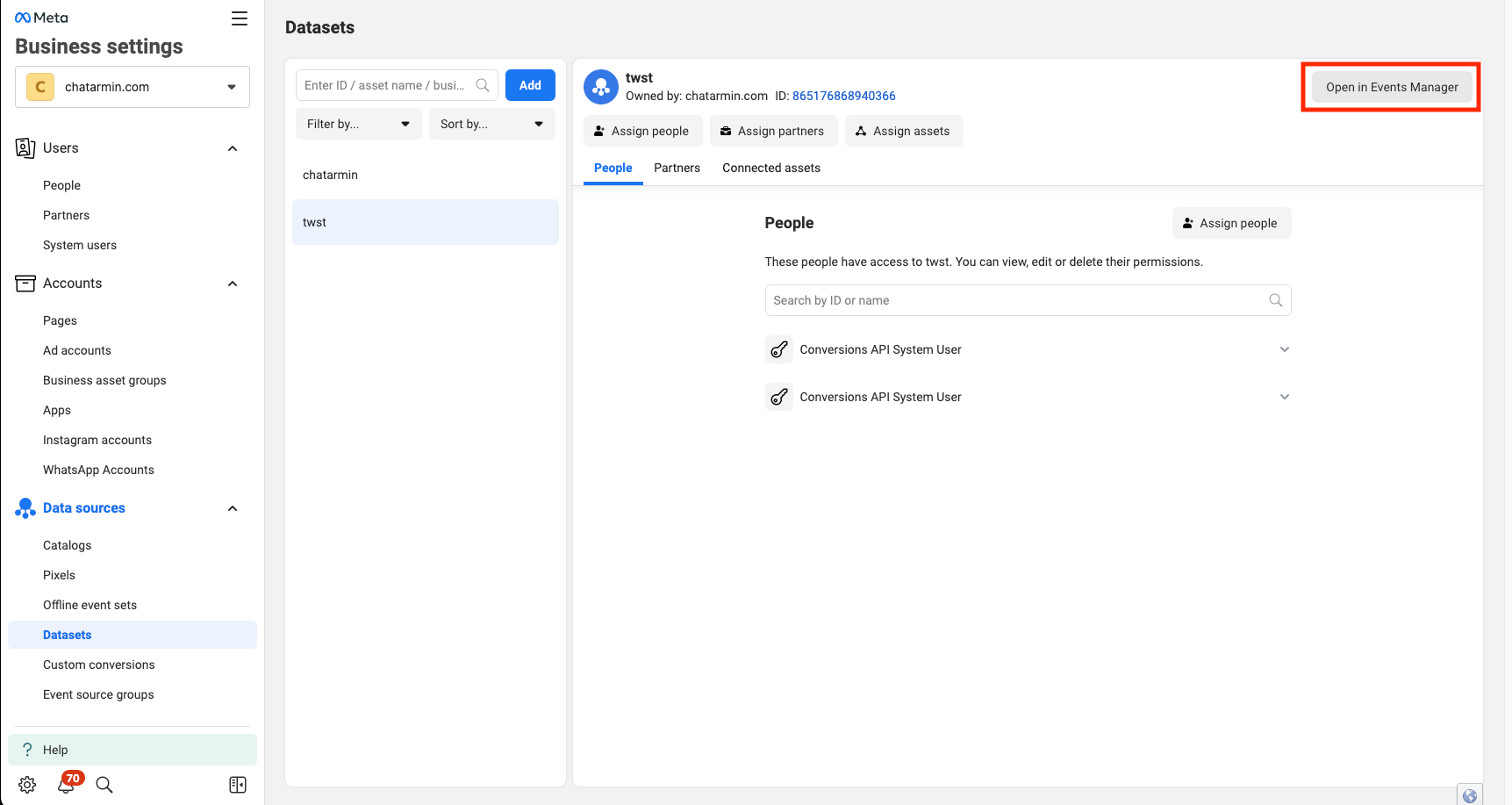
First, open your [Business Manager](https://business.facebook.com/settings) and navigate to **Date Sources** -> **Datesets** -> **Select your Pixel** -> **Click "Open in Events Manager"**
 Once you are in the **Events Manager**, make sure you have selected the correct **Pixel.**
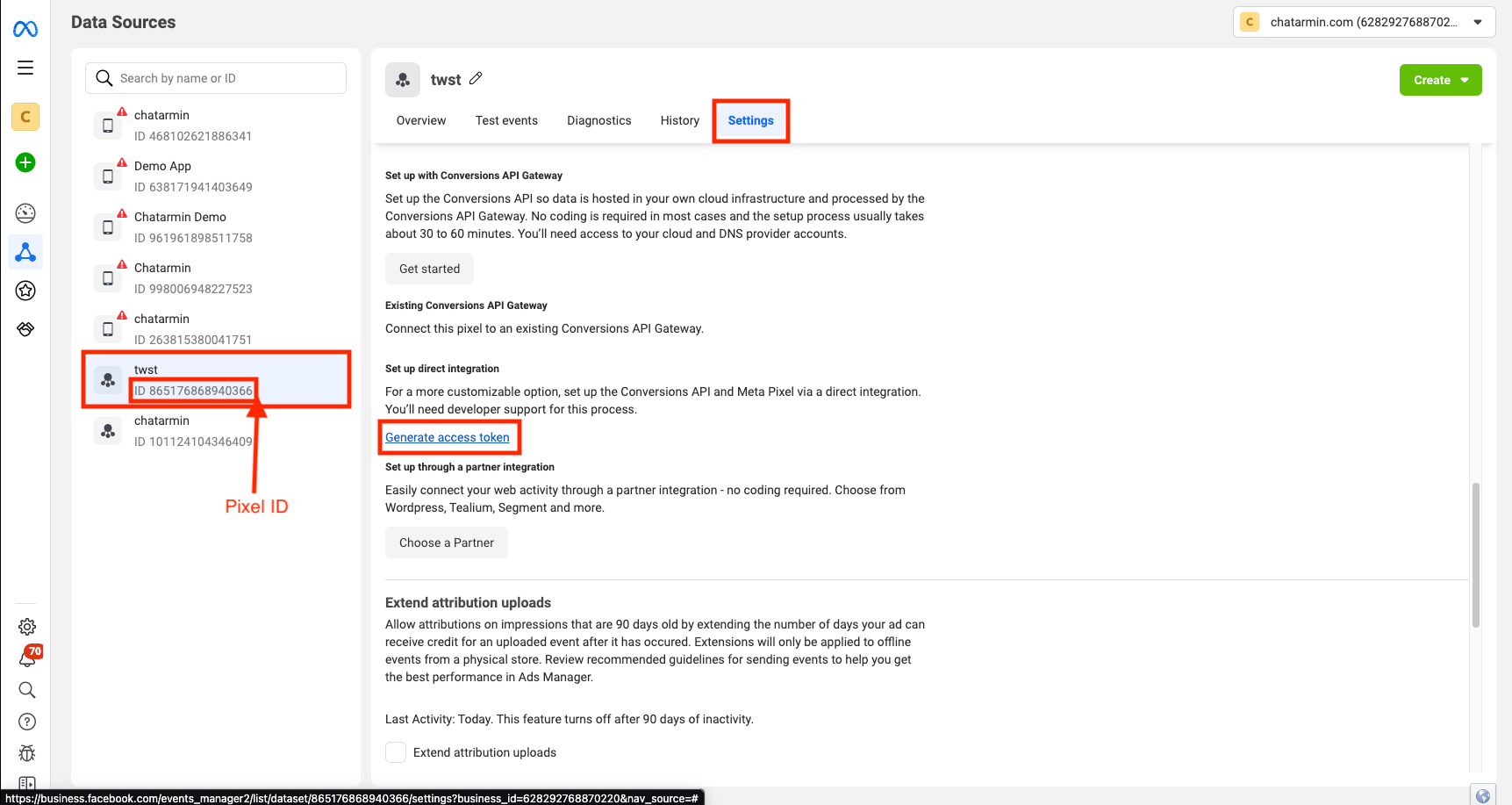
Then we can navigate to **Settings** -> Scroll down to "**Generate Access Token**" -> Copy **Access Token** & **Pixel ID** to Chatarmin
Once you are in the **Events Manager**, make sure you have selected the correct **Pixel.**
Then we can navigate to **Settings** -> Scroll down to "**Generate Access Token**" -> Copy **Access Token** & **Pixel ID** to Chatarmin
 # Use **Pixel Action** in Flows
Now navigate into a Flow of your choice and create a new Flow Action -> Pixel -> Type in the required fields:
1. **Event Name**: The Conversion **Events name**, e.g: WhatsApp Welcome
2. **Custom Properties**: Here you can add **custom Properties** like for example "Flow Name" to your event
# Use **Pixel Action** in Flows
Now navigate into a Flow of your choice and create a new Flow Action -> Pixel -> Type in the required fields:
1. **Event Name**: The Conversion **Events name**, e.g: WhatsApp Welcome
2. **Custom Properties**: Here you can add **custom Properties** like for example "Flow Name" to your event