> ## Documentation Index
> Fetch the complete documentation index at: https://help.chatarmin.com/llms.txt
> Use this file to discover all available pages before exploring further.
# Klaviyo in-flow Webhook to Chatarmin
> Chatarmin guide: Klaviyo in-flow Webhook to Chatarmin
You can either watch the [Video-Guide](https://www.loom.com/share/28d4e0e1438b40cebfb635ad3275f925?sid=25314d8d-86aa-4d36-bf8d-da4087f6e859) above or check-out the steps below!
# First create Chatarmin Flow
When you want to trigger a Flow from a third-party like Zappier or Klaviyo, your Flow Trigger has to be of type **POST-Endpoint** or **Klaviyo Webhook.** You can create a new flow [here](https://chatarmin.com/dashboard/flows/create)
 After selecting your trigger, you will need to pass in the **Payload Body,** so that the Tool (Chatarmin) knows, which Variables will/can be used. An example of that payload would be:
```
{
"email": "{{ person.email }}",
"phone":"{{person.phone_number}}",
"tracking_url":"{{event.trackingURL}}"
}
```
**You may be asking yourself:** *Where do I get this from?* -> Here comes the fun part:
# Calling the Chatarmin Flow from Klaviyo/Zappier
Now when you go inside a Flow in Klaviyo and choose "**Webhook**" as your Flow-Action, you will be prompted to input following things:
1. Destination URL
2. Headers
3. Payload Body
This Image show-cases where you get those values from, in **Klaviyo**:
After selecting your trigger, you will need to pass in the **Payload Body,** so that the Tool (Chatarmin) knows, which Variables will/can be used. An example of that payload would be:
```
{
"email": "{{ person.email }}",
"phone":"{{person.phone_number}}",
"tracking_url":"{{event.trackingURL}}"
}
```
**You may be asking yourself:** *Where do I get this from?* -> Here comes the fun part:
# Calling the Chatarmin Flow from Klaviyo/Zappier
Now when you go inside a Flow in Klaviyo and choose "**Webhook**" as your Flow-Action, you will be prompted to input following things:
1. Destination URL
2. Headers
3. Payload Body
This Image show-cases where you get those values from, in **Klaviyo**:
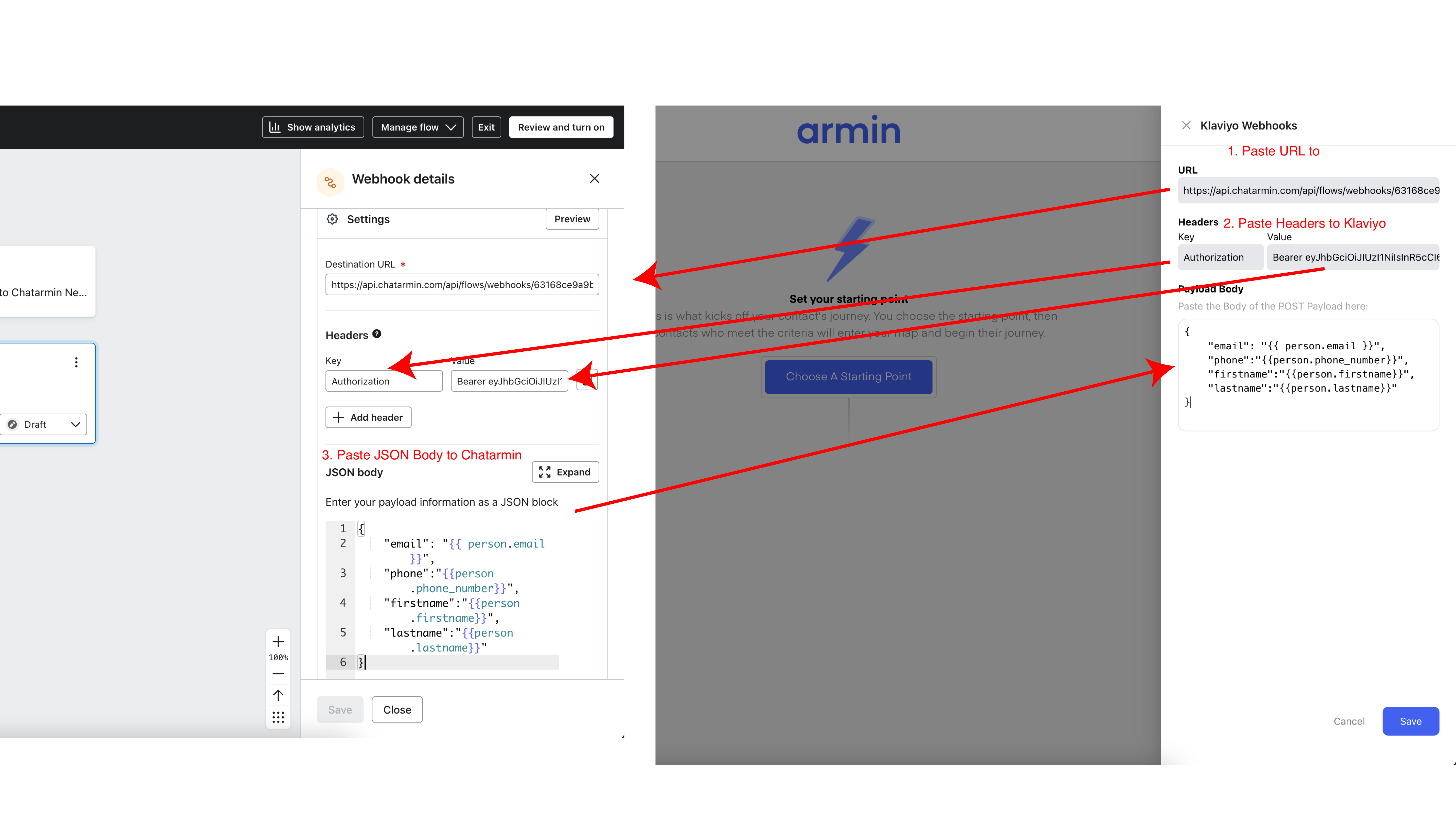 So:
1. The **Destination URL** comes from the **Chatarmin Trigger**
2. The **Headers** come from the **Chatarmin Trigger**
3. The **Payload Body** needs to be set **IN** Klaviyo & be copy & pasted **INTO Chatarmin**
🚨 The **"phone"** property is the only required one, in the **Klaviyo JSON Body**, to make the Chatarmin Flow work. For syncing purposes, we recommend to have those 4 properties at least:
```
{
"email": "{{ person.email }}",
"phone":"{{person.phone_number}}",
"firstname":"{{person.first_name}}",
"lastname":"{{person.last_name}}"
}
```
# Using JSON/Payload Variables from Trigger in the Flow
Now, after you have configured your **Trigger** with the correct **Payload Body** and clicked on **Save**, you can add **"Send Campaign"** as the next step and select a Template:
So:
1. The **Destination URL** comes from the **Chatarmin Trigger**
2. The **Headers** come from the **Chatarmin Trigger**
3. The **Payload Body** needs to be set **IN** Klaviyo & be copy & pasted **INTO Chatarmin**
🚨 The **"phone"** property is the only required one, in the **Klaviyo JSON Body**, to make the Chatarmin Flow work. For syncing purposes, we recommend to have those 4 properties at least:
```
{
"email": "{{ person.email }}",
"phone":"{{person.phone_number}}",
"firstname":"{{person.first_name}}",
"lastname":"{{person.last_name}}"
}
```
# Using JSON/Payload Variables from Trigger in the Flow
Now, after you have configured your **Trigger** with the correct **Payload Body** and clicked on **Save**, you can add **"Send Campaign"** as the next step and select a Template:
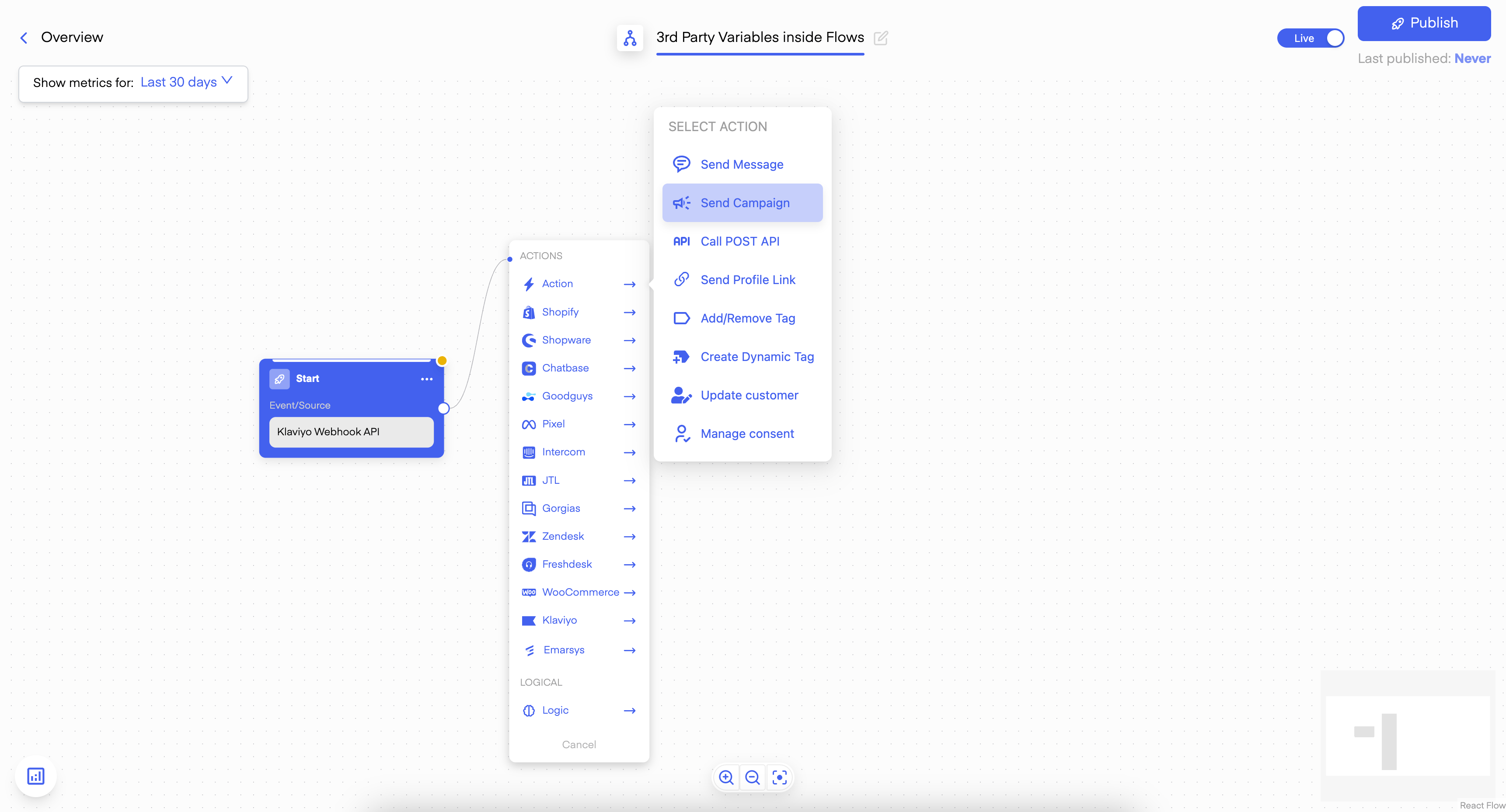 After selecting your Template -> Select your Variables:
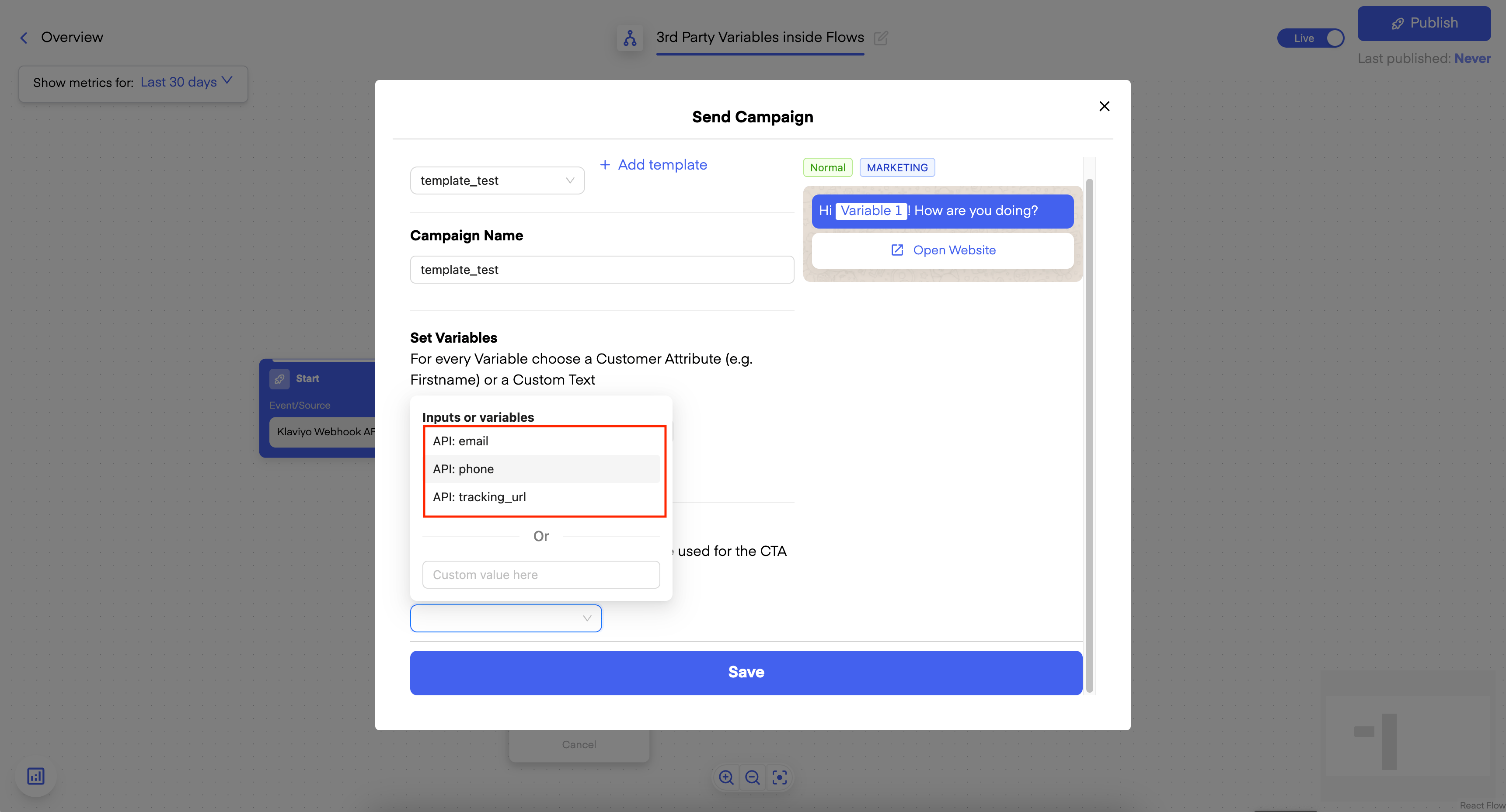 Now, after Publishing your Flow, you can test your Flow and see that the passed Variables will be used!
# Testing
If you want **to test if your Webhook works**, you can do so by clicking on **"Preview".**
Now, after Publishing your Flow, you can test your Flow and see that the passed Variables will be used!
# Testing
If you want **to test if your Webhook works**, you can do so by clicking on **"Preview".**
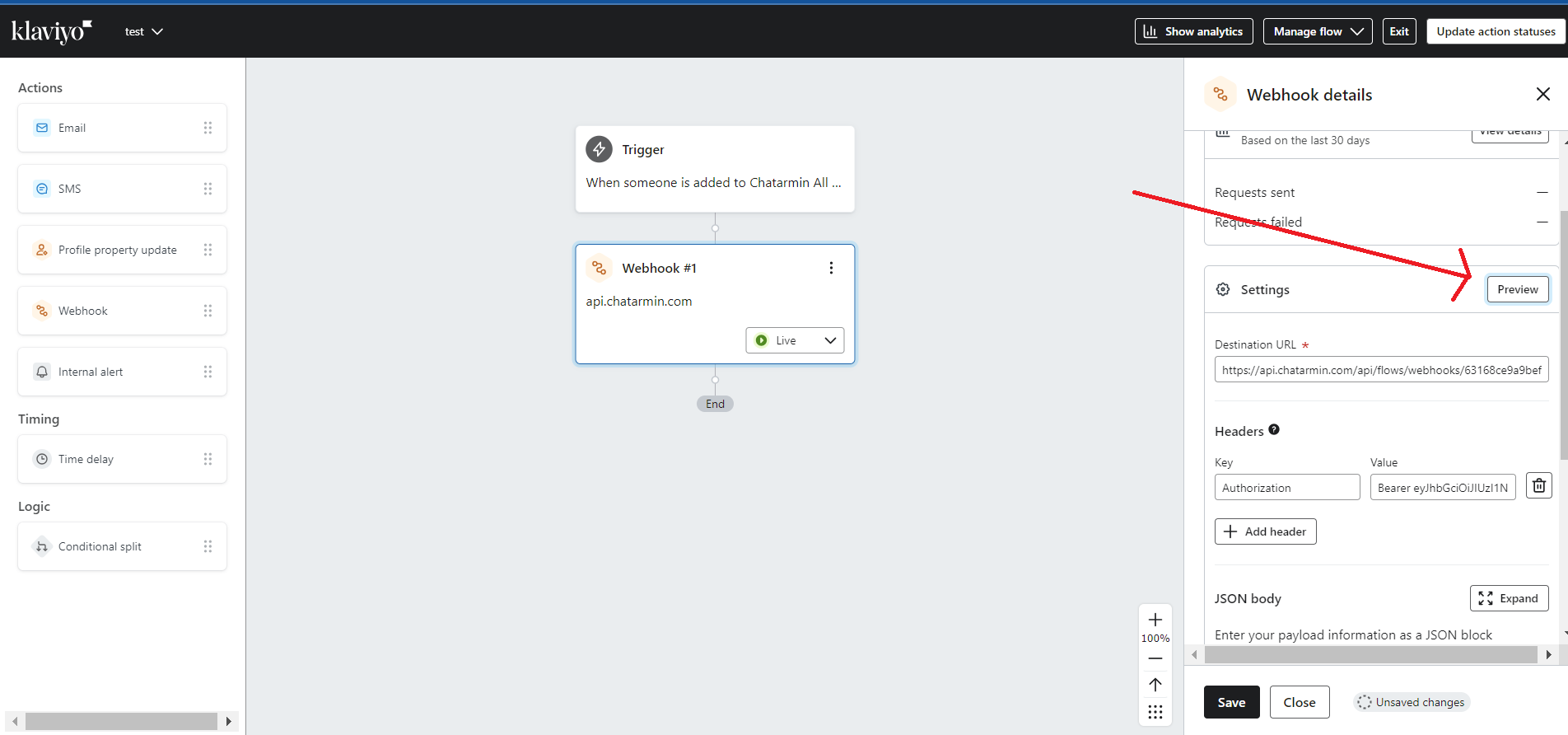 Then click on **"Search for a profile"** and choose **your Profile**.\
**NOTE:** Your **"Phone Number"** field has to be **filled out** for the Webhook to work.
Then click on **"Search for a profile"** and choose **your Profile**.\
**NOTE:** Your **"Phone Number"** field has to be **filled out** for the Webhook to work.
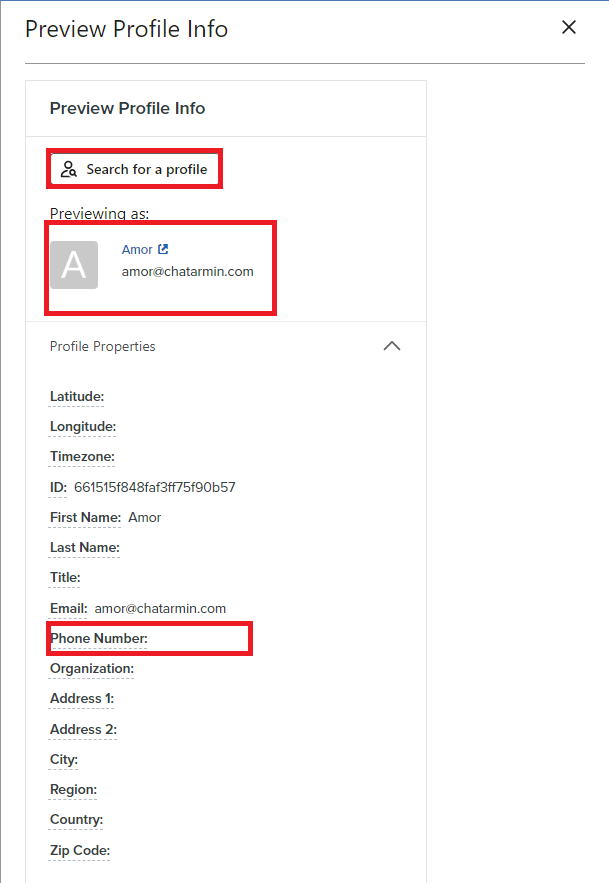 Once you've chosen your profile with the phone number you want the test flow to be sent, click **"Send Test Request"**.
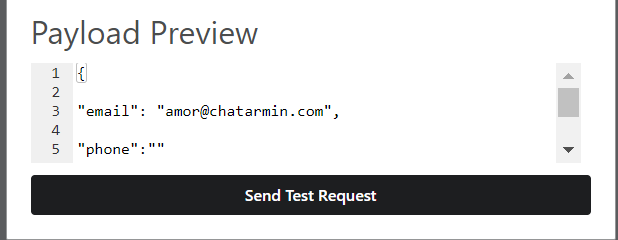 **If you received a WhatsApp message the Webhook works as it should.**