> ## Documentation Index
> Fetch the complete documentation index at: https://help.chatarmin.com/llms.txt
> Use this file to discover all available pages before exploring further.
# Klaviyo export CSV and import to Chatarmin
> Chatarmin guide: Klaviyo export CSV and import to Chatarmin
Watch this Loom if you prefer a Video-Guide:
# Creating your Klaviyo Segment for Export
First of all, navigate to [Lists & Segments](https://www.klaviyo.com/lists) in Klaviyo. Then, create a new Segment. You can now filter out all the profiles who have a **Phone Number** set:
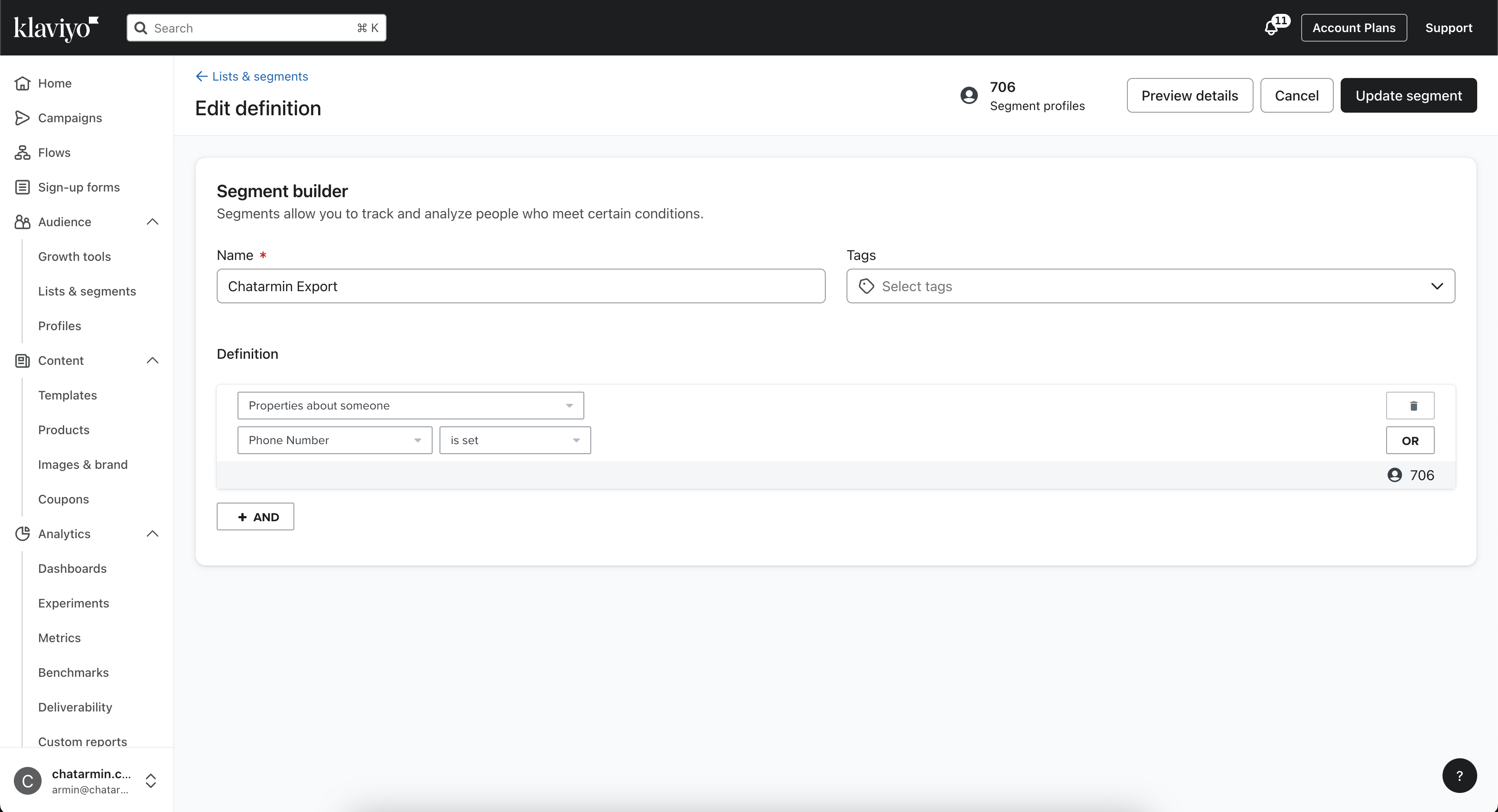 Additionally, you can also add **other filter options** to this segment, but for the purpose of this guide, we will leave it like that.
# Export Segment to CSV
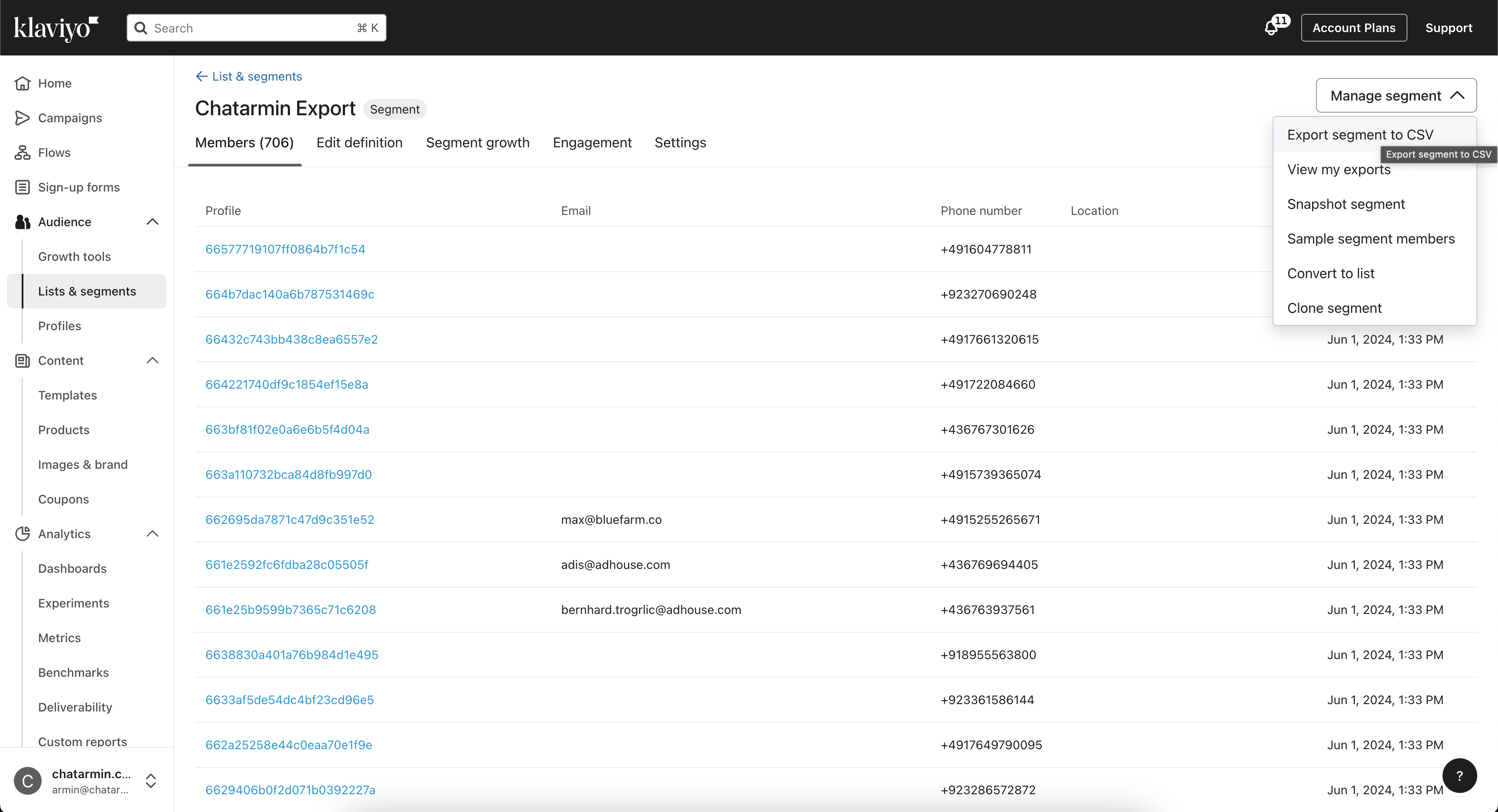
Once you have created your Segment, you can now click on **Manage Segment** -> **Export segment to CSV:**
Additionally, you can also add **other filter options** to this segment, but for the purpose of this guide, we will leave it like that.
# Export Segment to CSV
Once you have created your Segment, you can now click on **Manage Segment** -> **Export segment to CSV:**
 # Import to Chatarmin
Now navigate to the [Audience Page](https://chatarmin.com/dashboard/audience) in Chatarmin and click on **Import contacts** in the top-left.
1. Now you will be asked to **upload your CSV** File
2. Next **match the columns** from the CSV, to the correct attributes
3. Upon clicking next, you will be asked to **review & fix** OR **skip** invalid rows
4. If duplicates were found, select **Replace** or **Update**
5. In the last step, you can now choose to add **Tags** to your imported contacts
Congratulations! You have now imported your Klaviyo Profiles to Chatarmin! 🥳
# Import to Chatarmin
Now navigate to the [Audience Page](https://chatarmin.com/dashboard/audience) in Chatarmin and click on **Import contacts** in the top-left.
1. Now you will be asked to **upload your CSV** File
2. Next **match the columns** from the CSV, to the correct attributes
3. Upon clicking next, you will be asked to **review & fix** OR **skip** invalid rows
4. If duplicates were found, select **Replace** or **Update**
5. In the last step, you can now choose to add **Tags** to your imported contacts
Congratulations! You have now imported your Klaviyo Profiles to Chatarmin! 🥳