> ## Documentation Index
> Fetch the complete documentation index at: https://help.chatarmin.com/llms.txt
> Use this file to discover all available pages before exploring further.
# Intercom Integration
> Chatarmin guide: Intercom Integration
# Video Guide
If you prefer a Video, rather than text, we got you covered:
# Connect Chatarmin to Intercom
First of all, you will need to install the App in Intercom.
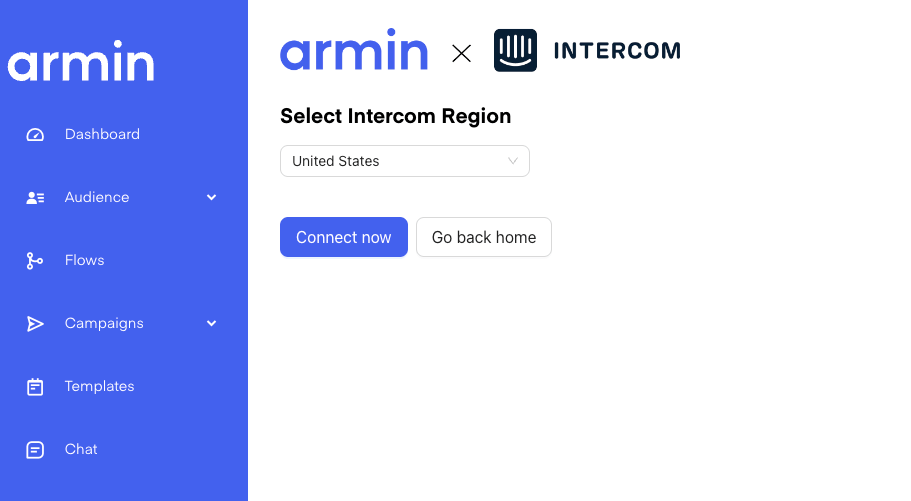
Once you have done that, navigate to our [Intercom Connect Page](https://chatarmin.com/dashboard/intercom/connect) and connect to your Intercom Account:
 # Use the Intercom x Chatarmin Integration
Once you have successfully connected the Integration, navigate to Flows -> Create Flow -> Create from Scratch
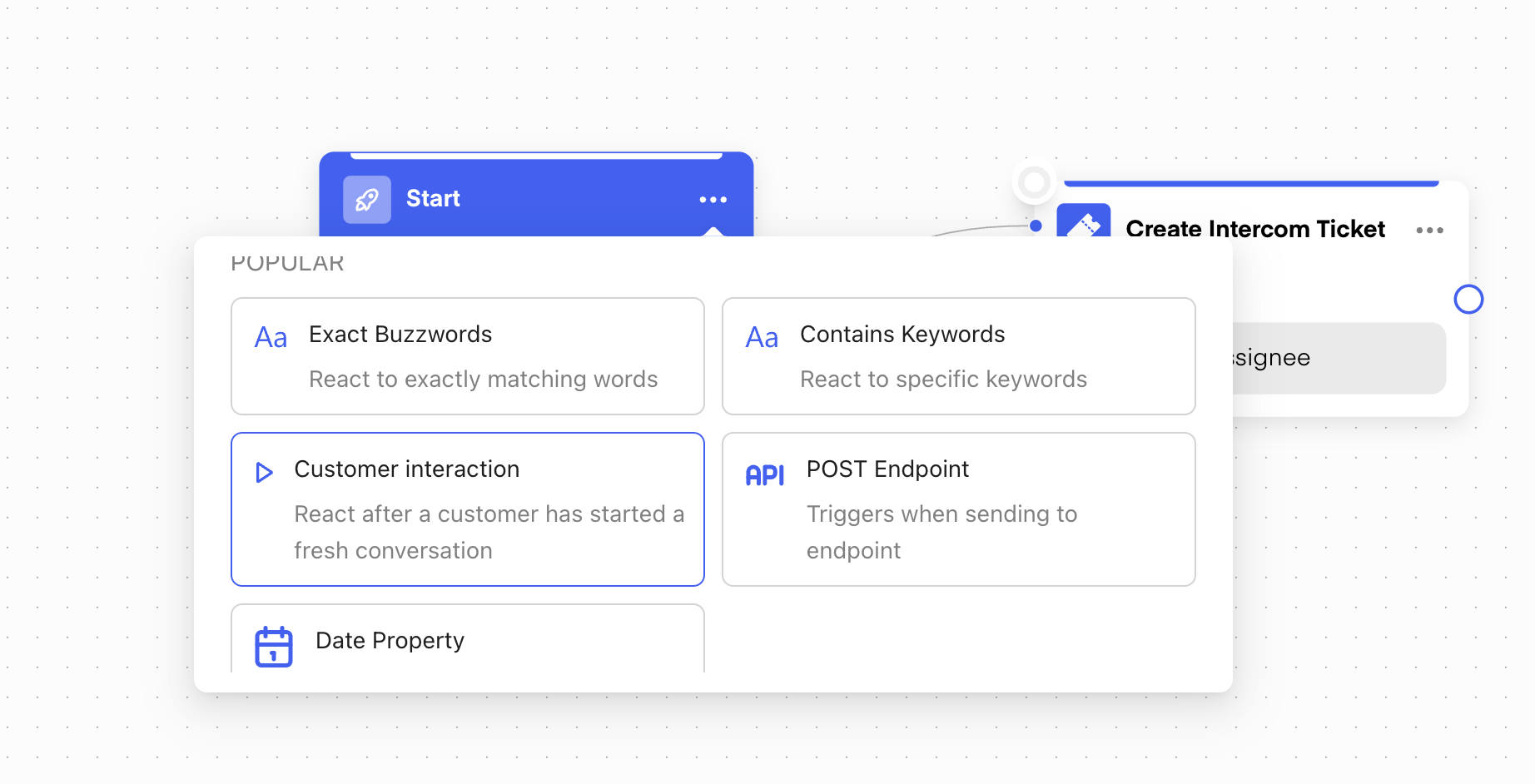
Then give your Flow a Name and choose the Trigger "**Customer starts conversation**":
# Use the Intercom x Chatarmin Integration
Once you have successfully connected the Integration, navigate to Flows -> Create Flow -> Create from Scratch
Then give your Flow a Name and choose the Trigger "**Customer starts conversation**":
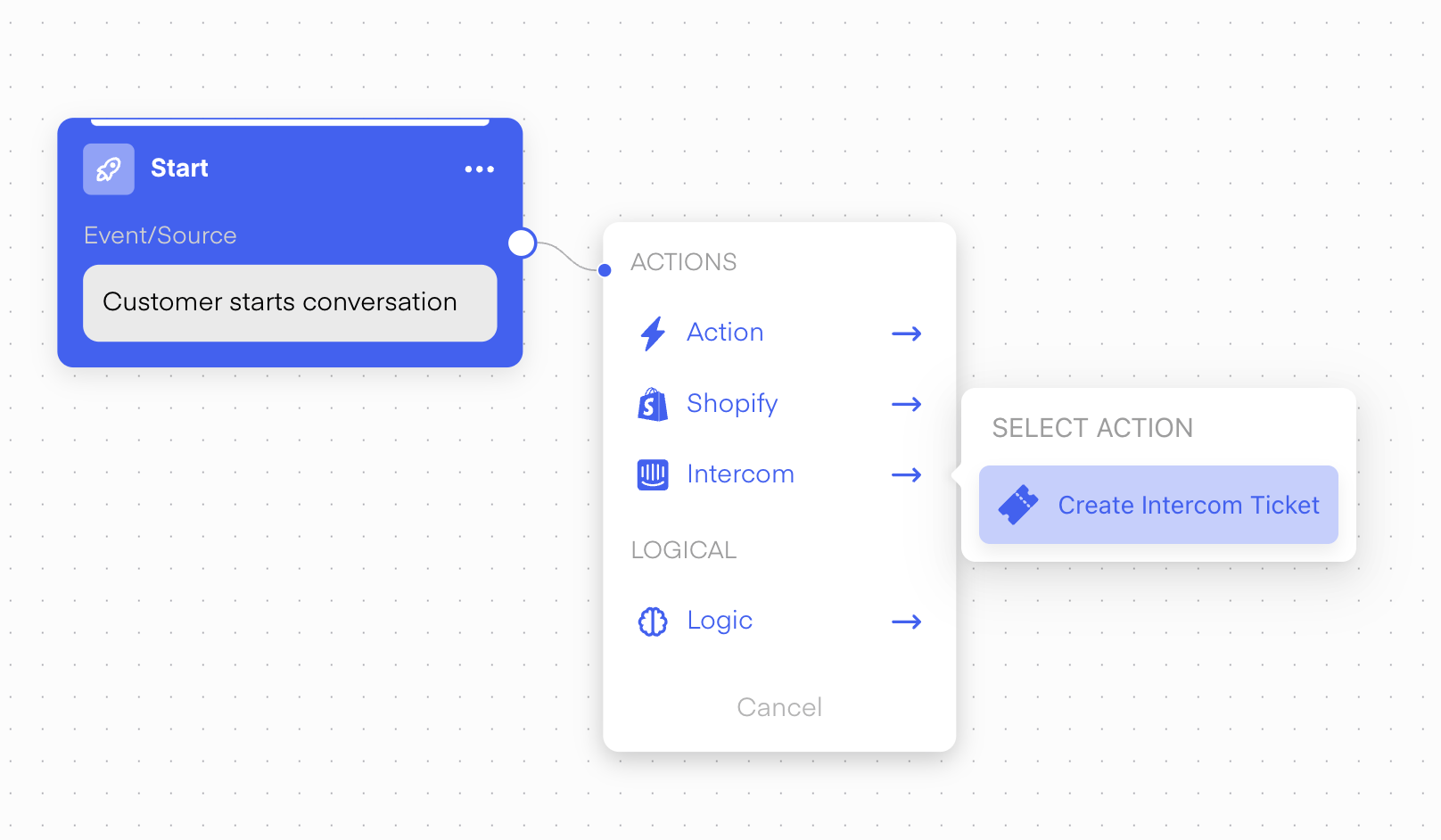
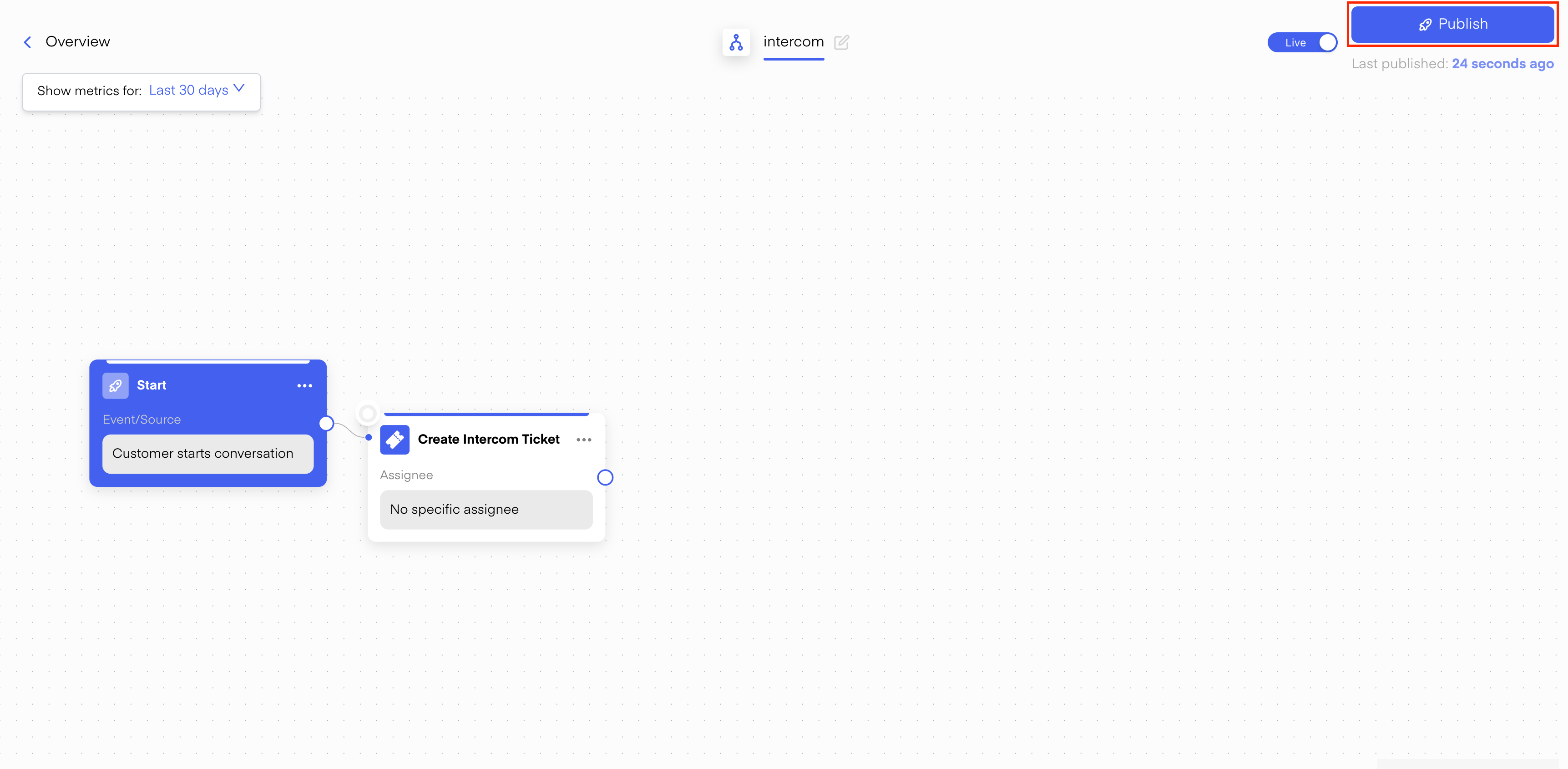
 Next, you will need to add a Flow-Action -> Intercom -> Create Ticket:
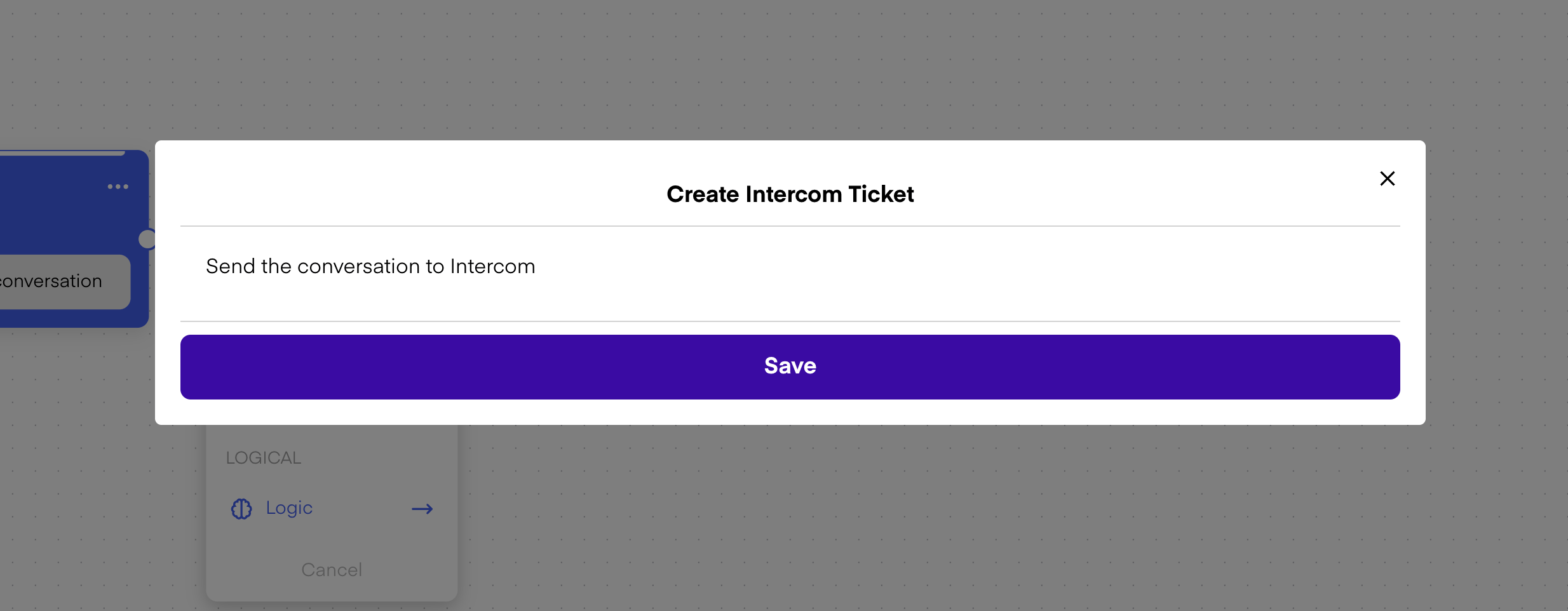 Last, you will need to publish the flow:
 # Testing your Integration
Now you can test your Integration by sending a WhatsApp Message from your Phone to your WhatsApp Business Account (of the company)
Congratulations! You have integrated Intercom successfully! 🥳
# Official Intercom Documentation on Chatarmin Intercom App: Intercom WhatsApp integration
Here is the official [documentation regarding the Chatarmin Intercom app, on the Intercom app marketplace](https://www.intercom.com/app-store/?app_package_code=chatarmin-zkex\&search=chatarmin).
# Testing your Integration
Now you can test your Integration by sending a WhatsApp Message from your Phone to your WhatsApp Business Account (of the company)
Congratulations! You have integrated Intercom successfully! 🥳
# Official Intercom Documentation on Chatarmin Intercom App: Intercom WhatsApp integration
Here is the official [documentation regarding the Chatarmin Intercom app, on the Intercom app marketplace](https://www.intercom.com/app-store/?app_package_code=chatarmin-zkex\&search=chatarmin).