> ## Documentation Index
> Fetch the complete documentation index at: https://help.chatarmin.com/llms.txt
> Use this file to discover all available pages before exploring further.
# HubSpot Integration
> Chatarmin guide: HubSpot Integration
# Video Guide
# How to connect
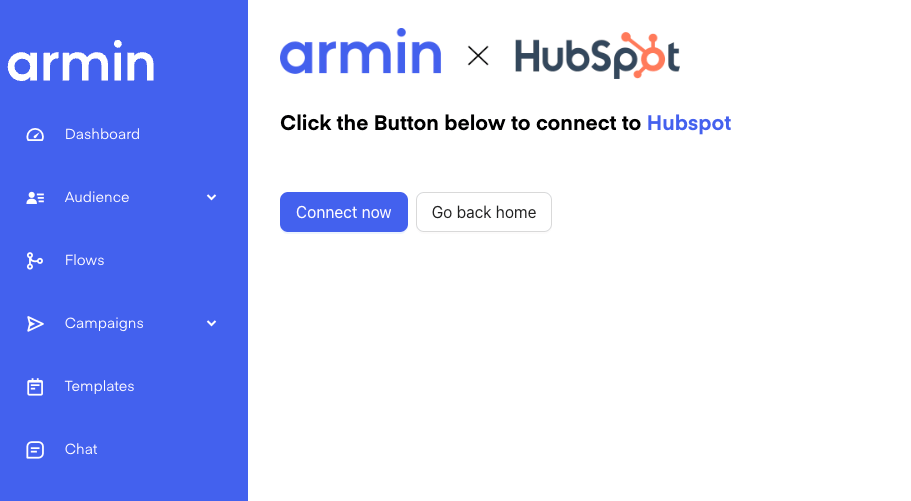
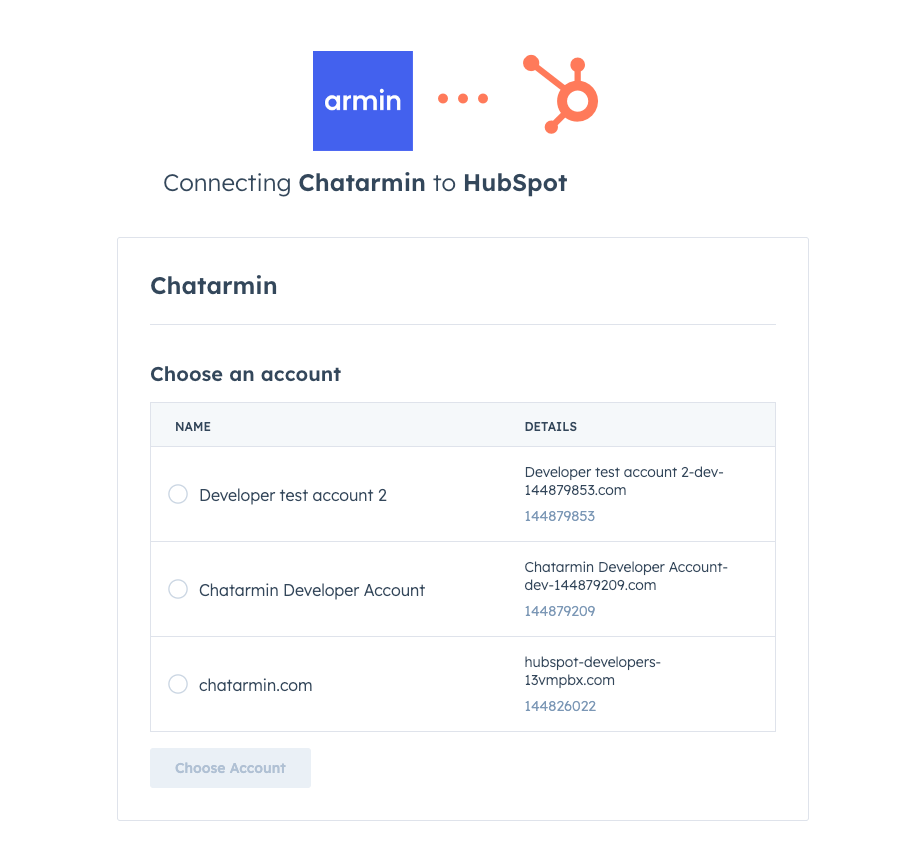
Connecting is very easy. Just navigate to [https://chatarmin.com/dashboard/hubspot/connect](https://chatarmin.com/dashboard/hubspot/connect) and click on "Connect Now".
 # Features
So the Integration currently can do 4 things:
1. Automatic background sync of Chatarmin contacts to HubSpot
2. Update HubSpot contact Flow action
3. Check for specific HubSpot contact properties (if/else) inside chatarmin flows
4. Syncing Events like "Updated contact", "Created contact" to HubSpot
We are going to explain the following more in depth, down below:
# Automatic background sync
So when a contact enrolls a WhatsApp-Flow and you have HubSpot integrated, the system is already working its magic in the background.
We check, if there is already a matching contact with that phone number/email. -> If yes, then we sync the Chatarmin & HubSpot data, so you have the profiles enriched in both tools.
If there is no contact yet, we create the contact in HubSpot with the contact data from chatarmin.
Lets say in chatarmin we only have a phone number and no email, therefore we create a phone-only contact. If that contact in chatarmin later on, gets an email assigned, we sync again and if now a contact appears to be in HubSpot with that email, we merge the "phone-only" contact from before, so there won't be 2 different contacts
## BONUS: WhatsApp Consent Sync
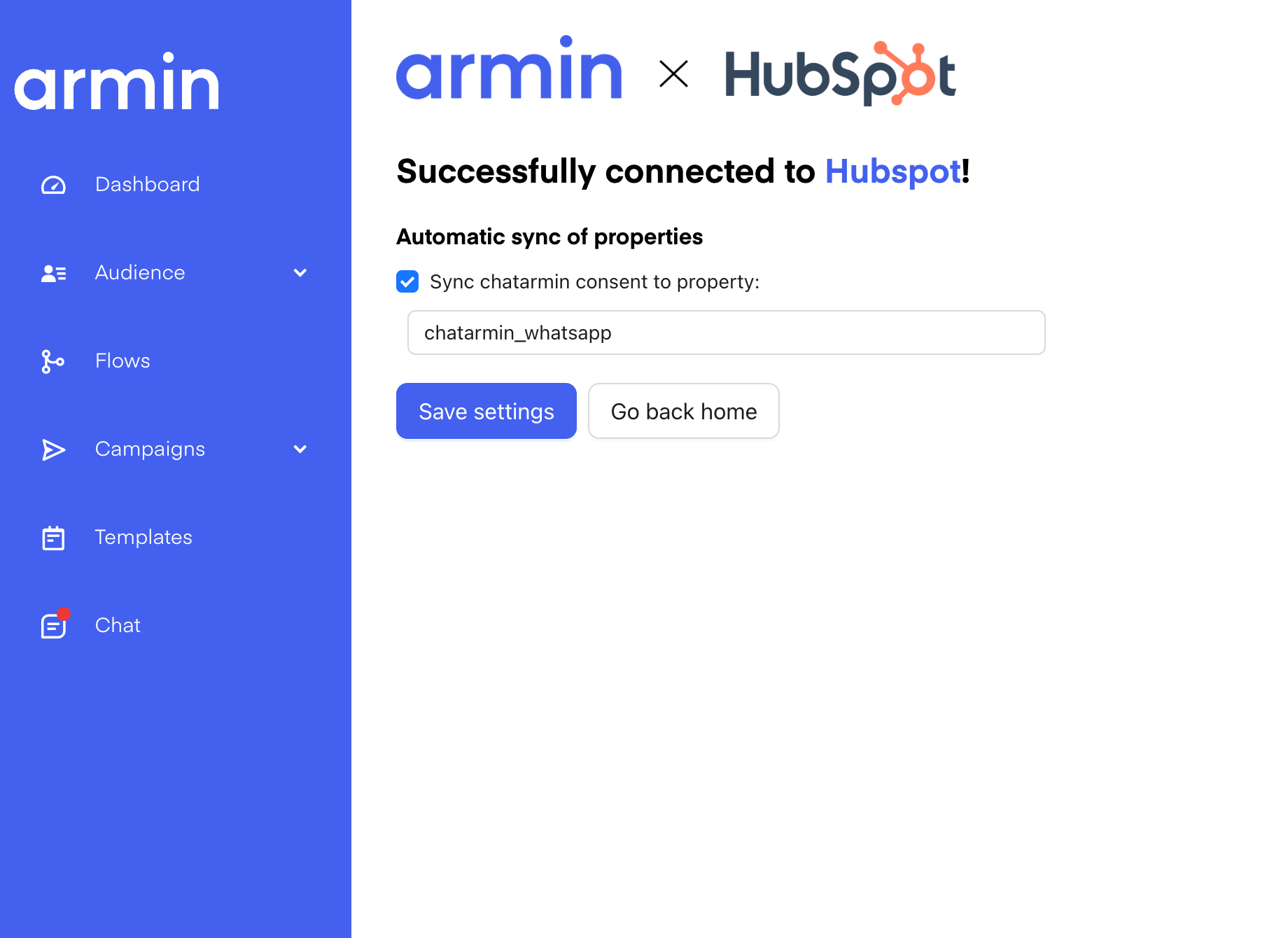
When integrating HubSpot, you can choose to sync the WhatsApp Consent automatically to a HubSpot property of your chose. Just type a property of your choice and we will sync the Consent!
# Features
So the Integration currently can do 4 things:
1. Automatic background sync of Chatarmin contacts to HubSpot
2. Update HubSpot contact Flow action
3. Check for specific HubSpot contact properties (if/else) inside chatarmin flows
4. Syncing Events like "Updated contact", "Created contact" to HubSpot
We are going to explain the following more in depth, down below:
# Automatic background sync
So when a contact enrolls a WhatsApp-Flow and you have HubSpot integrated, the system is already working its magic in the background.
We check, if there is already a matching contact with that phone number/email. -> If yes, then we sync the Chatarmin & HubSpot data, so you have the profiles enriched in both tools.
If there is no contact yet, we create the contact in HubSpot with the contact data from chatarmin.
Lets say in chatarmin we only have a phone number and no email, therefore we create a phone-only contact. If that contact in chatarmin later on, gets an email assigned, we sync again and if now a contact appears to be in HubSpot with that email, we merge the "phone-only" contact from before, so there won't be 2 different contacts
## BONUS: WhatsApp Consent Sync
When integrating HubSpot, you can choose to sync the WhatsApp Consent automatically to a HubSpot property of your chose. Just type a property of your choice and we will sync the Consent!
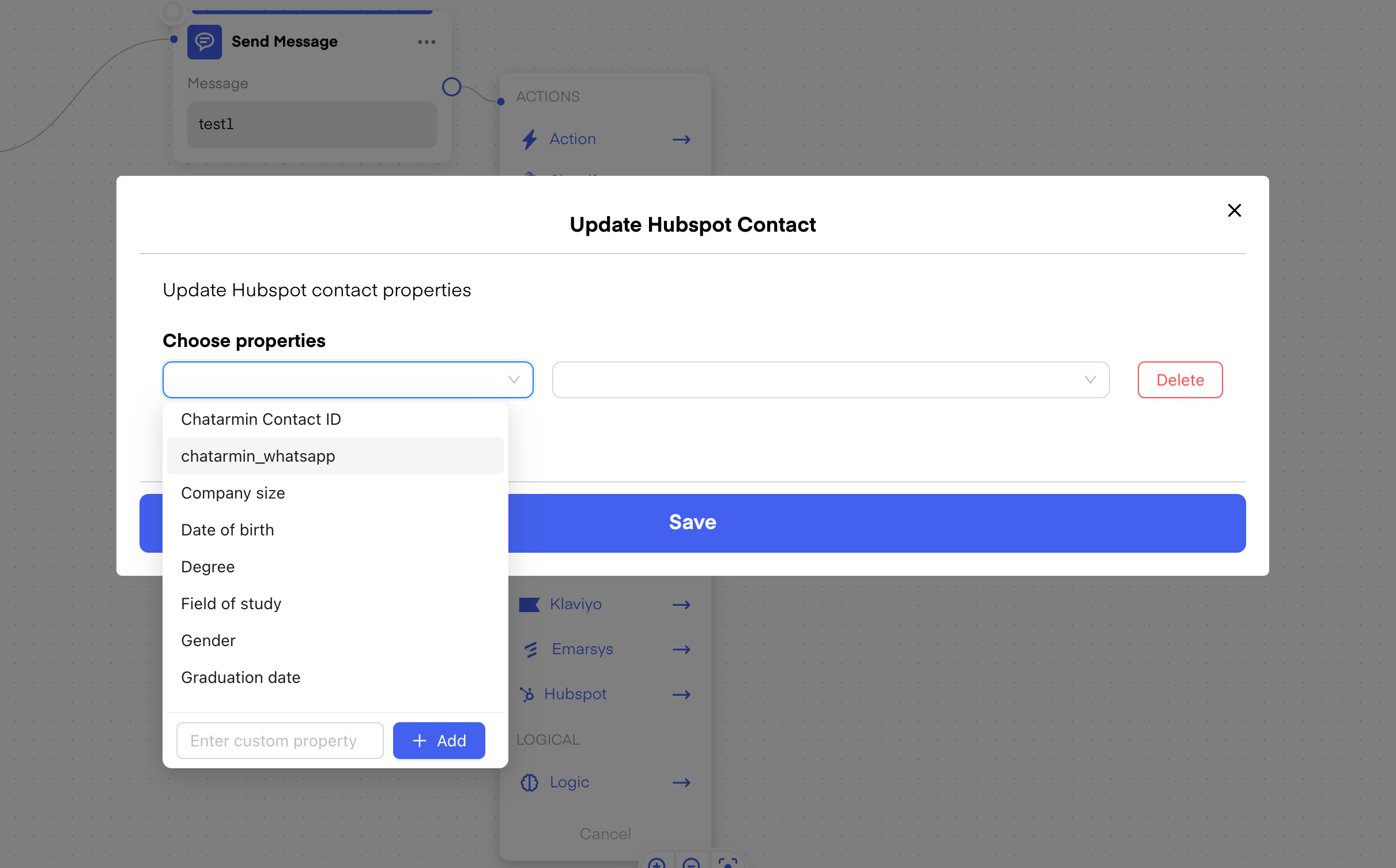
 # Update Contact Flow Action
In a Chatarmin Flow, you can choose to update properties in HubSpot:
# Update Contact Flow Action
In a Chatarmin Flow, you can choose to update properties in HubSpot:
 # If/Else for HubSpot properties
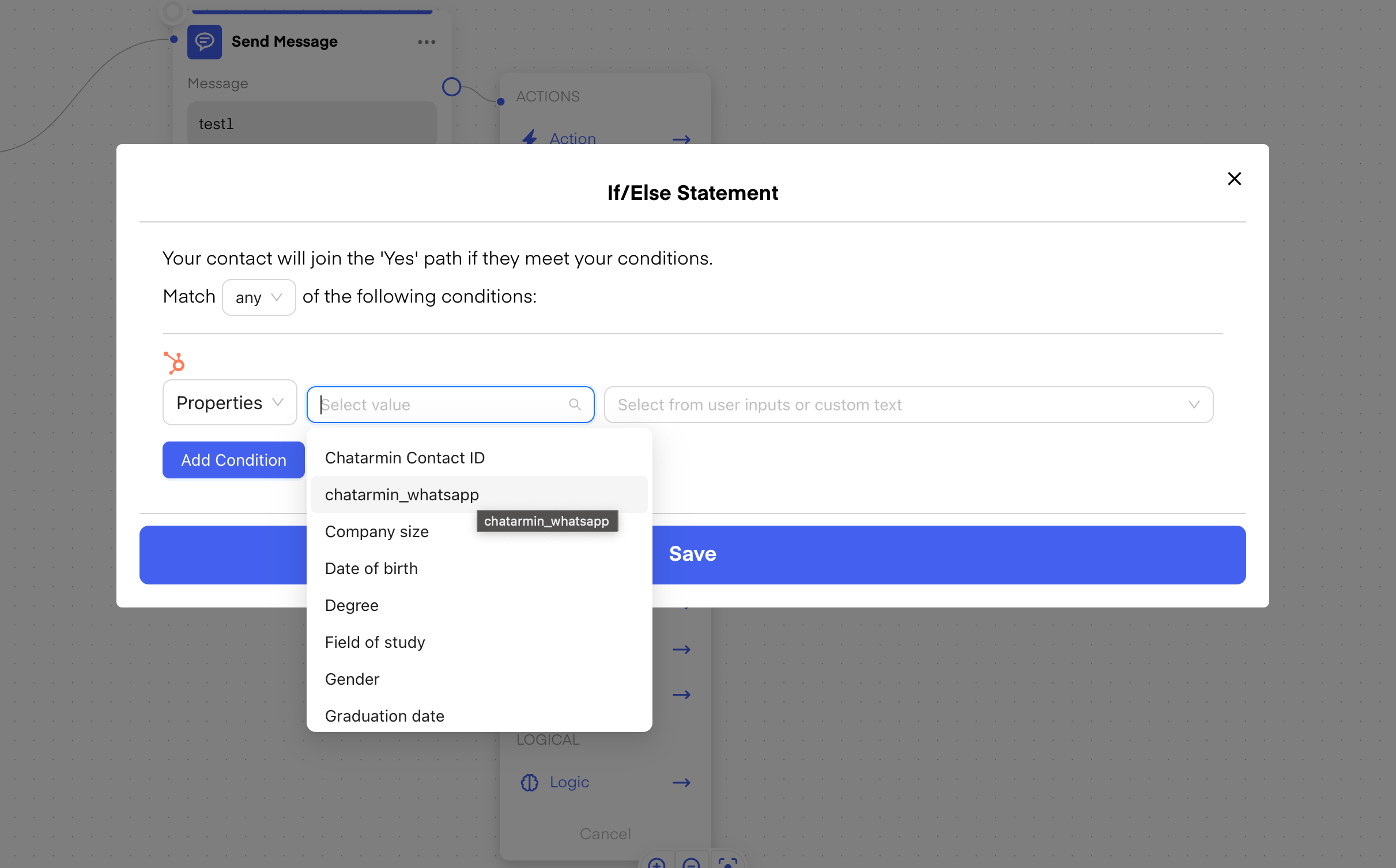
Also, you can check for specific HubSpot contact properties in a flow:
# If/Else for HubSpot properties
Also, you can check for specific HubSpot contact properties in a flow:
 # Automatic Sync of Chatarmin Events to HubSpot
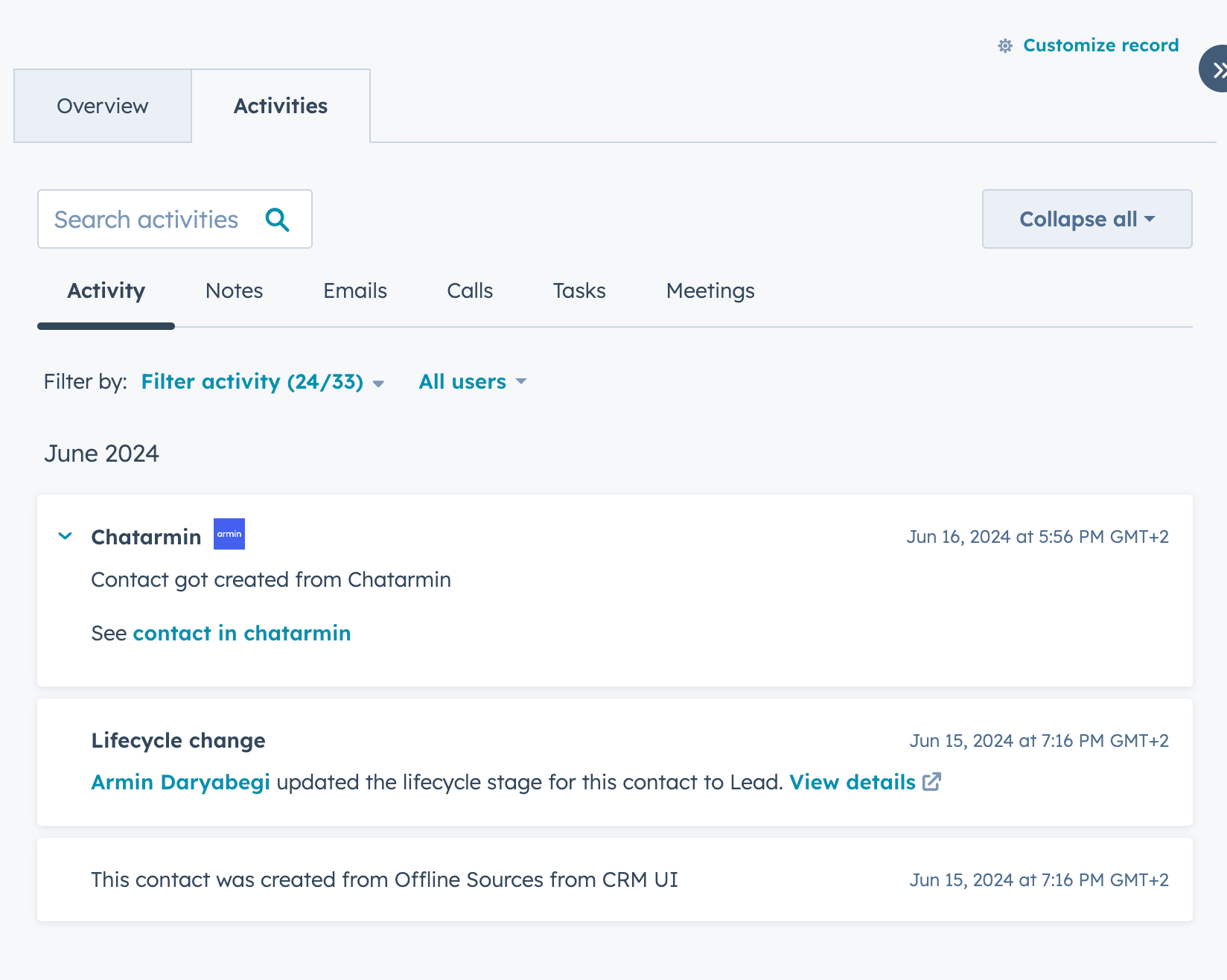
Also, Chatarmin does automatically create Events in HubSpot:
# Automatic Sync of Chatarmin Events to HubSpot
Also, Chatarmin does automatically create Events in HubSpot:
 # WhatsApp with Hubspot Conversations
🚨 Only if you have a ***Sales Hub*** *Enterprise* or ***Service Hub*** *Enterprise* account
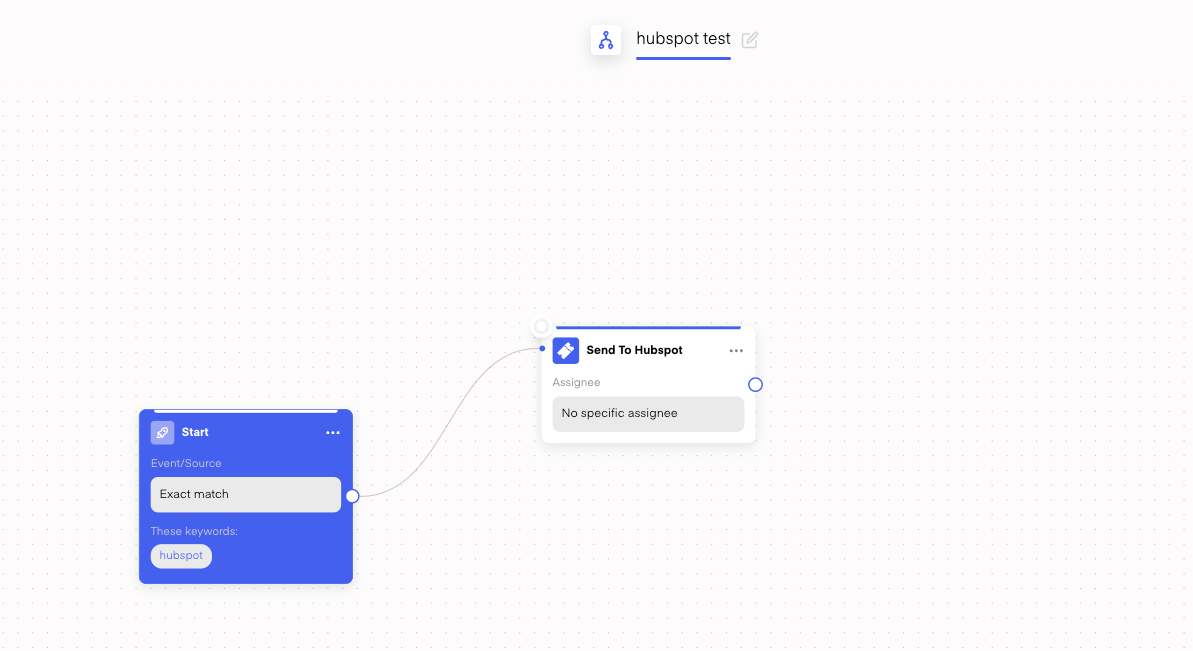
Once Hubspot is connected, you can also send WhatsApp messages directly to Hubspot!
For that you just need to select the Flow-Action **"Send to Hubspot"** just like so:
# WhatsApp with Hubspot Conversations
🚨 Only if you have a ***Sales Hub*** *Enterprise* or ***Service Hub*** *Enterprise* account
Once Hubspot is connected, you can also send WhatsApp messages directly to Hubspot!
For that you just need to select the Flow-Action **"Send to Hubspot"** just like so:
 Here is also a short Video explaining it:
To integrate a WhatsApp provider into HubSpot using a custom channel, follow these steps: First, create a public app in HubSpot and request the necessary permissions. Then, register your channel using the Custom Channels API, ensuring that your schema supports WhatsApp message handling. Implement OAuth 2.0 authentication to securely connect user accounts. Use the Conversations API (Beta) to link inboxes and manage messaging. Finally, refer to the WhatsApp Business API for message formatting and compliance with WhatsApp’s policies. [Find the step by step guide here.](https://developers.hubspot.com/docs/guides/api/conversations/create-custom-channels)
# Chatarmin Properties in Hubspot
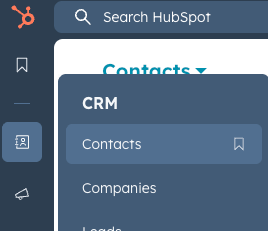
In HubSpot, under **CRM → Contacts**, you’ll find the CRM database where contacts from Chatarmin are stored or updated.
Here is also a short Video explaining it:
To integrate a WhatsApp provider into HubSpot using a custom channel, follow these steps: First, create a public app in HubSpot and request the necessary permissions. Then, register your channel using the Custom Channels API, ensuring that your schema supports WhatsApp message handling. Implement OAuth 2.0 authentication to securely connect user accounts. Use the Conversations API (Beta) to link inboxes and manage messaging. Finally, refer to the WhatsApp Business API for message formatting and compliance with WhatsApp’s policies. [Find the step by step guide here.](https://developers.hubspot.com/docs/guides/api/conversations/create-custom-channels)
# Chatarmin Properties in Hubspot
In HubSpot, under **CRM → Contacts**, you’ll find the CRM database where contacts from Chatarmin are stored or updated.
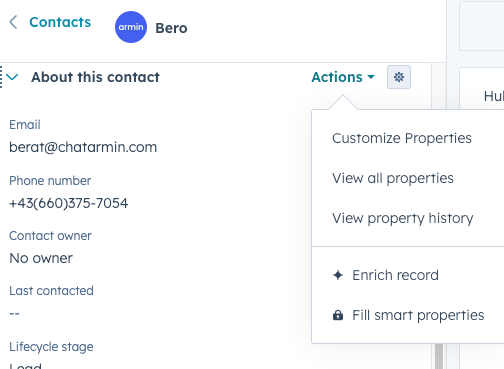
 Within the contacts section, you can select an example contact and then click on **Actions → Customize properties**.
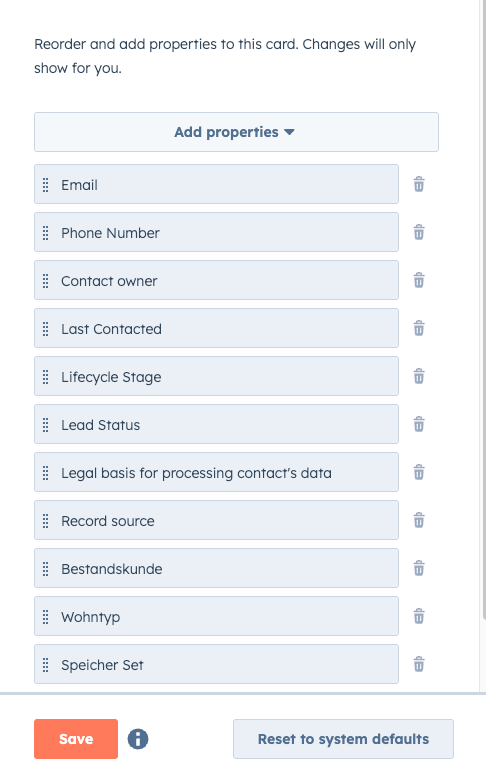
 There, you’ll see all properties that are already activated and displayed for that contact. You can use **Add properties** to include new ones - including properties you’ve previously created in Chatarmin.
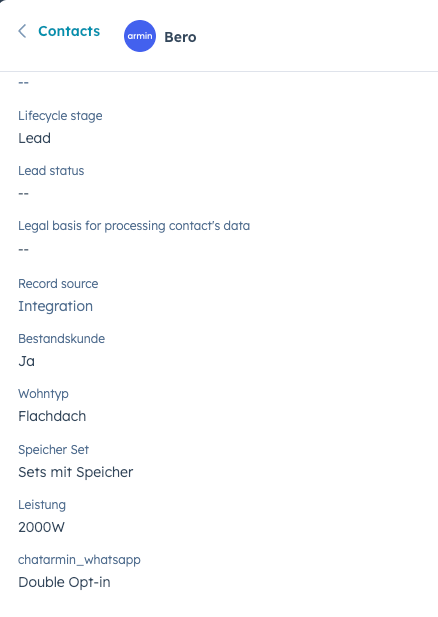
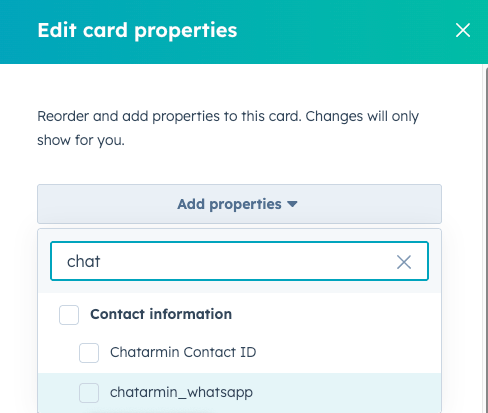
 For example, you could add the automatically synced property chatarmin\_whatsapp, which returns the customer’s opt-in status from Chatarmin.
 Once you’ve added the property, it will also appear in the contact details, giving you a much better overview of your customer data.