> ## Documentation Index
> Fetch the complete documentation index at: https://help.chatarmin.com/llms.txt
> Use this file to discover all available pages before exploring further.

# HubSpot - Create an Inbox View

> Chatarmin guide: HubSpot - Create an Inbox View

## **Step-by-Step Guide**

1. **Go to the Inbox page**

   Open your **Inbox** in HubSpot.

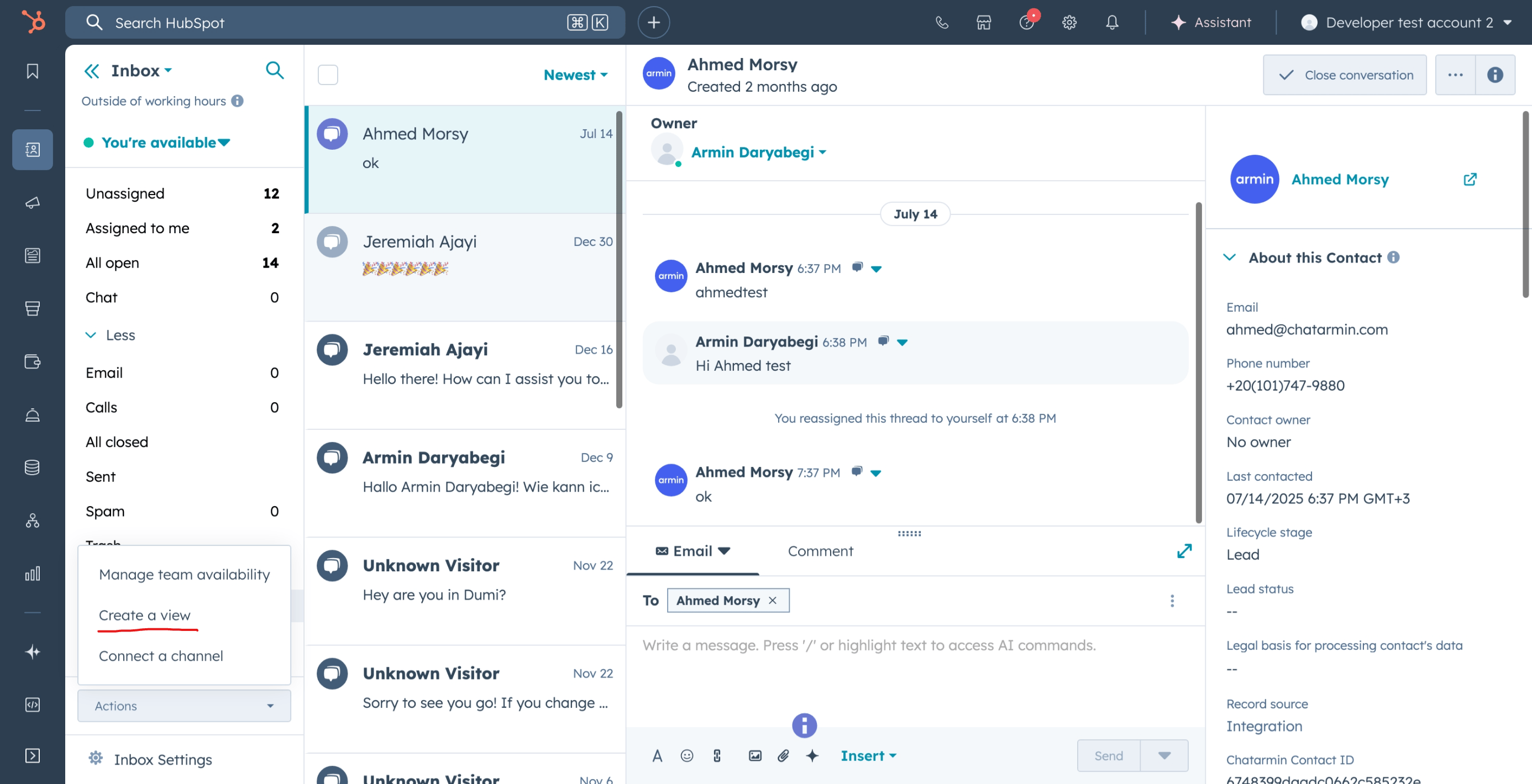
2. **Create a new view**

   * Click on **Actions** in the top-right corner.
   * Select **Create a view**.<img src="https://mintcdn.com/chatarmin-help-center/cCC7f96yUQwfA_7X/images/4086a6d0-5fed-4b07-ad7f-21127edcc927/019b9c80-8019-76cb-a314-e8b288ff80d5.png?fit=max&auto=format&n=cCC7f96yUQwfA_7X&q=85&s=a67e63b6118315cf3a89103bad7562f3" alt="Chatarmin help center image" width="2772" height="1419" data-path="images/4086a6d0-5fed-4b07-ad7f-21127edcc927/019b9c80-8019-76cb-a314-e8b288ff80d5.png" />
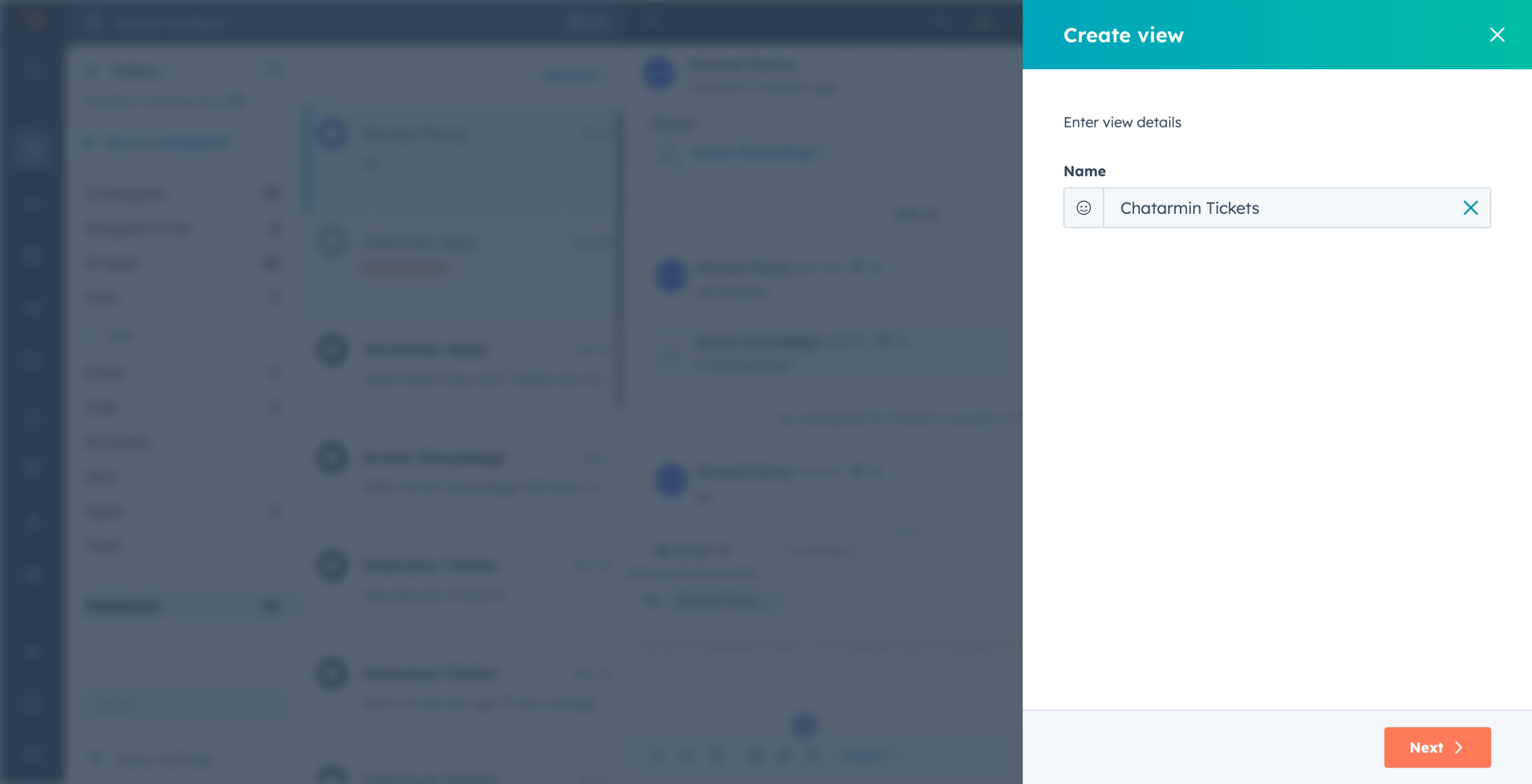
3. **Name the view**

   * Give your view a name, e.g. **Chatarmin Tickets**.
   * Click **Next**.<img src="https://mintcdn.com/chatarmin-help-center/cCC7f96yUQwfA_7X/images/4086a6d0-5fed-4b07-ad7f-21127edcc927/019b9c80-8031-708f-945d-1a01c6732097.png?fit=max&auto=format&n=cCC7f96yUQwfA_7X&q=85&s=afe4de3d6cf19c2981d1484b000dcaf2" alt="Chatarmin help center image" width="2772" height="1419" data-path="images/4086a6d0-5fed-4b07-ad7f-21127edcc927/019b9c80-8031-708f-945d-1a01c6732097.png" />
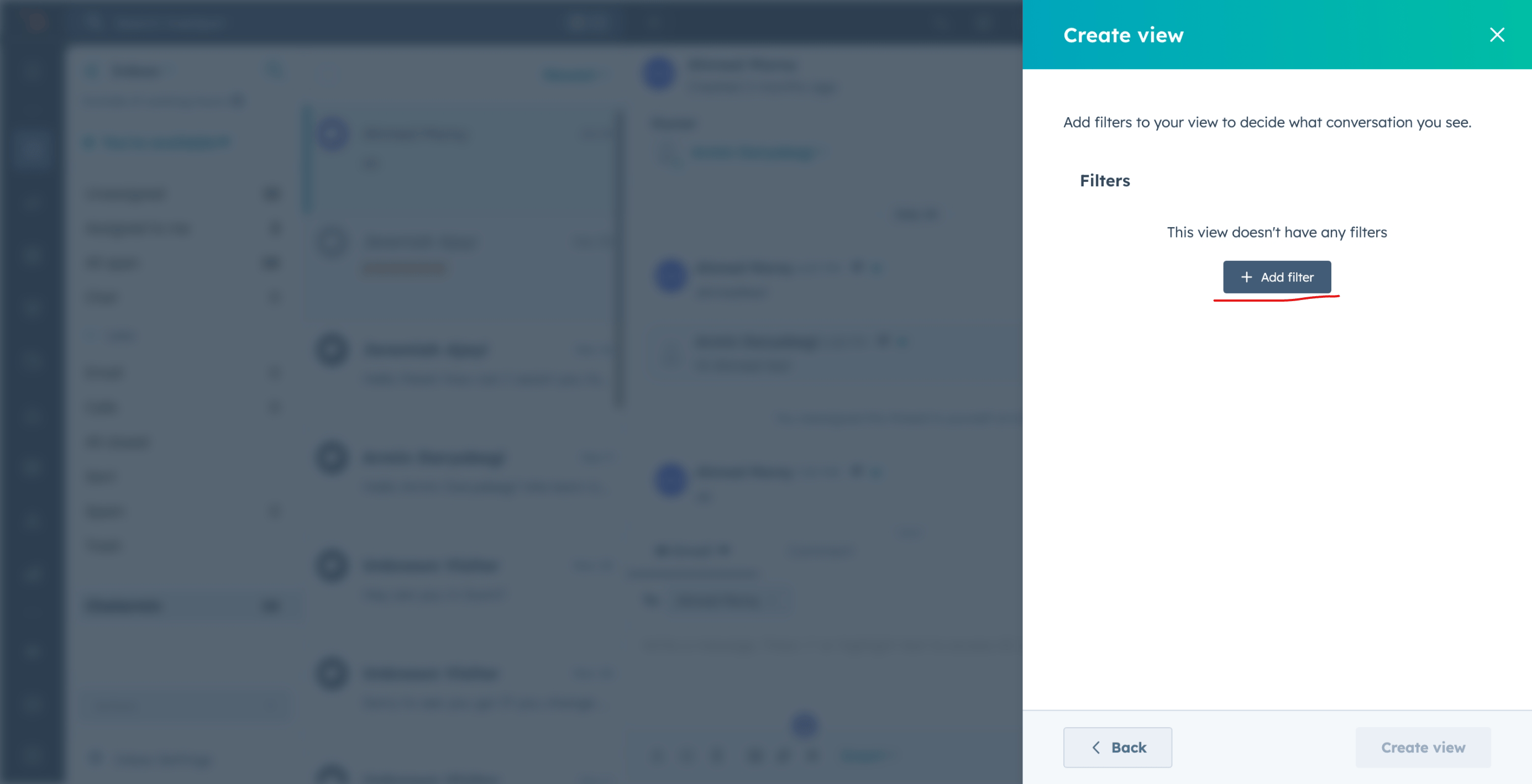
4. **Add a filter**

   * Click on **Add filter**.
     <img src="https://mintcdn.com/chatarmin-help-center/cCC7f96yUQwfA_7X/images/4086a6d0-5fed-4b07-ad7f-21127edcc927/019b9c80-7fd8-73f7-ad04-5f675a8322c7.png?fit=max&auto=format&n=cCC7f96yUQwfA_7X&q=85&s=de9b87c34a3c412ccd4184dbb7f5323b" alt="Chatarmin help center image" width="2772" height="1419" data-path="images/4086a6d0-5fed-4b07-ad7f-21127edcc927/019b9c80-7fd8-73f7-ad04-5f675a8322c7.png" />
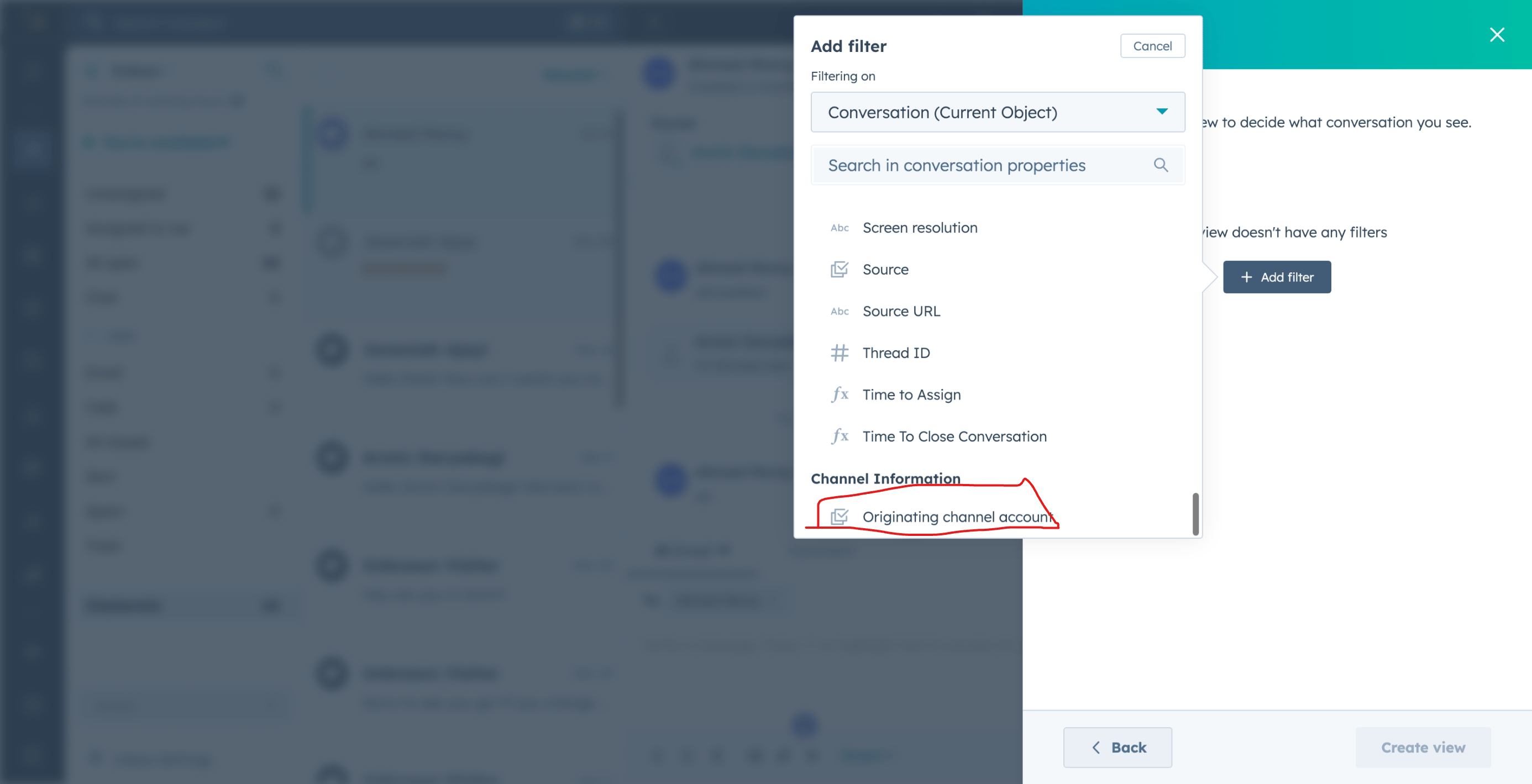
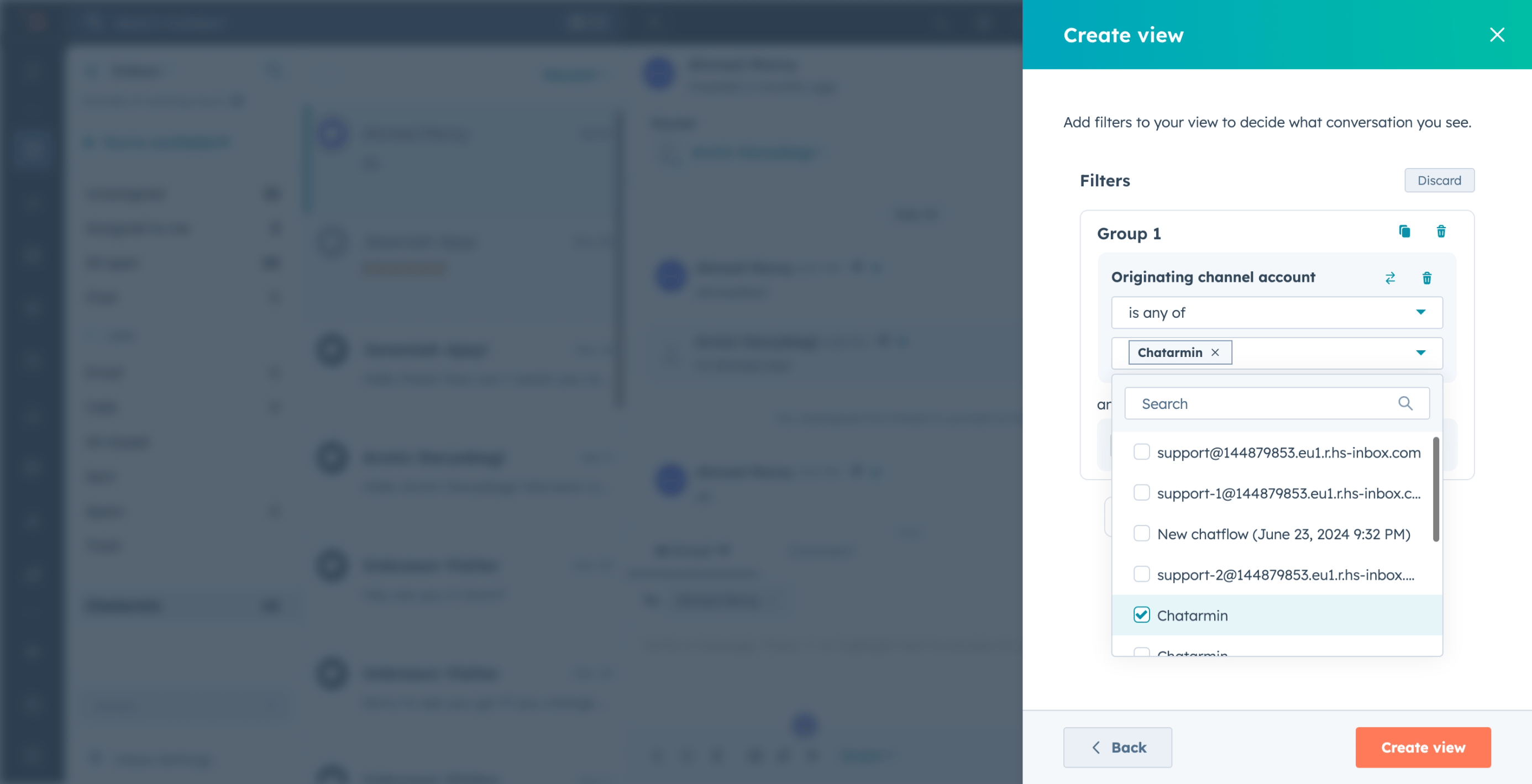
   * Scroll down and select **Originating channel account**.
     <img src="https://mintcdn.com/chatarmin-help-center/cCC7f96yUQwfA_7X/images/4086a6d0-5fed-4b07-ad7f-21127edcc927/019b9c80-8004-760e-bdbb-969cec7921bd.png?fit=max&auto=format&n=cCC7f96yUQwfA_7X&q=85&s=d61b2b40cc95190e956bcbac8152600e" alt="Chatarmin help center image" width="2772" height="1419" data-path="images/4086a6d0-5fed-4b07-ad7f-21127edcc927/019b9c80-8004-760e-bdbb-969cec7921bd.png" />
   * From the list, choose your **Chatarmin channel**.
     <img src="https://mintcdn.com/chatarmin-help-center/cCC7f96yUQwfA_7X/images/4086a6d0-5fed-4b07-ad7f-21127edcc927/019b9c80-8000-76ec-bd27-cebbd793f574.png?fit=max&auto=format&n=cCC7f96yUQwfA_7X&q=85&s=6c83b5251d014f61f55ec1b9067ba8de" alt="Chatarmin help center image" width="2772" height="1419" data-path="images/4086a6d0-5fed-4b07-ad7f-21127edcc927/019b9c80-8000-76ec-bd27-cebbd793f574.png" />

5. **Save the view**

   * Click on **Create view**.
