> ## Documentation Index
> Fetch the complete documentation index at: https://help.chatarmin.com/llms.txt
> Use this file to discover all available pages before exploring further.
# Getcircuit Integration
> Chatarmin guide: Getcircuit Integration
***
# Chatarmin Getcircuit Integration
***
Using [getcircuit](https://getcircuit.com/) to optimize your last-mile-delivery, you can choose between SMS and WhatsApp. However, [SMS is not a fitting channel to serve your customer during his user journey](https://chatarmin.com/en/blog/whatsapp-vs-sms-vs-email-comparing-conversational-marketing-strategies).
So, you will want to offer your client last-mile-delivery-updates, via WhatsApp.
Here is how our Chatarmin-developer Samee explains the unique Chatarmin-getcircuit-integration:
Source: Chatarmin, Q3 2024
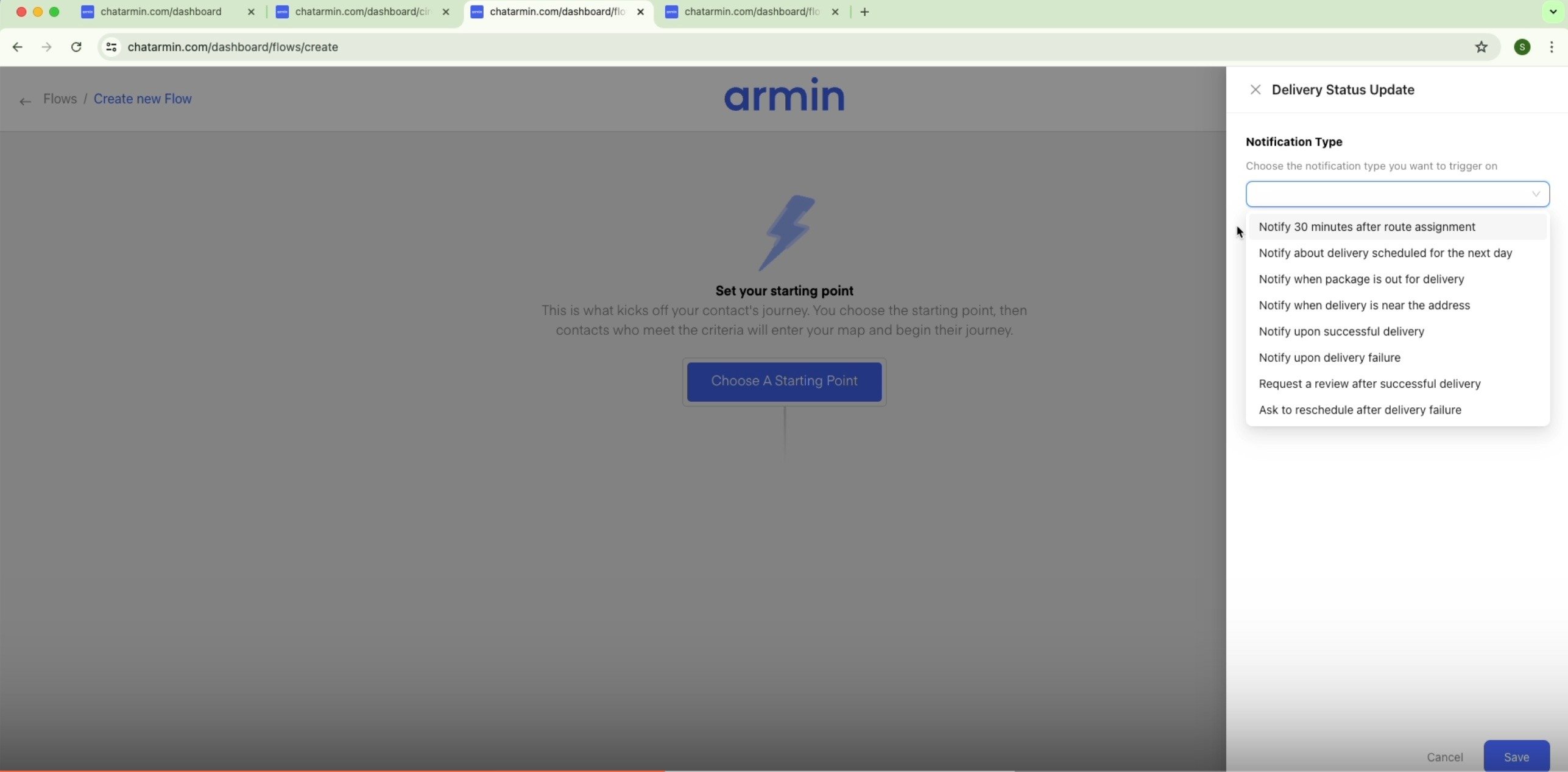
You can trigger WhatsApp journeys based on the following Getcircuit endpoints:
* 30 minutes after route assignment
* delivery schedule about next day
* package is out for delivery
* delivery is near the address
* successful delivery
* delivery failure
* request review after successful delivery
* ask to reschedule after failed delivery
***
## Get started: Integrate Chatarmin with getcircuit
***
1. Find the circuit API-key in the integrations page on your getcircuit account
2. Connect it with Chatarmin [here](https://chatarmin.com/dashboard/circuitforteams/connect)
3. Make sure to enable the webhook and feel free to test it
***
## Build your first Chatarmin flow based on getcircuit triggers
***
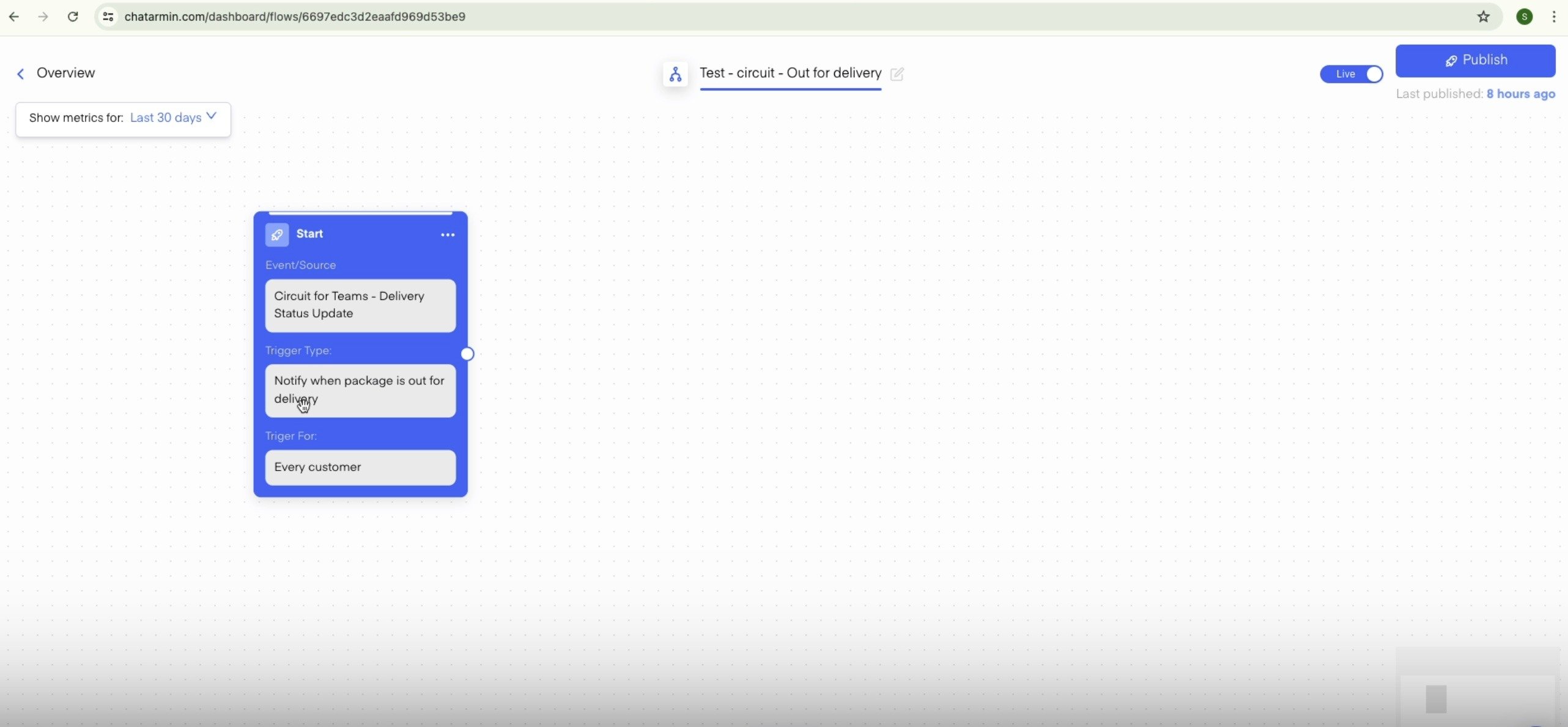
1. Choose your flow-trigger out of the wide range of getcircuit-endpoints provided
 2. Choose your flow-actions, just like always. [Learn more about flows here.](/features-in-depth/flows/flows-explained)
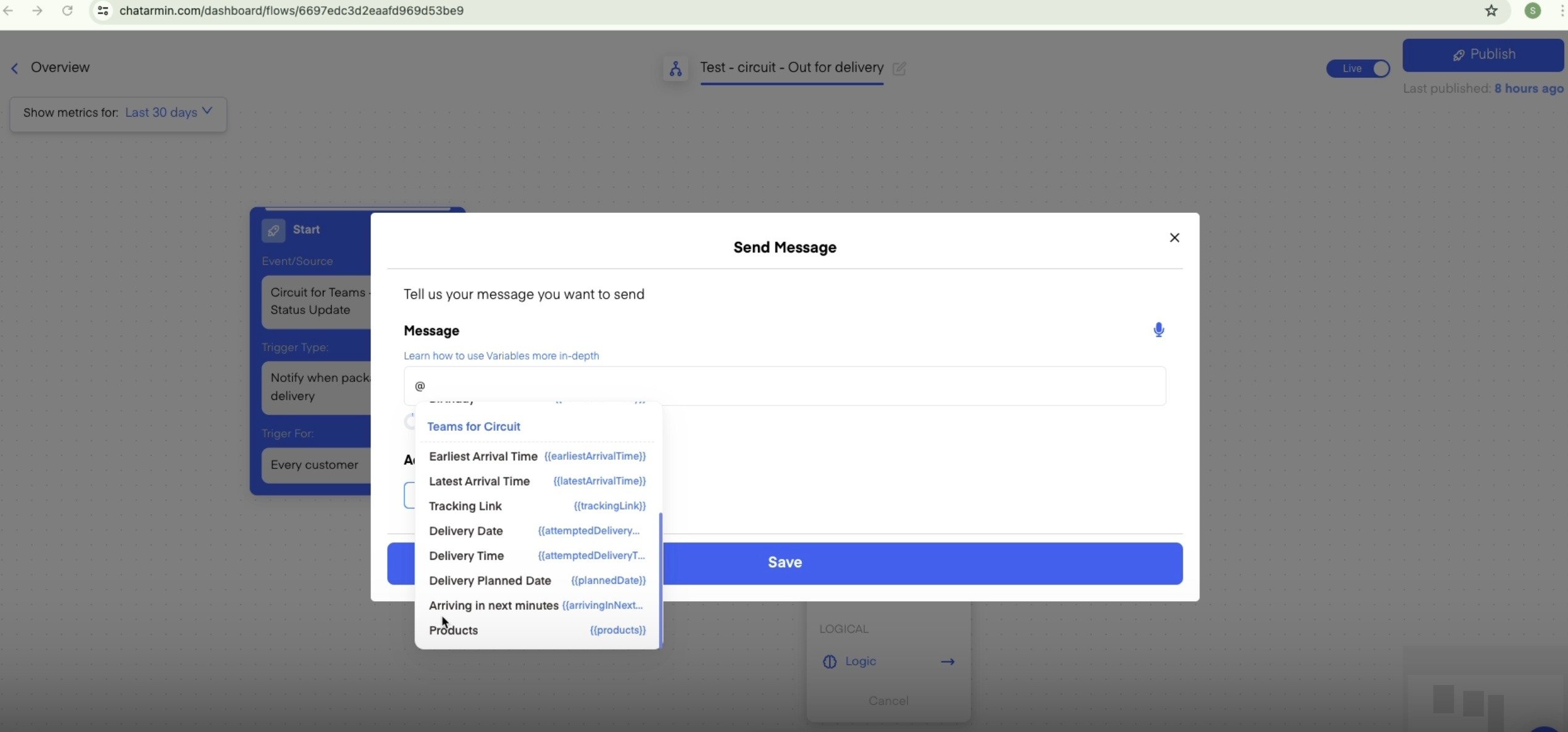
 3. Choose getcircuit-properties in campaigns (also works for manual [campaigns](/features-in-depth/campaigns/campaigns-explained)!)
 ***
***
***BONUS:*** *Watch this video to dive even deeper into the Chatarmin Getcircuit Integration:*
***
***
***BONUS:*** *Watch this video to dive even deeper into the Chatarmin Getcircuit Integration:*