> ## Documentation Index
> Fetch the complete documentation index at: https://help.chatarmin.com/llms.txt
> Use this file to discover all available pages before exploring further.
# Freshdesk Integration
> Chatarmin guide: Freshdesk Integration
***
## Why integrate Freshdesk? 🤔
***
By connecting Freshdesk with Chatarmin, your support team can continue using Freshdesk to manage customer requests via WhatsApp without switching tools. Meanwhile, your marketing team can leverage Chatarmin to generate and nurture leads.
This ensures customers communicate via one WhatsApp account, allowing you to convert support leads into marketing contacts efficiently.
***
## 🔧 Freshdesk Connection
***
### Create API Key
1. Navigate to the [Freshdesk connection](https://chatarmin.com/dashboard/freshdesk/connect) page in Chatarmin.
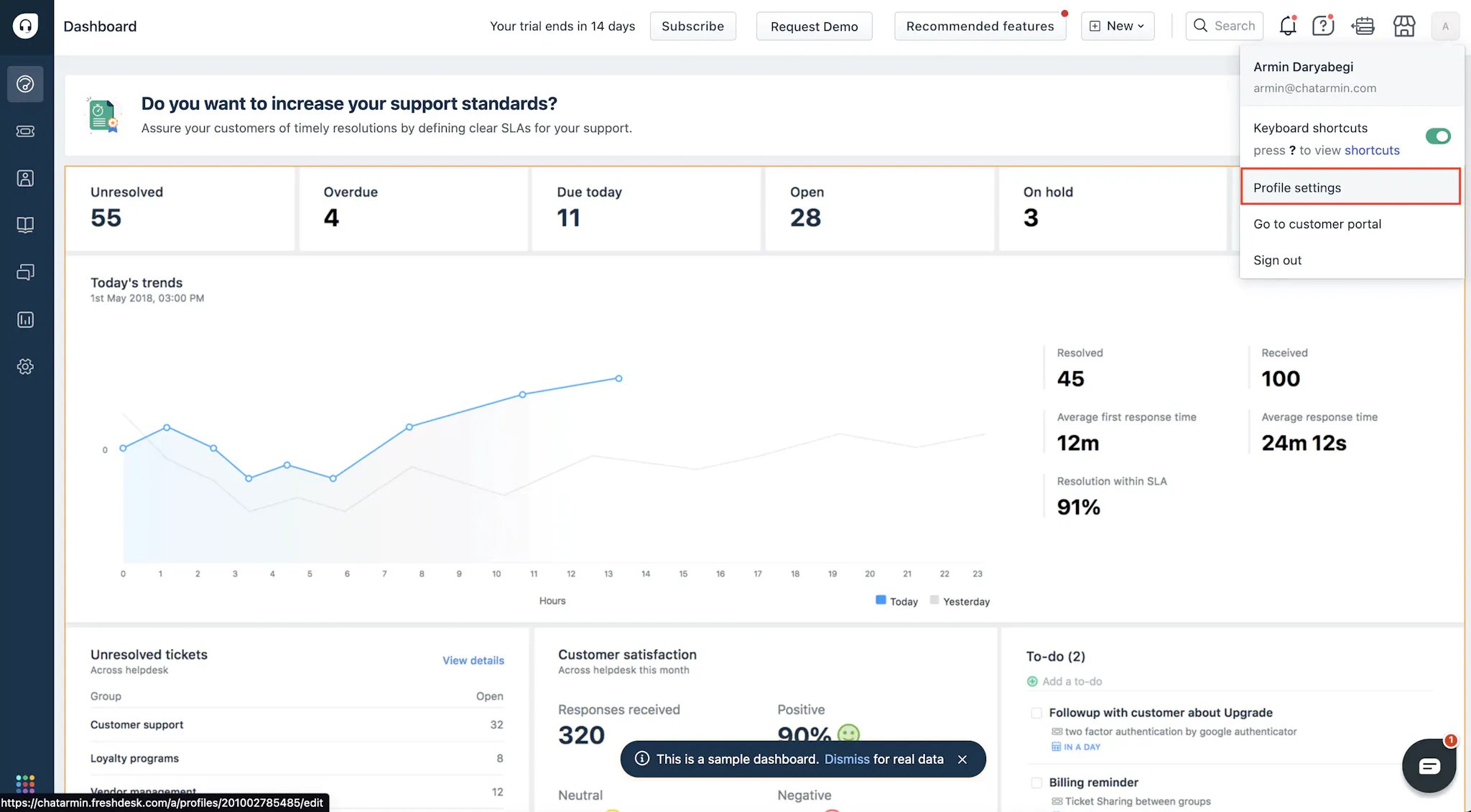
2. Log in to Freshdesk, click your profile (top right) → **Profile Settings**.
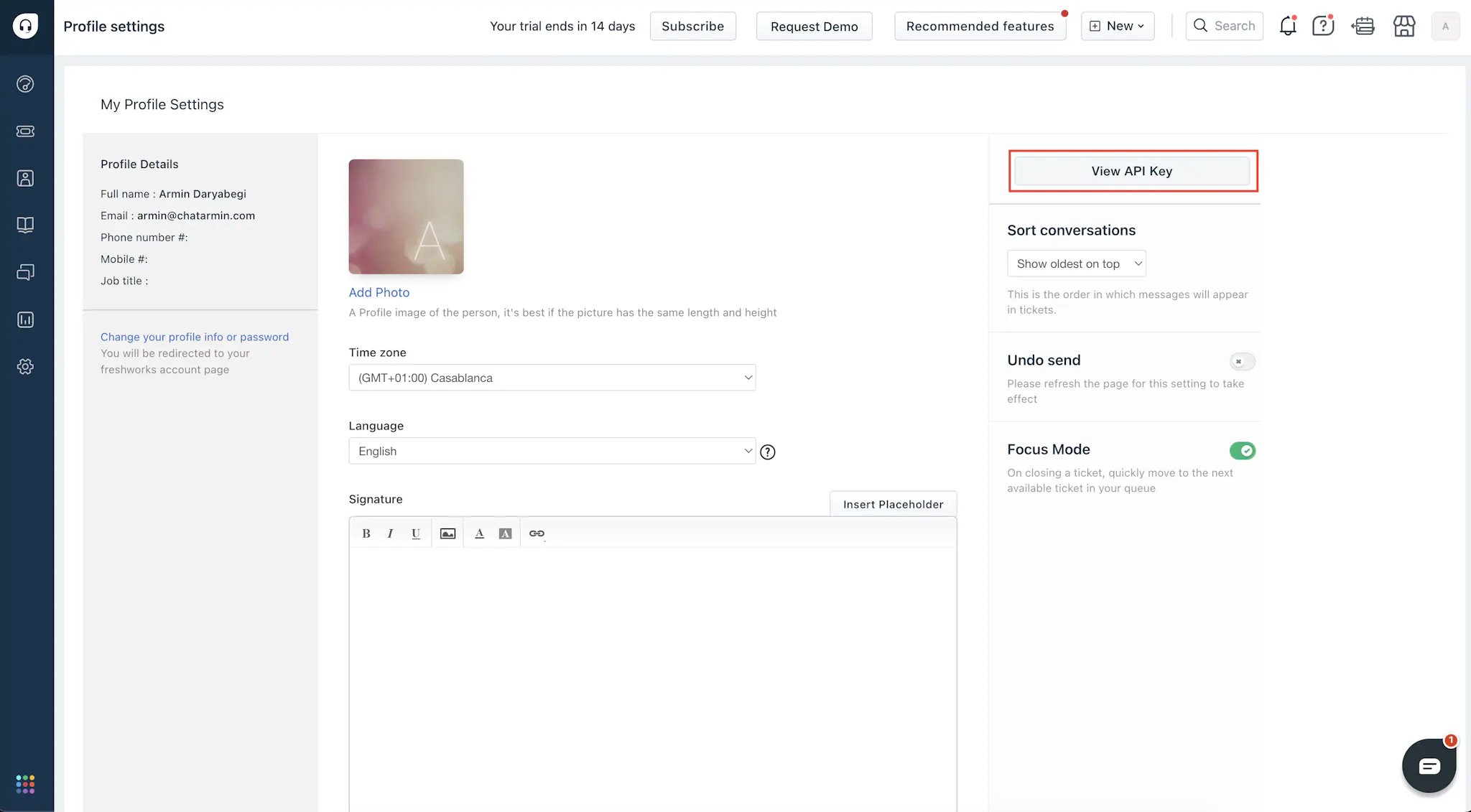
 3. Select **View API Key**, copy it along with your Freshdesk domain.
 4. Paste both into Chatarmin and click **Connect**.
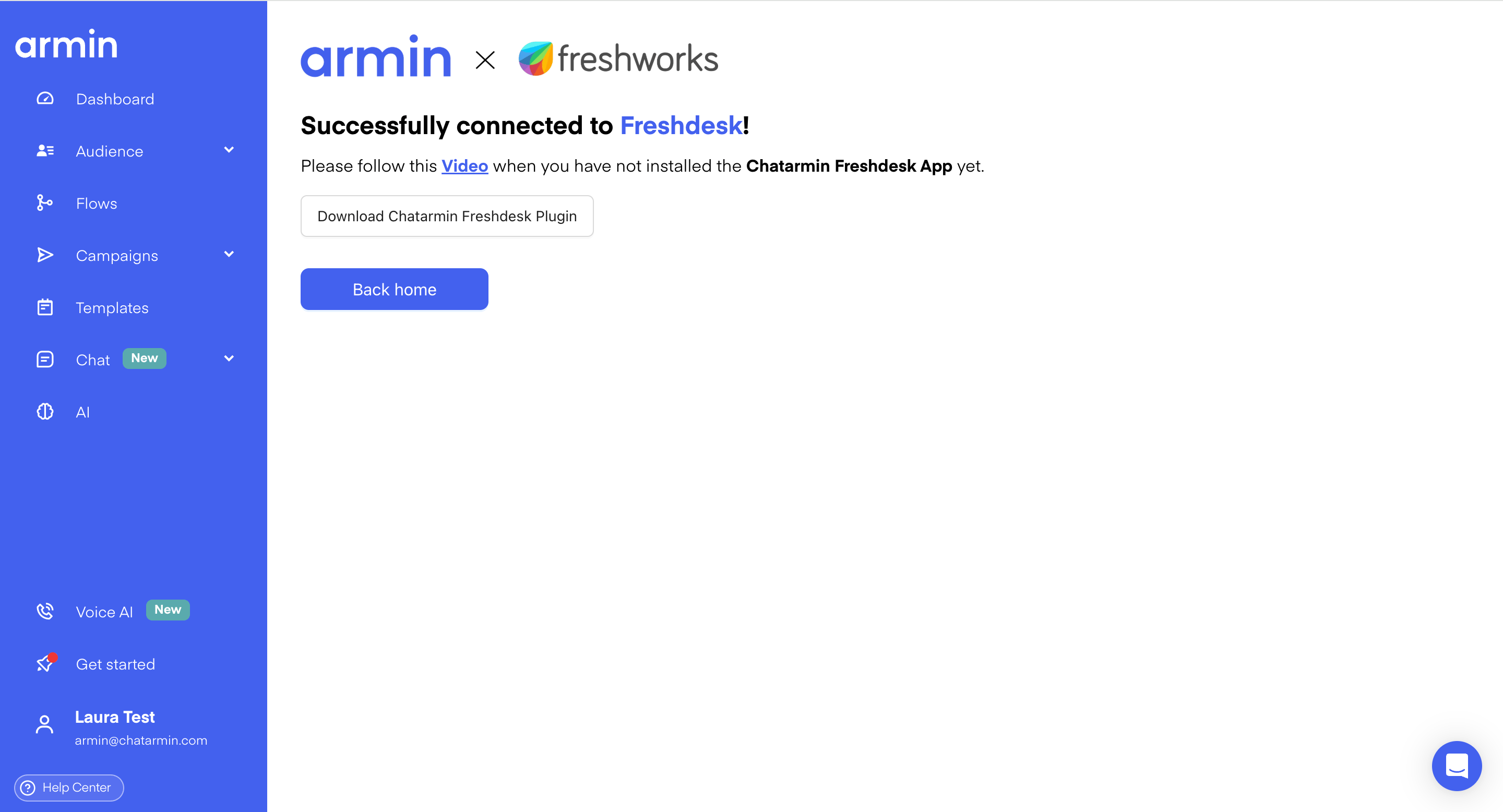
5. **Download the app file** from the Success Page.
4. Paste both into Chatarmin and click **Connect**.
5. **Download the app file** from the Success Page.
 ## Install the Chatarmin App in Freshdesk
Navigate to **Admin → Apps → Manage Apps → Custom Apps → Developer Portal**
## Install the Chatarmin App in Freshdesk
Navigate to **Admin → Apps → Manage Apps → Custom Apps → Developer Portal**
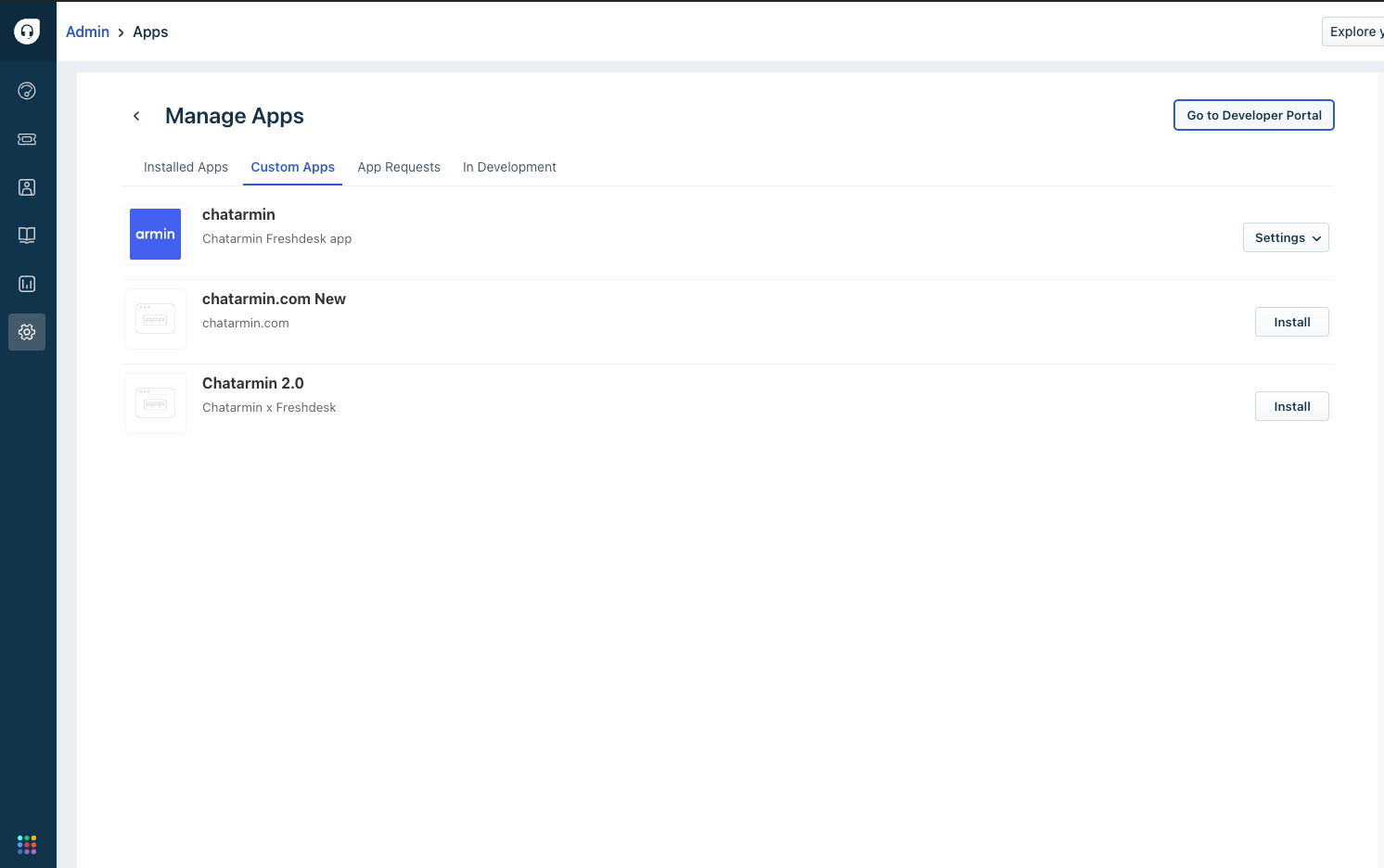 ##
Then, select **Custom Apps** and upload the previously downloaded Chatarmin.
🎥 Prefer a video guide?
***
## 📩 Creating a Freshdesk Ticket
***
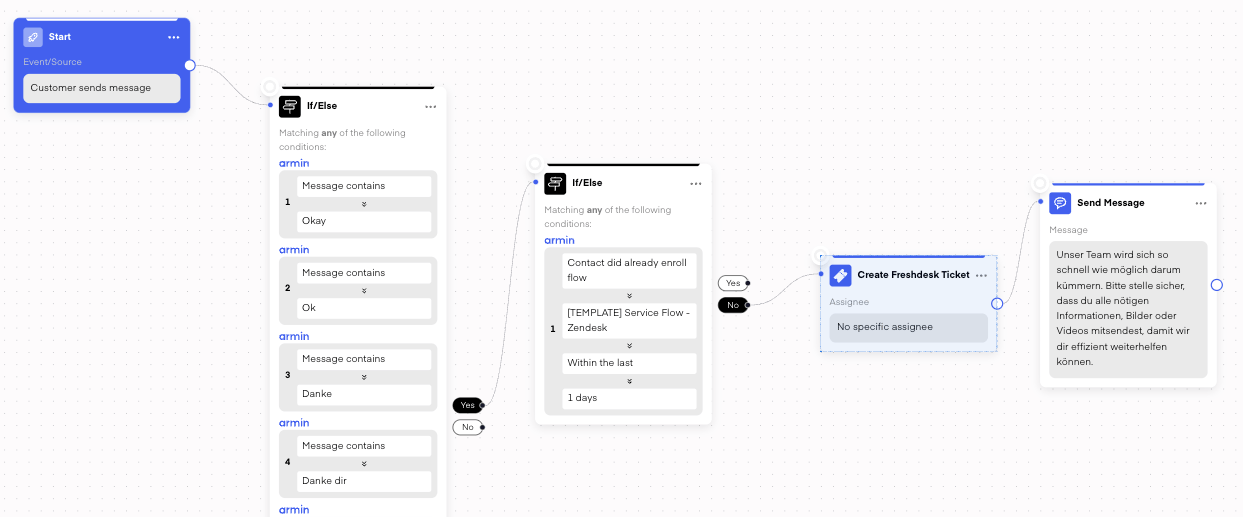
Incoming WhatsApp messages can **automatically create Freshdesk tickets**. Use **filters** to exclude irrelevant messages like emojis or simple replies.
##
Then, select **Custom Apps** and upload the previously downloaded Chatarmin.
🎥 Prefer a video guide?
***
## 📩 Creating a Freshdesk Ticket
***
Incoming WhatsApp messages can **automatically create Freshdesk tickets**. Use **filters** to exclude irrelevant messages like emojis or simple replies.
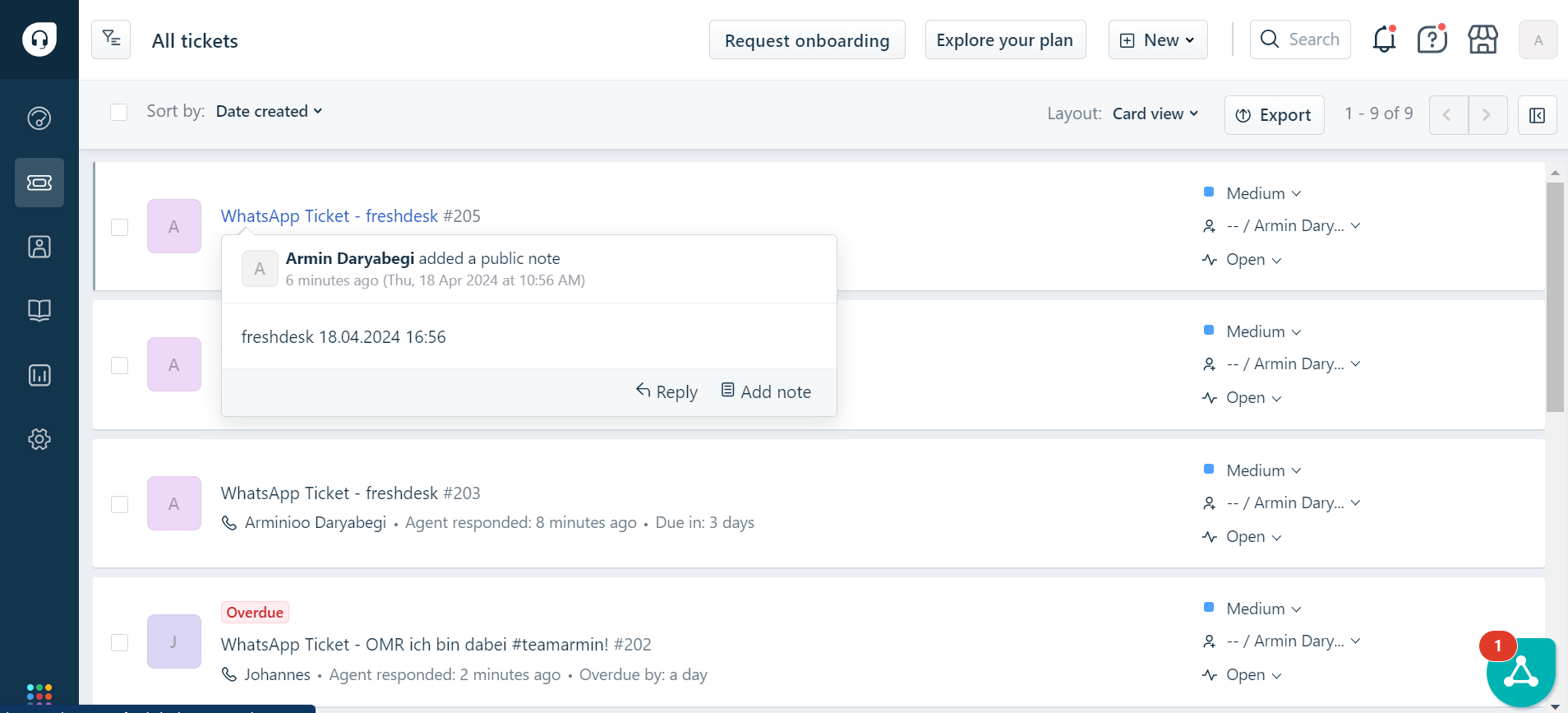
 Tickets appear **directly in your Freshdesk inbox** for easy handling.
 **Important:** Within the **24-hour messaging window**, you can reply freely. After 24 hours, due to META restrictions, replies require **pre-approved templates** created in Chatarmin and sent via Freshdesk.
More Information about the 24-hour window [here](/meta-related/what-is-the-24-hour-window).
**Important:** Within the **24-hour messaging window**, you can reply freely. After 24 hours, due to META restrictions, replies require **pre-approved templates** created in Chatarmin and sent via Freshdesk.
More Information about the 24-hour window [here](/meta-related/what-is-the-24-hour-window).
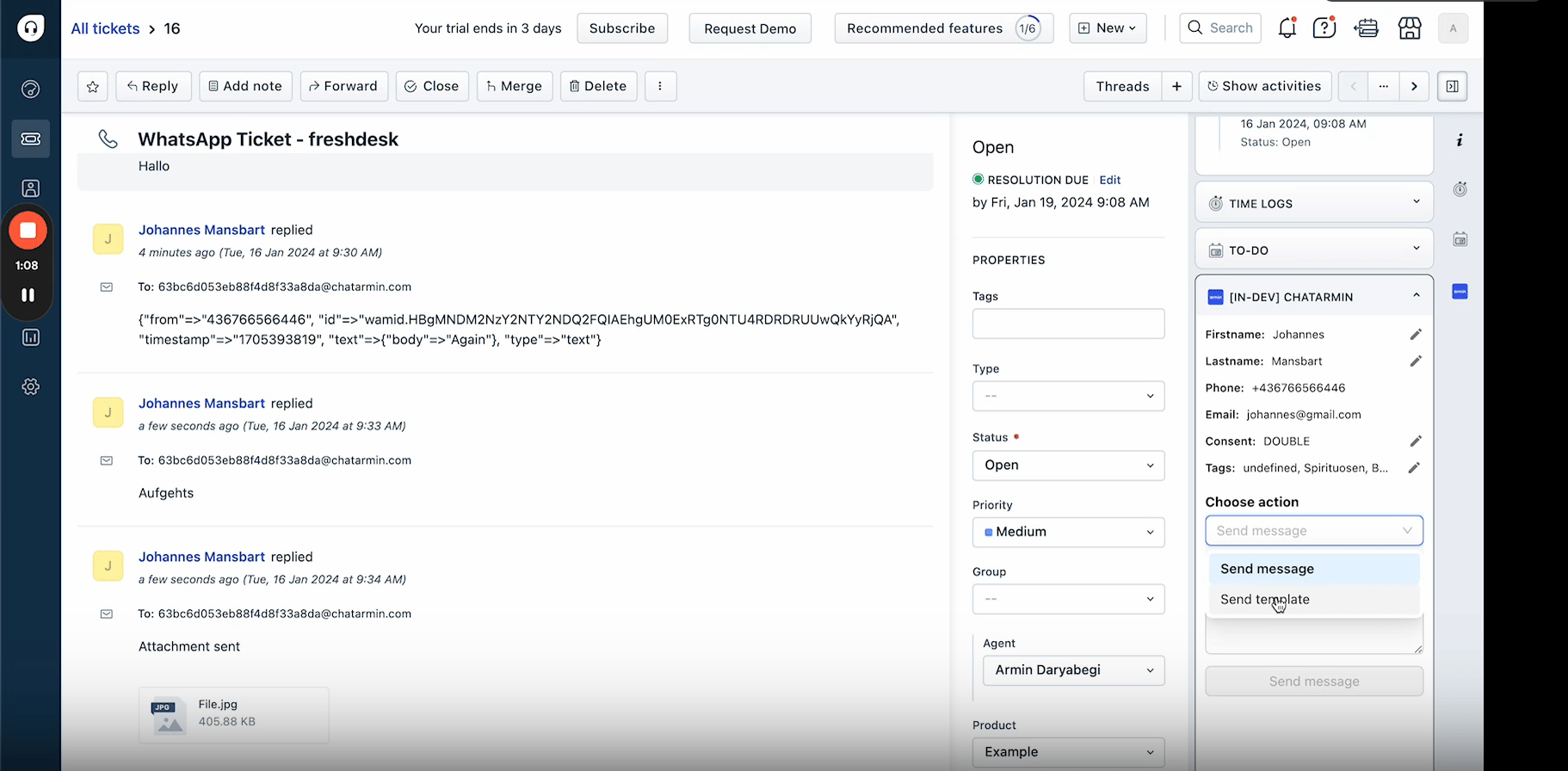
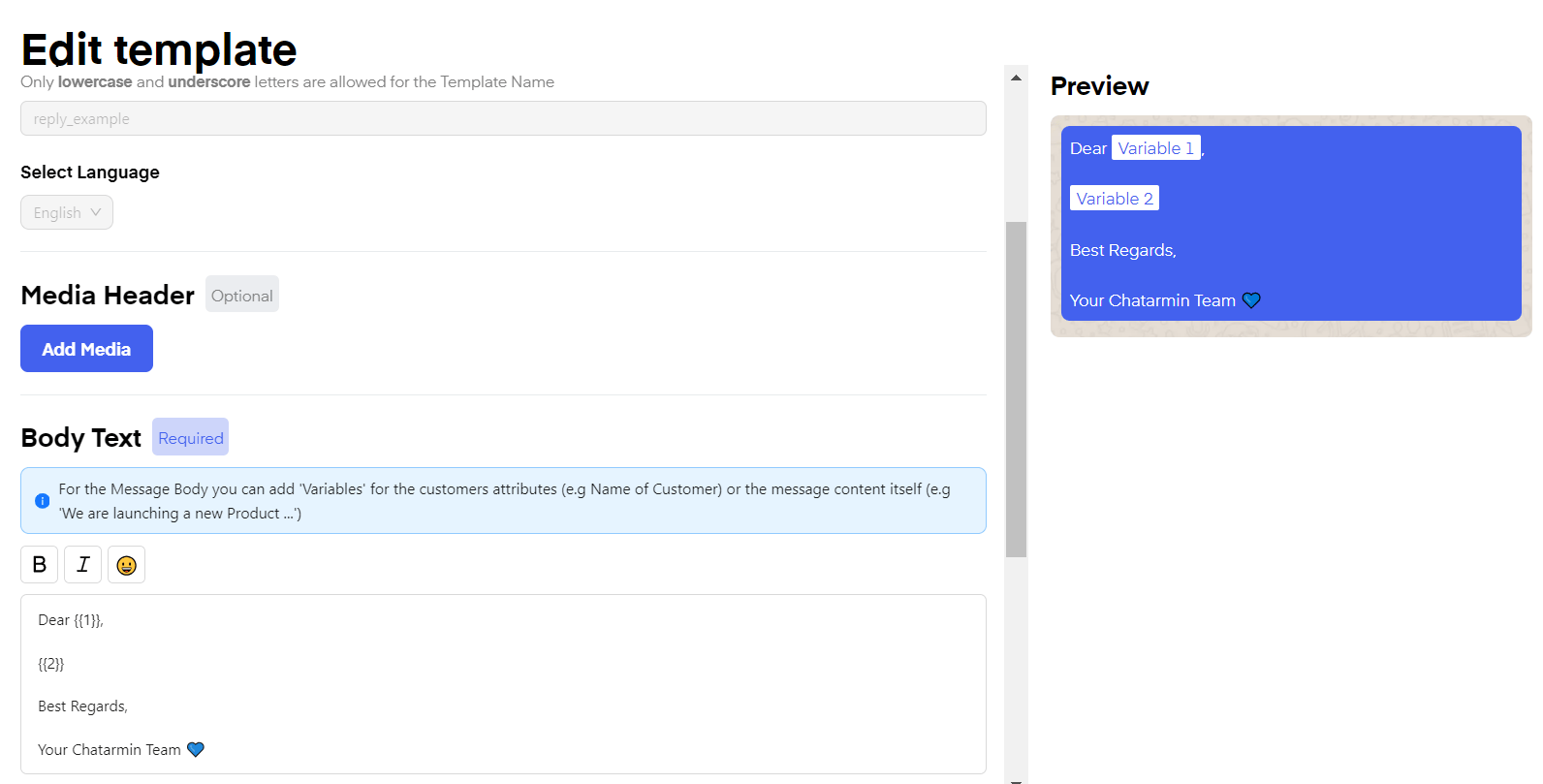 Create the templates in Chatarmin and send them directly through Freshdesk like this: