> ## Documentation Index
> Fetch the complete documentation index at: https://help.chatarmin.com/llms.txt
> Use this file to discover all available pages before exploring further.
# Freshchat Integration
> Chatarmin guide: Freshchat Integration
***
## How to Connect Freshchat with Chatarmin
***
For a detailed guide and connection setup, visit: [https://chatarmin.com/dashboard/freshchat/connect](https://chatarmin.com/dashboard/freshchat/connect)
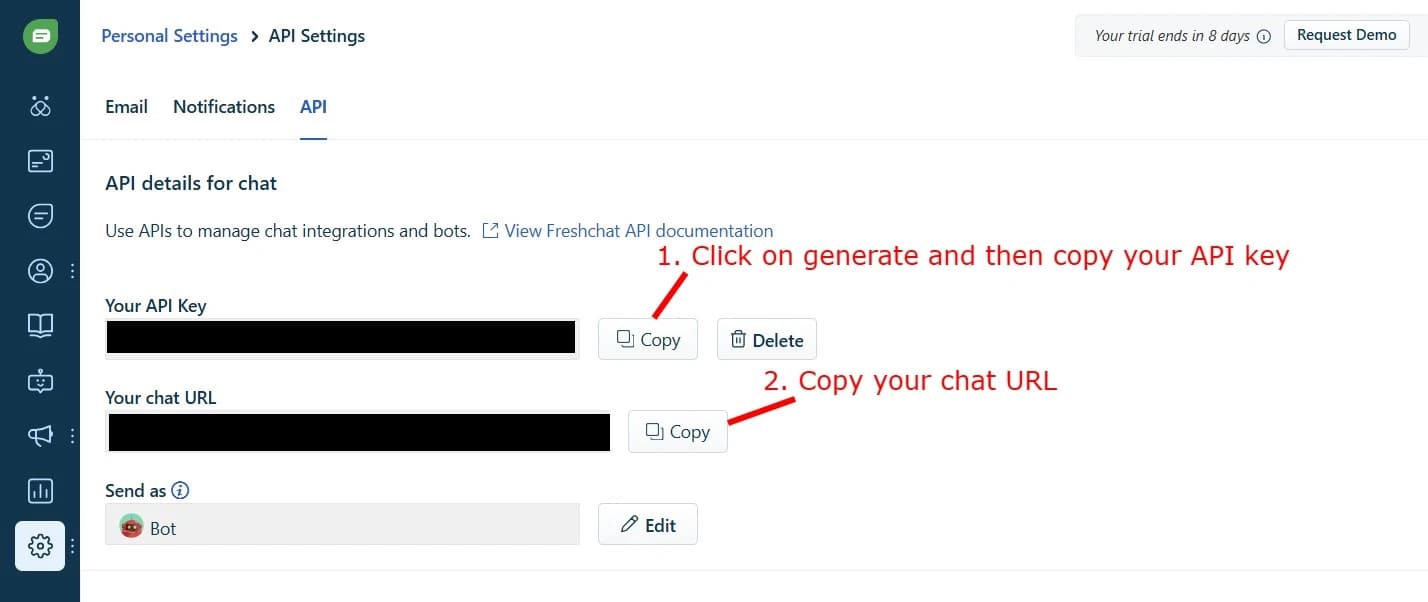
In your **Freshchat dashboard**, go to **Admin Settings,** then **Marketplace and Integrations** > **API Settings** to get your **API Key** and **Chat URL**. Copy both and paste them into the appropriate fields in **Chatarmin**.
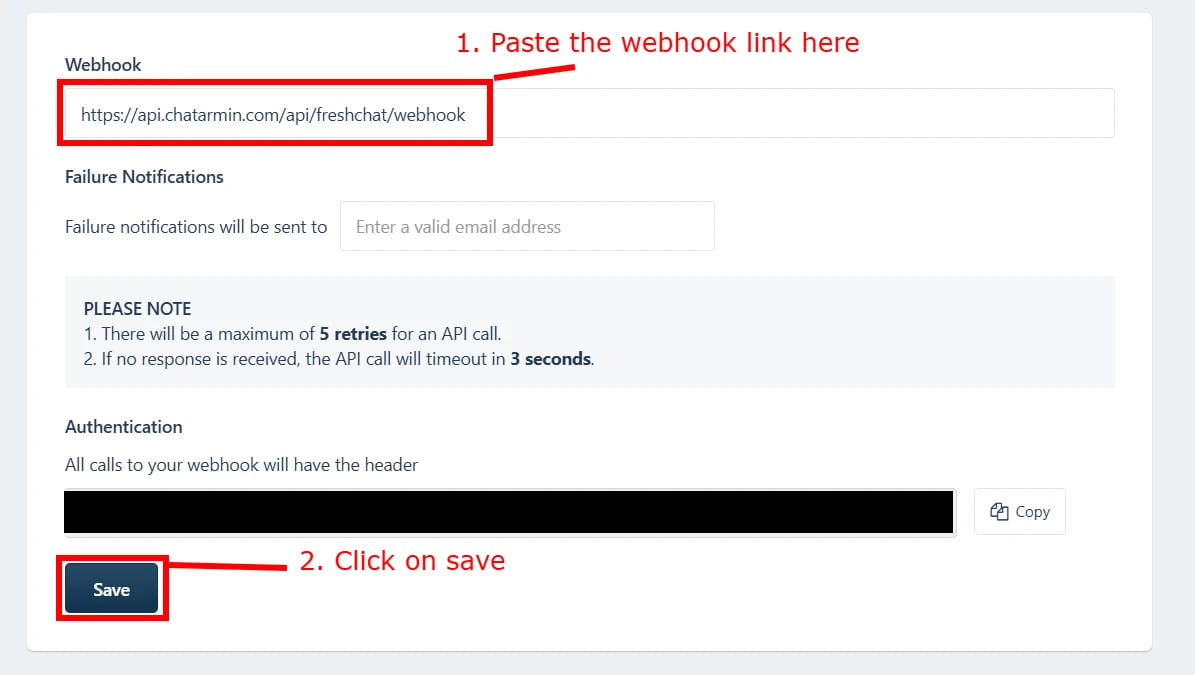
 Next, in **Chatarmin**, you’ll receive a **Webhook URL**. Copy this URL and go back to **Freshchat**, then navigate to **Marketplace and Integrations** > **Conversation Webhooks**. Paste the Webhook URL here and click **Save**.
 Finally, save the connection in **Chatarmin**. Now, you’ve successfully connected Freshchat and Chatarmin!
***
## Installing the Chatarmin Add-on in Freshchat
***
To fully activate the Chatarmin integration inside Freshchat, you’ll need to install our Chatarmin add-on. If you didn't get the Add-On Zip-file from our team, simply contact us. Follow these simple steps:
Here’s a quick video showing how to add and install the Chatarmin add-on in Freshchat:
## Access Developer Portal
Go to **Freshchat Dashboard** → **Admin Settings** → **Marketplace and Integrations** → **Marketplace Apps** → **Manage Apps** → **Go to Developer Portal**.
## Upload the Add-On
Click **Create New App** → **Custom App** → Upload the ZIP file from our team → Enter **"Chatarmin"** as the app name → **Save and Continue**.
## Fill in the App Information
Use **"Chatarmin"** for the app name in all fields. Add your **Support Email** and click **Save** and **Publish**.
## Install the Add-On
Go back to **Manage Apps**, find **Chatarmin** under **Custom Apps**, and click **Install**.
## You're Done!
Chatarmin is now integrated with Freshchat. Start chatting via **WhatsApp**, manage service tickets, and send templates with dynamic variables directly in Freshchat.
Finally, save the connection in **Chatarmin**. Now, you’ve successfully connected Freshchat and Chatarmin!
***
## Installing the Chatarmin Add-on in Freshchat
***
To fully activate the Chatarmin integration inside Freshchat, you’ll need to install our Chatarmin add-on. If you didn't get the Add-On Zip-file from our team, simply contact us. Follow these simple steps:
Here’s a quick video showing how to add and install the Chatarmin add-on in Freshchat:
## Access Developer Portal
Go to **Freshchat Dashboard** → **Admin Settings** → **Marketplace and Integrations** → **Marketplace Apps** → **Manage Apps** → **Go to Developer Portal**.
## Upload the Add-On
Click **Create New App** → **Custom App** → Upload the ZIP file from our team → Enter **"Chatarmin"** as the app name → **Save and Continue**.
## Fill in the App Information
Use **"Chatarmin"** for the app name in all fields. Add your **Support Email** and click **Save** and **Publish**.
## Install the Add-On
Go back to **Manage Apps**, find **Chatarmin** under **Custom Apps**, and click **Install**.
## You're Done!
Chatarmin is now integrated with Freshchat. Start chatting via **WhatsApp**, manage service tickets, and send templates with dynamic variables directly in Freshchat.