> ## Documentation Index
> Fetch the complete documentation index at: https://help.chatarmin.com/llms.txt
> Use this file to discover all available pages before exploring further.
# Emarsys Integration
> Chatarmin guide: Emarsys Integration
By connecting your Emarsys integration, chatarmin automatically syncs contacts and activity with your Emarsys account. The following data is synced Email address, Phone number, custom properties, and Flow enrolled. This way you have measurable KPIs you can use to estimate how Chatarmin is helping you increase your profit, and know which WhatsApp user is which Emarsys Account.
***
# How to connect to Emarsys
***
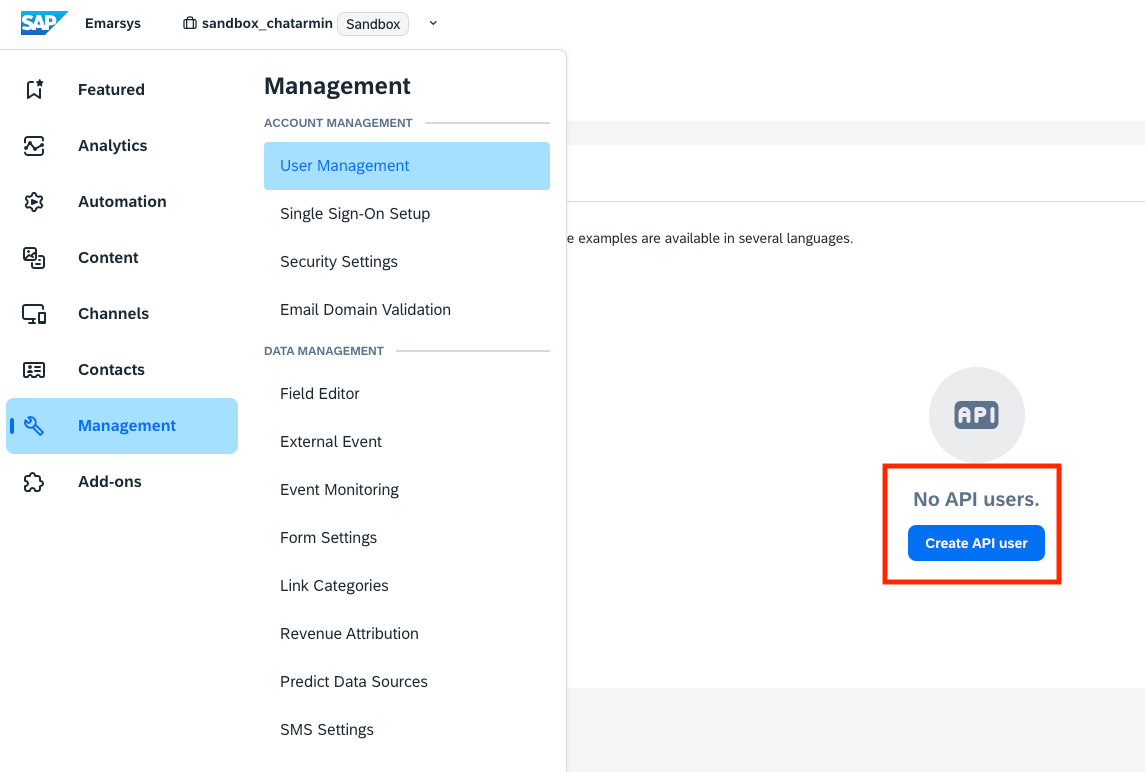
First, go to **Management** -> **Security Settings** -> **API Users** and click on **"Create API User":**
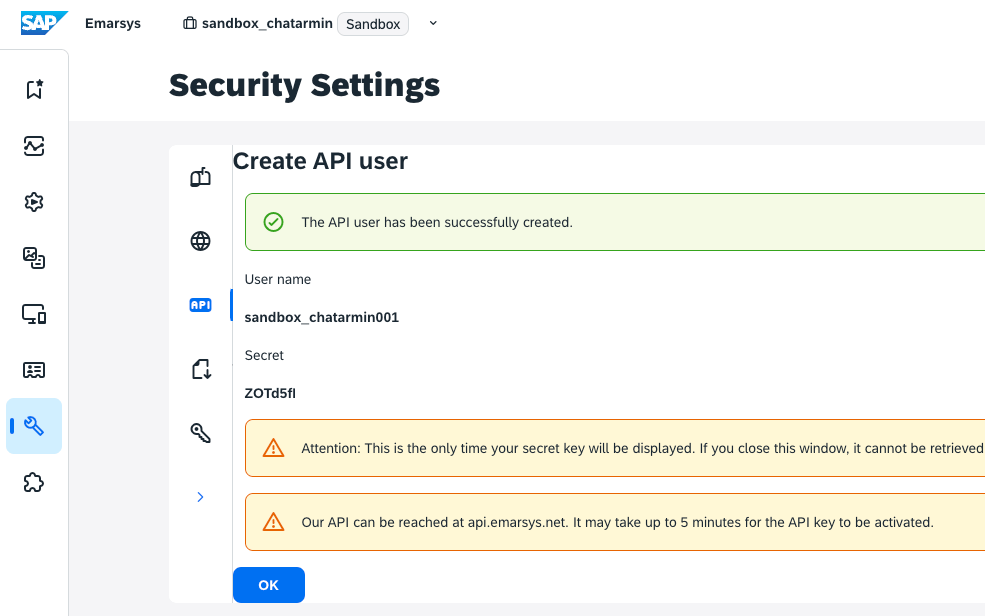
 Now copy & paste the **Username** & **Secret** into the[**Emarsys Page inside Chatarmin**](https://chatarmin.com/dashboard/emarsys/connect)**:**
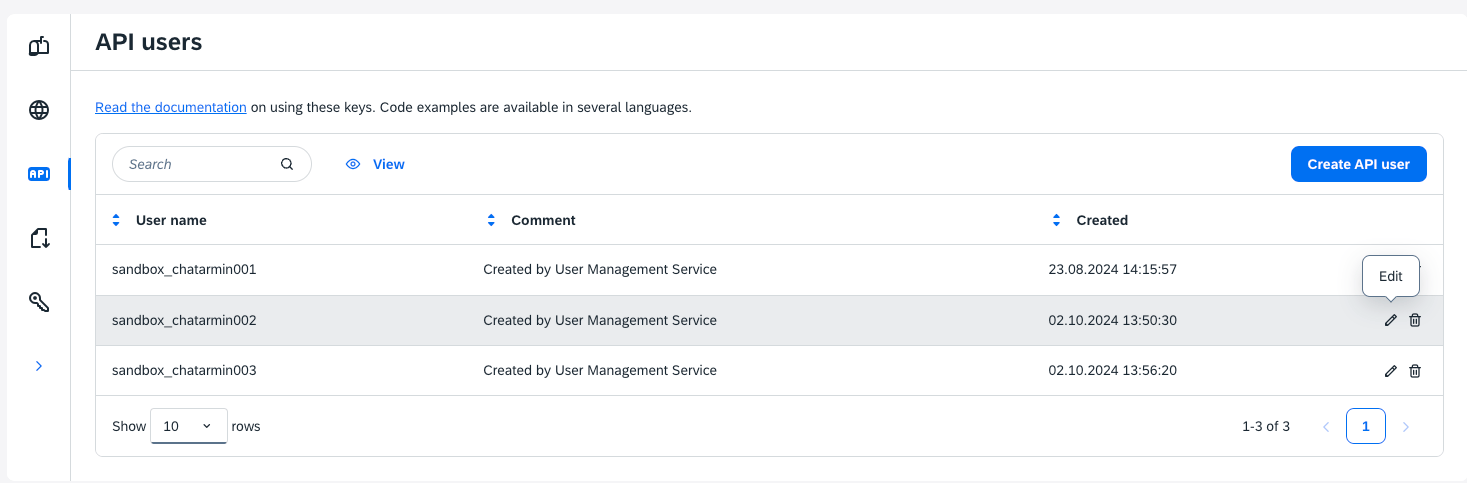
 Now make sure, to set the correct **permissions** for the newly created **Emarsys API** User.
Click on **Edit** first:
Now make sure, to set the correct **permissions** for the newly created **Emarsys API** User.
Click on **Edit** first:
 Then select all the permissions shown below:
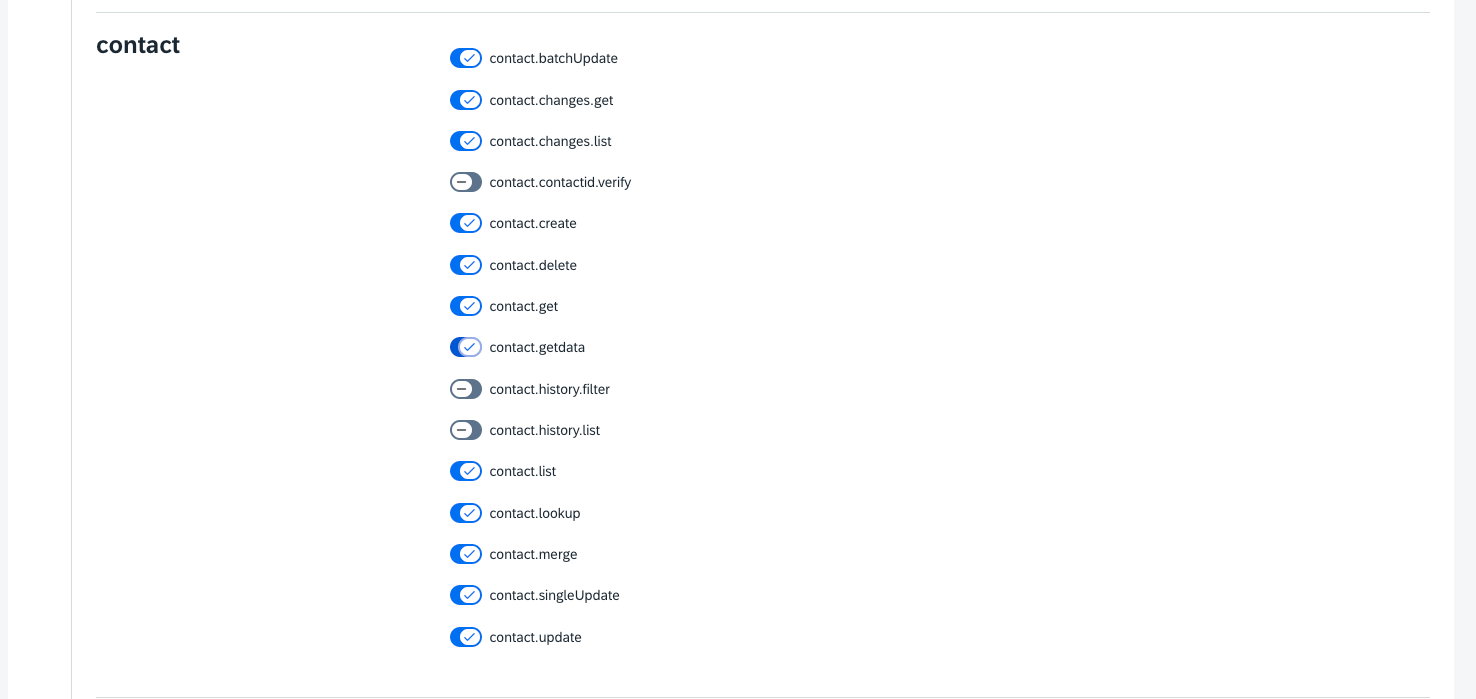
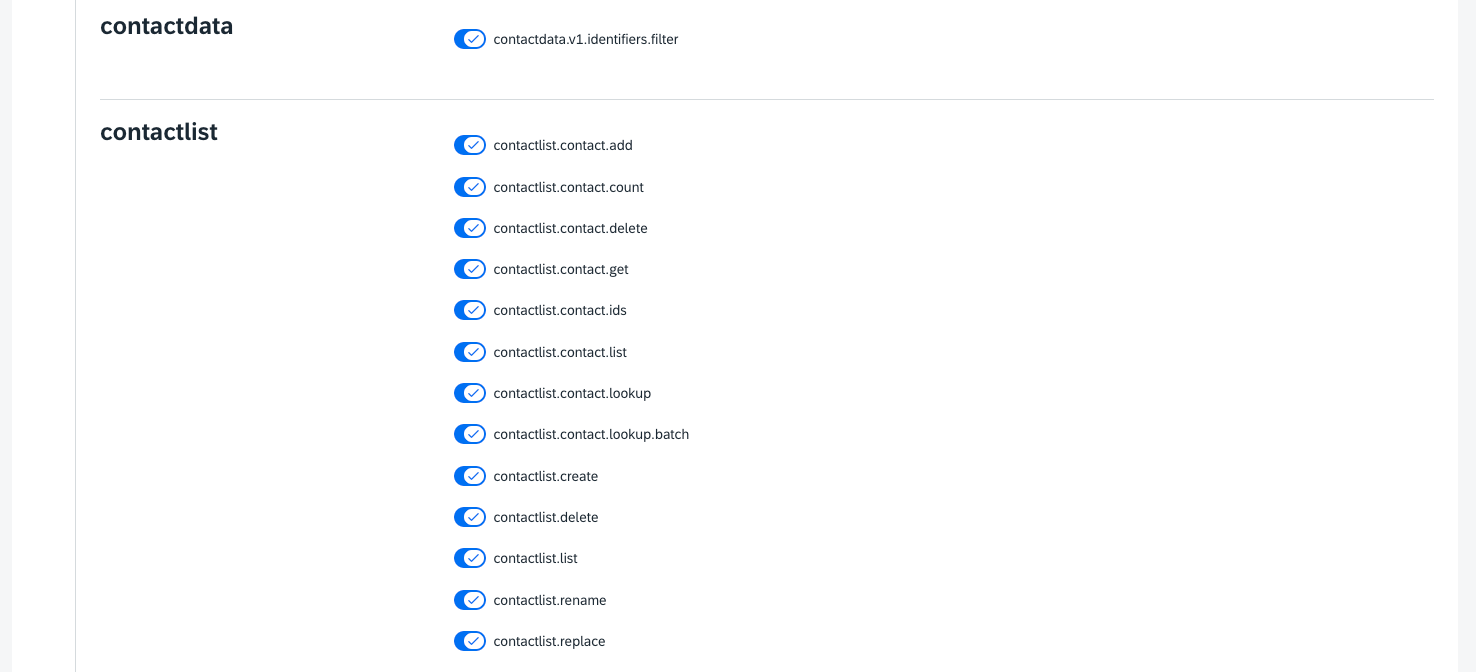
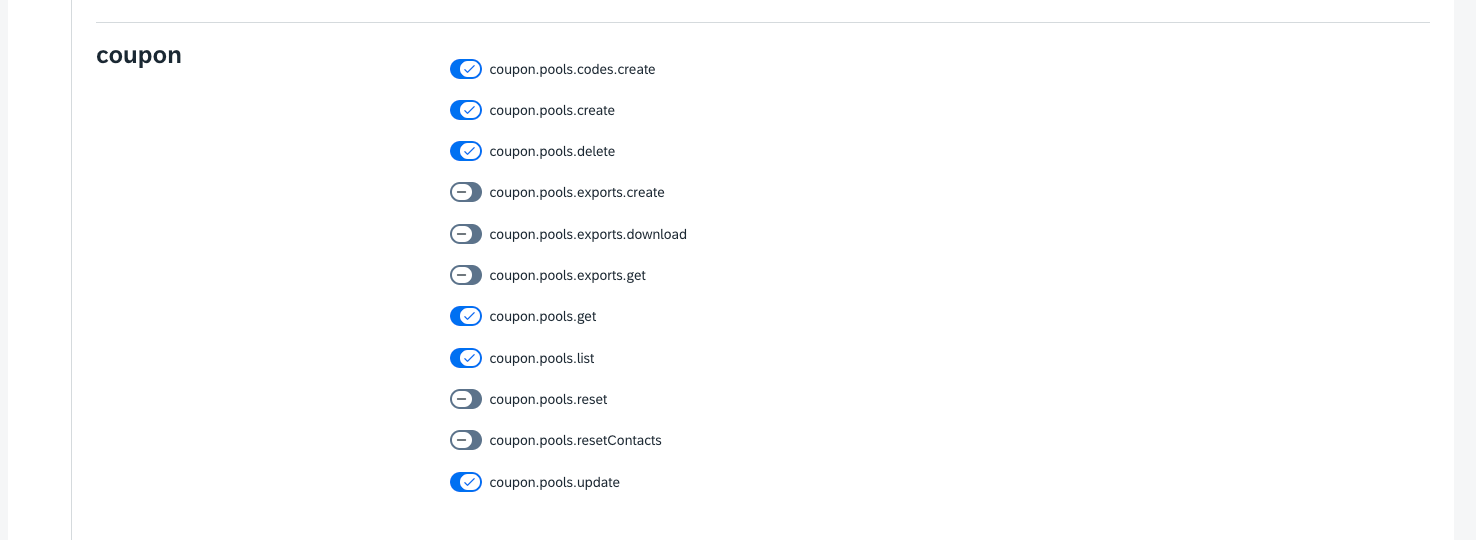
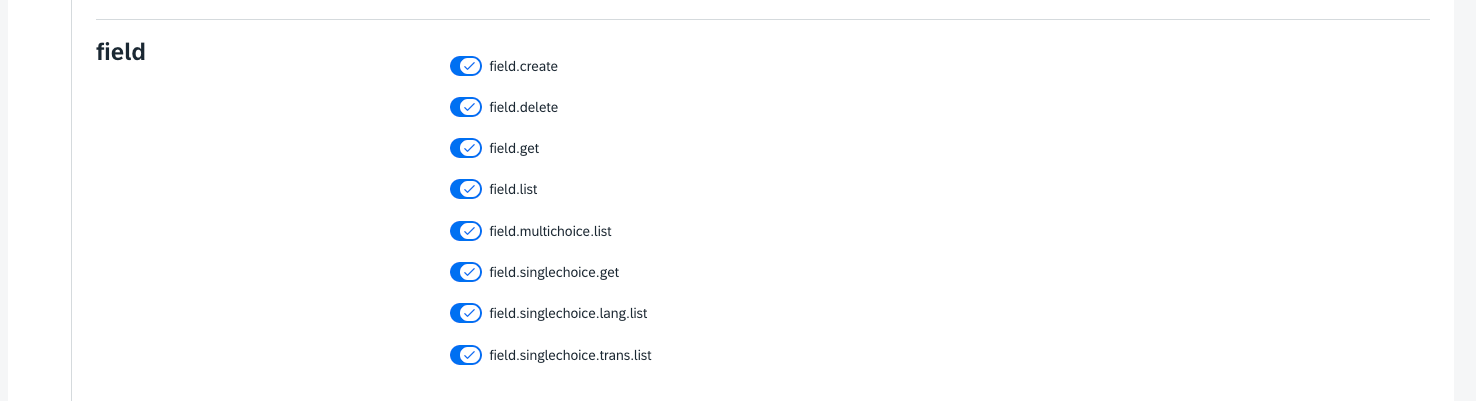
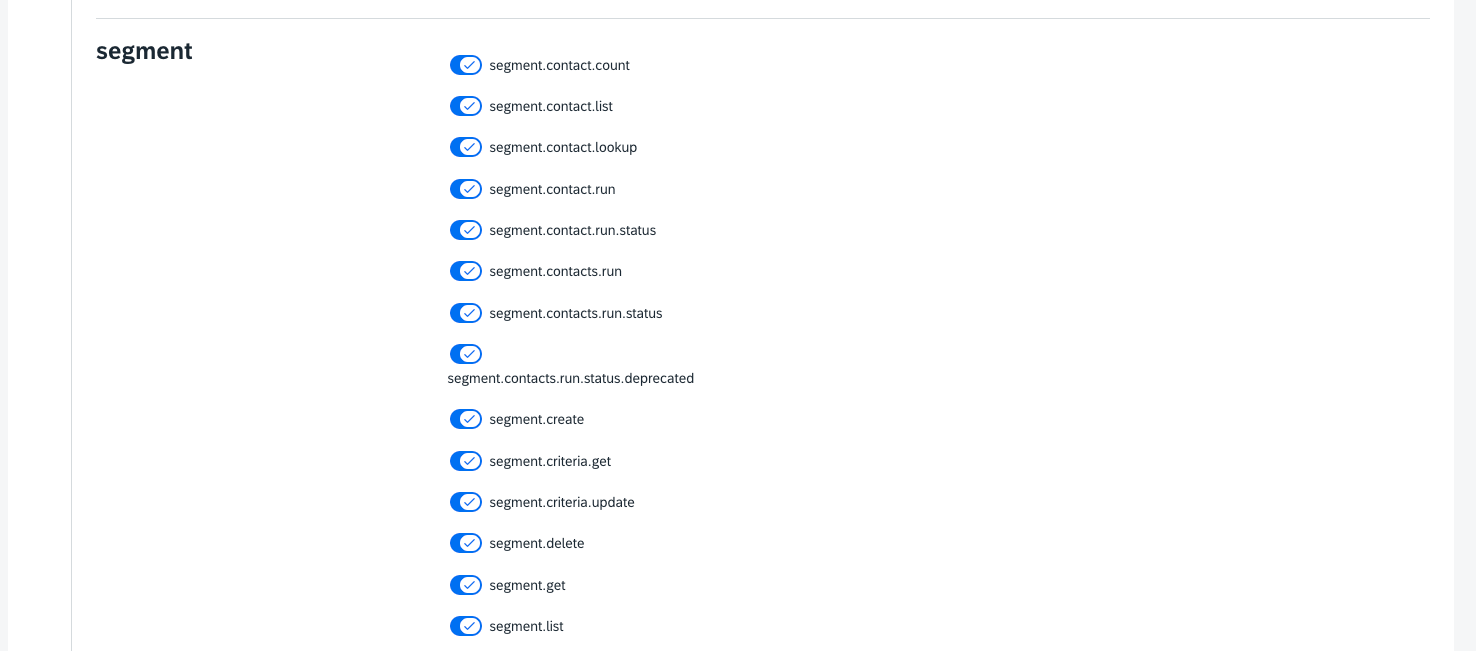 Now save those permissions.
Congratulations! You have successfully connected to Emarsys 🥳
***
# Updating Emarsys properties via a Chatarmin Flow
***
Here's how you can add properties to your Emarsys account. We can automatically add properties to an Emarsys account depending on the user's behavior. Depending on which branch of the flow the user goes through we can Update the Emarsys profile with a property we determine.
Now save those permissions.
Congratulations! You have successfully connected to Emarsys 🥳
***
# Updating Emarsys properties via a Chatarmin Flow
***
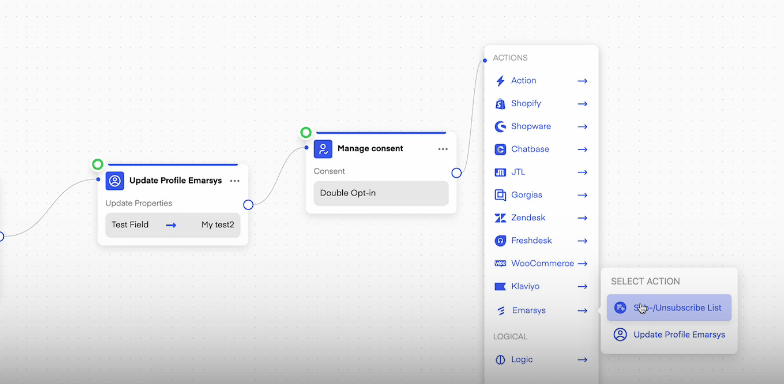
Here's how you can add properties to your Emarsys account. We can automatically add properties to an Emarsys account depending on the user's behavior. Depending on which branch of the flow the user goes through we can Update the Emarsys profile with a property we determine.
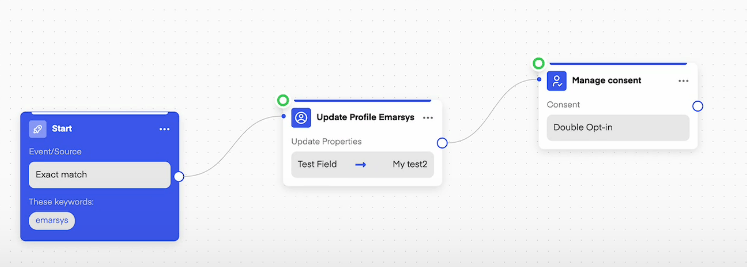 Additionally, you can subscribe a user to an Emarsys list depending on the user activity directly.
 ***
# IF/Else Split based on Emarsys Properties
***
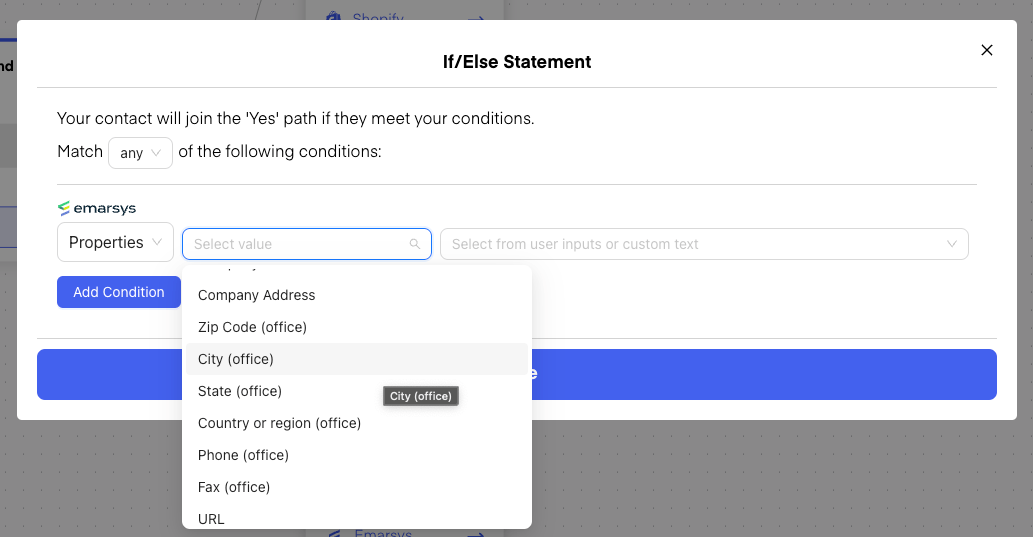
Inside Flows you also have the ability to if/else split for certain Emarsys Properties:
***
# IF/Else Split based on Emarsys Properties
***
Inside Flows you also have the ability to if/else split for certain Emarsys Properties:
 ***
# Segmentation with Emarsys
***
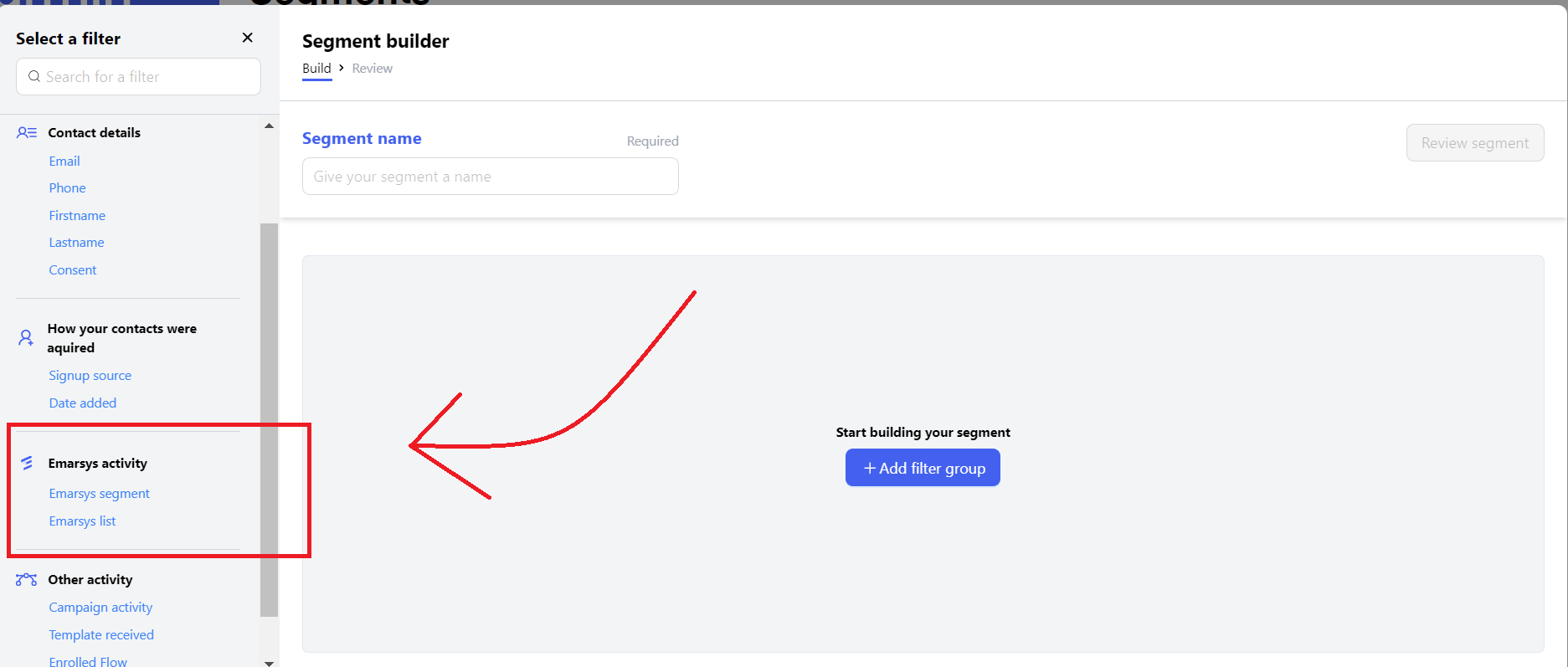
You can use **Emarsys information,** you have on your clients to create specific segments. These segments can later be used to do splits in Flows via **If/Else** splits or to **send campaigns to specific user cohorts**. This way you can create a List or Segment or use an existing one inside of Klaviyo with your existing data and **fetch the** [**Segment in Chatarmin**](https://chatarmin.com/dashboard/audience/segments).
***
# Segmentation with Emarsys
***
You can use **Emarsys information,** you have on your clients to create specific segments. These segments can later be used to do splits in Flows via **If/Else** splits or to **send campaigns to specific user cohorts**. This way you can create a List or Segment or use an existing one inside of Klaviyo with your existing data and **fetch the** [**Segment in Chatarmin**](https://chatarmin.com/dashboard/audience/segments).
 ***
# Automation Programs to Chatarmin Flow
***
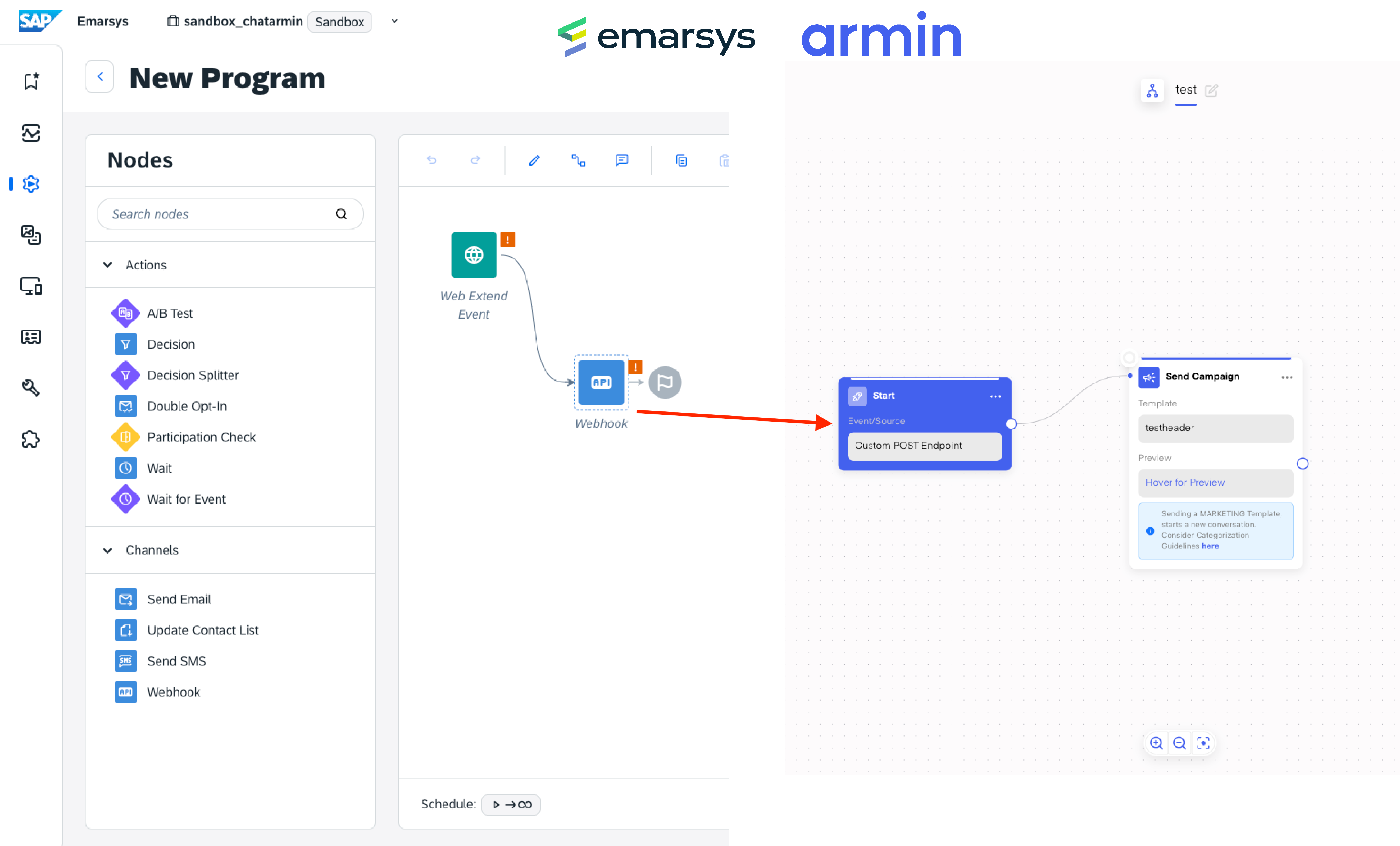
You can also trigger a **Chatarmin** Flow through **Emarsys' Automation Program:**
***
# Automation Programs to Chatarmin Flow
***
You can also trigger a **Chatarmin** Flow through **Emarsys' Automation Program:**
 ***
# Automatic Sync of Properties to Emarsys
***
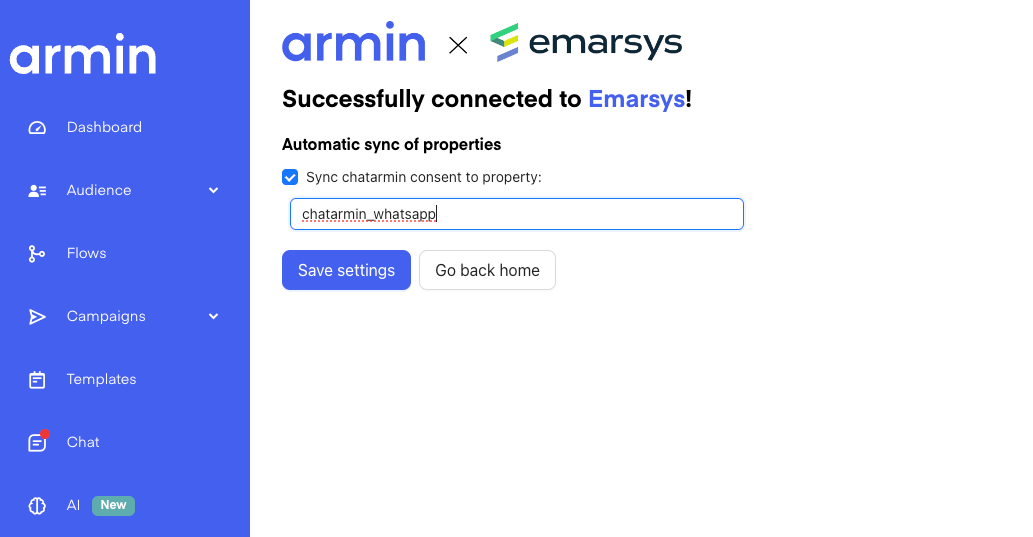
When connecting Emarsys in the Chatarmin Integration Page, you can also specifc properties to sync automatically to Emarsys.
For example, to sync the WhatsApp / Chatarmin Optin-Status to an Emarsys Property:
***
# Automatic Sync of Properties to Emarsys
***
When connecting Emarsys in the Chatarmin Integration Page, you can also specifc properties to sync automatically to Emarsys.
For example, to sync the WhatsApp / Chatarmin Optin-Status to an Emarsys Property:
 ***
# Emarsys Birthday campaign
## How to set up the automation in Emarsys?
1. Create the audience for your campaign. If you want to set up a recurring campaign that is triggered on the specific Birthday of your contract, the segment would be **“Birthday is today”.**
2. Set up an audience-focused program:
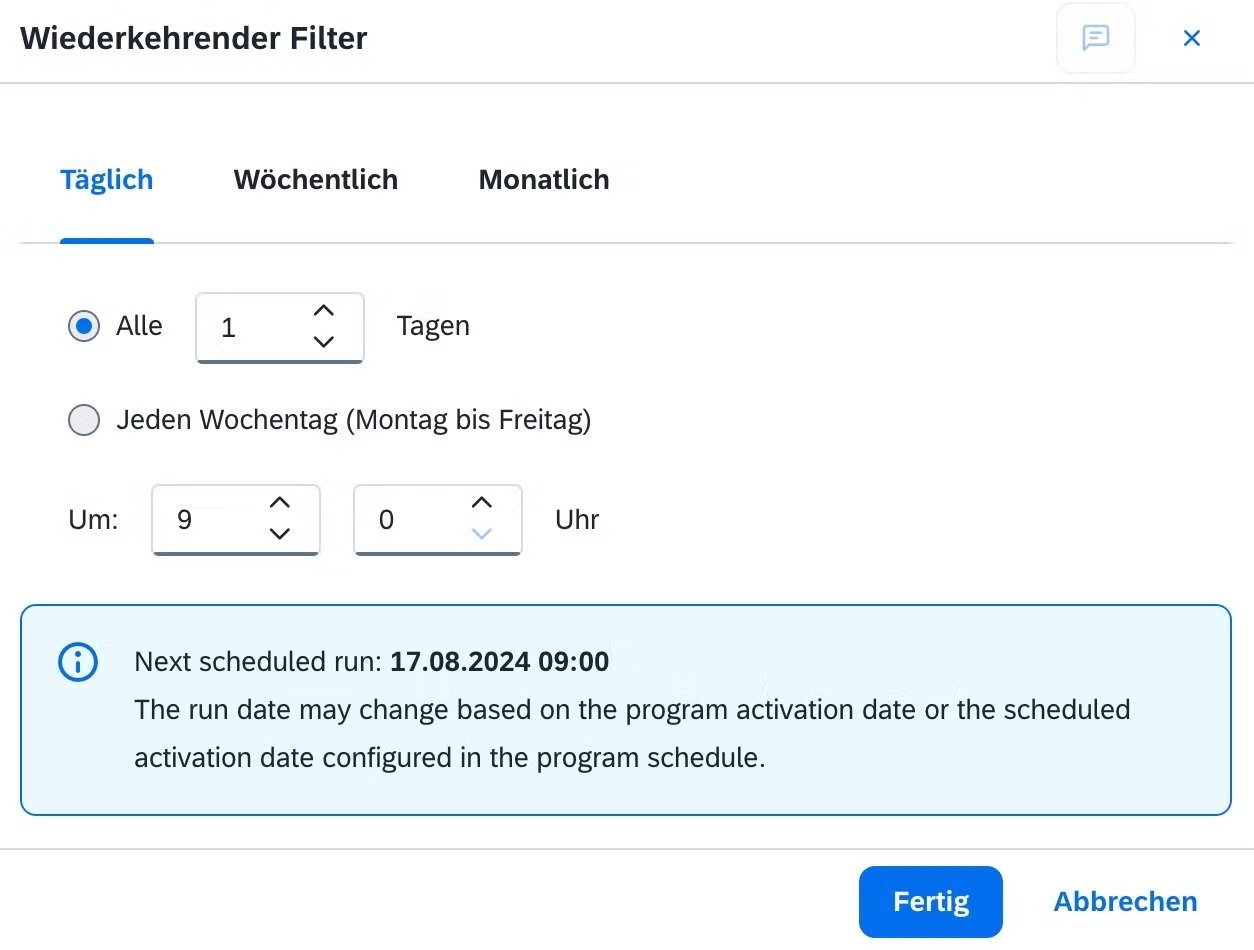
* Start with the recurring filter and set it to a daily send-out
* For a Birthday campaign we would recommend sending the message early in the day 😉
3. Edit the Segment to the one you prepared for this specific event:
***
# Emarsys Birthday campaign
## How to set up the automation in Emarsys?
1. Create the audience for your campaign. If you want to set up a recurring campaign that is triggered on the specific Birthday of your contract, the segment would be **“Birthday is today”.**
2. Set up an audience-focused program:
* Start with the recurring filter and set it to a daily send-out
* For a Birthday campaign we would recommend sending the message early in the day 😉
3. Edit the Segment to the one you prepared for this specific event:
 4. Connect your automation to a webhook and choose the correct webhook preset.
## How to create the correct webhook preset?
[Emarsys Documentation: How to create a webhook preset](https://help.emarsys.com/hc/en-us/articles/4408457148177-Nodes-Webhook-node)
🚨 *External\_reference\_id, phone and e-mail is mandatory to match the contact in Chatarmin. For phone, select the property that you use for storing the mobile phone number on Emarsys. Please note that phone numbers must be in format +\{Country Code}… or \{Country Code}…, for a German number this would be +4915… or 4911111*
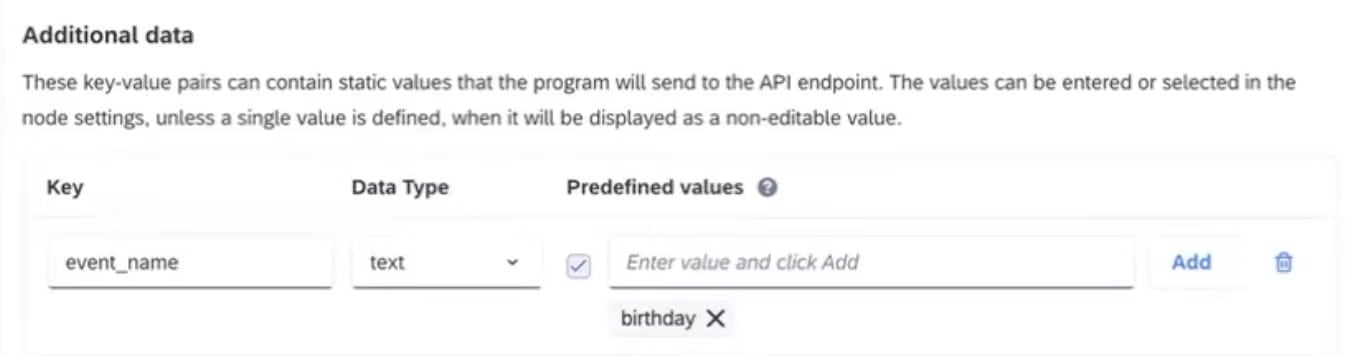
5. In the additional data section, please add the event name (this info is relevant for the journey that is supposed to be triggered from charles side):
4. Connect your automation to a webhook and choose the correct webhook preset.
## How to create the correct webhook preset?
[Emarsys Documentation: How to create a webhook preset](https://help.emarsys.com/hc/en-us/articles/4408457148177-Nodes-Webhook-node)
🚨 *External\_reference\_id, phone and e-mail is mandatory to match the contact in Chatarmin. For phone, select the property that you use for storing the mobile phone number on Emarsys. Please note that phone numbers must be in format +\{Country Code}… or \{Country Code}…, for a German number this would be +4915… or 4911111*
5. In the additional data section, please add the event name (this info is relevant for the journey that is supposed to be triggered from charles side):
 5. Setup a new Flow with an Emarsys Trigger:
* Event Type: Custom Event
* Event Name: “birthday” (needs to match the webhook preset)
Copy the JSON Payload from the testing environment in Emarsys and paste it to the journey trigger. Example:
\{ "id": "646b8faba72d83cfac9724c2", "email":"[max@mustermann.com](mailto:max@mustermann.com)", "phone":"+49182381238", "firstname":"Max", "lastname":"Mustermann", "consent":"double", "tags":\[\{"label":"Agency","id":"643e6d91815051a97f293738"}], }
* set an if/else-split on "emarsys property"
6. Submit the Birthday Template and when accepted, publish the flow.
7. Test the flow by triggering the automation from Emarsys.
***
# Emarsys Webhook as a WhatsApp-Flow-Trigger
***
Setting up a new Flow with an Emarsys Webhook as a trigger:
* Event Type: Custom Event
* Event Name: “birthday” (needs to match the webhook preset)
Copy the JSON Payload from the testing environment in Emarsys and paste it to the journey trigger. Example:
\{ "id": "646b8faba72d83cfac9724c2", "email":"[max@mustermann.com](mailto:max@mustermann.com)", "phone":"+49182381238", "firstname":"Max", "lastname":"Mustermann", "consent":"double", "tags":\[\{"label":"Agency","id":"643e6d91815051a97f293738"}], }
* set an if/else-split on "emarsys property"
🚨 ***Make sure you test the flow by triggering the automation from Emarsys.*** 🚨
Please [find the documentation to setup an emarsys webhook as a trigger for Chatarmin flows here](https://help.sap.com/docs/SAP_EMARSYS/f8e2fafeea804018a954a8857d9dfff3/fdef803874c11014bb3d84b02f215ff1.html?locale=en-US\&advPhr=Webhook+node).
Next, make sure you choose this exact webhook as a trigger [in Chatarmin flowbuilder, as shown below](https://chatarmin.com/dashboard/flows/create):
5. Setup a new Flow with an Emarsys Trigger:
* Event Type: Custom Event
* Event Name: “birthday” (needs to match the webhook preset)
Copy the JSON Payload from the testing environment in Emarsys and paste it to the journey trigger. Example:
\{ "id": "646b8faba72d83cfac9724c2", "email":"[max@mustermann.com](mailto:max@mustermann.com)", "phone":"+49182381238", "firstname":"Max", "lastname":"Mustermann", "consent":"double", "tags":\[\{"label":"Agency","id":"643e6d91815051a97f293738"}], }
* set an if/else-split on "emarsys property"
6. Submit the Birthday Template and when accepted, publish the flow.
7. Test the flow by triggering the automation from Emarsys.
***
# Emarsys Webhook as a WhatsApp-Flow-Trigger
***
Setting up a new Flow with an Emarsys Webhook as a trigger:
* Event Type: Custom Event
* Event Name: “birthday” (needs to match the webhook preset)
Copy the JSON Payload from the testing environment in Emarsys and paste it to the journey trigger. Example:
\{ "id": "646b8faba72d83cfac9724c2", "email":"[max@mustermann.com](mailto:max@mustermann.com)", "phone":"+49182381238", "firstname":"Max", "lastname":"Mustermann", "consent":"double", "tags":\[\{"label":"Agency","id":"643e6d91815051a97f293738"}], }
* set an if/else-split on "emarsys property"
🚨 ***Make sure you test the flow by triggering the automation from Emarsys.*** 🚨
Please [find the documentation to setup an emarsys webhook as a trigger for Chatarmin flows here](https://help.sap.com/docs/SAP_EMARSYS/f8e2fafeea804018a954a8857d9dfff3/fdef803874c11014bb3d84b02f215ff1.html?locale=en-US\&advPhr=Webhook+node).
Next, make sure you choose this exact webhook as a trigger [in Chatarmin flowbuilder, as shown below](https://chatarmin.com/dashboard/flows/create):
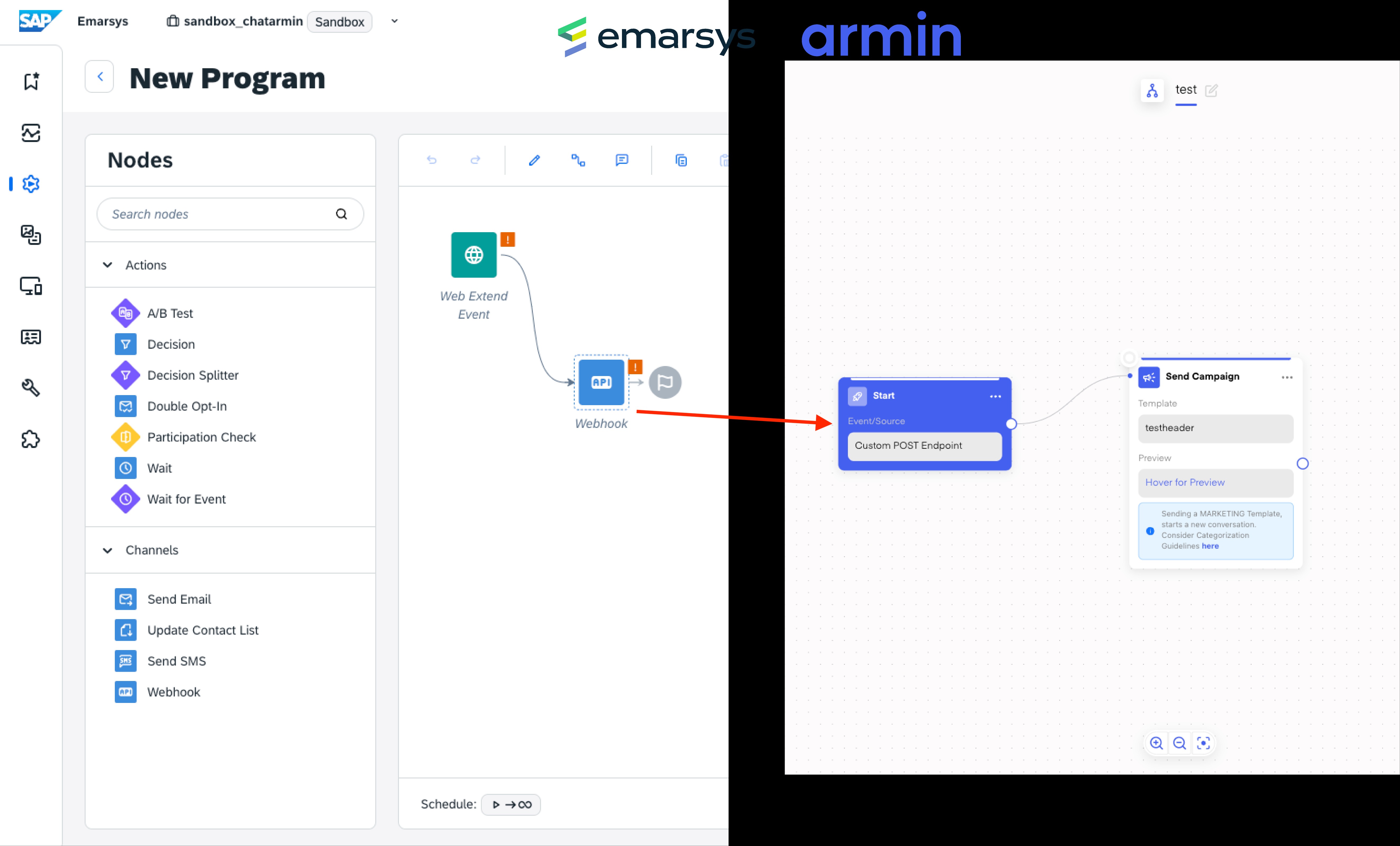 Next, follow our [flow-guide](/features-in-depth/flows/flows-explained), [more exactly this guide on triggering WA-flows in Chatarmin through custom api endpoints from 3rd party integrations](/features-in-depth/flows/how-to-trigger-a-whatsapp-flow-via-post-endpoint-in-chatarmin), in order to setup the flow of your choice.
***PRO-TIP:*** Make sure you pair delays and if/else-splits with emarsys-syncs ("logic -> emarsys as integration") in order to only target the right audience at the right moment of the user journey.
Next, follow our [flow-guide](/features-in-depth/flows/flows-explained), [more exactly this guide on triggering WA-flows in Chatarmin through custom api endpoints from 3rd party integrations](/features-in-depth/flows/how-to-trigger-a-whatsapp-flow-via-post-endpoint-in-chatarmin), in order to setup the flow of your choice.
***PRO-TIP:*** Make sure you pair delays and if/else-splits with emarsys-syncs ("logic -> emarsys as integration") in order to only target the right audience at the right moment of the user journey.