> ## Documentation Index
> Fetch the complete documentation index at: https://help.chatarmin.com/llms.txt
> Use this file to discover all available pages before exploring further.
# Chatbase - How to setup your Chatbot
> Chatarmin guide: Chatbase - How to setup your Chatbot
***
# Integrating Chatbase
***
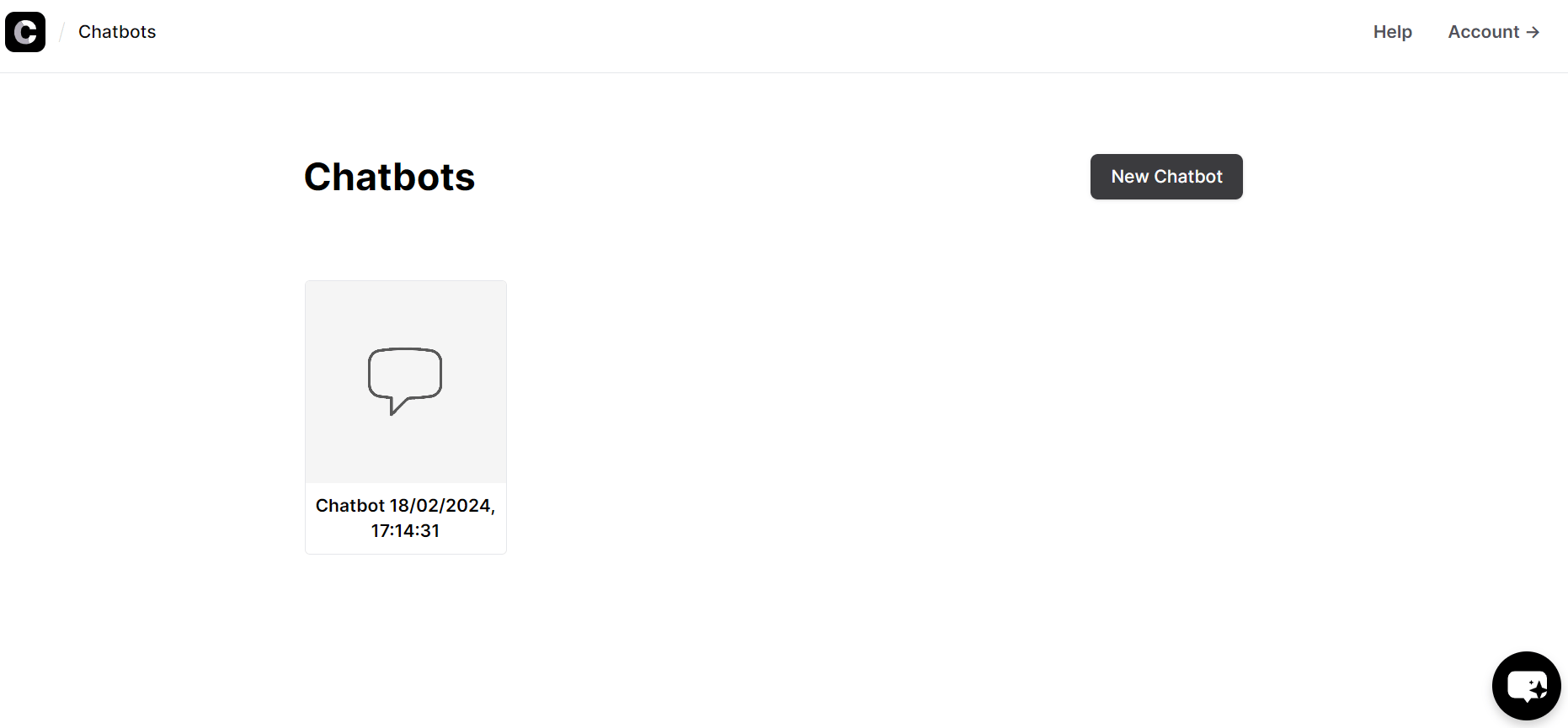
You can **integrate** your **Chatbase bot** into **Chatarmin** to help **solve your incoming customer requests via WhatsApp**. After buying your **25€/Month Chatbase subscription** you can train your Chatbase bot. To do this crate your bot by clicking "New Chatbot" in [Chatbase.](https://www.chatbase.co/)
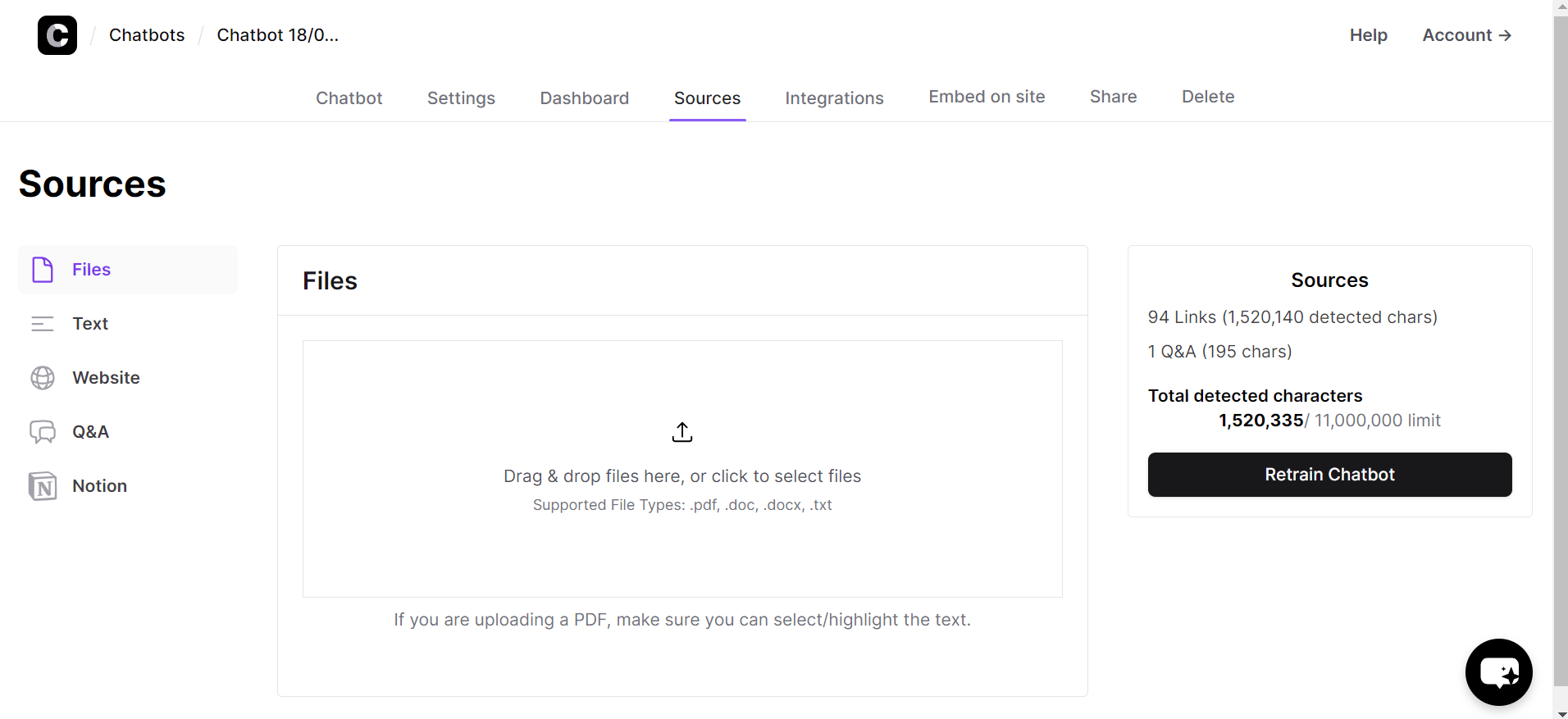
 After you **create the bot**, you can define what information the chatbot should work with. This can be text files, plain text, or your website and its subpages, you can also create a Q\&A manually.
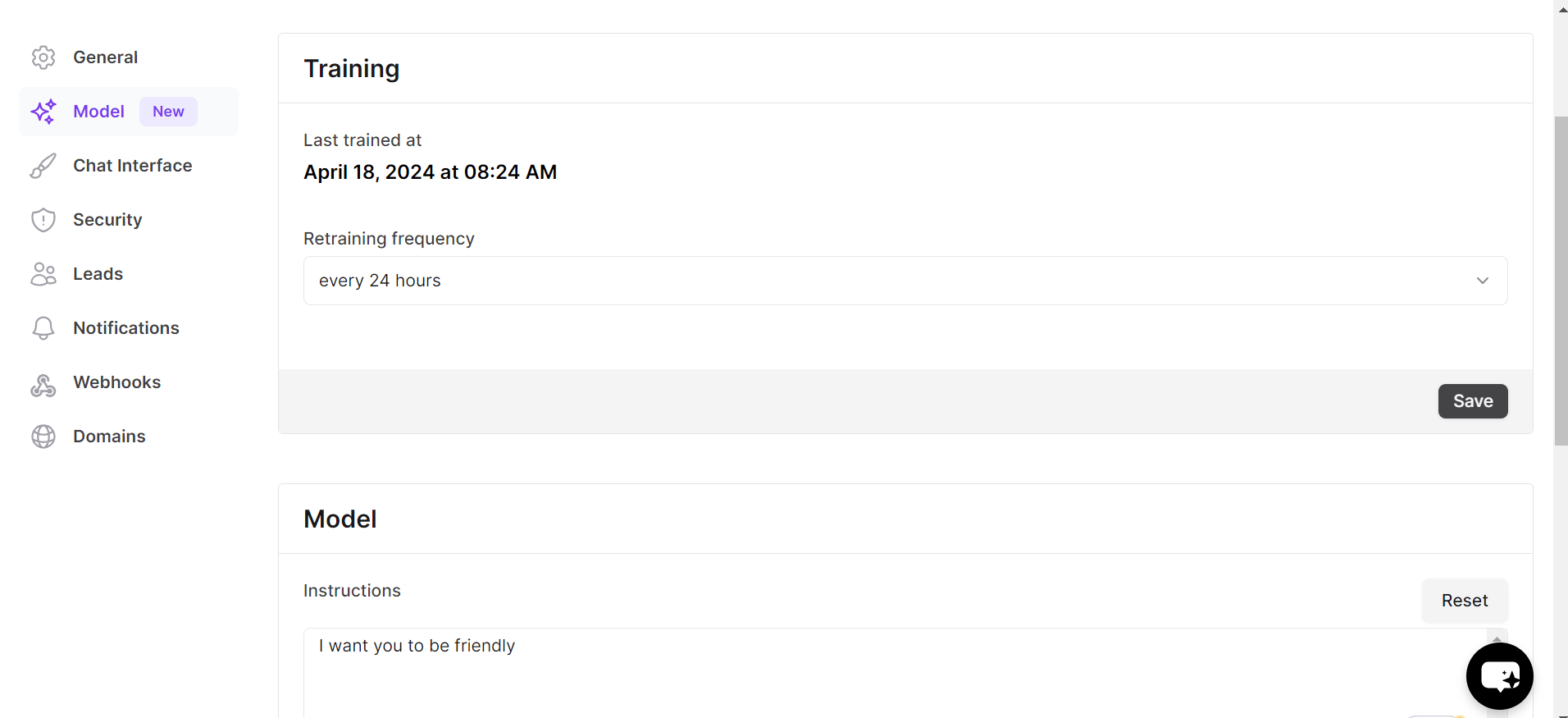
 Under **"model"** you can give your chatbot specific instructions on how to behave, e.g. be overly friendly, always ask if they need anything else, etc.
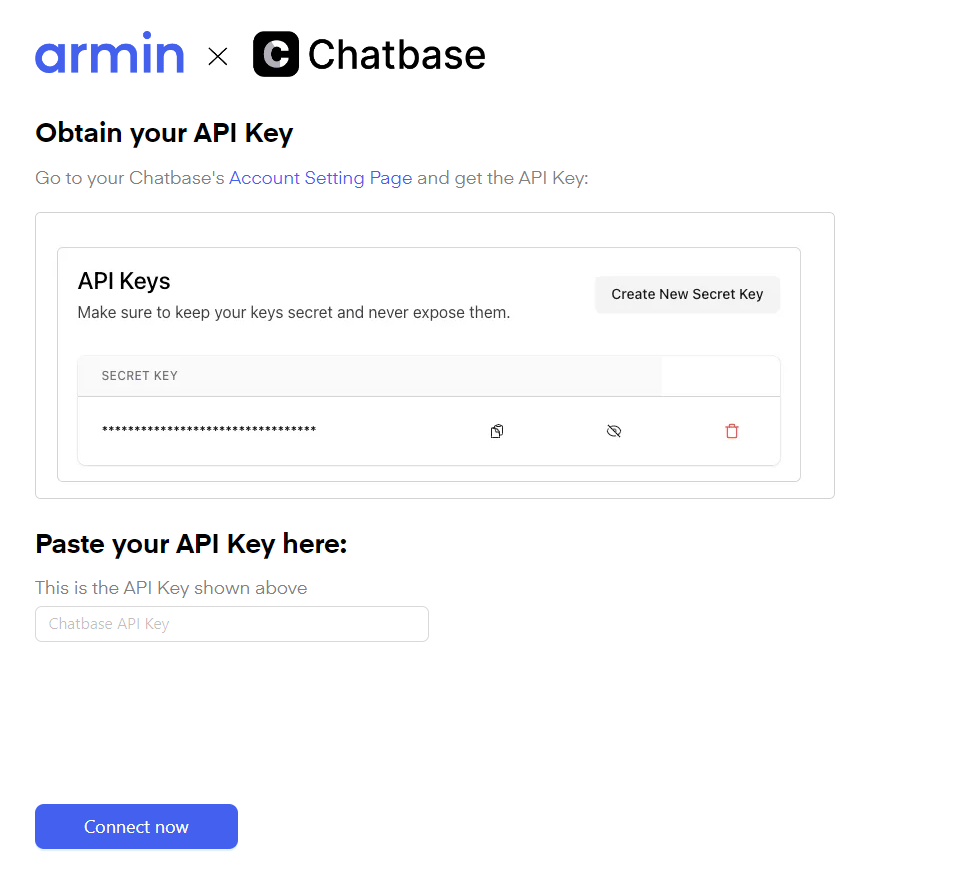
 You can then go to [https://chatarmin.com/dashboard/chatbase/connect](https://chatarmin.com/dashboard/chatbase/connect) and follow the instructions to connect your chatbase bot to your WhatsApp account.
 After connecting your Chatbase Bot to your WhatsApp account, you can **include the bot inside your Flow**. Your flow could look something like this:
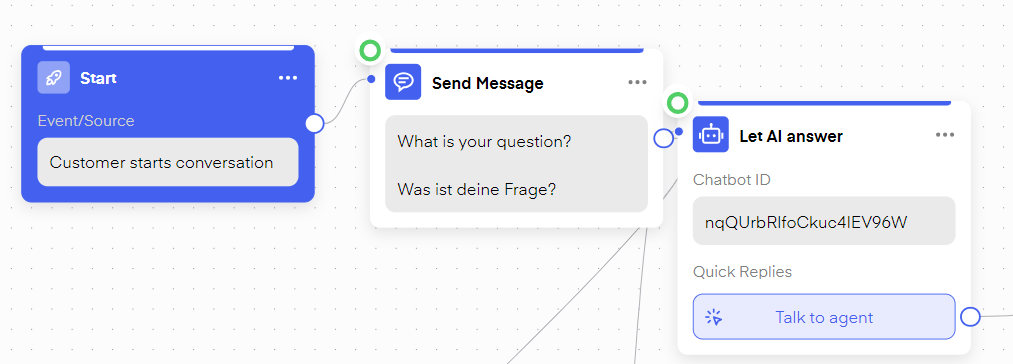 Create a **"Customer starts conversation"** flow and then use the **"action" "Let AI answer"**, choose your bot, and determine a button text the bot should send when it can not handle the request. All done!