> ## Documentation Index
> Fetch the complete documentation index at: https://help.chatarmin.com/llms.txt
> Use this file to discover all available pages before exploring further.
# ArminCX Integration
> Chatarmin guide: ArminCX Integration
***
## 📲 WhatsApp Channel Setup
***
Set up automated WhatsApp message forwarding from **ChatArmin** to **CXArmin**. This integration allows WhatsApp messages to be routed to your **CXArmin inbox** based on custom conditions defined in your flow.
***
## ✅ Prerequisites
***
Make sure the following are in place before you begin:
* Active **ChatArmin** account with **WhatsApp integration**
* Active **CXArmin** account with correct user permissions
* **WhatsApp Business API** already configured in ChatArmin
***
## ⚙️ Connect ArminCX with Chatarmin
***
1. Go to your **ArminCX dashboard**.
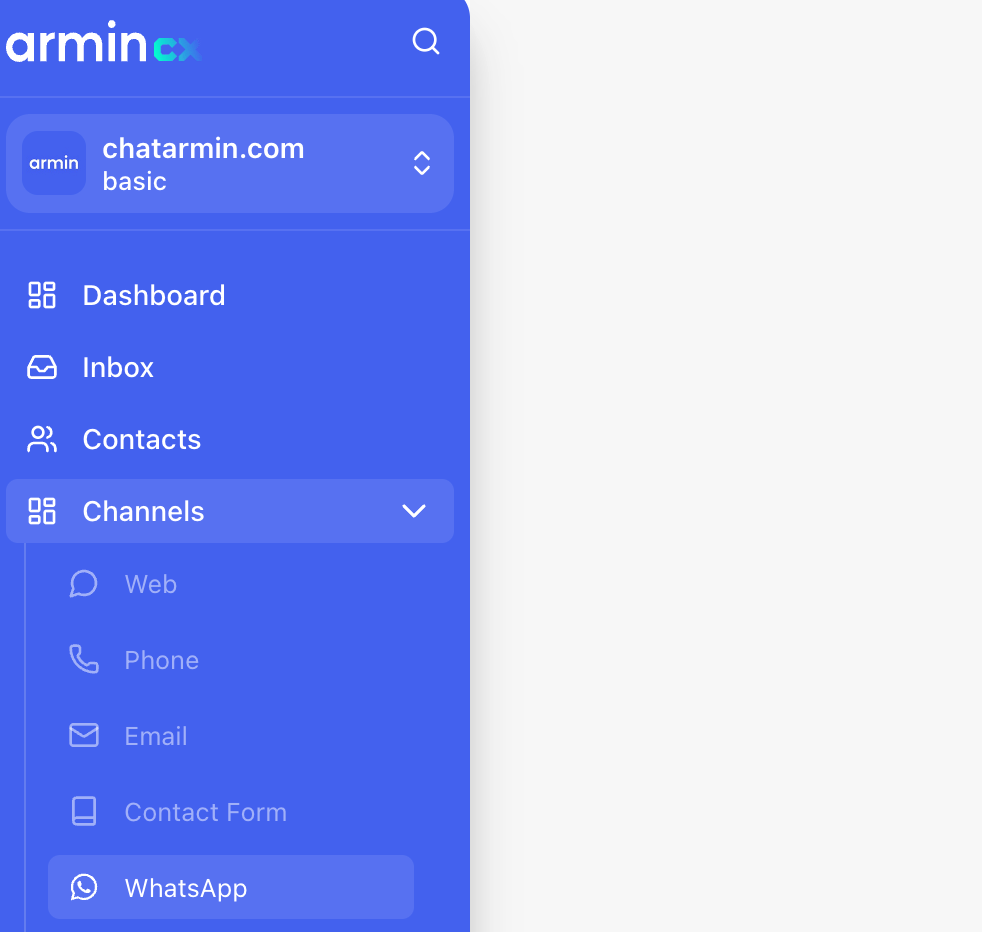
2. Navigate to **Channels → WhatsApp**.
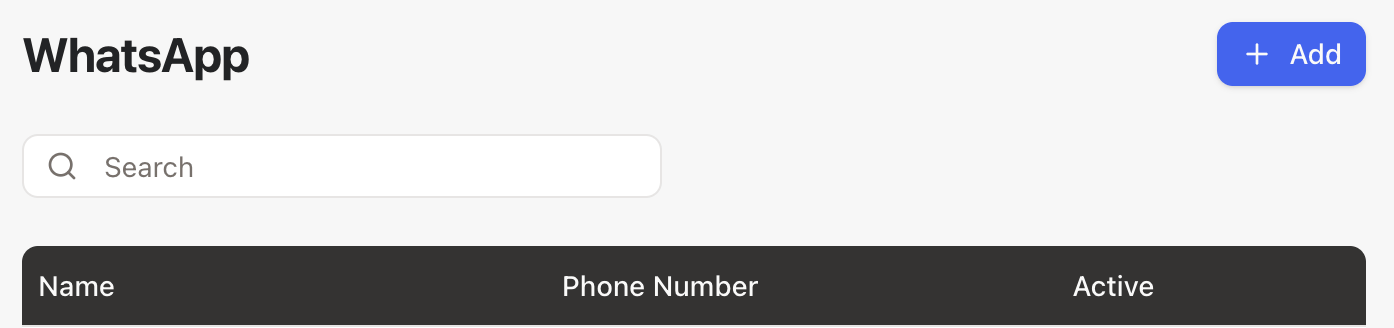
 3. Click on **Add**.
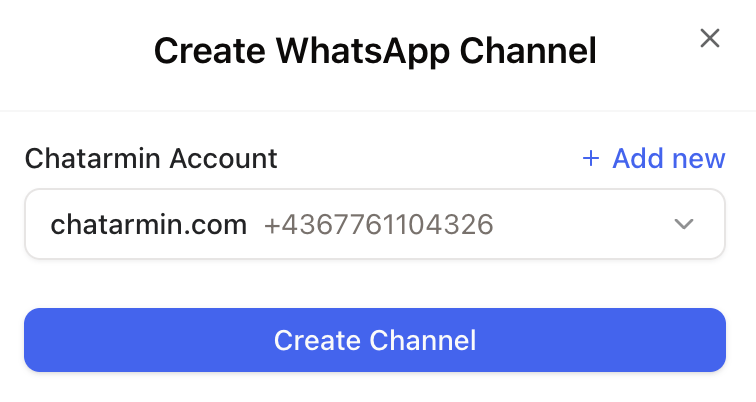
 4. Select the WhatsApp number you have already connected in ChatArmin.
5. Click **Create Channel**.
4. Select the WhatsApp number you have already connected in ChatArmin.
5. Click **Create Channel**.
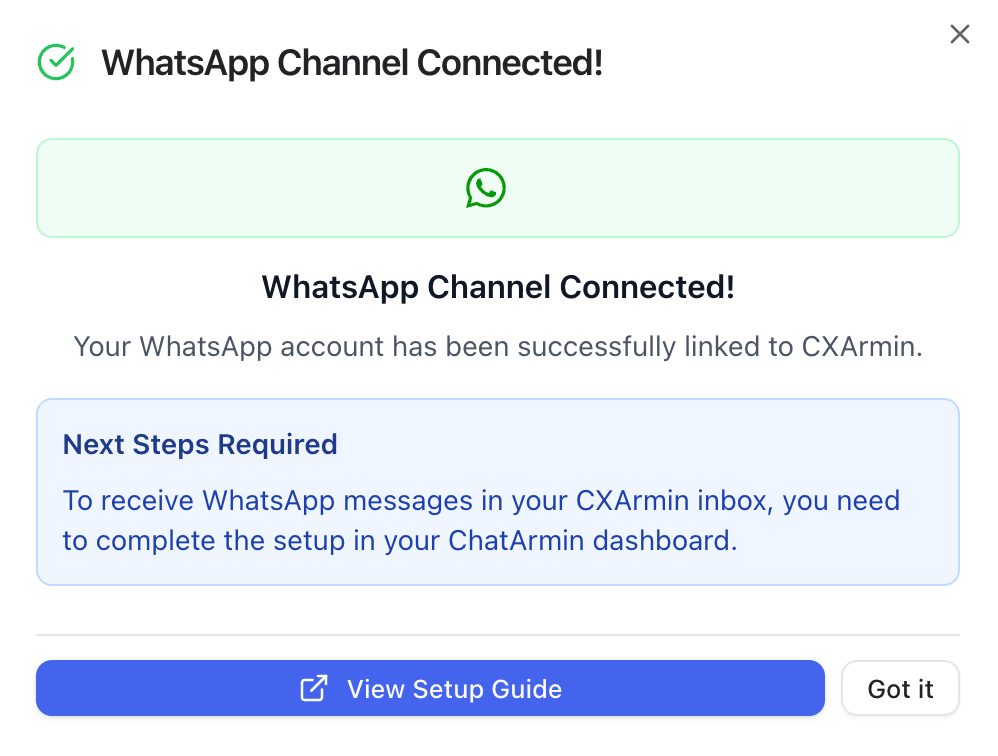
 6. ✅ Once you see the *Success Message*, the connection between ArminCX and ChatArmin is active.
 ***
## **💡 Best Practice ArminCX Flow**
***
To make the most of this setup, we recommend using the **Best Practice** **Service Flow** in Chatarmin:
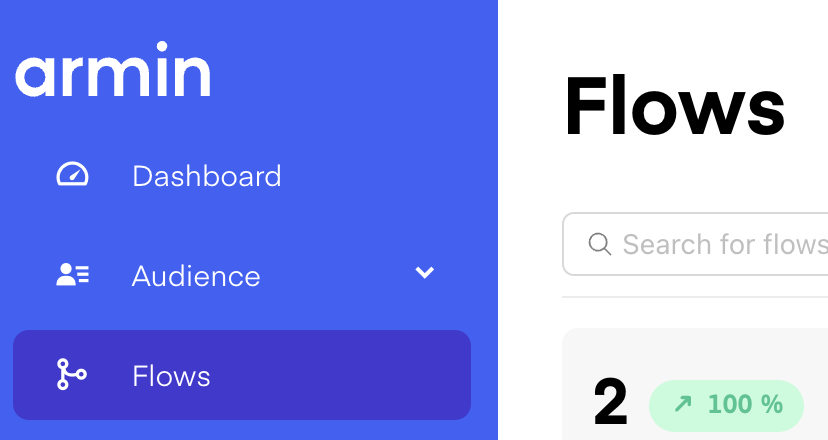
1. In Chatarmin, go to **Flows → Create Flow**.
***
## **💡 Best Practice ArminCX Flow**
***
To make the most of this setup, we recommend using the **Best Practice** **Service Flow** in Chatarmin:
1. In Chatarmin, go to **Flows → Create Flow**.
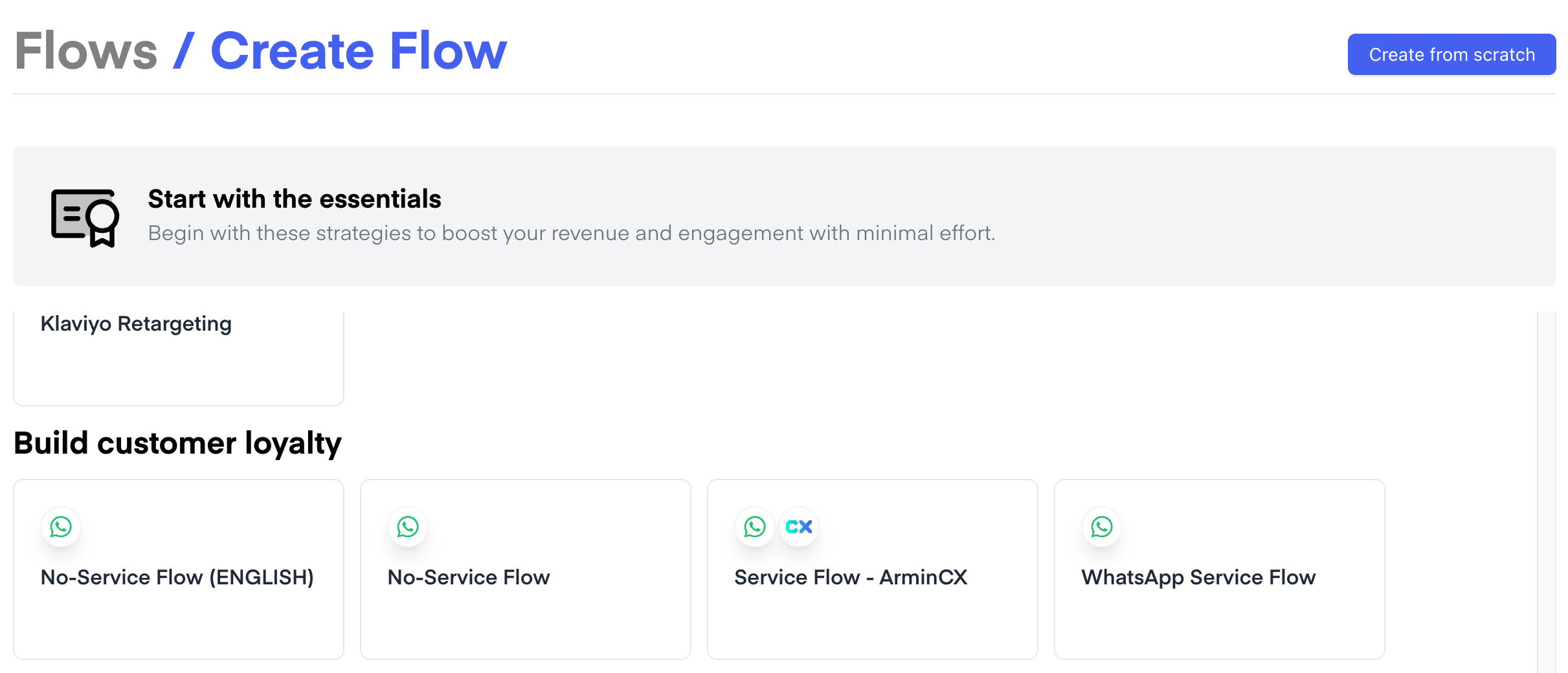
 2. Select **Service Flow - ArminCX**.
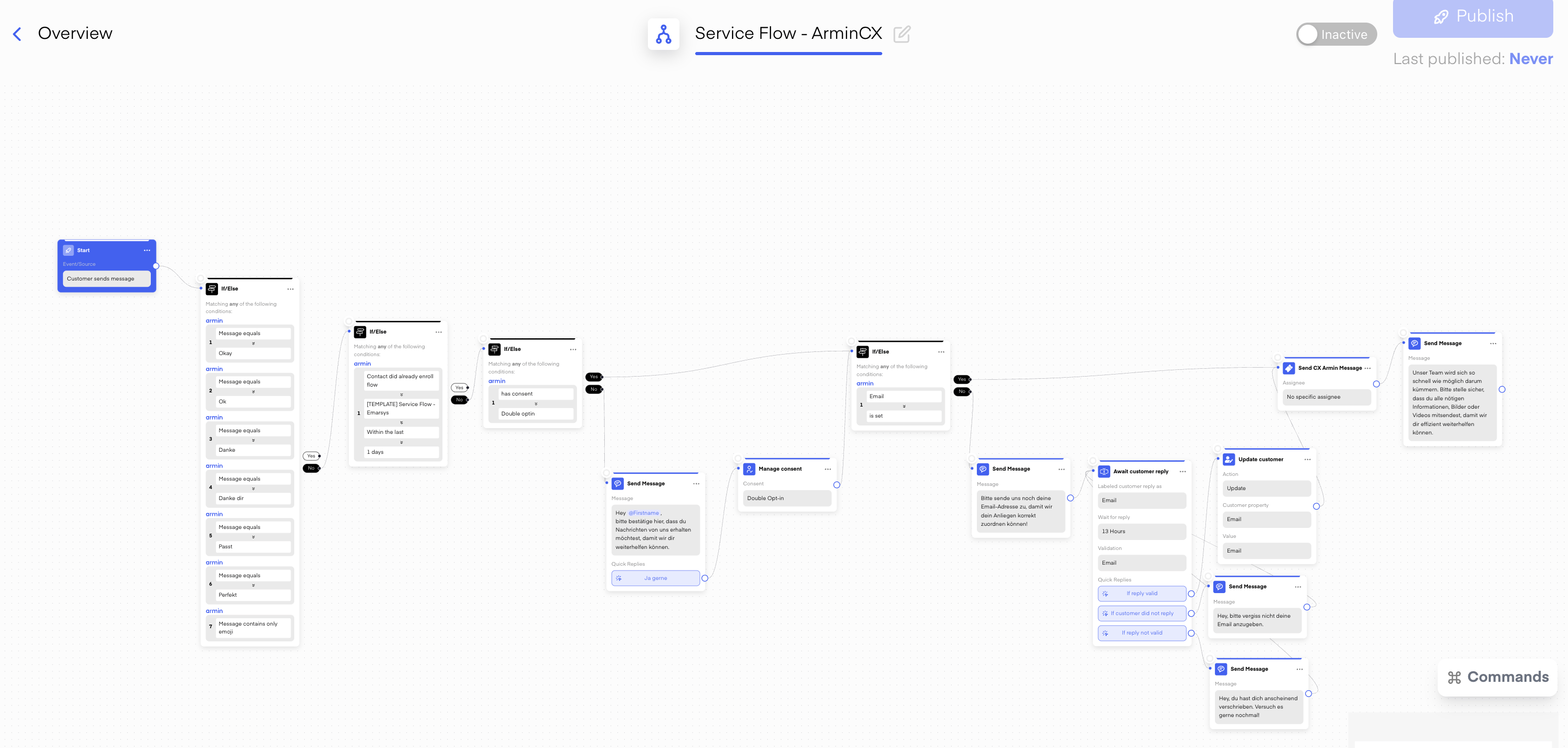
 👉 With this setup, your team can:
* Reply within **24h on WhatsApp**, or
* Contact the customer via **email after 24h** without needing to send a WhatsApp template.
👉 With this setup, your team can:
* Reply within **24h on WhatsApp**, or
* Contact the customer via **email after 24h** without needing to send a WhatsApp template.
 ***
## 🔧Test and Activate
***
* **Send Test Message**: Use WhatsApp to send a message.
* **Check CXArmin Inbox**: Confirm the message appears correctly with sender info.
* ✅ If successful, the message will be visible in your CXArmin ticket view.
***
## 🚨 Troubleshooting ArminCX Integration
***
### Messages not forwarding?
* Ensure the **flow is published** and **active**
* Double-check trigger conditions (may be too specific)
* Confirm **WhatsApp integration** is connected properly
### Duplicate messages?
* You might have **multiple flows** triggering on similar conditions
* Adjust filters to avoid **overlapping automation**
***
## **📘 Next Steps in ArminCX**
***
For the next steps and detailed guidance on how to continue in ArminCX, please refer to the official documentation: 👉 [CXArmin Documentation](https://chatarmin.help-armin.com/en)
***
## 🔧Test and Activate
***
* **Send Test Message**: Use WhatsApp to send a message.
* **Check CXArmin Inbox**: Confirm the message appears correctly with sender info.
* ✅ If successful, the message will be visible in your CXArmin ticket view.
***
## 🚨 Troubleshooting ArminCX Integration
***
### Messages not forwarding?
* Ensure the **flow is published** and **active**
* Double-check trigger conditions (may be too specific)
* Confirm **WhatsApp integration** is connected properly
### Duplicate messages?
* You might have **multiple flows** triggering on similar conditions
* Adjust filters to avoid **overlapping automation**
***
## **📘 Next Steps in ArminCX**
***
For the next steps and detailed guidance on how to continue in ArminCX, please refer to the official documentation: 👉 [CXArmin Documentation](https://chatarmin.help-armin.com/en)