> ## Documentation Index
> Fetch the complete documentation index at: https://help.chatarmin.com/llms.txt
> Use this file to discover all available pages before exploring further.
# Two-Factor Authentication (2FA) in Chatarmin
> Chatarmin guide: Two-Factor Authentication (2FA) in Chatarmin
***
## **🔐 Why 2FA Matters**
***
**Two-Factor Authentication (2FA)** adds an **extra layer of protection** to your Chatarmin account. Even if someone gets your password, they **can’t log in without the second verification step**. This **simple but powerful feature** safeguards your **customer data**, **campaign settings and automations**, as well as your **personal and team login credentials**.
***
## 🛡️ How to Set Up 2FA in Chatarmin
***
**Step 1 – Open Your Account Settings**
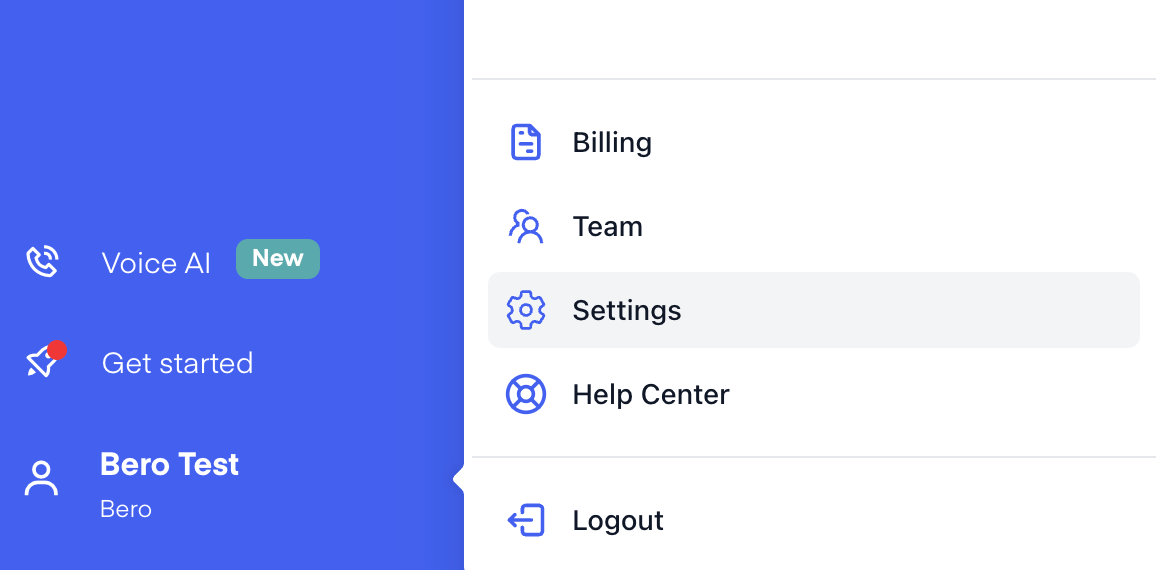
Log in to your Chatarmin account, click on your **Account** in the navigation, and then select **Settings**.
 **Step 2 – Find the 2FA Option**
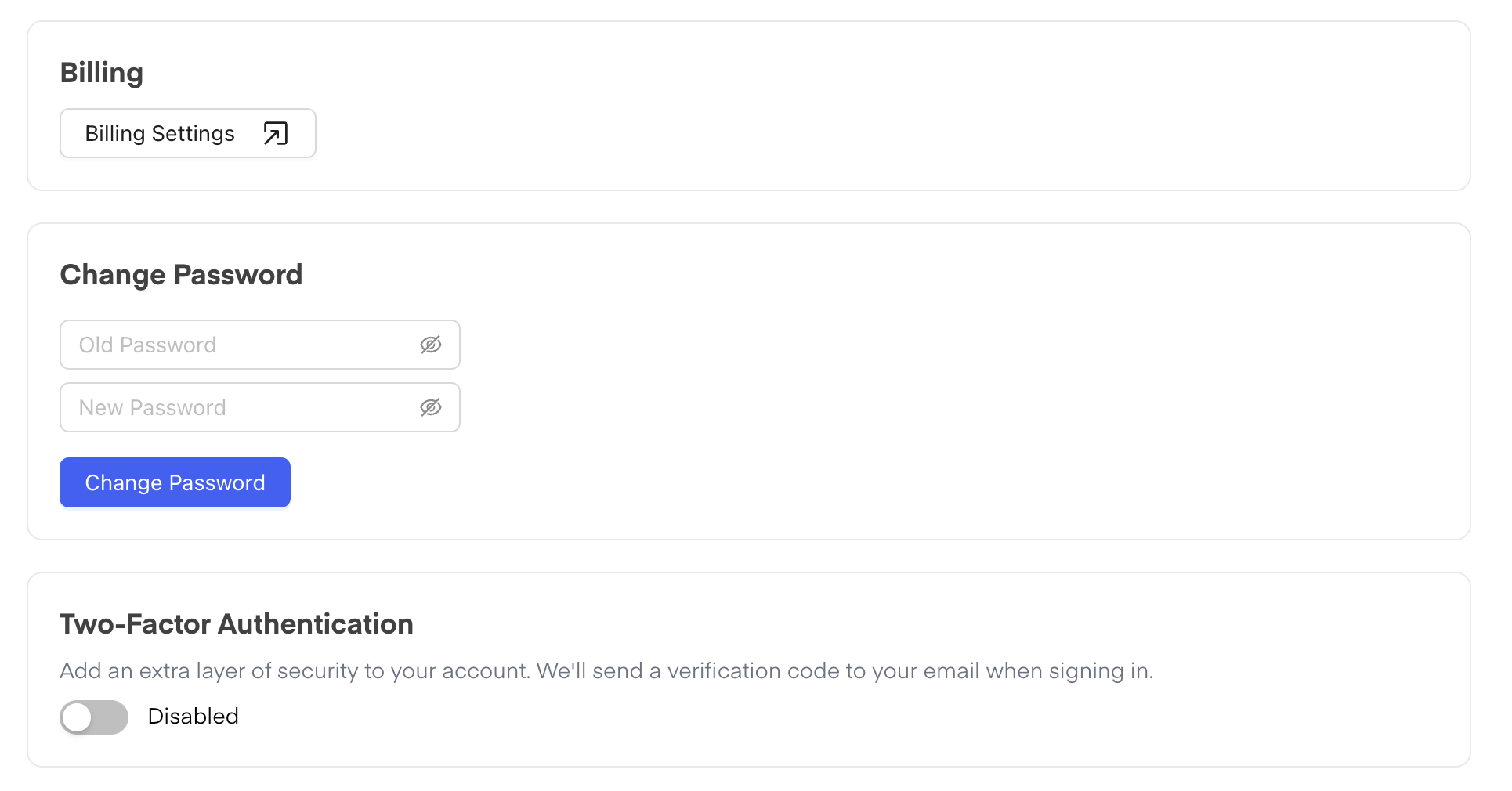
Scroll down until you reach the **Two-Factor Authentication** section, then click **Enable Authentication**.
**Step 2 – Find the 2FA Option**
Scroll down until you reach the **Two-Factor Authentication** section, then click **Enable Authentication**.
 **Step 3 – Verify Your Email**
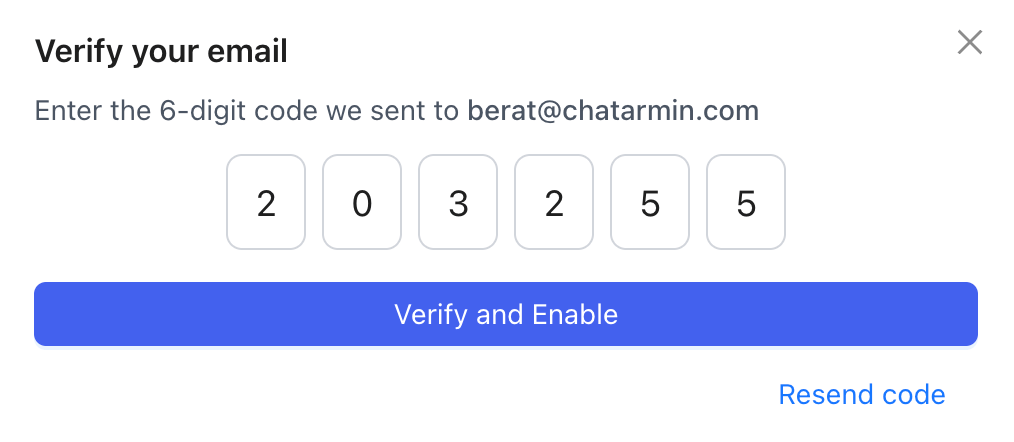
A verification code will be sent to your admin email 📧. Enter the code into the field provided and click **Confirm** to activate 2FA.
**Step 3 – Verify Your Email**
A verification code will be sent to your admin email 📧. Enter the code into the field provided and click **Confirm** to activate 2FA.
 **Step 4 – Use 2FA When Logging In**
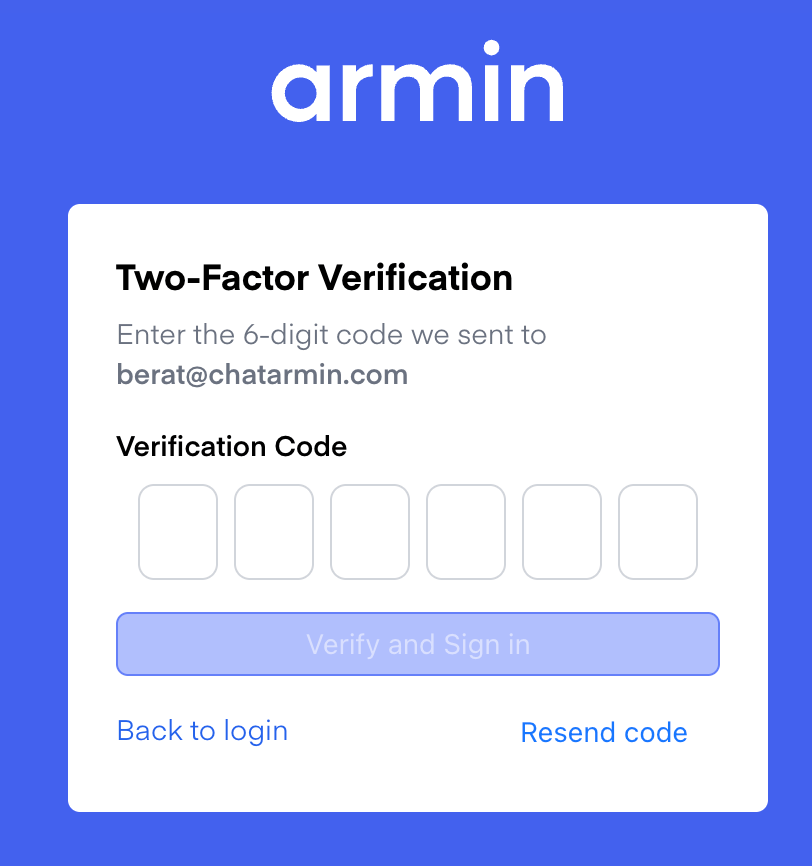
From now on, every time you log out and log back in, you will be asked for a 2FA code. This code will be sent to your admin email each time you log in.
**Step 4 – Use 2FA When Logging In**
From now on, every time you log out and log back in, you will be asked for a 2FA code. This code will be sent to your admin email each time you log in.