> ## Documentation Index
> Fetch the complete documentation index at: https://help.chatarmin.com/llms.txt
> Use this file to discover all available pages before exploring further.
# Creating your WhatsApp Account
> Chatarmin guide: Creating your WhatsApp Account
You can either watch this Loom or follow the detailed description below.
*Source: Q2 2024*
***
# Getting started
***
**First**, navigate to [the Setup Page](https://chatarmin.com/dashboard/setup).
**Next**, make sure to read the **first two steps** carefully, as they describe, that you need to make sure:
* The **website** in your Business Manager is **accessible/active**. If the Website in your Business Settings is not reachable, it will most likely fail. If you cannot edit the website, try to redirect the website to your new/latest website.
* The Phone Number used for WhatsApp, **cannot be registered** with the **WhatsApp (Business) App**
* You need to have **Admin** rights, to create a WhatsApp Account linked to your **Business Manager**
***
# Creating your WhatsApp Account
***
Once you have reached **Step 3**, click on "**Create your WhatsApp Account**". Then follow the steps:
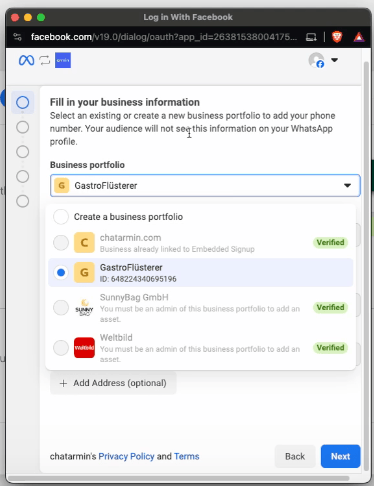
## Select correct Business Manager
 ## Create or select your WhatsApp Business Account
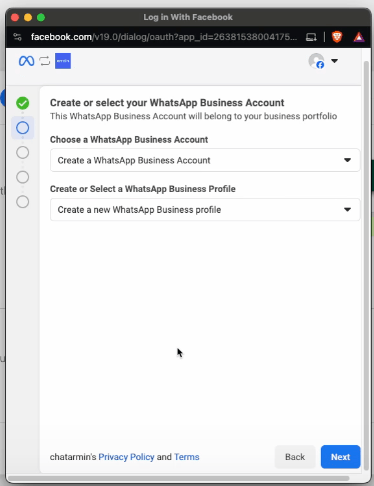
Make sure, to select **"Create ..."** on both "dropdowns"
## Create or select your WhatsApp Business Account
Make sure, to select **"Create ..."** on both "dropdowns"
 ## Create a WhatsApp Business Profile
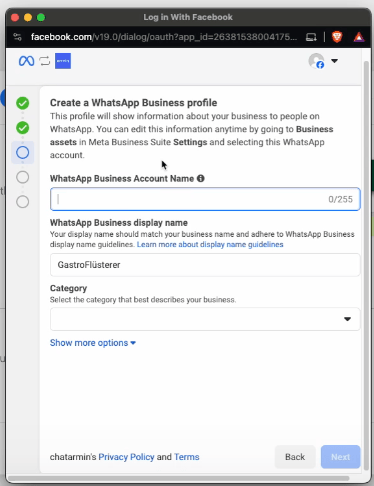
Fill out the details for your WhatsApp Account:
1. The **first Input**, will only **be visible to your Team** inside the Business Manager
2. The **second Input**, is the so-called "Display Name" and **will be shown to your customers on WhatsApp** (this can be changed later)
3. Select the appropriate **Category** for your business
4. Either fill in the Description now or edit it afterwards through Chatarmin
5. Make sure the **correct website** is selected
## Create a WhatsApp Business Profile
Fill out the details for your WhatsApp Account:
1. The **first Input**, will only **be visible to your Team** inside the Business Manager
2. The **second Input**, is the so-called "Display Name" and **will be shown to your customers on WhatsApp** (this can be changed later)
3. Select the appropriate **Category** for your business
4. Either fill in the Description now or edit it afterwards through Chatarmin
5. Make sure the **correct website** is selected
 ## Add a phone number for WhatsApp
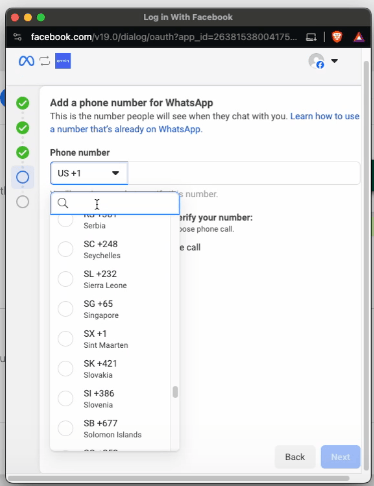
Now type in your WhatsApp Number and make sure to select the correct **Verification** Type: **SMS/Voice**\
Here you will find the requirements for connecting a phone number with Meta Business Manager and WhatsApp: [Phone Number Requirements](/how-to-get-started/whatsapp-number-requirements)
## Add a phone number for WhatsApp
Now type in your WhatsApp Number and make sure to select the correct **Verification** Type: **SMS/Voice**\
Here you will find the requirements for connecting a phone number with Meta Business Manager and WhatsApp: [Phone Number Requirements](/how-to-get-started/whatsapp-number-requirements)
 ## After phone verification
Now you can click on "**Continue**" & "**Finish installation**". Now the Pop-up closes and you should see a success message in a bit.
Once succeeded, you can click on **"Continue: Verify"** in Chatarmin
***
# Verify your Business
***
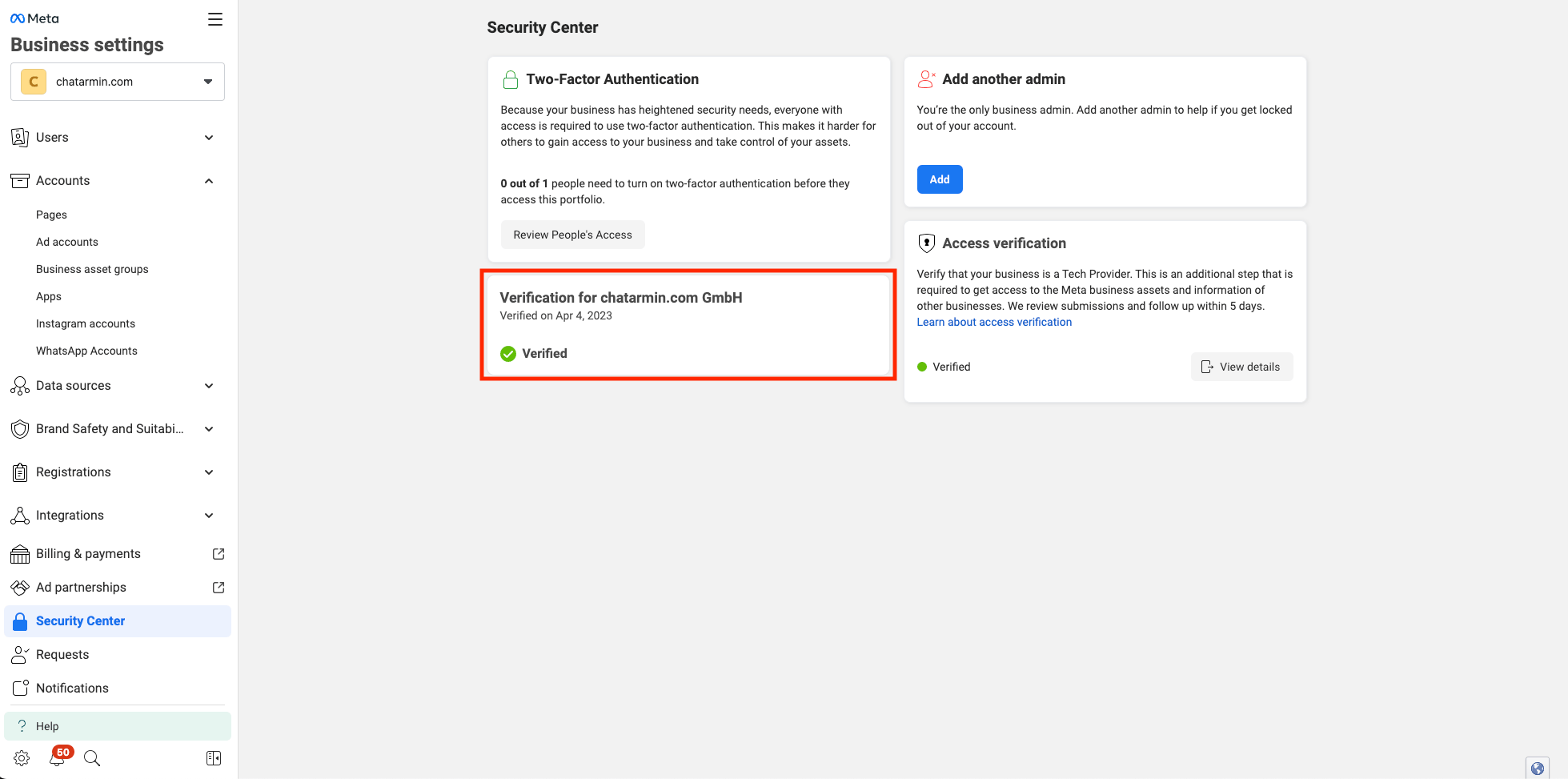
Once your WhatsApp Account got created successfully, make sure your Business is verified, so the [Messaging Limit](/meta-related/messaging-limit-and-quality-rating-what-they-are-and-how-to-increase-them) gets increased.
Go to your [Security Center](https://business.facebook.com/settings/security-center) inside your Business Manager under. Check your verification status and make sure its verified.
## After phone verification
Now you can click on "**Continue**" & "**Finish installation**". Now the Pop-up closes and you should see a success message in a bit.
Once succeeded, you can click on **"Continue: Verify"** in Chatarmin
***
# Verify your Business
***
Once your WhatsApp Account got created successfully, make sure your Business is verified, so the [Messaging Limit](/meta-related/messaging-limit-and-quality-rating-what-they-are-and-how-to-increase-them) gets increased.
Go to your [Security Center](https://business.facebook.com/settings/security-center) inside your Business Manager under. Check your verification status and make sure its verified.
 ***
# Add your Payment Method
***
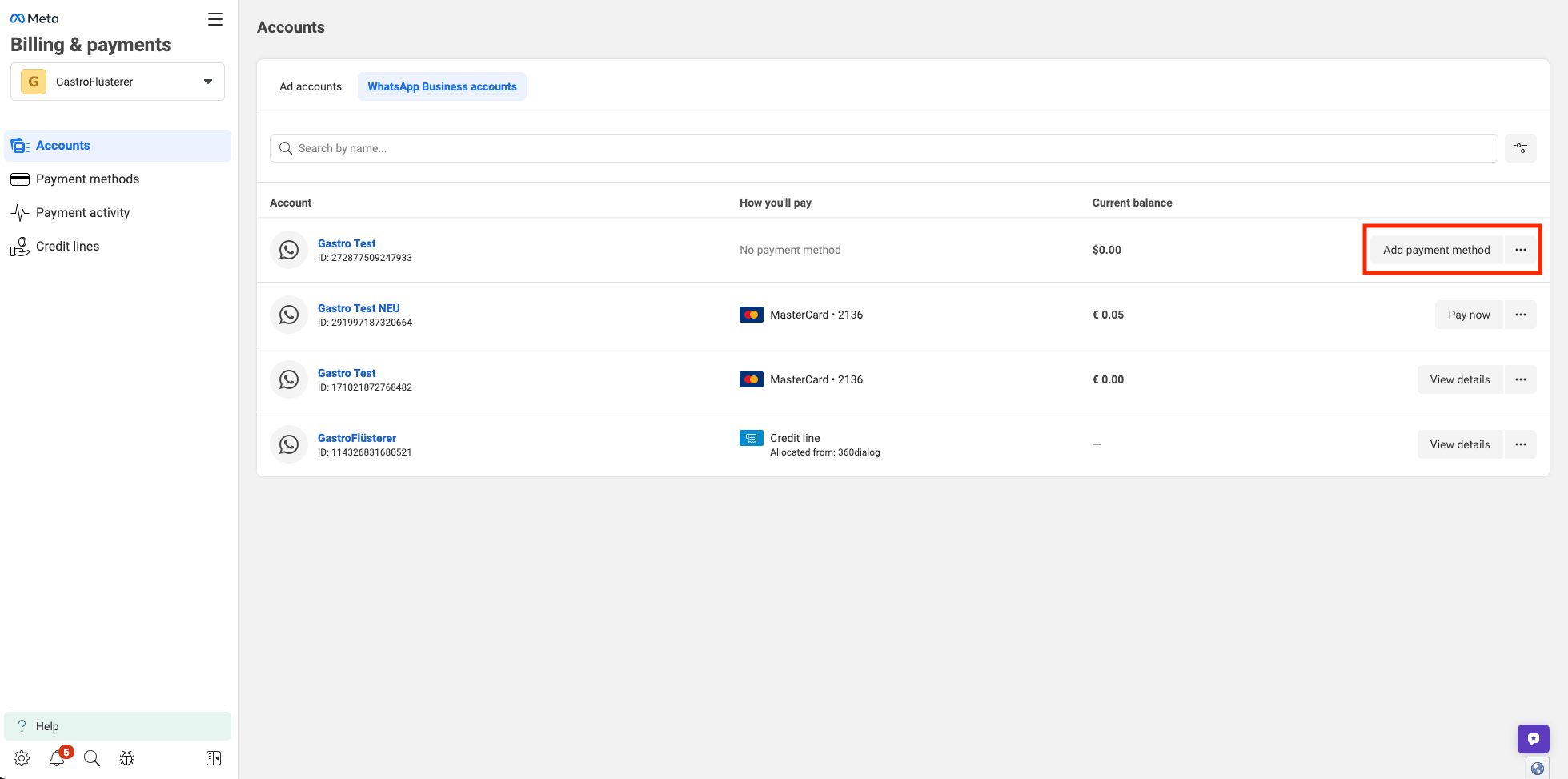
Now go to your [Billing Settings](https://business.facebook.com/billing_hub/accounts?account_type=whatsapp-business-account) inside your Business Manager and add a Payment Method for your newly created WhatsApp Account.
***
# Add your Payment Method
***
Now go to your [Billing Settings](https://business.facebook.com/billing_hub/accounts?account_type=whatsapp-business-account) inside your Business Manager and add a Payment Method for your newly created WhatsApp Account.
 ***ATTENTION:*** *Please be aware you need to enter Credit Card and Debit Cards may not be accepted!*
After you added the payment Method please set the Card as Default! This video shows you how to do that:
It is crucial, to set the card as Default, otherwise Meta will not let you send campaigns in chatarmin!
***ATTENTION:*** If your account is continuously blocked, you might encounter an overdue saldo. Please make sure you pay any open amounts in your [WhatsApp billing hub](https://business.facebook.com/billing_hub/?account_type=whatsapp-business-account) directly. If you want, feel free to check your chats for error-messages that disclose further information, in Chatarmin -> Chats, and check the failed message-sends for informational displays.
***
# Next Steps
***
Congrats! You have successfully created your WhatsApp Account! 🥳
Check out our [Onboarding Guide](/how-to-get-started/how-to-set-up-your-account-from-scratch) to get you started with Chatarmin!
***ATTENTION:*** *Please be aware you need to enter Credit Card and Debit Cards may not be accepted!*
After you added the payment Method please set the Card as Default! This video shows you how to do that:
It is crucial, to set the card as Default, otherwise Meta will not let you send campaigns in chatarmin!
***ATTENTION:*** If your account is continuously blocked, you might encounter an overdue saldo. Please make sure you pay any open amounts in your [WhatsApp billing hub](https://business.facebook.com/billing_hub/?account_type=whatsapp-business-account) directly. If you want, feel free to check your chats for error-messages that disclose further information, in Chatarmin -> Chats, and check the failed message-sends for informational displays.
***
# Next Steps
***
Congrats! You have successfully created your WhatsApp Account! 🥳
Check out our [Onboarding Guide](/how-to-get-started/how-to-set-up-your-account-from-scratch) to get you started with Chatarmin!