> ## Documentation Index
> Fetch the complete documentation index at: https://help.chatarmin.com/llms.txt
> Use this file to discover all available pages before exploring further.
# Carousel Templates
> Chatarmin guide: Carousel Templates
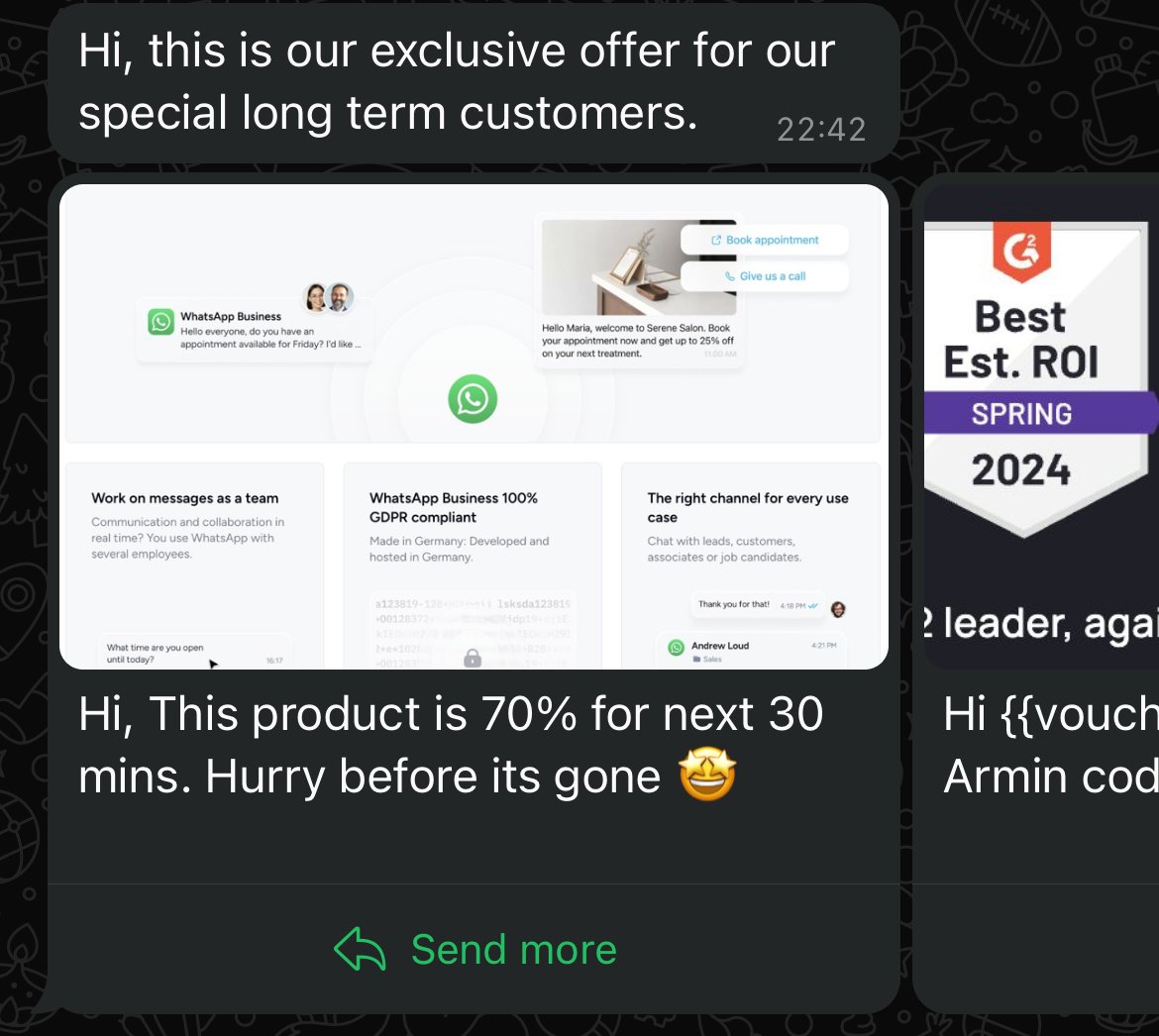 *Source: Chatarmin, Q3 2024*
***
# Creating the Template
***
First of all, you will need to choose the **"Media Card Carousel"** as the **Template Type.**
*Source: Chatarmin, Q3 2024*
***
# Creating the Template
***
First of all, you will need to choose the **"Media Card Carousel"** as the **Template Type.**
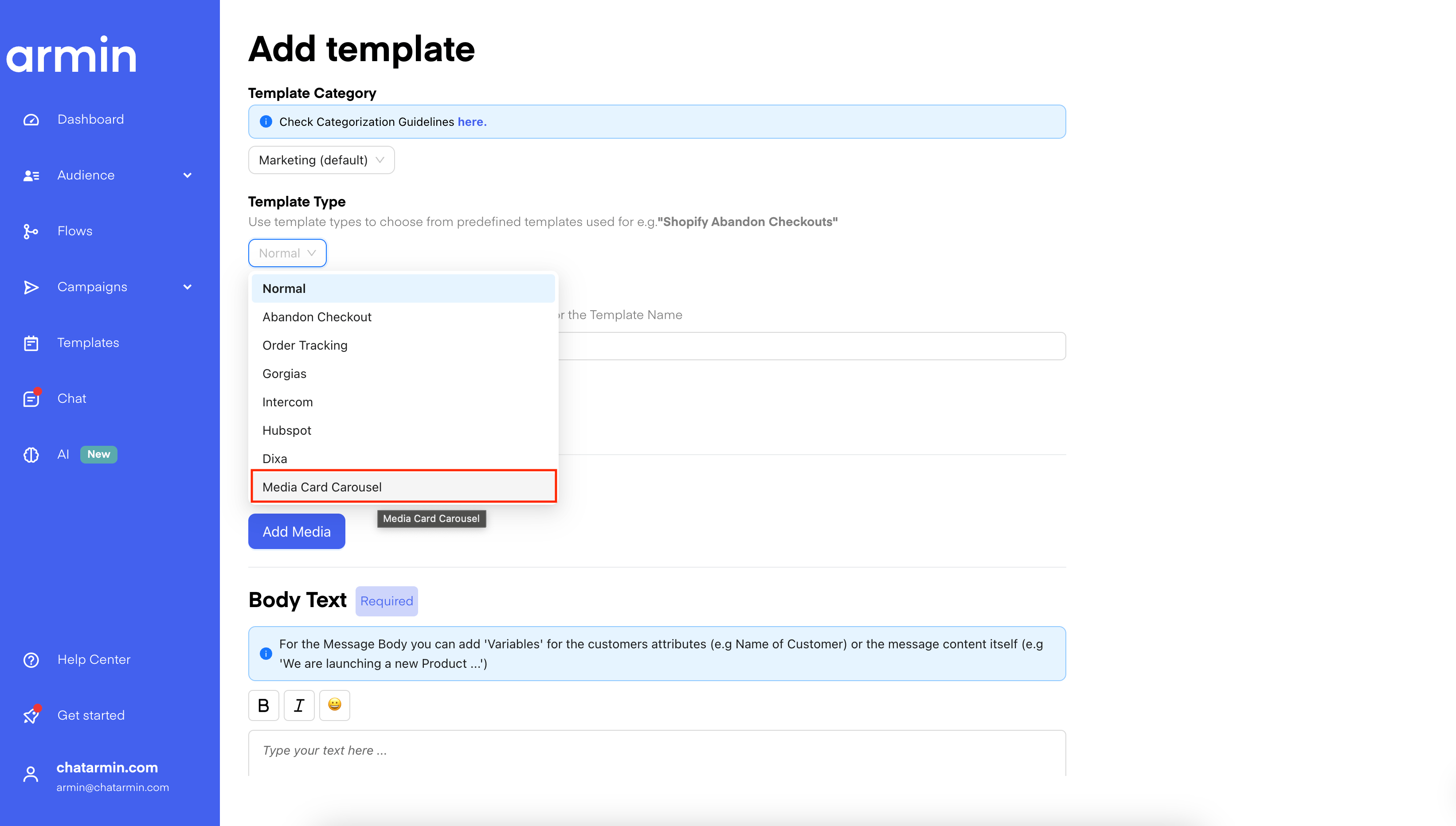 Then, you will need to set the **"Main" Body.** Here you can also use Variables again if you want.
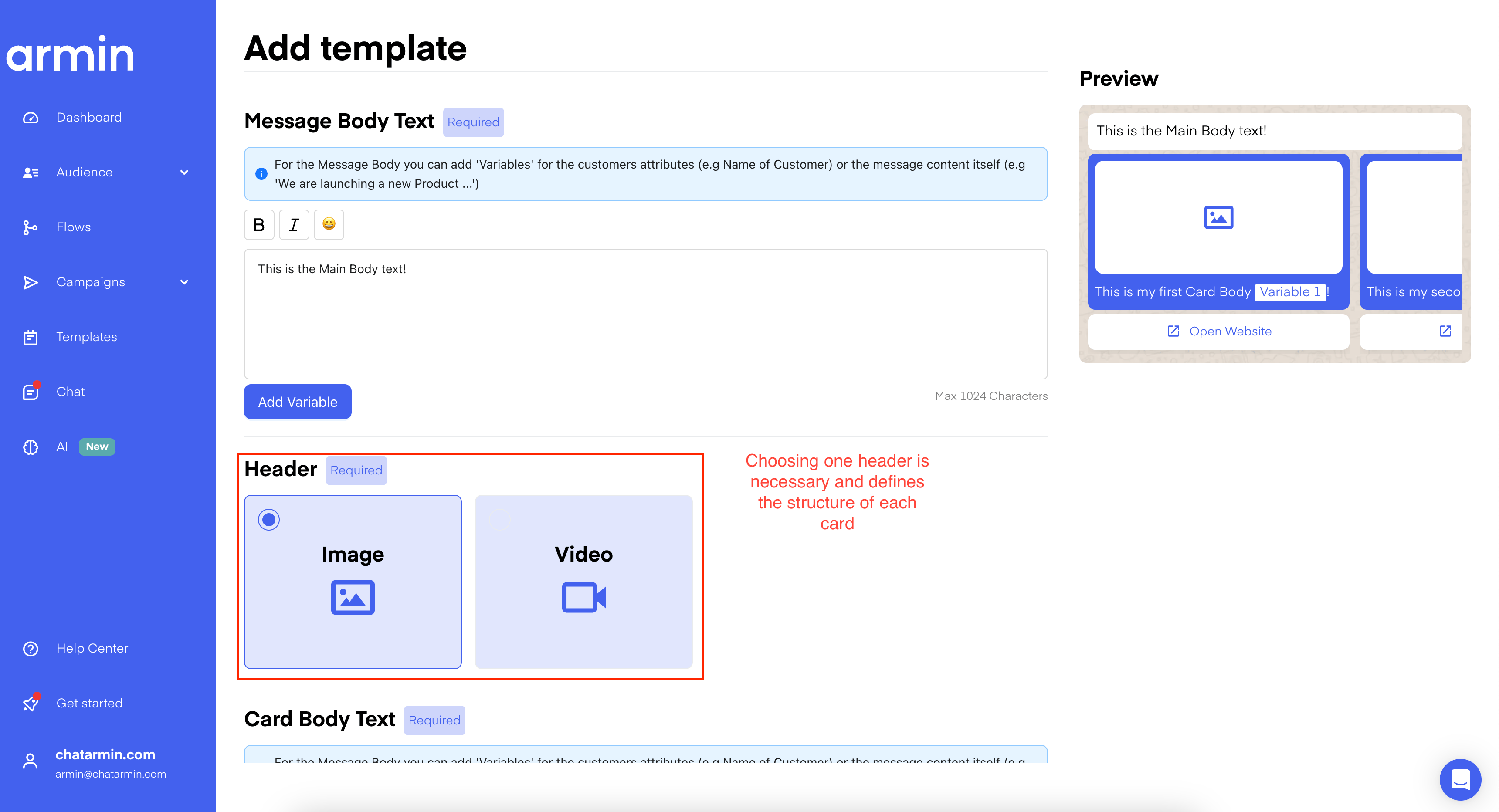
After that, you will need to pick a Header. Either **Image** or **Video.** With choosing a Header, every Card used in this Template, will then have this type of header. Same Header-Type for every Card.
Then, you will need to set the **"Main" Body.** Here you can also use Variables again if you want.
After that, you will need to pick a Header. Either **Image** or **Video.** With choosing a Header, every Card used in this Template, will then have this type of header. Same Header-Type for every Card.
 After that, you can set the Body Text for Each Card and add new Cards. Up to 10 can be used.
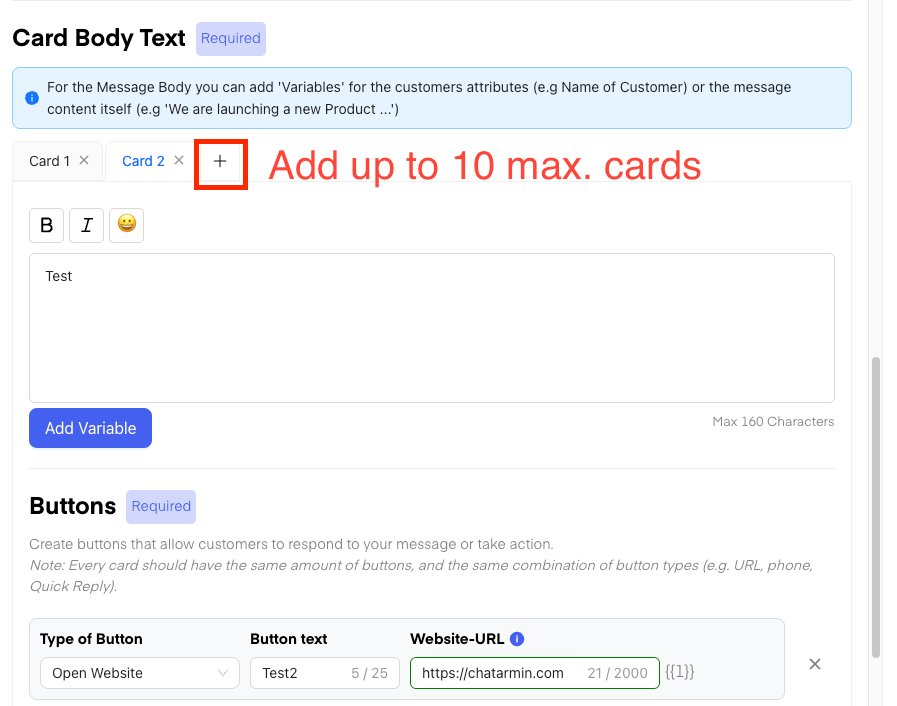 The Buttons chosen will also be used for EVERY Card. You can only change the **Website-URL** for each Card, when actually using that Template in **Campaigns** or **Flows.**
Great! Now you have successfully created your first Carousel-Template! 🥳
***
# Carousel Template Q\&A
***
***Q:***
*I've tried to set up a new campaign with a carousel. When scheduling the campaign, I added the images and links for each of the products, but unfortunately the link that is displayed when testing the campaign is the one inserted in the template itself, and it remains the same for each product displayed. Do you have a solution for this?*
***A:***
*This seems to be only a UI issue. When you test the carousel to yourself, you will see that there will be the different links set.So when you click on "Schedule now" -> It will open a popup where you can select your contact for testing.*
The Buttons chosen will also be used for EVERY Card. You can only change the **Website-URL** for each Card, when actually using that Template in **Campaigns** or **Flows.**
Great! Now you have successfully created your first Carousel-Template! 🥳
***
# Carousel Template Q\&A
***
***Q:***
*I've tried to set up a new campaign with a carousel. When scheduling the campaign, I added the images and links for each of the products, but unfortunately the link that is displayed when testing the campaign is the one inserted in the template itself, and it remains the same for each product displayed. Do you have a solution for this?*
***A:***
*This seems to be only a UI issue. When you test the carousel to yourself, you will see that there will be the different links set.So when you click on "Schedule now" -> It will open a popup where you can select your contact for testing.*