> ## Documentation Index
> Fetch the complete documentation index at: https://help.chatarmin.com/llms.txt
> Use this file to discover all available pages before exploring further.
# How to Trigger a WhatsApp Flow via POST Endpoint in Chatarmin
> Chatarmin guide: How to Trigger a WhatsApp Flow via POST Endpoint in Chatarmin
With Chatarmin’s custom POST Endpoint, you can trigger a WhatsApp flow from external tools like Make.com, webhooks, Google Sheets, Slack, Airtable or any other system that supports sending HTTP POST requests. This article explains, step-by-step, how to send data from Make.com to start a flow in Chatarmin and pass custom data into your WhatsApp automation.
#### Prepare the Data Source
First, decide which external tool or app will send the data (such as a Make.com webhook, a Google Sheets module, or an HTTP trigger). Send a test entry from your data source, so Make.com can detect the structure of your data.
#### Create a New Flow with a Custom POST Endpoint in Chatarmin
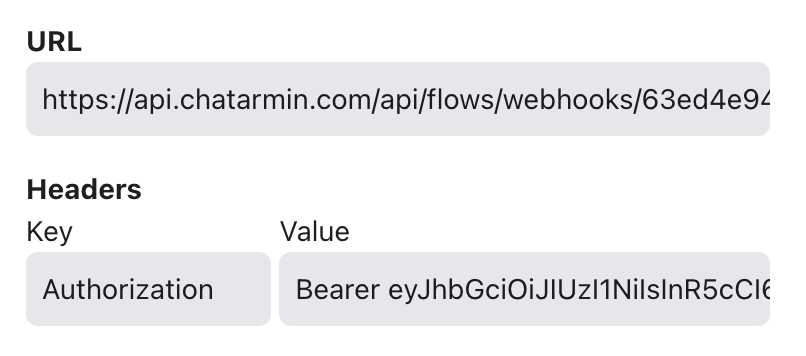
In your Chatarmin dashboard, create a new flow and select Custom POST Endpoint as the trigger. Keep this screen open so you can copy the endpoint URL and header values in the next step.
 #### Configure Make.com to Send Data to Chatarmin
* In Make.com, add a new HTTP module and set it to "Make a request."
* **URL:** Paste the custom endpoint URL you copied from Chatarmin.
* **Method:** POST
* **Headers:** Copy the Headers you see in chatarmin
* `Authorization` → value: `Bearer `
* **Body type:** Raw → JSON (application/json)
* **Request Content:** Use the JSON format and input your variables from the data source
For example:
```
{
"phone": "[put phone variable here]",
"city": "[put city variable here]"
}
```
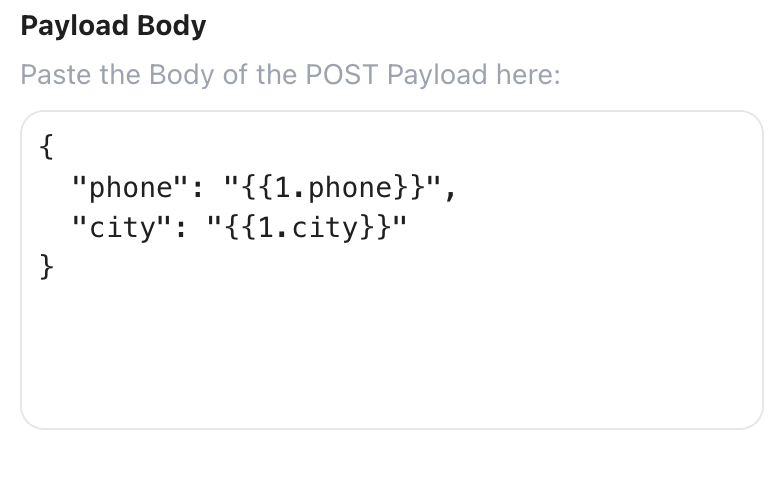
#### In Chatarmin, paste the request content into the Payload Body field
Copy the JSON body from make.com and paste it in the "Payload Body field". Now you can click the "save" button.
#### Configure Make.com to Send Data to Chatarmin
* In Make.com, add a new HTTP module and set it to "Make a request."
* **URL:** Paste the custom endpoint URL you copied from Chatarmin.
* **Method:** POST
* **Headers:** Copy the Headers you see in chatarmin
* `Authorization` → value: `Bearer `
* **Body type:** Raw → JSON (application/json)
* **Request Content:** Use the JSON format and input your variables from the data source
For example:
```
{
"phone": "[put phone variable here]",
"city": "[put city variable here]"
}
```
#### In Chatarmin, paste the request content into the Payload Body field
Copy the JSON body from make.com and paste it in the "Payload Body field". Now you can click the "save" button.
 #### Add Custom Fields to your Audience in Chatarmin
Chatarmin’s audience already includes `phone`, `firstname`, `lastname`, and `email`.
* For these standard fields, you don’t need to add anything.
* For new data fields (e.g. `city`), go to Audience → Add Column and create a field named exactly as the incoming key (`city`).
#### Update Custom Data in Your Flow
For any custom fields (like `city` in this tutorial):
* Add an Update Customer action in your flow.
* Select the property you created (e.g. `city`) and map in the value coming from the API/POST data.
#### Create Campaign
You can now use variables from your incoming data. Remember: You must use a campaign template and not a message to initiate conversations using this trigger. It will not work using messages. Make sure that you create a template for a campaign first with the variables you sent via the POST webhook.
#### Note:
Make sure that the phone number is always sent in international format, including the country code, with no spaces or special characters. For example: +436781211536
#### Add Custom Fields to your Audience in Chatarmin
Chatarmin’s audience already includes `phone`, `firstname`, `lastname`, and `email`.
* For these standard fields, you don’t need to add anything.
* For new data fields (e.g. `city`), go to Audience → Add Column and create a field named exactly as the incoming key (`city`).
#### Update Custom Data in Your Flow
For any custom fields (like `city` in this tutorial):
* Add an Update Customer action in your flow.
* Select the property you created (e.g. `city`) and map in the value coming from the API/POST data.
#### Create Campaign
You can now use variables from your incoming data. Remember: You must use a campaign template and not a message to initiate conversations using this trigger. It will not work using messages. Make sure that you create a template for a campaign first with the variables you sent via the POST webhook.
#### Note:
Make sure that the phone number is always sent in international format, including the country code, with no spaces or special characters. For example: +436781211536