> ## Documentation Index
> Fetch the complete documentation index at: https://help.chatarmin.com/llms.txt
> Use this file to discover all available pages before exploring further.
# Flows - Explained
> Chatarmin guide: Flows - Explained
***
# Flows
***
["Flows"](https://chatarmin.com/dashboard/flows) are actions used to automate your customer interactions. A **"Flow"** always has an initial trigger and successive actions.
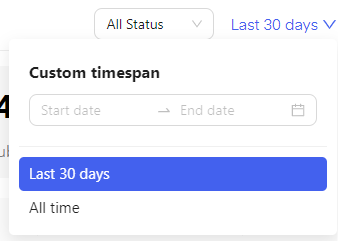
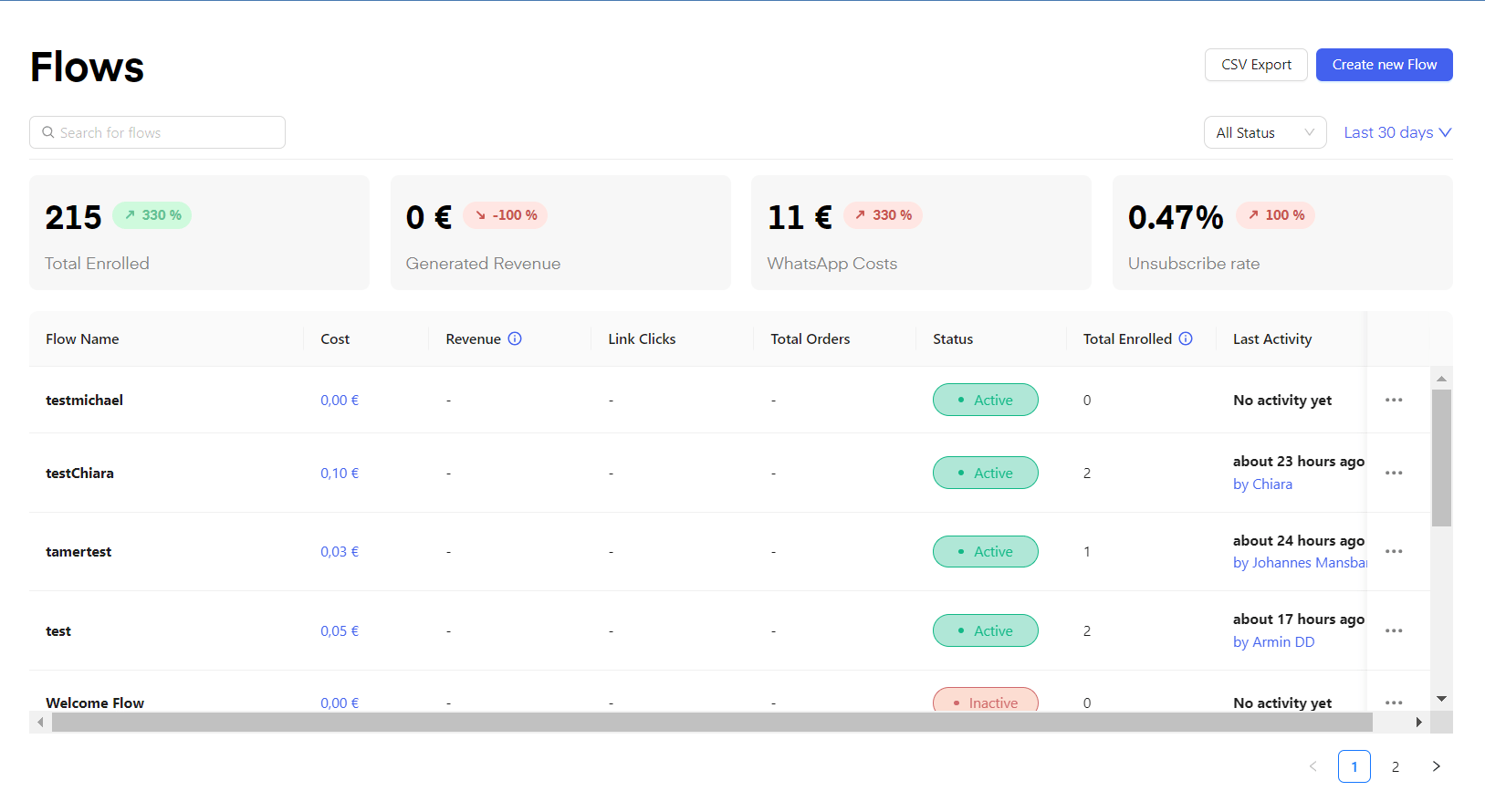 In the **"Flow interface"**, you have an overview of all your flows. Similar to the [**"Dashboard"**](https://chatarmin.com/dashboard) feature you can also switch from showing **"Flows"** of the **"last 30 days"** to **"all time"** or a **"custom timespan"**. In addition to this, you also display only **"Active"** **"inactive"**, or **"All Status"** Flows.
 On the top of the page, you have a search bar to find your flows easier as well as basic statistics such as **"Total Enrolled"** **"Generated Revenue" "WhatsApp Costs"** and **"Unsubscribe rate".**
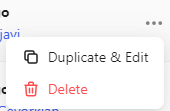
 To edit a Flow you can click on the specific flow. If you want to build something based on an existing flow you can click on the three dots on the right-hand side in the row of the flow you want to duplicate and then click **"Duplicate & Edit"**.
 \*\****Here is a video breaking down the "Flows" Feature:*** \*\*
*Source: Chatarmin, Q1 2024*
***
# Flow Analytics
***
Check this video on how you can inspect your flow analytics, see what exact steps your customers went through and how to retry failed steps:
***
# Rich Text Editor - Interactive Flows
***
*Source: Q2 2024*
Feel free to interactively build your flow-messages through our interactive flow builder, letting you easily
* format tetx through bolt, italic and cursive as well as striked-through text
* @custom properties such as firstname, lastname, etc.
* use and fetch emojis at ease by typing ":" just like in the screenshot below
\*\****Here is a video breaking down the "Flows" Feature:*** \*\*
*Source: Chatarmin, Q1 2024*
***
# Flow Analytics
***
Check this video on how you can inspect your flow analytics, see what exact steps your customers went through and how to retry failed steps:
***
# Rich Text Editor - Interactive Flows
***
*Source: Q2 2024*
Feel free to interactively build your flow-messages through our interactive flow builder, letting you easily
* format tetx through bolt, italic and cursive as well as striked-through text
* @custom properties such as firstname, lastname, etc.
* use and fetch emojis at ease by typing ":" just like in the screenshot below
 ***
# Image / Video / Audio in Flow
***
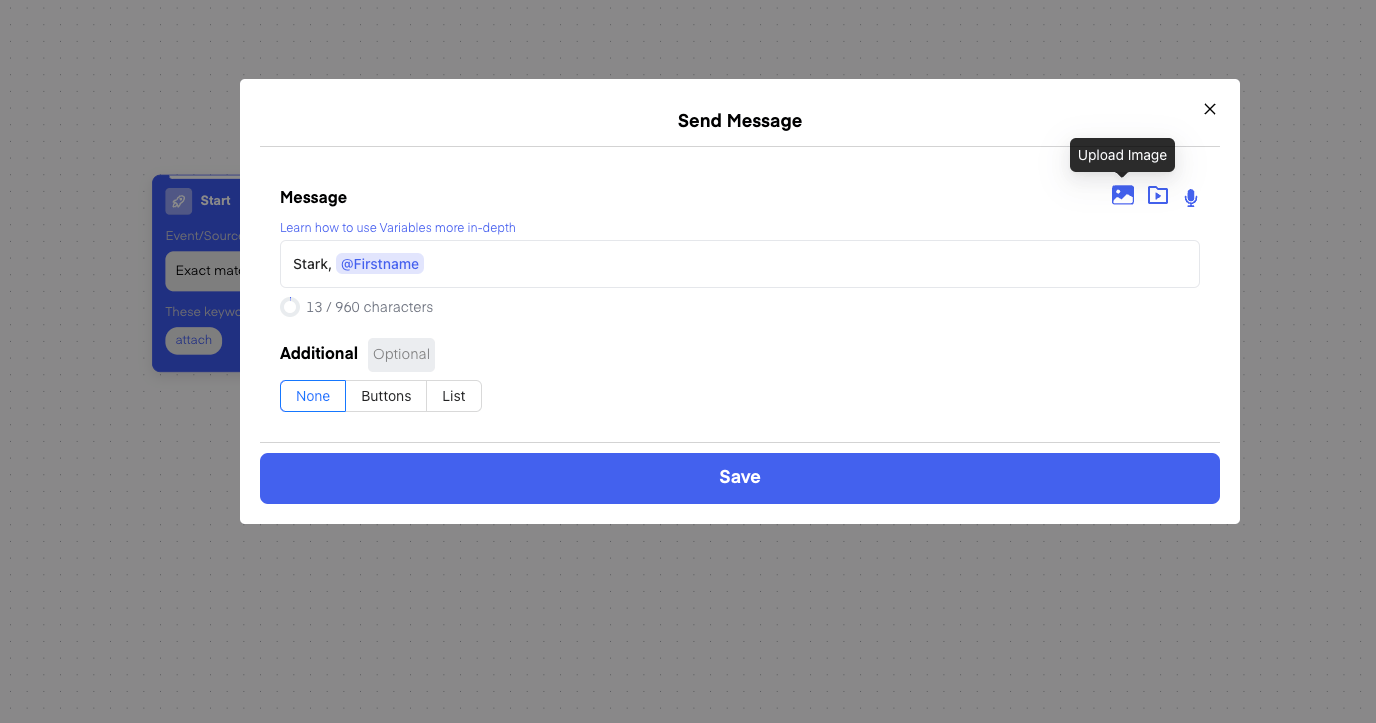
You can also send **Images**, **Videos** and **Audio** Messages in a Flow. Choose the **Action** -> **Send Message** and then on the right you can select what **Media** you want to add to the message:
***
# Image / Video / Audio in Flow
***
You can also send **Images**, **Videos** and **Audio** Messages in a Flow. Choose the **Action** -> **Send Message** and then on the right you can select what **Media** you want to add to the message:
 🔊 Read more about [embedding voice messages in flows here](https://help.chatarmin.com/en/strategy-andamp-best-practices/voice-messages-in-whatsapp-flows).
🎬 Watch this video to understand how to embed videos in messages in flows:
*Source: Q3, 2024*
***
# Duplicating Flow Actions: Copy & Paste Flow-Snippets
***
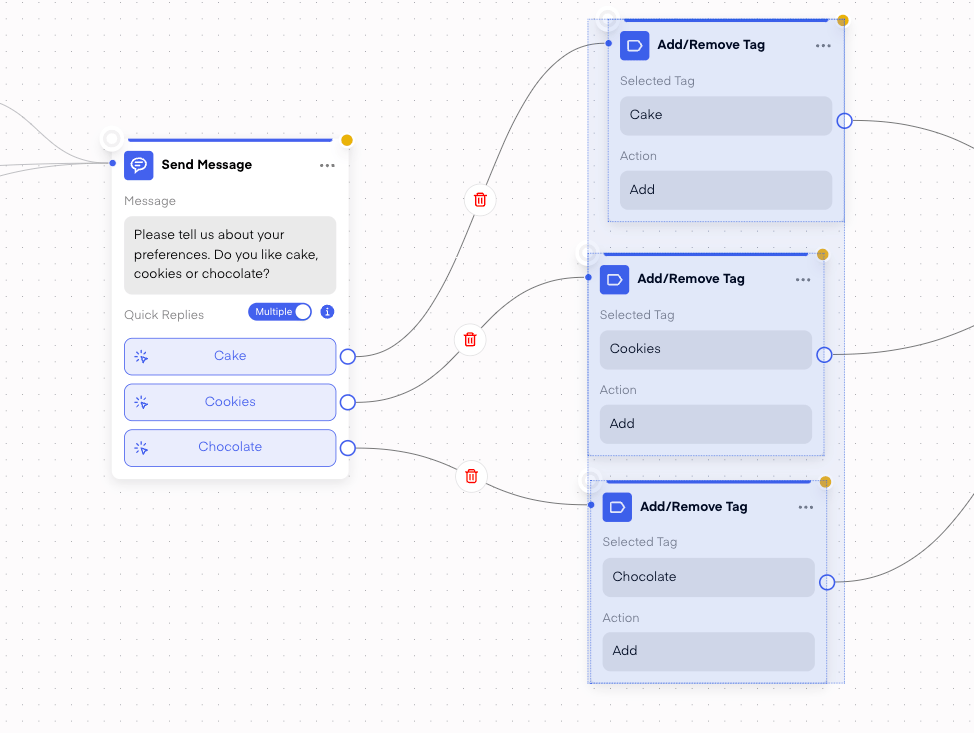
You can hold **SHIFT** and click on a Flow Actionor **SHIFT + Mouse Drag to select certain Actions.**
-> Those **Actions** can be then copied *(CMD + C -> Mac / STRG + C -> Windows)* and pasted *(CMD + V -> Mac / STRG + V -> Windows)* into the **same** OR **other flows**
🔊 Read more about [embedding voice messages in flows here](https://help.chatarmin.com/en/strategy-andamp-best-practices/voice-messages-in-whatsapp-flows).
🎬 Watch this video to understand how to embed videos in messages in flows:
*Source: Q3, 2024*
***
# Duplicating Flow Actions: Copy & Paste Flow-Snippets
***
You can hold **SHIFT** and click on a Flow Actionor **SHIFT + Mouse Drag to select certain Actions.**
-> Those **Actions** can be then copied *(CMD + C -> Mac / STRG + C -> Windows)* and pasted *(CMD + V -> Mac / STRG + V -> Windows)* into the **same** OR **other flows**
 ***
# Duplicating Flows between accounts
***
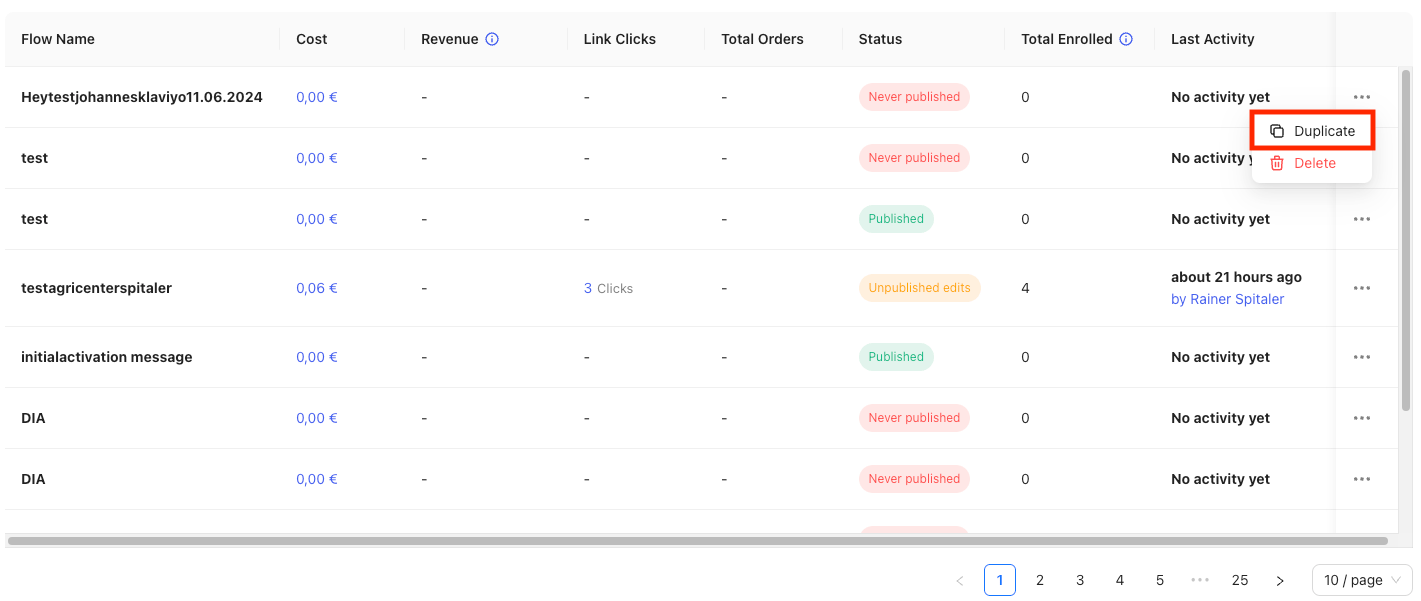
Feel free to "duplicate flows" within accounts, if you are a marketing agency or a multi-brand-company. This is how it works:
1. Select the three-dotted menu on the right of the respective flow, in flow-overview in Chatarmin dashboard
***
# Duplicating Flows between accounts
***
Feel free to "duplicate flows" within accounts, if you are a marketing agency or a multi-brand-company. This is how it works:
1. Select the three-dotted menu on the right of the respective flow, in flow-overview in Chatarmin dashboard
 2. select the respective account to duplicate your flow into
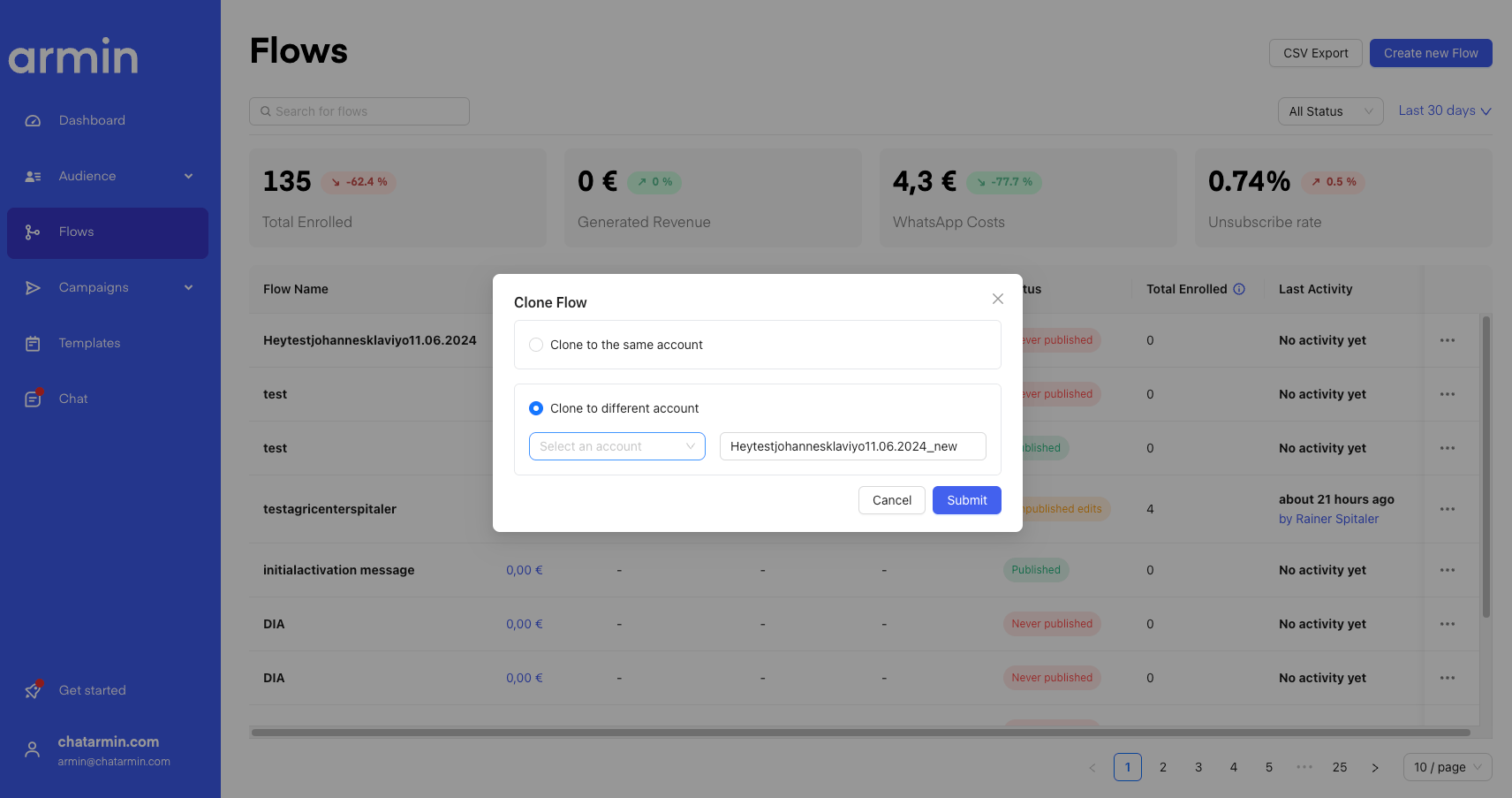 Please do make sure you adapt wordings and submit + use the templates needed, before you go live with the same flow, in another account. Make sure your CI and branding are adapted, and test the flow before going live.
This is how you duplicate flows between accounts, if you are to manage Chatarmin-dashboards for multiple brands.
***
# Create new Flows - Flow Templates
***
By clicking [**"create new Flow"**](https://chatarmin.com/dashboard/flows/explore) you will be sent to the provided Flow Templates.
***
## Basic Flow Templates
***
Here you have some basic Presets such as:
Order Widget Success Message
Order Widget Order Dispatched
Welcome Flow
Abandoned Cart
No Customer Support - Autoreply
Opt-Out Flow
Customer Support
Please do make sure you adapt wordings and submit + use the templates needed, before you go live with the same flow, in another account. Make sure your CI and branding are adapted, and test the flow before going live.
This is how you duplicate flows between accounts, if you are to manage Chatarmin-dashboards for multiple brands.
***
# Create new Flows - Flow Templates
***
By clicking [**"create new Flow"**](https://chatarmin.com/dashboard/flows/explore) you will be sent to the provided Flow Templates.
***
## Basic Flow Templates
***
Here you have some basic Presets such as:
Order Widget Success Message
Order Widget Order Dispatched
Welcome Flow
Abandoned Cart
No Customer Support - Autoreply
Opt-Out Flow
Customer Support
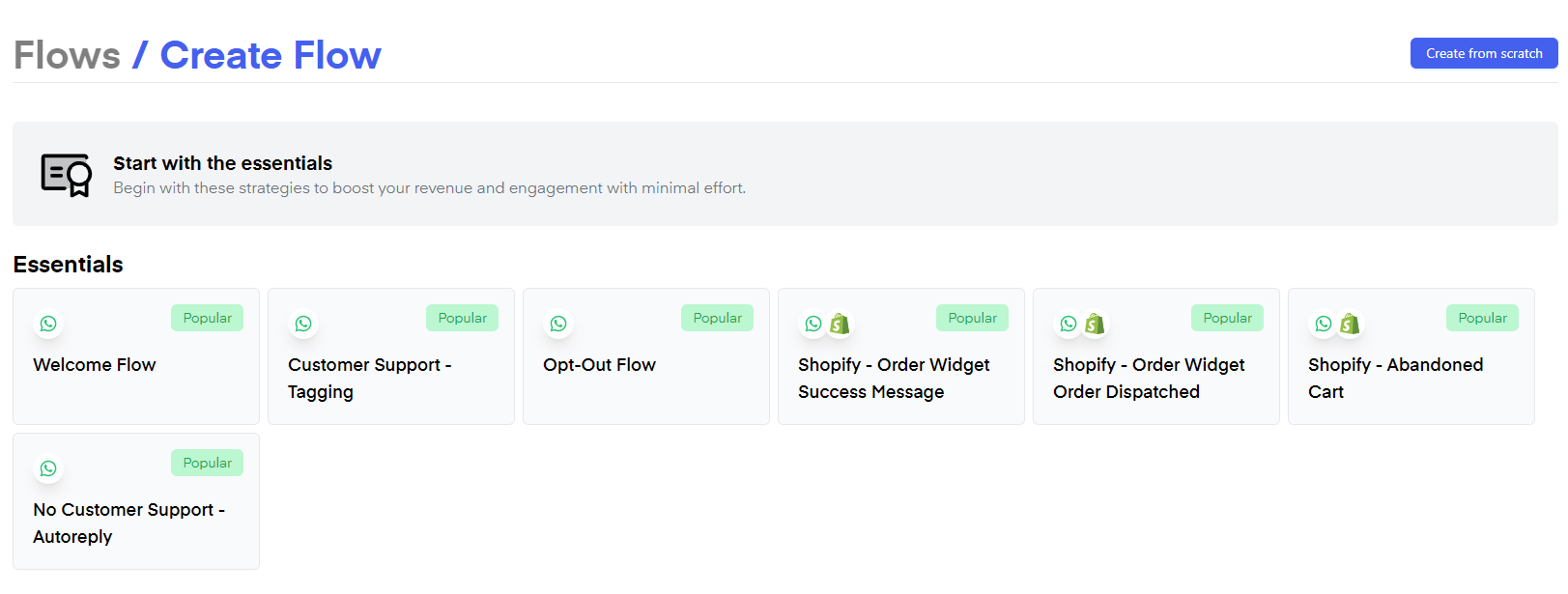 *Source: Chatarmin, Q3, 2024*
***
## Advanced Flow Templates
***
.. as well as advanced flows shown below, such as our "build customer loyalty" support flows, funnelling clients' tickets into Gorgias, Freshdesk, zendesk and Co., through our [dedicated pre-built flow templates](https://chatarmin.com/dashboard/flows/explore):
*Source: Chatarmin, Q3, 2024*
***
## Advanced Flow Templates
***
.. as well as advanced flows shown below, such as our "build customer loyalty" support flows, funnelling clients' tickets into Gorgias, Freshdesk, zendesk and Co., through our [dedicated pre-built flow templates](https://chatarmin.com/dashboard/flows/explore):
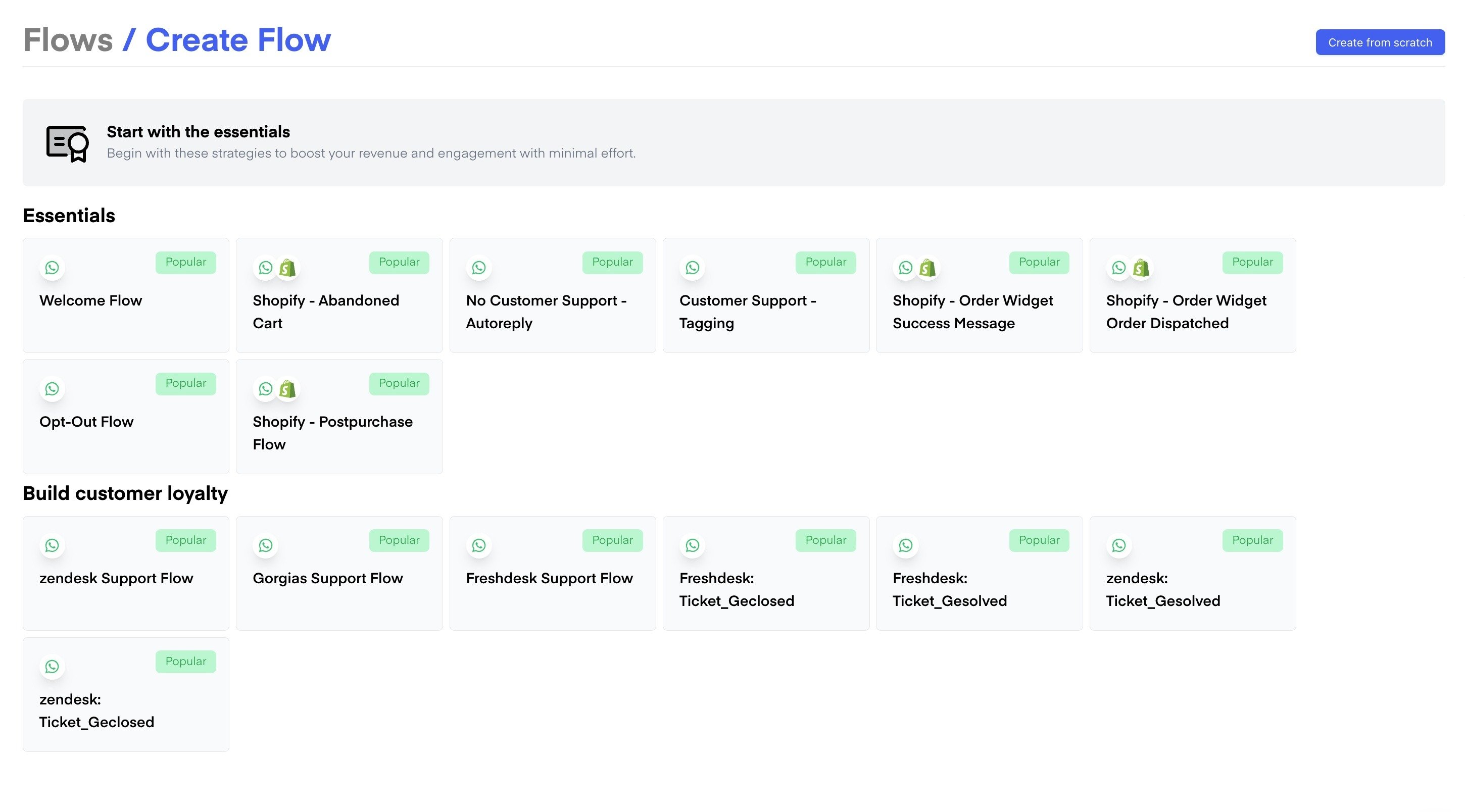 *Find pre-built flow-templates of all kinds of use-cases in our dedicated flow builder. Source: Chatarmin, Q3 2024*
***
## Flow Templates: Explained
***
You can find in-depth guides on what the flows are supposed to achieve and how they work in the descriptions by clicking on them or in these video guides:
**NOTE:** You can not use the pre-defined templates inside the flow since templates are specific to each account and have to be verified by **META** before being used in your account.
***
# Create new Flow - Create from Scratch
***
Click [**"Create from scratch"**](https://chatarmin.com/dashboard/flows/create) to build a flow to your liking.
*Find pre-built flow-templates of all kinds of use-cases in our dedicated flow builder. Source: Chatarmin, Q3 2024*
***
## Flow Templates: Explained
***
You can find in-depth guides on what the flows are supposed to achieve and how they work in the descriptions by clicking on them or in these video guides:
**NOTE:** You can not use the pre-defined templates inside the flow since templates are specific to each account and have to be verified by **META** before being used in your account.
***
# Create new Flow - Create from Scratch
***
Click [**"Create from scratch"**](https://chatarmin.com/dashboard/flows/create) to build a flow to your liking.
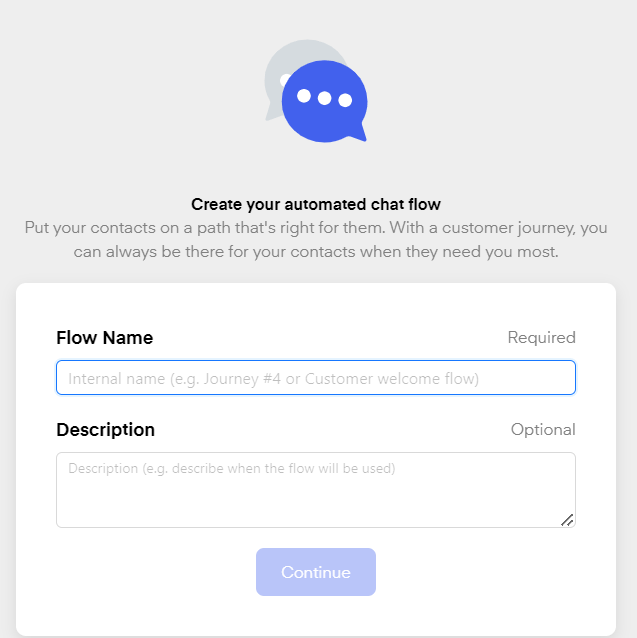
 Give your flow a **"Flow Name"** and optionally type in a description for the flow. Then click **"Continue"** to choose a starting point.
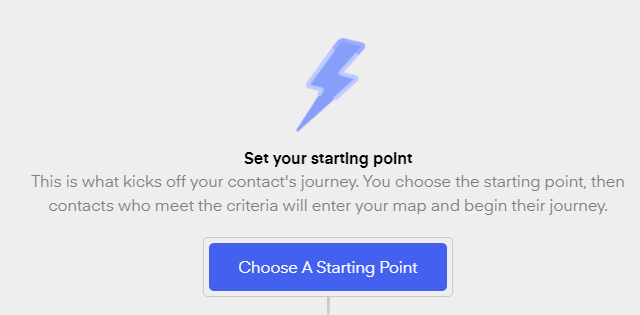
 Click on **"Choose A Starting Point"**
 You will then be able to choose from a wide variety of initial triggers:
***
#### General
***
You will then be able to choose from a wide variety of initial triggers:
***
#### General
***
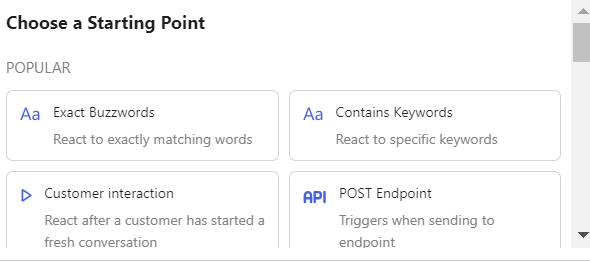 **Exact Buzzwords**\
React to exactly matching words
**Contains Keywords**
React to specific keywords
**Customer interaction**
React after a customer has started a fresh conversation
**WhatsApp Consent Checkbox**
Trigger when a customer opts in via the WhatsApp Consent Checkbox Widget (Shopify Plus only)
**Exact Buzzwords**\
React to exactly matching words
**Contains Keywords**
React to specific keywords
**Customer interaction**
React after a customer has started a fresh conversation
**WhatsApp Consent Checkbox**
Trigger when a customer opts in via the WhatsApp Consent Checkbox Widget (Shopify Plus only)
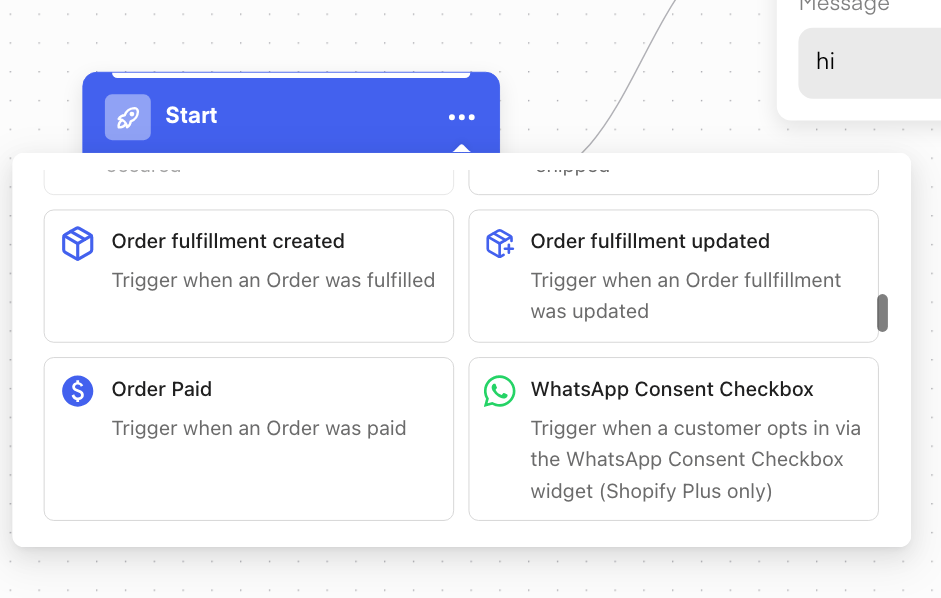 ***
## **Call POST API Endpoint**
***
Triggers when sending to endpoint
***
"call POST API" in our Chatarmin WhatsApp CRM flowbuilder means sending data from your system to another system (like a server or app) using an API. "POST" is a method that allows you to send data (like a message, customer info, etc.) to the server.
For example, when a user takes an action in your WhatsApp flow (like filling out a form), the flowbuilder might call a POST API to send that data to your CRM or another service for further processing, like saving the info or triggering an action.
It’s a way to connect and interact with external systems from your WhatsApp flow.
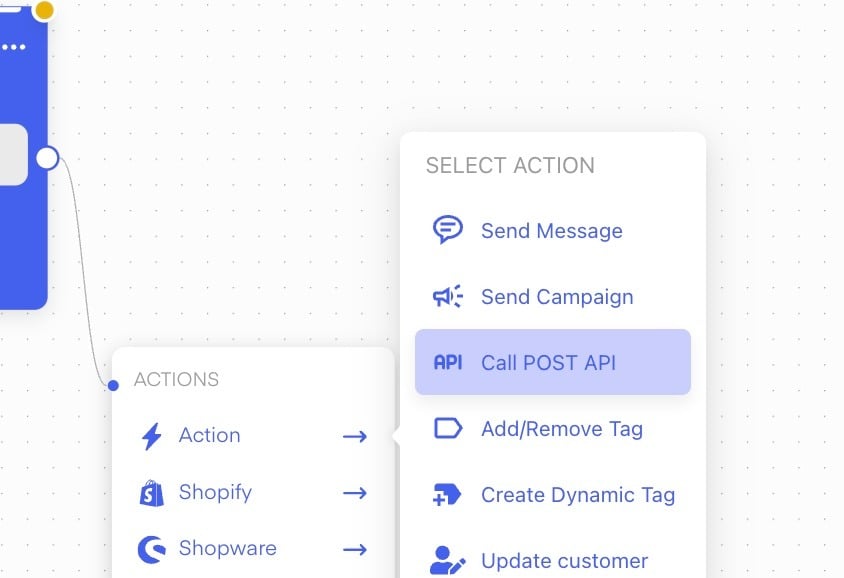
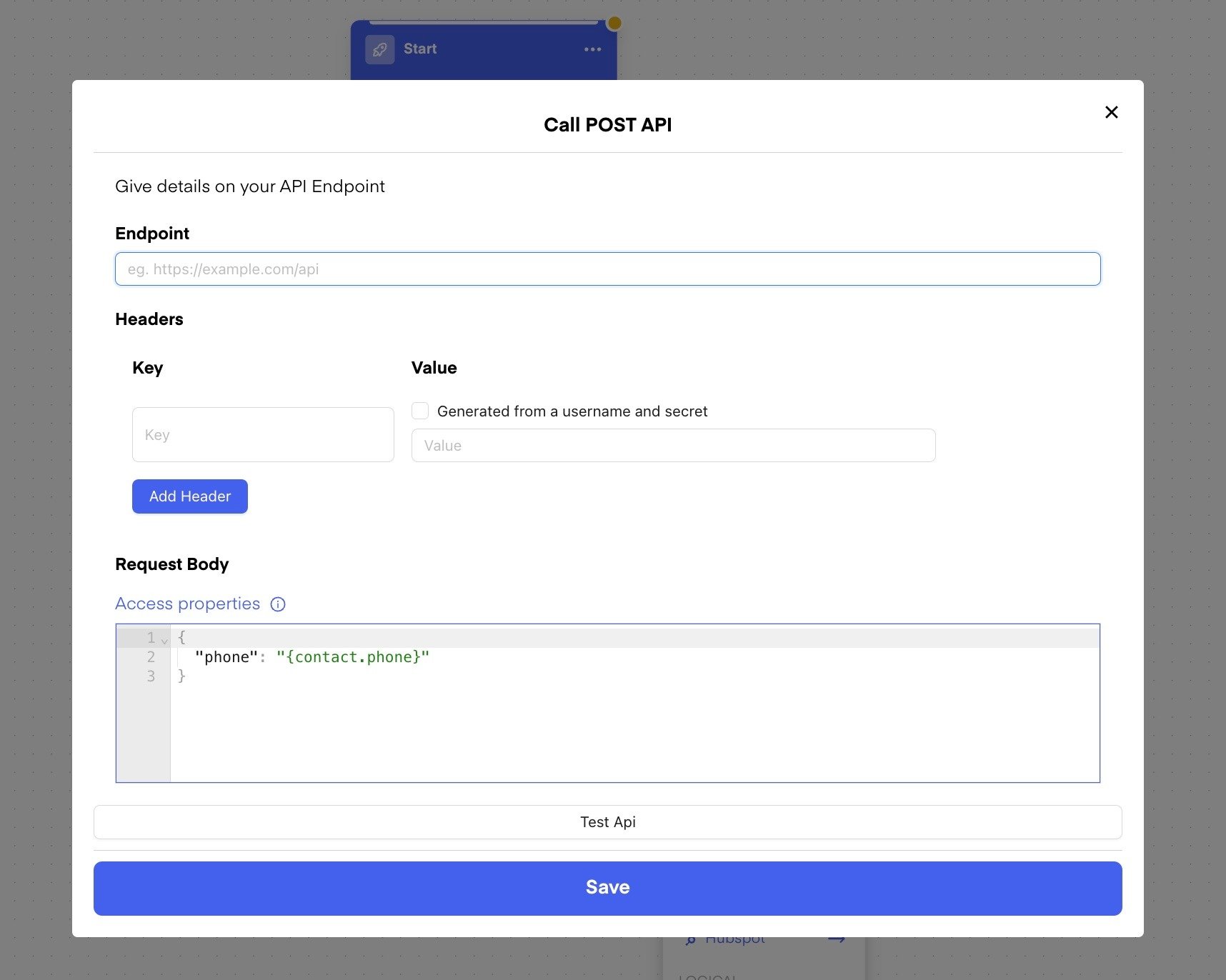
Here's how you set it up in practice:
1. Choose Action "Call POST API Endpoint" in Flow
***
## **Call POST API Endpoint**
***
Triggers when sending to endpoint
***
"call POST API" in our Chatarmin WhatsApp CRM flowbuilder means sending data from your system to another system (like a server or app) using an API. "POST" is a method that allows you to send data (like a message, customer info, etc.) to the server.
For example, when a user takes an action in your WhatsApp flow (like filling out a form), the flowbuilder might call a POST API to send that data to your CRM or another service for further processing, like saving the info or triggering an action.
It’s a way to connect and interact with external systems from your WhatsApp flow.
Here's how you set it up in practice:
1. Choose Action "Call POST API Endpoint" in Flow
 2. Fill in details
 *Source: Chatarmin, Q2 2024*
***
#### SHOPIFY
***
*Source: Chatarmin, Q2 2024*
***
#### SHOPIFY
***
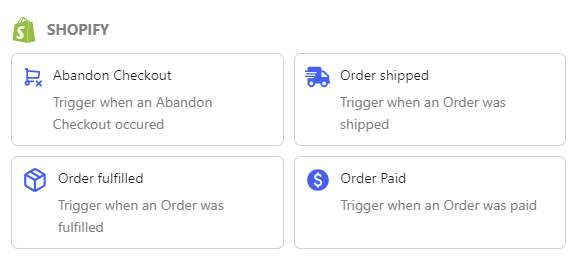 **Abandon Checkout**
Trigger when an Abandon Checkout occurred
**Order shipped**
Trigger when an Order was shipped
**Order fulfilled**
Trigger when an Order was fulfilled
**Order Paid**
Trigger when an Order was paid
[Read more about our Shopify-integration here.](/integrations/shopify/shopify-integration)
***
**SHOPWARE**
***
**Abandon Checkout**
Trigger when an Abandon Checkout occurred
**Order shipped**
Trigger when an Order was shipped
**Order fulfilled**
Trigger when an Order was fulfilled
**Order Paid**
Trigger when an Order was paid
[Read more about our Shopify-integration here.](/integrations/shopify/shopify-integration)
***
**SHOPWARE**
***
 **Order Paid**
Trigger when an Order was paid
**Order shipped**
Trigger when an Order was shipped
Read more about our [Shopware 5-integration here](/integrations/shopware/shopware-5-integration) and [Shopware 6-integration here](/integrations/shopware/shopware-6-integration).
***
**WOOCOMMERCE**
***
**Order Paid**
Trigger when an Order was paid
**Order shipped**
Trigger when an Order was shipped
Read more about our [Shopware 5-integration here](/integrations/shopware/shopware-5-integration) and [Shopware 6-integration here](/integrations/shopware/shopware-6-integration).
***
**WOOCOMMERCE**
***
 **Order Paid**
Trigger when an Order was paid
**Order shipped**
Trigger when an Order was shipped
[Read more about our WooCommerce-integration here.](/integrations/woocommerce/woocommerce-integration)
***
#### JTL
***
**Order Paid**
Trigger when an Order was paid
**Order shipped**
Trigger when an Order was shipped
[Read more about our WooCommerce-integration here.](/integrations/woocommerce/woocommerce-integration)
***
#### JTL
***
 **Order shipped**
Trigger when an Order was shipped
[Read more about our JTL-integration here.](/integrations/jtl/jtl-integration)
***
**FRESHDESK**
***
**Order shipped**
Trigger when an Order was shipped
[Read more about our JTL-integration here.](/integrations/jtl/jtl-integration)
***
**FRESHDESK**
***
 **Ticket Status Update**
Trigger when a Ticket status changed
[Read more about our freshdesk-integration here](/integrations/freshdesk/freshdesk-integration).
***
**KLAVIYO**
***
**Ticket Status Update**
Trigger when a Ticket status changed
[Read more about our freshdesk-integration here](/integrations/freshdesk/freshdesk-integration).
***
**KLAVIYO**
***
 **Klaviyo Events**
Trigger on specific Klaviyo Events
**Klaviyo Webhooks**
Triggers when sending API call from Klaviyo Flow
[Read more about our klaviyo-integration here](/integrations/klaviyo/klaviyo-integration).
***
**ZENDESK**
***
**Klaviyo Events**
Trigger on specific Klaviyo Events
**Klaviyo Webhooks**
Triggers when sending API call from Klaviyo Flow
[Read more about our klaviyo-integration here](/integrations/klaviyo/klaviyo-integration).
***
**ZENDESK**
***
 **Ticket Status Update**
Trigger when a Ticket status changed
**Ticket Status Update**
Trigger when a Ticket status changed
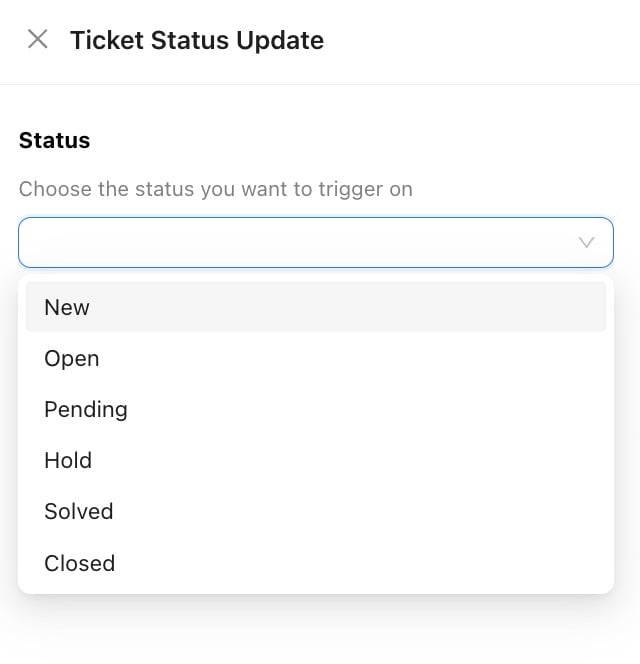 [Read more about our zendesk-integration here](/integrations/zendesk/zendesk-integration).
***
# Creating an Action
***
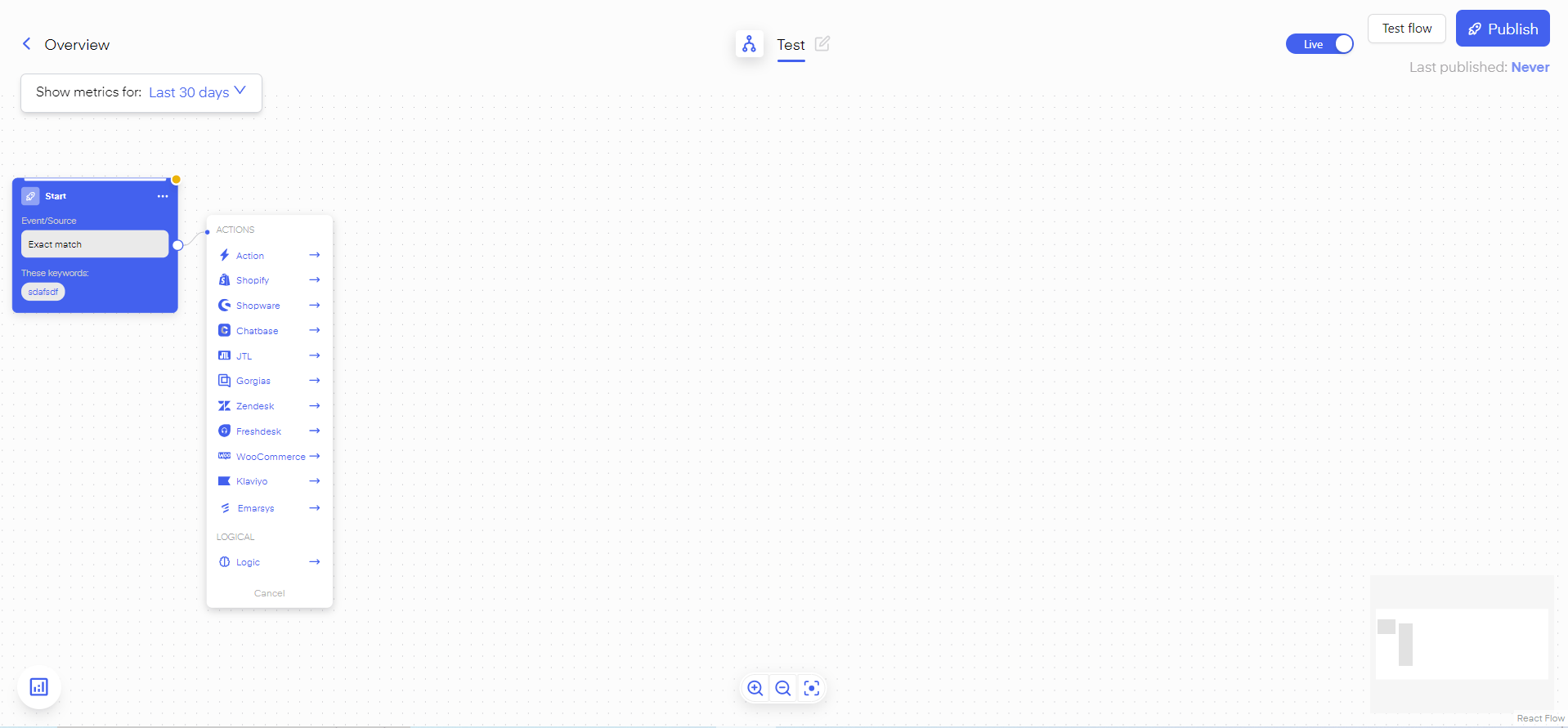
Once having chosen a starting point you will reach the flow builder. To start building a journey for your customer you have to create a first action. Click on the white button next to the starting point to create a new action.
[Read more about our zendesk-integration here](/integrations/zendesk/zendesk-integration).
***
# Creating an Action
***
Once having chosen a starting point you will reach the flow builder. To start building a journey for your customer you have to create a first action. Click on the white button next to the starting point to create a new action.
 ***
# Delays explained
***
***
# Delays explained
***
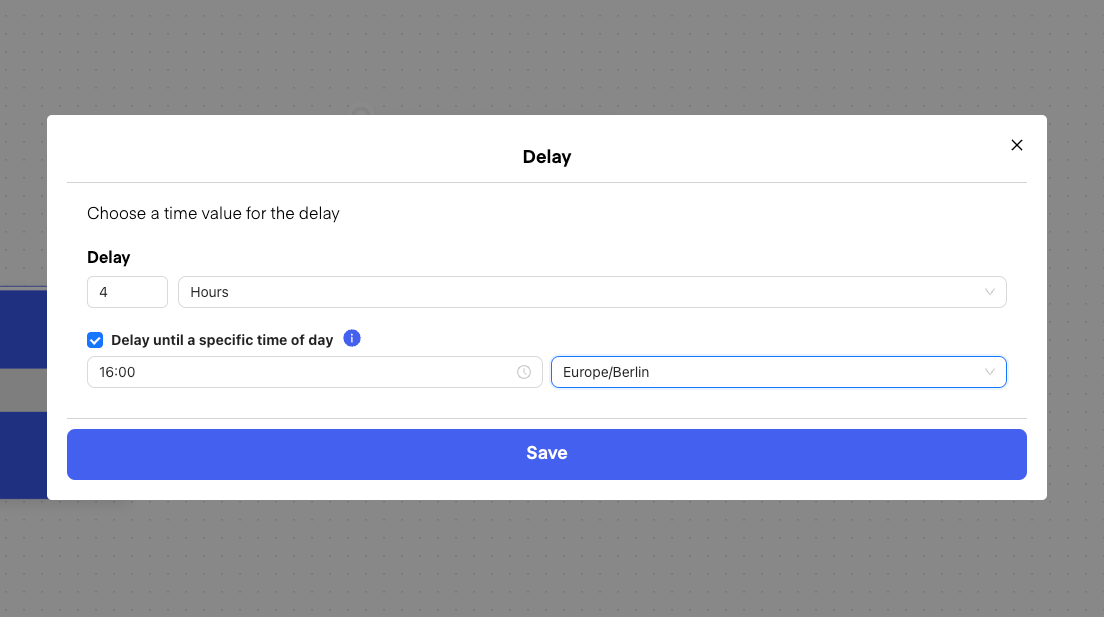 Our delay function allows you to schedule messages to be sent either after a fixed delay (e.g., 4 hours) or at a specific time of day, whichever comes later.
**How It Works:**
* If a "Delay to" time is specified (e.g., 12:00 PM), the system checks if the fixed delay fits between the current time and the "Delay to" time.
* If the delay fits, the message is sent at the "Delay to" time (e.g., 12:00 PM).
* If the delay doesn’t fit, the message is sent at the specified time on the following day.
**Example:**
* A message triggered at 8:00 AM with a 4-hour delay and a "Delay to" time of 12:00 PM will send at 12:00 PM.
* If triggered at 11:00 AM, the message won’t meet the 4-hour delay before 12:00 PM, so it will send the next day at 12:00 PM.
**Note:**
* Our system has been optimized to handle minor timing differences, so there’s no need for adjustments. However, to ensure there's no overlap, you can adjust the fixed delay to be shorter if needed.
***
# Deleting and reestablishing a connection
***
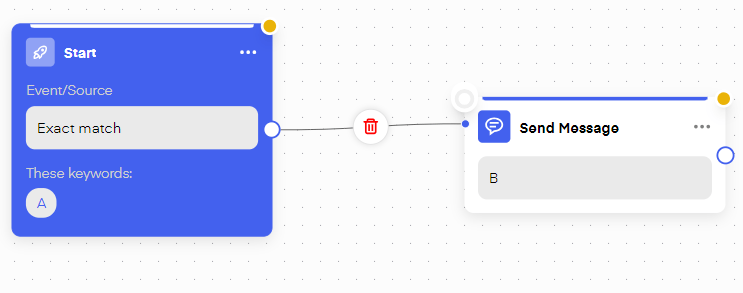
You can delete a connection between two actions by clicking on the connection and clicking on the bin icon.
Our delay function allows you to schedule messages to be sent either after a fixed delay (e.g., 4 hours) or at a specific time of day, whichever comes later.
**How It Works:**
* If a "Delay to" time is specified (e.g., 12:00 PM), the system checks if the fixed delay fits between the current time and the "Delay to" time.
* If the delay fits, the message is sent at the "Delay to" time (e.g., 12:00 PM).
* If the delay doesn’t fit, the message is sent at the specified time on the following day.
**Example:**
* A message triggered at 8:00 AM with a 4-hour delay and a "Delay to" time of 12:00 PM will send at 12:00 PM.
* If triggered at 11:00 AM, the message won’t meet the 4-hour delay before 12:00 PM, so it will send the next day at 12:00 PM.
**Note:**
* Our system has been optimized to handle minor timing differences, so there’s no need for adjustments. However, to ensure there's no overlap, you can adjust the fixed delay to be shorter if needed.
***
# Deleting and reestablishing a connection
***
You can delete a connection between two actions by clicking on the connection and clicking on the bin icon.
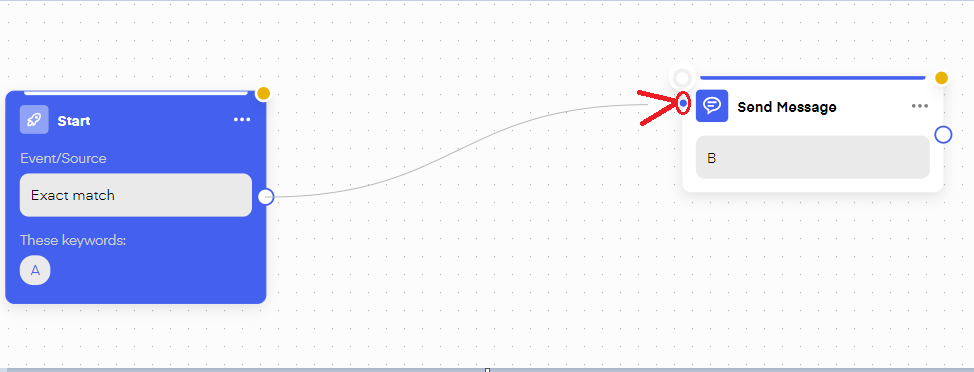
 To reestablish a connection or create a new one you can drag and drop from the white dot on Action A to the blue entry point on Action B.
 ***
# Publishing a flow
***
***
# Publishing a flow
***
 Once you are done creating your flow you can set it to live and click publish. If you do not click publish the changes will only be saved inside the interface but not be sent to META/WhatsApp and thus not be live for the end-user.
***
# Flow analytics
***
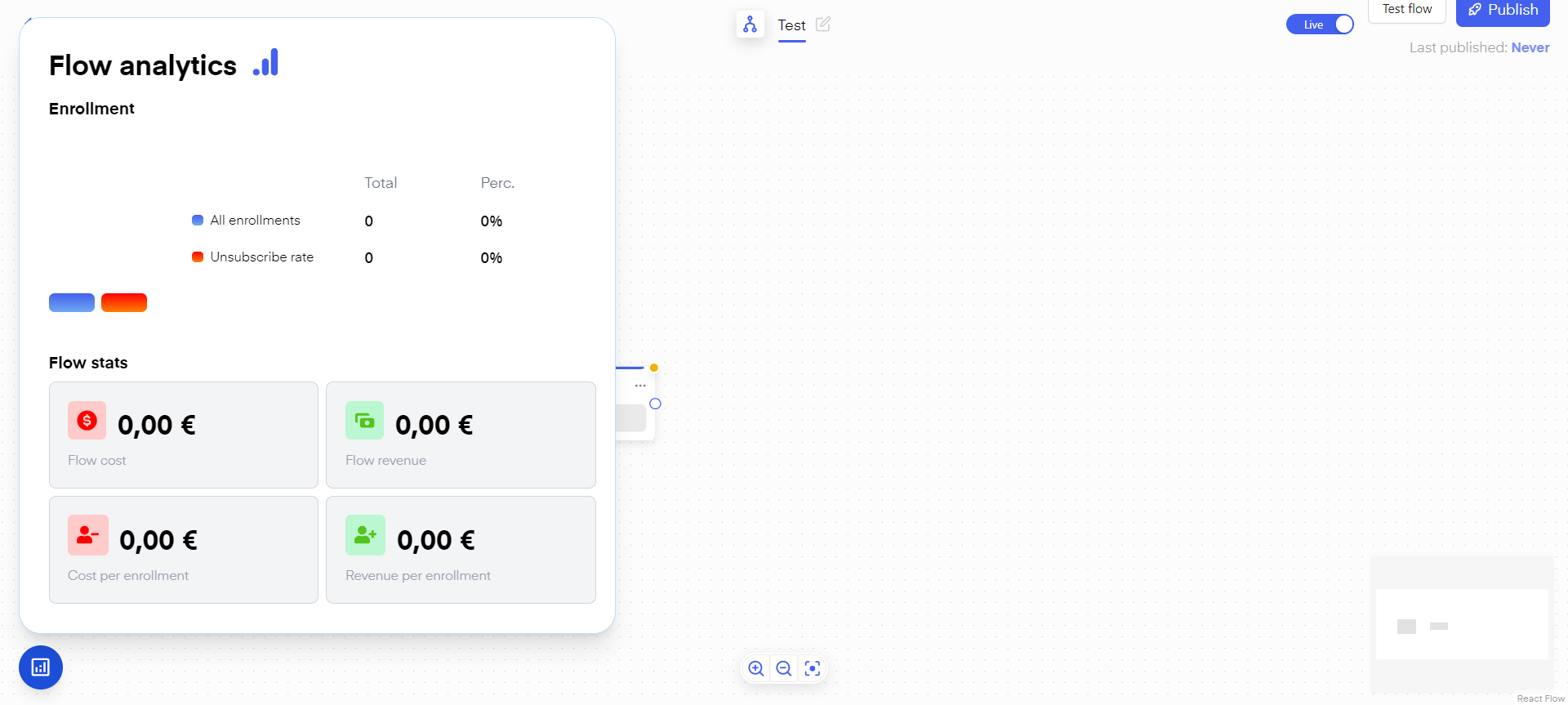
You can click on the bottom left for additional insights into your flow analytics. You can also hover over the top left of any action to see how the specific action is performing.
Once you are done creating your flow you can set it to live and click publish. If you do not click publish the changes will only be saved inside the interface but not be sent to META/WhatsApp and thus not be live for the end-user.
***
# Flow analytics
***
You can click on the bottom left for additional insights into your flow analytics. You can also hover over the top left of any action to see how the specific action is performing.
 ***
# Flow A/B-Testing
***
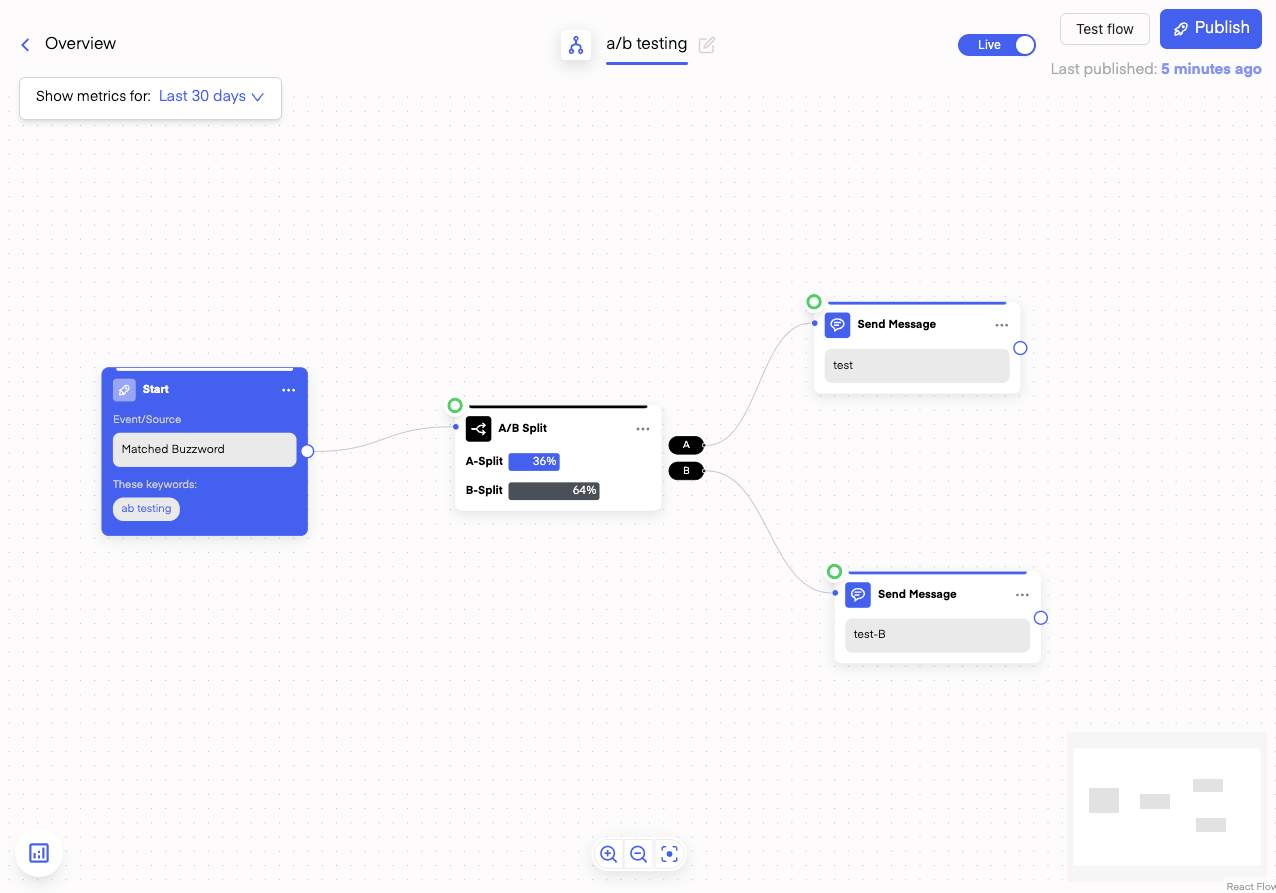
Make sure to a/b-test if you want to iterate your WhatsApp-flows and have quantifiable data to make changes to your WhatsApp-automations.
Simply
1. Go to flow actions -> logic
2. Choose "A/B-Testing"
3. Split the audience in the respective flow-point, to your wishes
Here is how A/B-Testing in WhatsApp-Flows looks like on Chatarmin:
***
# Flow A/B-Testing
***
Make sure to a/b-test if you want to iterate your WhatsApp-flows and have quantifiable data to make changes to your WhatsApp-automations.
Simply
1. Go to flow actions -> logic
2. Choose "A/B-Testing"
3. Split the audience in the respective flow-point, to your wishes
Here is how A/B-Testing in WhatsApp-Flows looks like on Chatarmin:
 ***
# Date Property Flow, Birthday Flow
***
Find an in-depth-videoguide on how to build date-property flows, including negative delays, for your birthday flows and gifting cases, here:
*Source: Chatarmin, Q3 2024*
Attention: Make sure you pair it with the necessary lead-enrichment through:
* asking for dates in flows (await customer reply -> use it)
* importing dates from external data sources, such as csv files
* syncing with your shop-system and CRMs
***
## Avoiding Endless Loops in WhatsApp Flows
***
In order to avoid endless loops, especially when asking client for responses:
***
# Date Property Flow, Birthday Flow
***
Find an in-depth-videoguide on how to build date-property flows, including negative delays, for your birthday flows and gifting cases, here:
*Source: Chatarmin, Q3 2024*
Attention: Make sure you pair it with the necessary lead-enrichment through:
* asking for dates in flows (await customer reply -> use it)
* importing dates from external data sources, such as csv files
* syncing with your shop-system and CRMs
***
## Avoiding Endless Loops in WhatsApp Flows
***
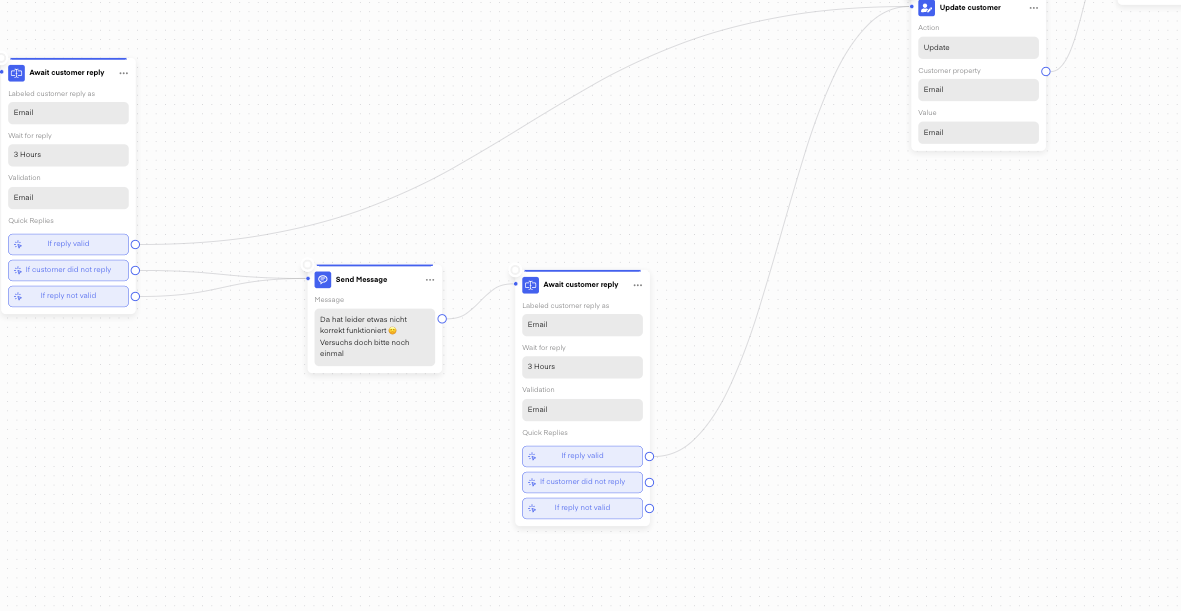
In order to avoid endless loops, especially when asking client for responses:
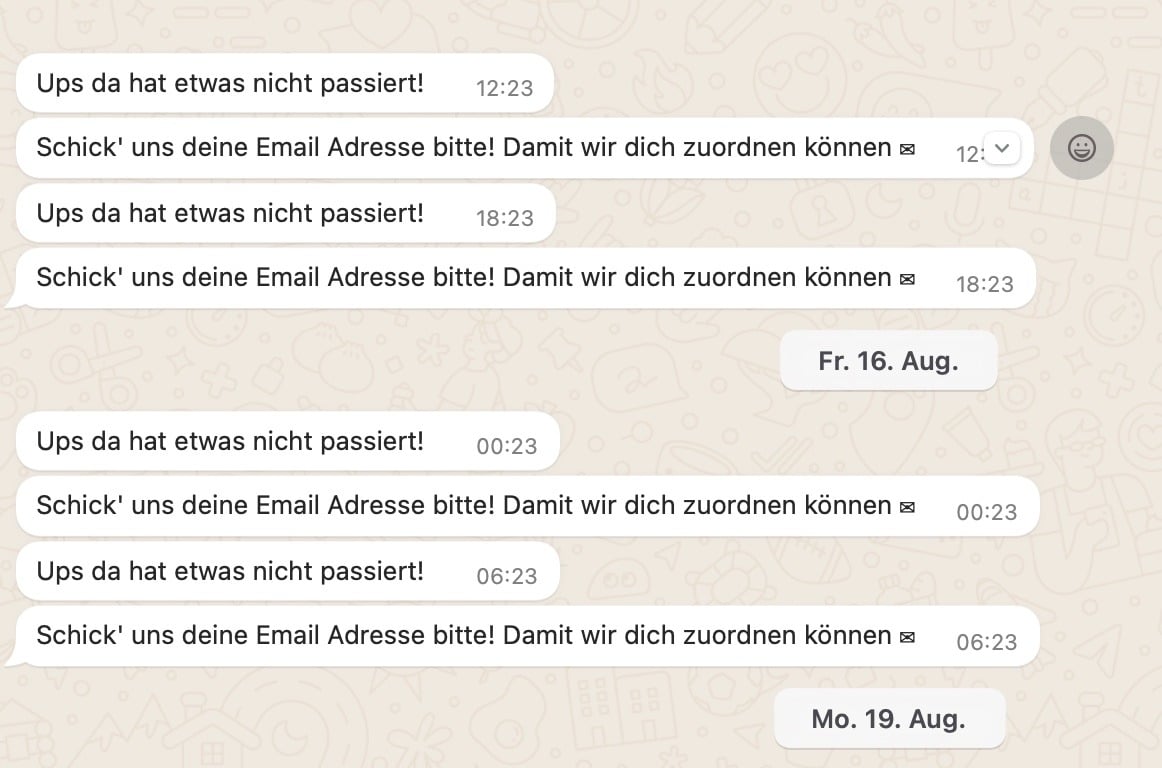 ..feel free to build a custom flow for the endpoints, or just leave them open, maybe after 2-3x retargeting attempts:
 ***
***BONUS:*** [Checkout dynamic Shopify discount codes here](/integrations/shopify/shopify-creating-a-dynamic-discount-code-and-using-it-in-chatarmin) in order to embed your personalized birthday offer into your WhatsApp birthday flow.
***
***BONUS:*** Watch this **FULL BIRTHDAY SETUP BUILT** for one of our 7-figure-Shopify & Klaviyo-clients accounts! Including Shopify & Klaviyo integration!
*Source: Chatarmin, Q3 2024*
***
***BONUS: Shopify Basic Flow Setup - Full Shopify WhatsApp Flows Full Basic Onboarding Guide:***
Watch this complete WhatsApp Shopify Integration Flow Guide to get started in 15min:
Source: Chatarmin, Q1 2024
***
# **IF/Else SPLITS for out-of-office-hours**
***
## Short description
IF/Else splits route contacts into different flow paths based on conditions such as time of day, day of the week, or contact properties. Use them to handle support requests outside office hours — or to temporarily disable WhatsApp support and redirect customers to email without creating tickets in your helpdesk.
## When to use this
* Sending an automatic reply outside office hours
* Temporarily disabling WhatsApp support and redirecting customers to email
* Informing customers on weekends or holidays without creating tickets in Gorgias, Freshdesk, or Zendesk
## IF/Else conditions – overview
IF/Else splits can check the following:
* Contact consent
* Contact properties (email, birth date, name, first name …)
* Message content ("message contains")
* Hour of the day
* Day of the week
* And many more
## Steps: Set up an out-of-office autoresponder
1. Go to **Flows → Create new Flow** and select the **"No-Service Flow"** template — or create a new flow via **"Create from Scratch"**.
2. Set the trigger to **"Customer interaction"** (fires on every incoming message).
3. Add an **IF/Else action**. Set the condition to **"Days"** → **"today is"** and select e.g. Saturday and Sunday. For time-based filtering, use **"Hour"** → **"is before 08:00"** or **"is after 17:00"**.
4. In the **"Yes" path**: add a **"Send Message"** action with your out-of-office text, for example: *"Hey @Firstname, unfortunately you've reached us outside of our support hours. Please contact us via email — we'll get back to you as soon as possible."*
5. Leave the **"No" path** open, or connect it to your regular support flow.
6. Click **"Publish"** to activate the flow.
## Notes / best practices
* **No ticket in Gorgias / Freshdesk / Zendesk**: If the "Yes" path contains no "Create Ticket" action, no ticket is created. The message stays a pure WhatsApp autoresponder.
* **Assign a tag**: Tag contacts in the "Yes" path (e.g. Support-Autoresponder-Q22026) to identify them for future re-engagement campaigns (SOI → DOI conversion).
* **Keyword filter**: Add an additional IF/Else split that checks for words like "ok", "okay", or "thanks" and routes those contacts through without a reply — this prevents the flow from responding to short acknowledgment messages.
**Prevent spam loops**: Check via IF/Else whether the contact already received the autoresponder message in the last 6–12 hours before sending again.
*Source: Chatarmin, Q1 2024*
***
# Optout Flow for Unsubscribe
***
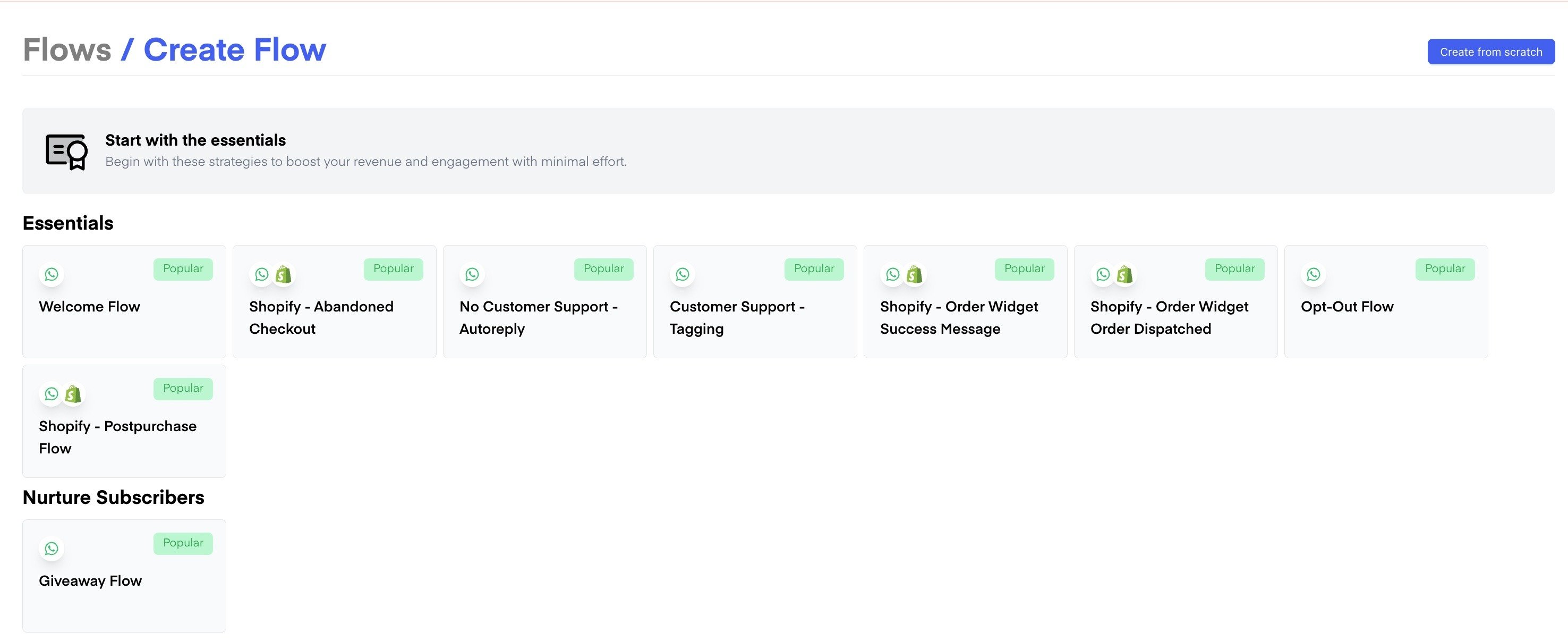
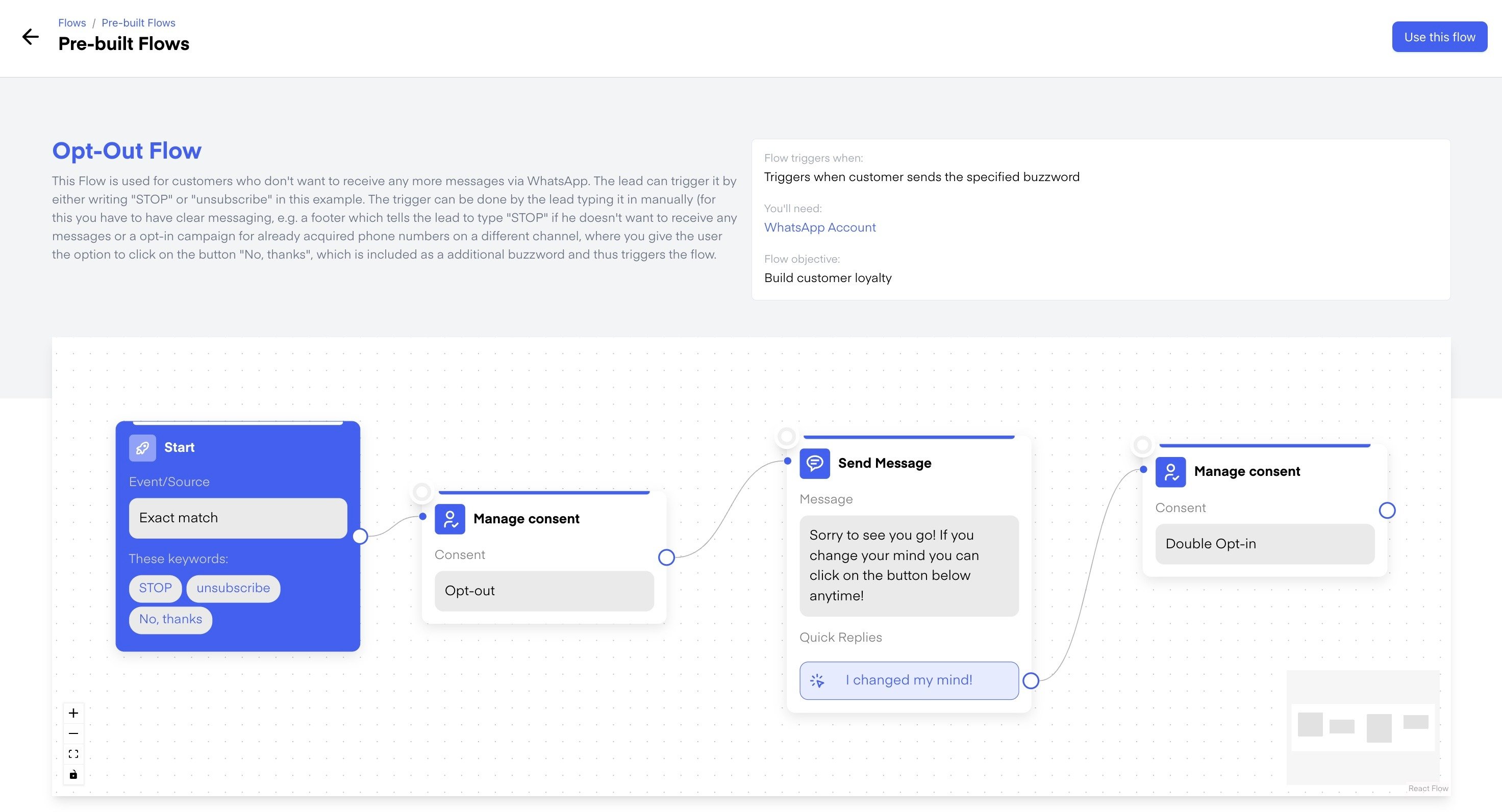
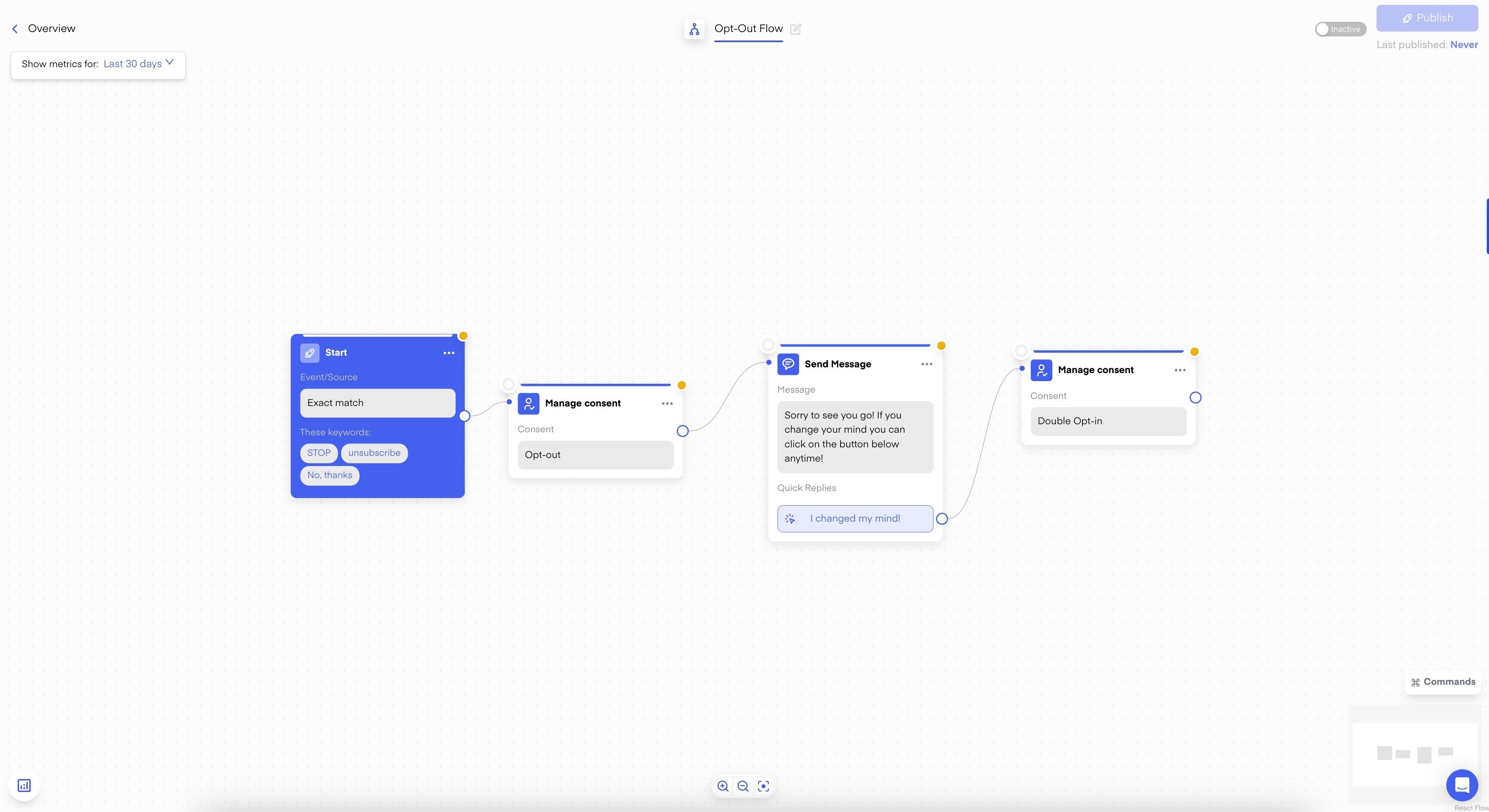
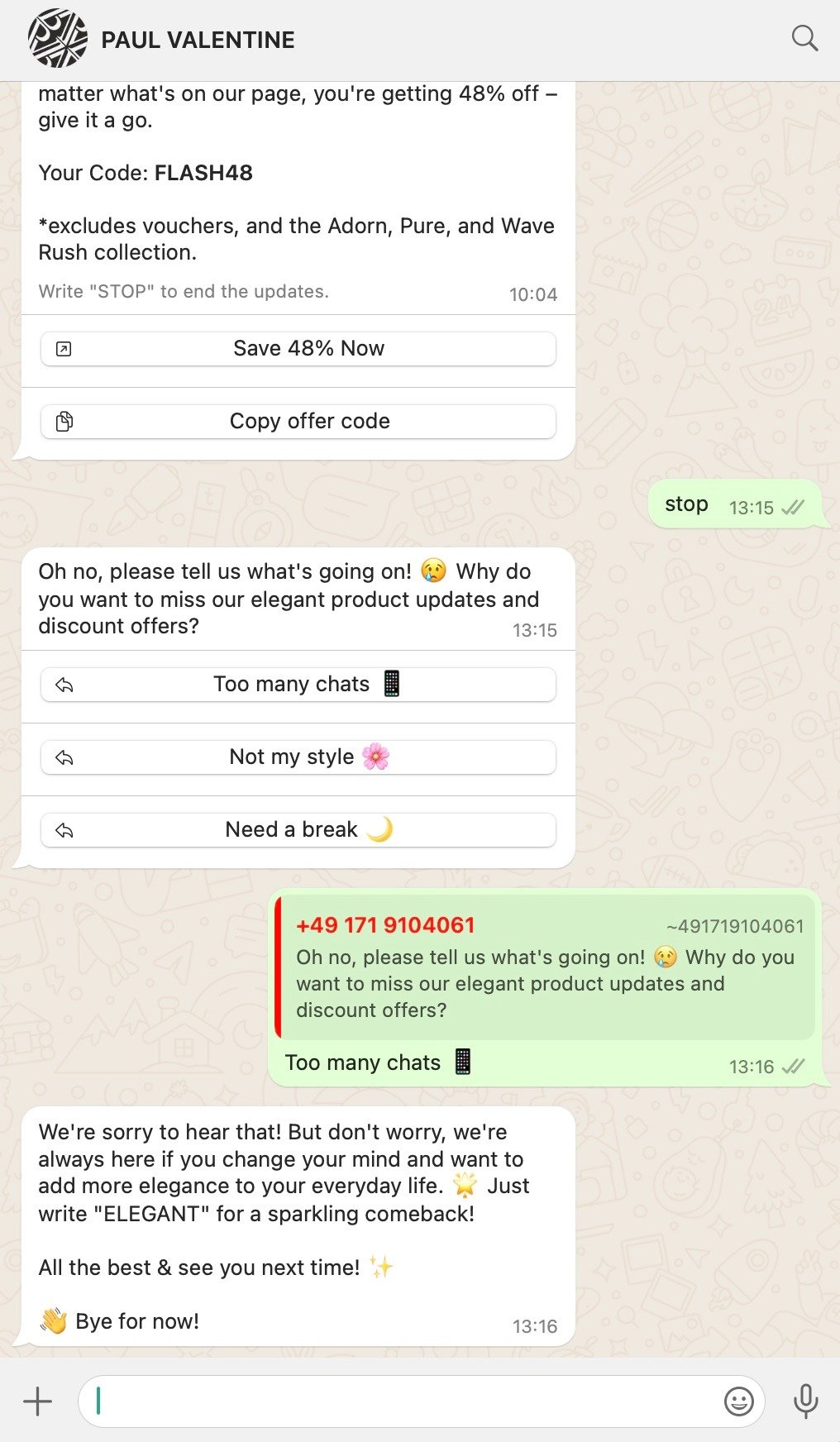
Chatarmin's flow-dashboard provides a template for optout flow, to enable your leads to unsubscribe from your WhatsApp-activities as per buzzword. Simply use "contains" or "exact match" buzzword and use the "flow action" -> "manage consent" -> "Optout".
1. Setup flow in ["Flows" -> "explore"](https://chatarmin.com/dashboard/flows/explore)
***
***BONUS:*** [Checkout dynamic Shopify discount codes here](/integrations/shopify/shopify-creating-a-dynamic-discount-code-and-using-it-in-chatarmin) in order to embed your personalized birthday offer into your WhatsApp birthday flow.
***
***BONUS:*** Watch this **FULL BIRTHDAY SETUP BUILT** for one of our 7-figure-Shopify & Klaviyo-clients accounts! Including Shopify & Klaviyo integration!
*Source: Chatarmin, Q3 2024*
***
***BONUS: Shopify Basic Flow Setup - Full Shopify WhatsApp Flows Full Basic Onboarding Guide:***
Watch this complete WhatsApp Shopify Integration Flow Guide to get started in 15min:
Source: Chatarmin, Q1 2024
***
# **IF/Else SPLITS for out-of-office-hours**
***
## Short description
IF/Else splits route contacts into different flow paths based on conditions such as time of day, day of the week, or contact properties. Use them to handle support requests outside office hours — or to temporarily disable WhatsApp support and redirect customers to email without creating tickets in your helpdesk.
## When to use this
* Sending an automatic reply outside office hours
* Temporarily disabling WhatsApp support and redirecting customers to email
* Informing customers on weekends or holidays without creating tickets in Gorgias, Freshdesk, or Zendesk
## IF/Else conditions – overview
IF/Else splits can check the following:
* Contact consent
* Contact properties (email, birth date, name, first name …)
* Message content ("message contains")
* Hour of the day
* Day of the week
* And many more
## Steps: Set up an out-of-office autoresponder
1. Go to **Flows → Create new Flow** and select the **"No-Service Flow"** template — or create a new flow via **"Create from Scratch"**.
2. Set the trigger to **"Customer interaction"** (fires on every incoming message).
3. Add an **IF/Else action**. Set the condition to **"Days"** → **"today is"** and select e.g. Saturday and Sunday. For time-based filtering, use **"Hour"** → **"is before 08:00"** or **"is after 17:00"**.
4. In the **"Yes" path**: add a **"Send Message"** action with your out-of-office text, for example: *"Hey @Firstname, unfortunately you've reached us outside of our support hours. Please contact us via email — we'll get back to you as soon as possible."*
5. Leave the **"No" path** open, or connect it to your regular support flow.
6. Click **"Publish"** to activate the flow.
## Notes / best practices
* **No ticket in Gorgias / Freshdesk / Zendesk**: If the "Yes" path contains no "Create Ticket" action, no ticket is created. The message stays a pure WhatsApp autoresponder.
* **Assign a tag**: Tag contacts in the "Yes" path (e.g. Support-Autoresponder-Q22026) to identify them for future re-engagement campaigns (SOI → DOI conversion).
* **Keyword filter**: Add an additional IF/Else split that checks for words like "ok", "okay", or "thanks" and routes those contacts through without a reply — this prevents the flow from responding to short acknowledgment messages.
**Prevent spam loops**: Check via IF/Else whether the contact already received the autoresponder message in the last 6–12 hours before sending again.
*Source: Chatarmin, Q1 2024*
***
# Optout Flow for Unsubscribe
***
Chatarmin's flow-dashboard provides a template for optout flow, to enable your leads to unsubscribe from your WhatsApp-activities as per buzzword. Simply use "contains" or "exact match" buzzword and use the "flow action" -> "manage consent" -> "Optout".
1. Setup flow in ["Flows" -> "explore"](https://chatarmin.com/dashboard/flows/explore)
 2. Choose Template-Flow [Opt-out Flow](https://chatarmin.com/dashboard/flows/prebuilt?id=opt-out_flow)
 3. Click "publish"
 🚨 ***BONUS:*** **Use optouts for lead-enrichment to improve your WhatsApp-game!**
 *Source: PAUL VALENTINE WhatsApp, Q3 2024*