> ## Documentation Index
> Fetch the complete documentation index at: https://help.chatarmin.com/llms.txt
> Use this file to discover all available pages before exploring further.
# How & Where to Embed the Chatstart Widget
> Chatarmin guide: How & Where to Embed the Chatstart Widget
## 📲 **Chatstart QR Code**
***
With a Chatstart QR code, you can trigger a specific flow instantly - just place it wherever your audience can scan it, from packaging to screens to print.
## 🔧 **How to generate a Chatstart QR code:**
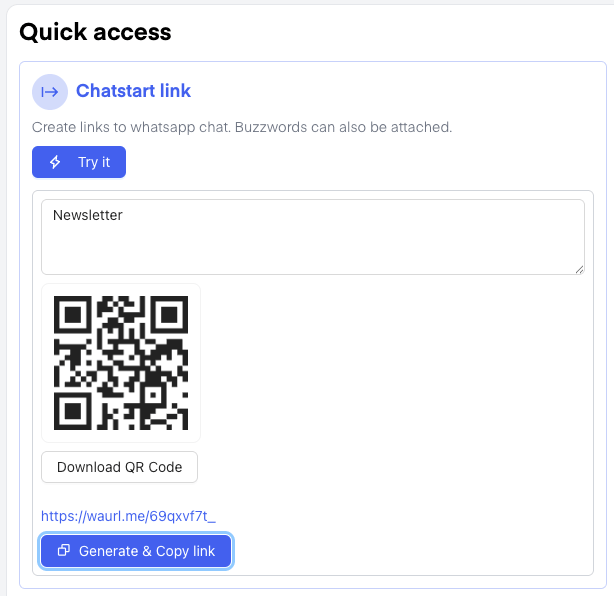
1. Open your [**Chatarmin Dashboard**](https://chatarmin.com/dashboard).
2. Navigate to the **Chatstart Link** section in the menu.
3. Click on **Try it** to start the process.
4. Enter a **buzzword** based on the flow you want to trigger (e.g., "Welcome", "Newsletter",...)
5. The system will instantly create a **QR code** for that buzzword.
6. Click **“Download QR Code”** to save it.\
You can now use it anywhere - print it or place it wherever it can be scanned.
🔁 **Alternative: Create directly from a Flow**
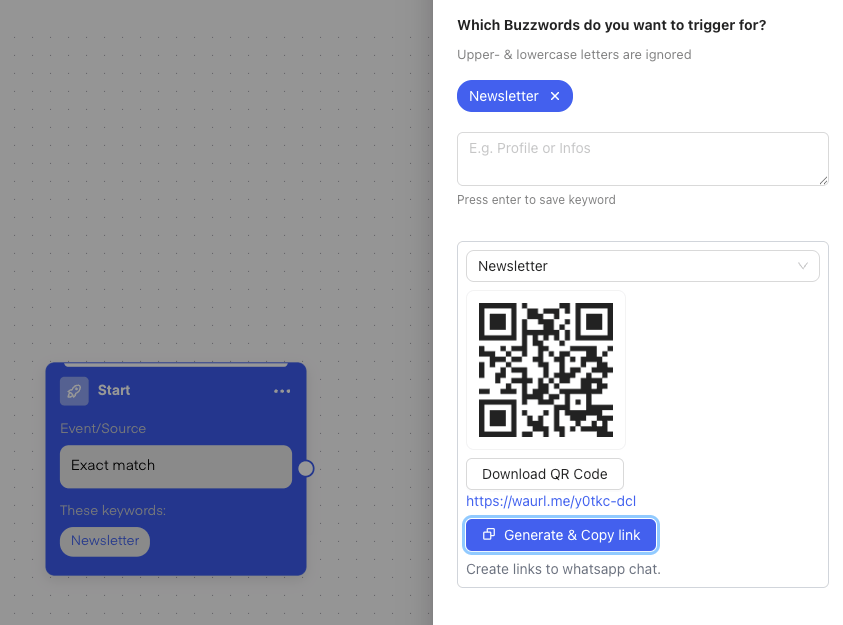
You can also go into any existing flow, choose the **Trigger** step, select a **buzzword**, and generate a link and QR code directly from there. Ideal for quick flow testing!
***
## 💬 Embed The Chatstart Widget on your website
**🚨 Check out the following YouTube Guide on how to implement the Chatstart Widget (German) or just follow the steps below:**
***
1. Go to your [**Chatarmin Dashboard**.](https://chatarmin.com/dashboard)
2. Navigate to the **Chatstart Widget** section.
3. Click **Customize** to set up your widget.
4. You’ll receive an **HTML embed code** - place this code into your website unter theme.liquid in Shopify (just before the closing `` tag).
In the top right corner, you can create multiple widgets - for example, to use on different websites.
 🔁 **Alternative: Create directly from a Flow**
You can also go into any existing flow, choose the **Trigger** step, select a **buzzword**, and generate a link and QR code directly from there. Ideal for quick flow testing!
🔁 **Alternative: Create directly from a Flow**
You can also go into any existing flow, choose the **Trigger** step, select a **buzzword**, and generate a link and QR code directly from there. Ideal for quick flow testing!
 ***
## 💬 Embed The Chatstart Widget on your website
**🚨 Check out the following YouTube Guide on how to implement the Chatstart Widget (German) or just follow the steps below:**
***
1. Go to your [**Chatarmin Dashboard**.](https://chatarmin.com/dashboard)
2. Navigate to the **Chatstart Widget** section.
3. Click **Customize** to set up your widget.
4. You’ll receive an **HTML embed code** - place this code into your website unter theme.liquid in Shopify (just before the closing `
***
## 💬 Embed The Chatstart Widget on your website
**🚨 Check out the following YouTube Guide on how to implement the Chatstart Widget (German) or just follow the steps below:**
***
1. Go to your [**Chatarmin Dashboard**.](https://chatarmin.com/dashboard)
2. Navigate to the **Chatstart Widget** section.
3. Click **Customize** to set up your widget.
4. You’ll receive an **HTML embed code** - place this code into your website unter theme.liquid in Shopify (just before the closing `