> ## Documentation Index
> Fetch the complete documentation index at: https://help.chatarmin.com/llms.txt
> Use this file to discover all available pages before exploring further.
# Dashboard - Explained
> Chatarmin guide: Dashboard - Explained
***
# Dashboard
***
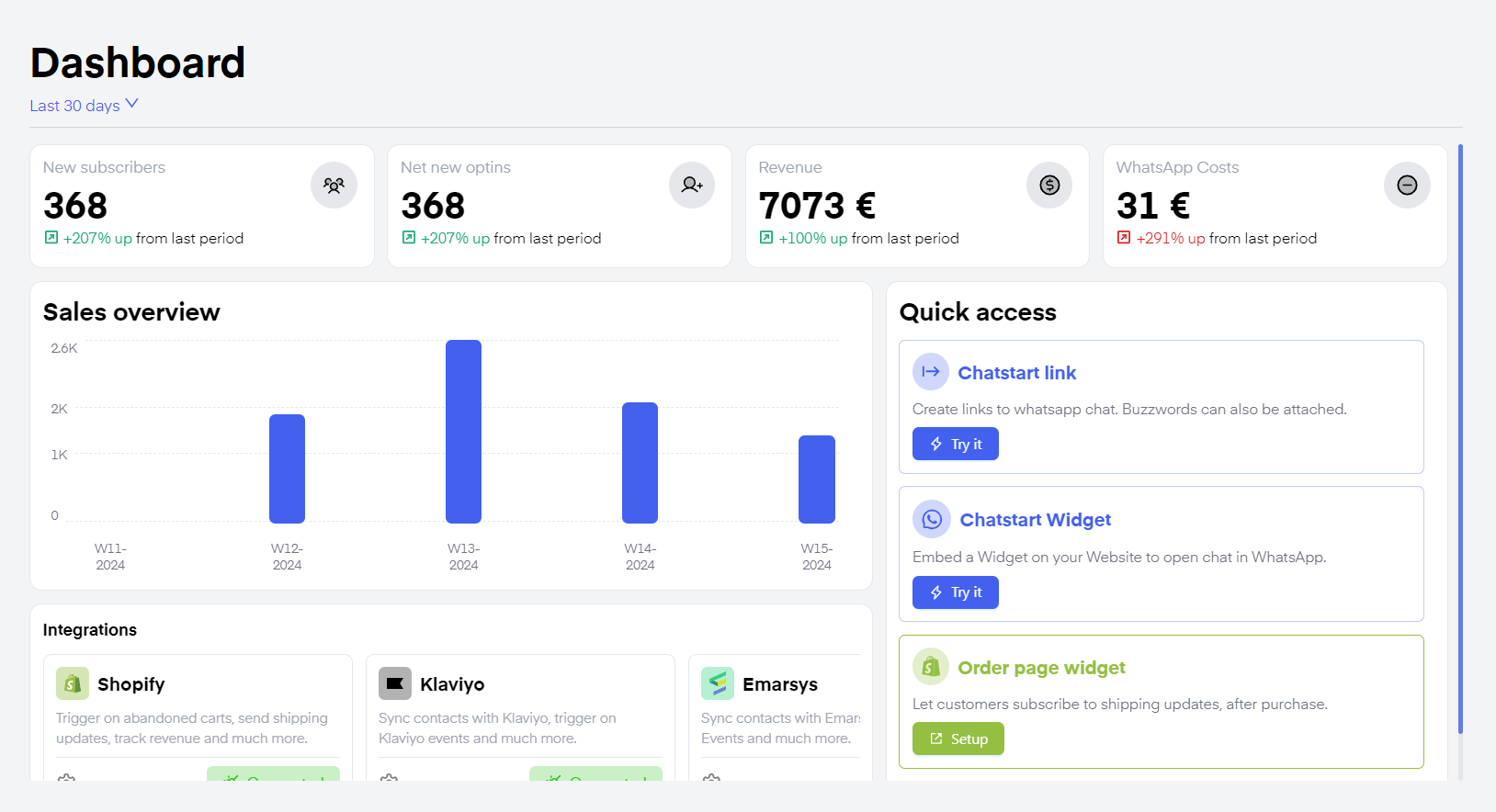
The Dashboard is the landing page of chatarmin. Once you log in you will automatically be redirected to the ["Dashboard"](https://chatarmin.com/dashboard/) feature.
 Alternatively here is a video explanation of the dashboard feature:
***
# Statistics
***
Alternatively here is a video explanation of the dashboard feature:
***
# Statistics
***
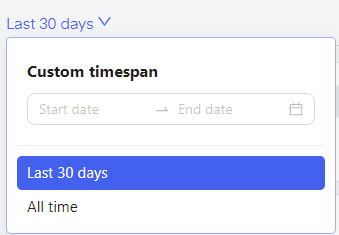
 On the top, you can switch the timeframe, for which the statistics of the Dashboard are displayed. It is set to "last 30 days" by default but you can switch to "all time" or to a "custom timespan" anytime.
 The statistics displayed are "New subscribers". It refers to all users who have entered your Chatarmin CRM in the chosen timeframe. "Net new optins" refers to all users who have given their Opt-in consent in this timeframe. "Revenue" refers to all generated revenue by using the Chatarmin tool in your shop. To understand how Chatarmin attributes revenue, [click here](/meta-related/revenue-attribution-in-chatarmin). WhatsApp Costs refers to your conversational ["META-Costs"](/billing/meta-pricing), excluding [Chatarmin costs](/billing/chatarmin-pricing).
 ***
# Sales Overview
***
***
# Sales Overview
***
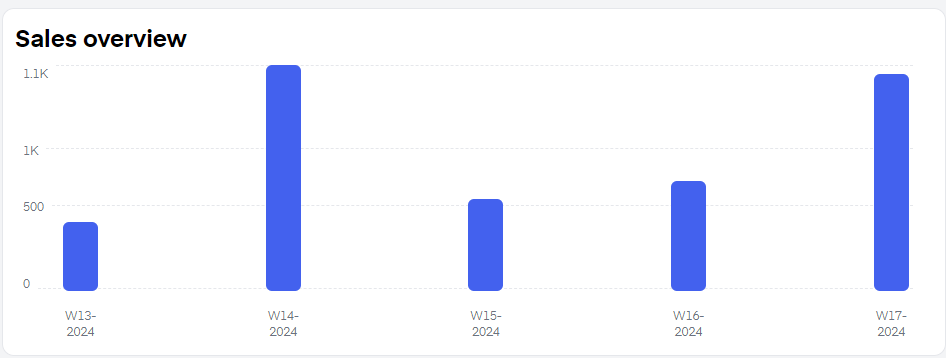 In your "Sales overview" you can see a bar diagram displaying your revenue on a week-by-week basis. Hover over the bars to see how much revenue you generated exactly using Chatarmin.
***
# Integrations
***
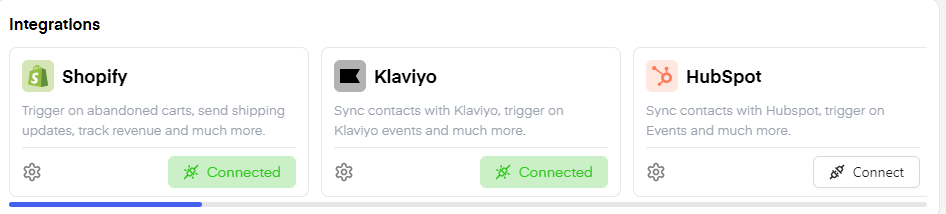
On the bottom of the ["Dashboard"](https://chatarmin.com/dashboard) feature, click on connect on any integration to connect the tools you already use within your shop to natively integrate them into your "Chatarmin" workspace. Once you click "Connect", you will be forwarded to a step-by-step tutorial, explaining how to connect the specific integration.
In your "Sales overview" you can see a bar diagram displaying your revenue on a week-by-week basis. Hover over the bars to see how much revenue you generated exactly using Chatarmin.
***
# Integrations
***
On the bottom of the ["Dashboard"](https://chatarmin.com/dashboard) feature, click on connect on any integration to connect the tools you already use within your shop to natively integrate them into your "Chatarmin" workspace. Once you click "Connect", you will be forwarded to a step-by-step tutorial, explaining how to connect the specific integration.
 ***
# Quick access
***
***
# Quick access
***
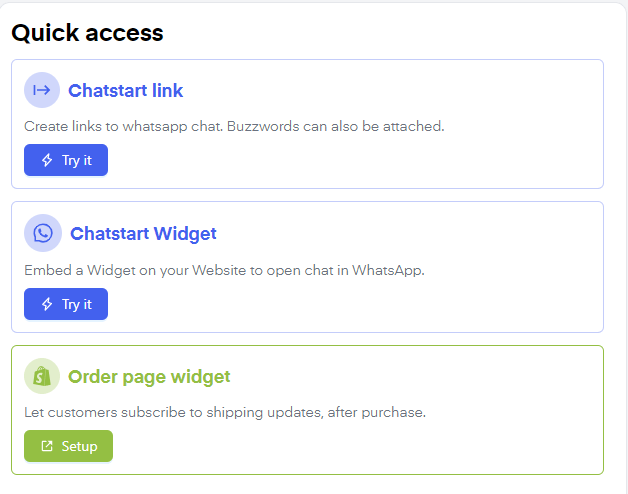 In your quick access bar, you can find 3 core features of our Chatarmin Dashboard:
***
## WhatsApp Chatstart link
***
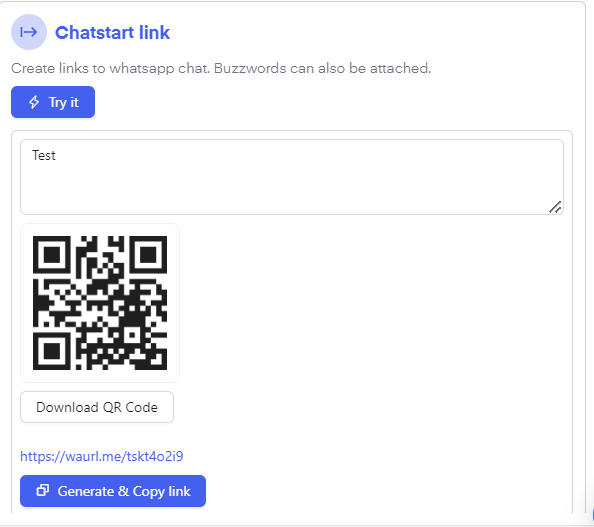
Click **"Chatstart link"** to create a link or QR-Code forwarding the user to a designated flow. To create this Chatstart-link click **"try it"**. Paste the Buzzword of a previously created Flow inside of the text box and click **"Generate and Copy Link"**. Optionally you can also click **"Download QR-Code"** if needed. You can then embed this link into a button, be it on your website directly, on socials, or inside E-Mail. The customer will enter the WhatsApp chat with the message you chose directly pre-message inside his/her WhatsApp chat with your company. By sending the pre-drafted message it will trigger the previously created Buzzword Flow.
In your quick access bar, you can find 3 core features of our Chatarmin Dashboard:
***
## WhatsApp Chatstart link
***
Click **"Chatstart link"** to create a link or QR-Code forwarding the user to a designated flow. To create this Chatstart-link click **"try it"**. Paste the Buzzword of a previously created Flow inside of the text box and click **"Generate and Copy Link"**. Optionally you can also click **"Download QR-Code"** if needed. You can then embed this link into a button, be it on your website directly, on socials, or inside E-Mail. The customer will enter the WhatsApp chat with the message you chose directly pre-message inside his/her WhatsApp chat with your company. By sending the pre-drafted message it will trigger the previously created Buzzword Flow.
 ***
## WhatsApp Chatstart Widget
***
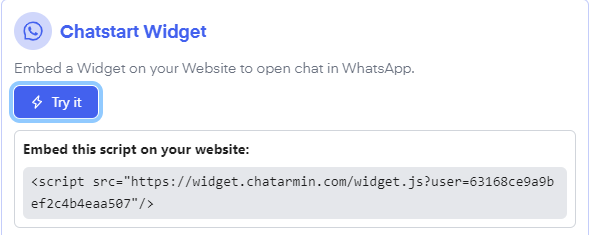
By clicking **"try it"** by the **"Chatstart Widget"** symbol, you will be shown a script that you can embed into your website to display a chat-in bubble. This way your customer can get in contact with you for customer support requests via WhatsApp. This helps create trust and successively convert your lead into a marketing lead.
***
## WhatsApp Chatstart Widget
***
By clicking **"try it"** by the **"Chatstart Widget"** symbol, you will be shown a script that you can embed into your website to display a chat-in bubble. This way your customer can get in contact with you for customer support requests via WhatsApp. This helps create trust and successively convert your lead into a marketing lead.
 *Source: Chatarmin, Q1 2024*
### Embed Widget in Shopify
Find here a video on how to add the Widget to your Shopify Shop:
*Source: Chatarmin, Q3 2024*
***
### BONUS: Integrate Widget on Shopify
***
## WhatsApp Order Page Widget: Thank You Page Widget for Shipping Info
***
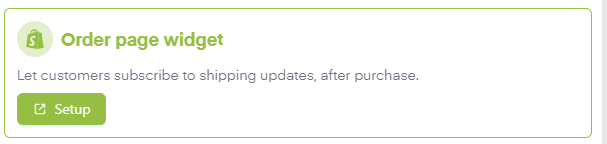
By clicking **"Order Page Widget"** "Setup" you will be redirected to the Thank you page widget Setup page.
*Source: Chatarmin, Q1 2024*
### Embed Widget in Shopify
Find here a video on how to add the Widget to your Shopify Shop:
*Source: Chatarmin, Q3 2024*
***
### BONUS: Integrate Widget on Shopify
***
## WhatsApp Order Page Widget: Thank You Page Widget for Shipping Info
***
By clicking **"Order Page Widget"** "Setup" you will be redirected to the Thank you page widget Setup page.
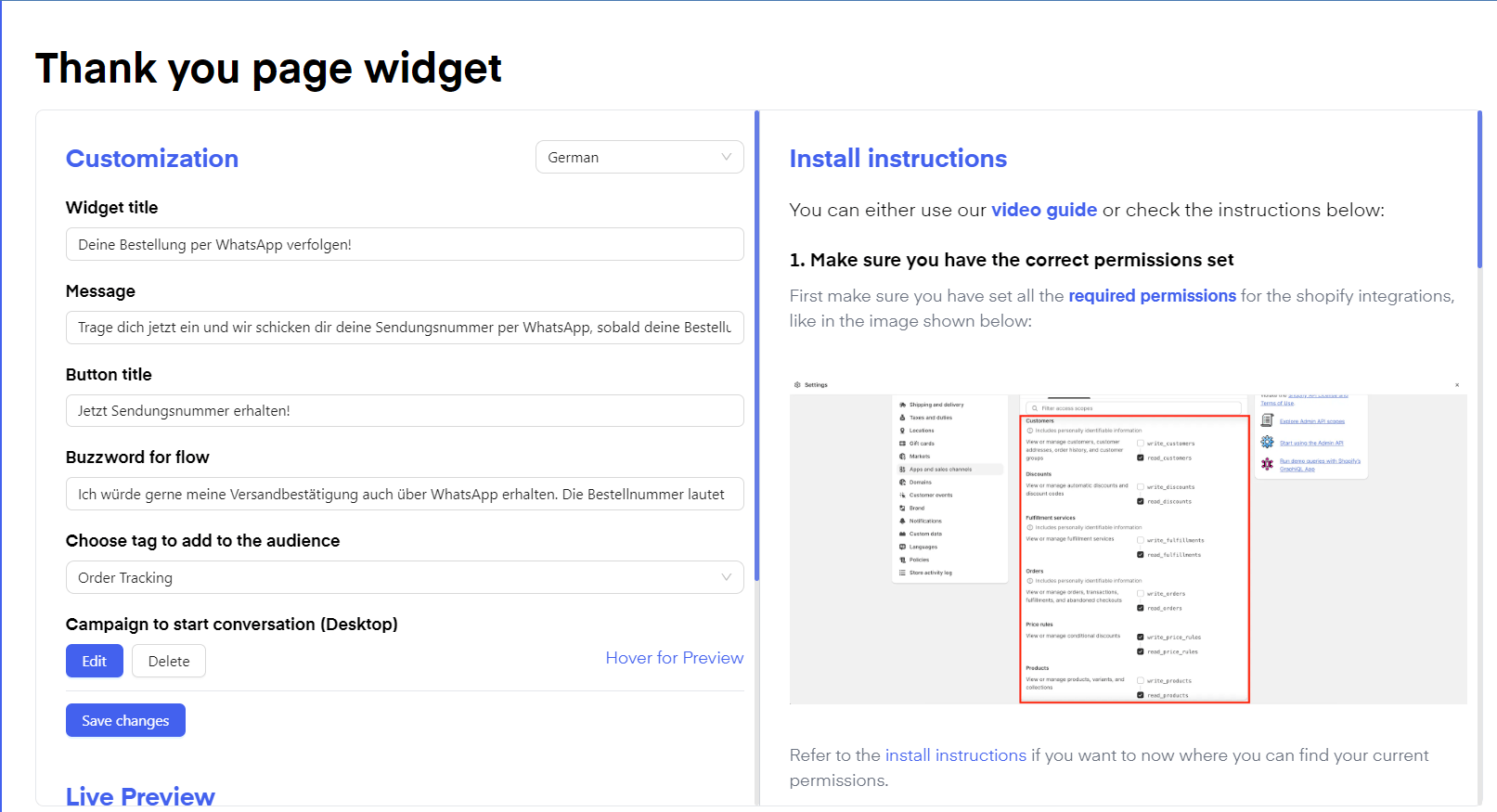 On the left-hand side, you can customize your "Thank you page" to your liking.
Follow the linked **"video guide"** or the step-by-step text guide on the right-hand side to set up your **"Thank you Page Widget"**. The widget will only go live on your website once you finish the final step and embed the script into your website.
**Find more resources on our order page widgets** here in our detailed thank you page widget guides, taking into account your shop-system:
* [Shopify Order Tracking Thank You Page Widget](/integrations/shopify/shopify-ui-extension-thank-you-page-widget-shipment-tracking)
* [WooCommerce Thank You Page Widget](/integrations/woocommerce/woocommerce-integration)
* [JTL Thank You Page Widget](/integrations/jtl/jtl-order-tracking-widget)
***
On the left-hand side, you can customize your "Thank you page" to your liking.
Follow the linked **"video guide"** or the step-by-step text guide on the right-hand side to set up your **"Thank you Page Widget"**. The widget will only go live on your website once you finish the final step and embed the script into your website.
**Find more resources on our order page widgets** here in our detailed thank you page widget guides, taking into account your shop-system:
* [Shopify Order Tracking Thank You Page Widget](/integrations/shopify/shopify-ui-extension-thank-you-page-widget-shipment-tracking)
* [WooCommerce Thank You Page Widget](/integrations/woocommerce/woocommerce-integration)
* [JTL Thank You Page Widget](/integrations/jtl/jtl-order-tracking-widget)
***