> ## Documentation Index
> Fetch the complete documentation index at: https://help.chatarmin.com/llms.txt
> Use this file to discover all available pages before exploring further.

# WhatsApp Product Catalog

> Chatarmin guide: WhatsApp Product Catalog

# Video guide on how Chatarmin WhatsApp catalog works

<iframe src="https://www.loom.com/embed/c5f0b2e1e50e4008965c93cc59205fe1" title="Loom video" width="100%" height="420" allowFullScreen />

*Source: Chatarmin, Q3 2024*

## Video on how you can integrate the product catalog with Chatarmin AI

<iframe src="https://www.loom.com/embed/bbd86f9c97664a3cb45c3aa2062c01a8" title="Loom video" width="100%" height="420" allowFullScreen />

*Source: Chatarmin, Q3 2024*

# Create a WhatsApp catalog

First, go to the [META Commerce Manager](https://business.facebook.com/commerce) and create your first Catalog:
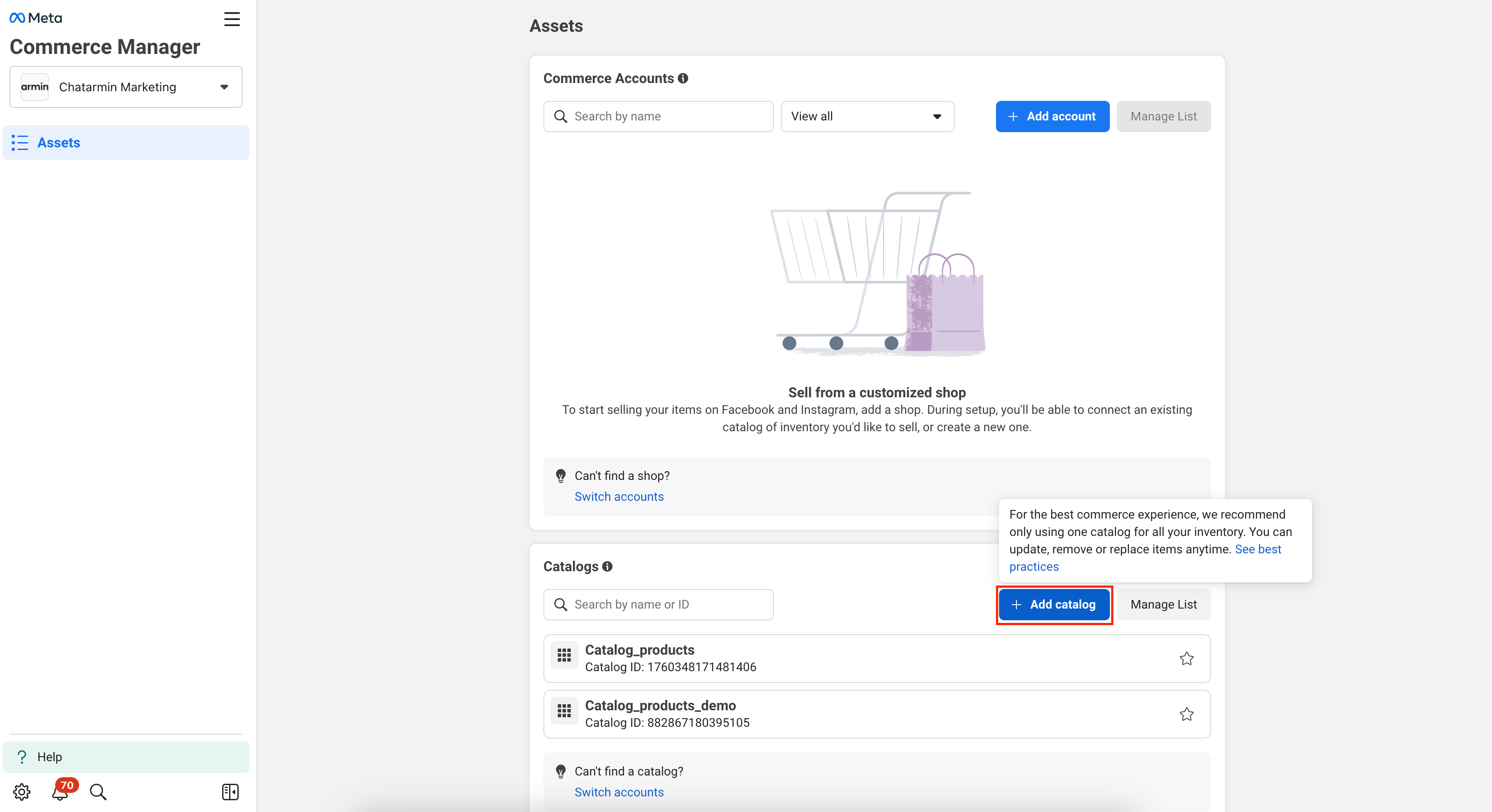
<img src="https://mintcdn.com/chatarmin-help-center/cCC7f96yUQwfA_7X/images/331ca779-ba85-4c46-b203-499387dffb2f/019b9c80-a3a4-7480-96a8-b4b620a01c27.png?fit=max&auto=format&n=cCC7f96yUQwfA_7X&q=85&s=bc0399e6b643b952e38685561cdff735" alt="Chatarmin help center image" width="3432" height="1868" data-path="images/331ca779-ba85-4c46-b203-499387dffb2f/019b9c80-a3a4-7480-96a8-b4b620a01c27.png" />

Next, make sure to set a Name for the Catalog at the bottom.

**DON'T** connect to a partner platform, we will do that for you if needed. 😉

Make sure to select the right **Business Manager**
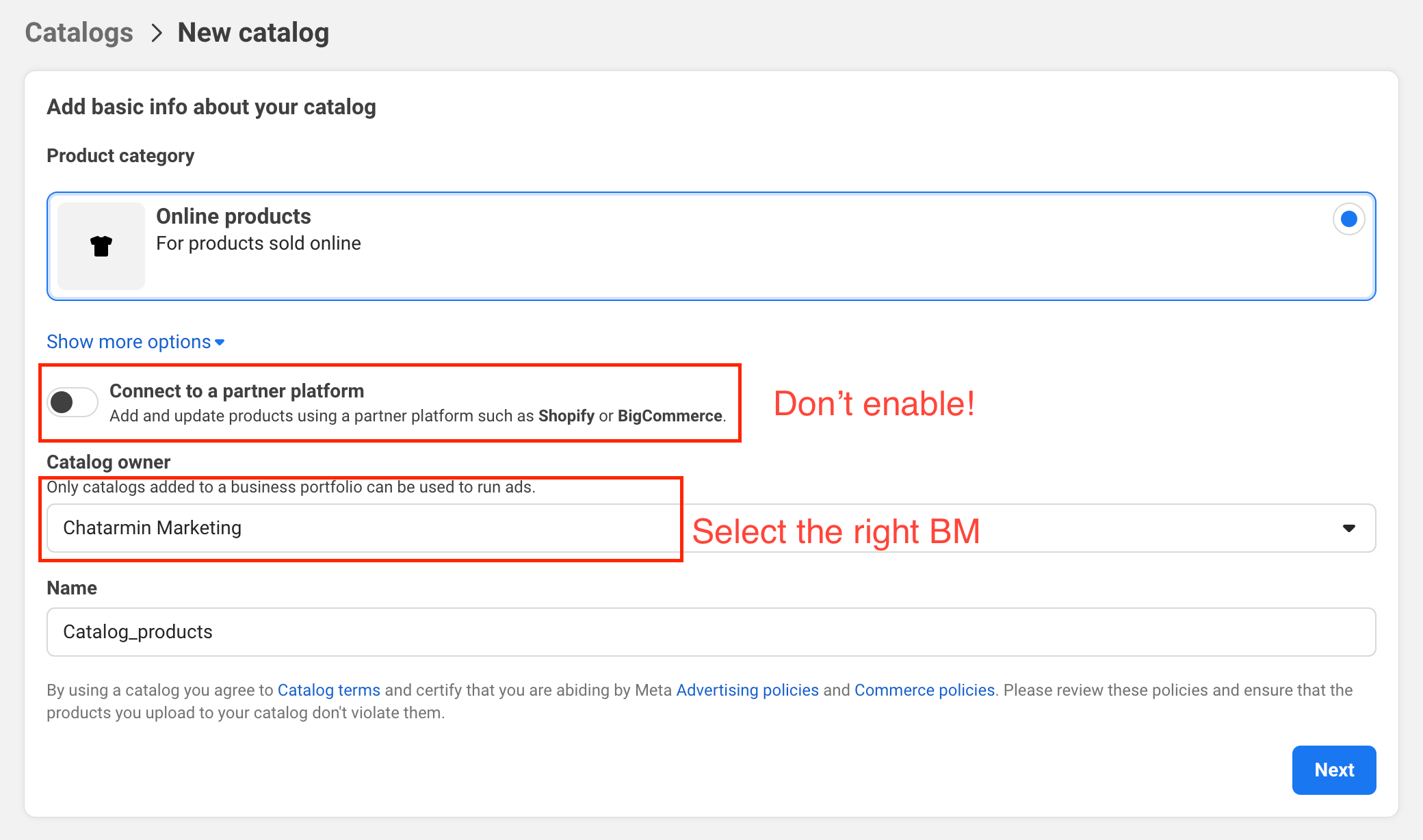
<img src="https://mintcdn.com/chatarmin-help-center/cCC7f96yUQwfA_7X/images/331ca779-ba85-4c46-b203-499387dffb2f/019b9c80-a370-708e-a985-54c4c6245fa7.png?fit=max&auto=format&n=cCC7f96yUQwfA_7X&q=85&s=e74d7e7d93f22505357e40fba58ec2c0" alt="Chatarmin help center image" width="2080" height="1228" data-path="images/331ca779-ba85-4c46-b203-499387dffb2f/019b9c80-a370-708e-a985-54c4c6245fa7.png" />

Next, you can connect/select your Data Sources (Optional):
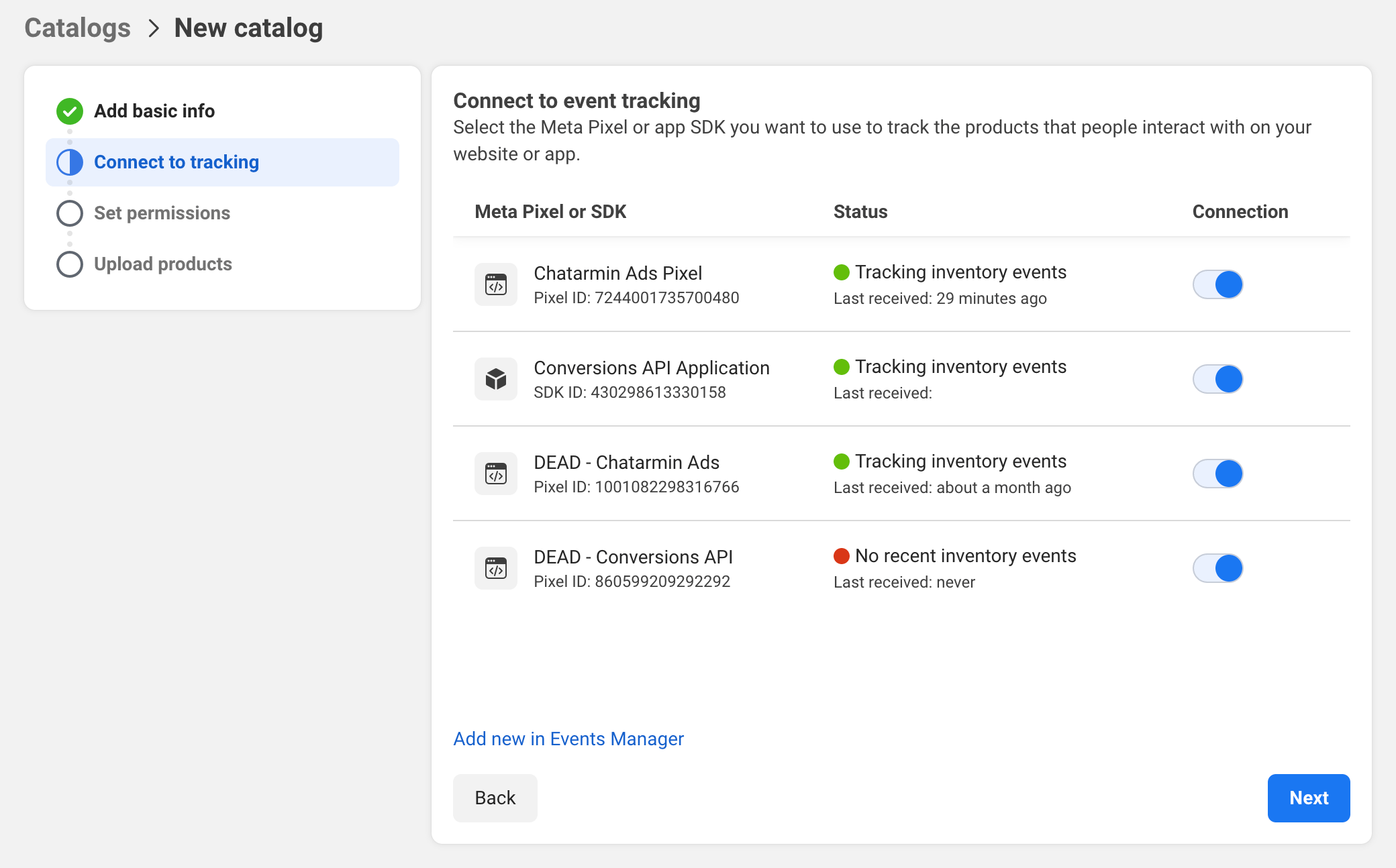
<img src="https://mintcdn.com/chatarmin-help-center/cCC7f96yUQwfA_7X/images/331ca779-ba85-4c46-b203-499387dffb2f/019b9c80-a377-76fd-87d7-92ed610ed01f.png?fit=max&auto=format&n=cCC7f96yUQwfA_7X&q=85&s=210a815e303b7540fd6bc5ebbe890479" alt="Chatarmin help center image" width="2080" height="1294" data-path="images/331ca779-ba85-4c46-b203-499387dffb2f/019b9c80-a377-76fd-87d7-92ed610ed01f.png" />

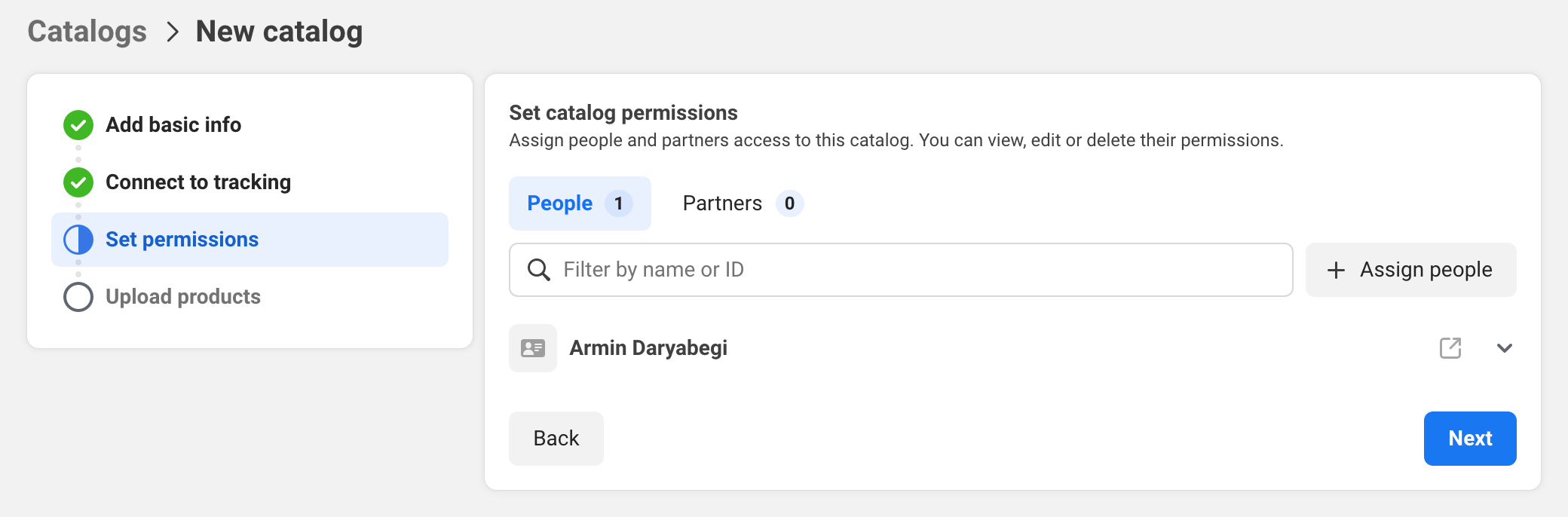
Next step, you can just click "**Next**":
<img src="https://mintcdn.com/chatarmin-help-center/cCC7f96yUQwfA_7X/images/331ca779-ba85-4c46-b203-499387dffb2f/019b9c80-a35e-74f8-b8b8-77f026da4b57.png?fit=max&auto=format&n=cCC7f96yUQwfA_7X&q=85&s=d749f967d5b120fb9b6c39923bc76257" alt="Chatarmin help center image" width="2080" height="686" data-path="images/331ca779-ba85-4c46-b203-499387dffb2f/019b9c80-a35e-74f8-b8b8-77f026da4b57.png" />

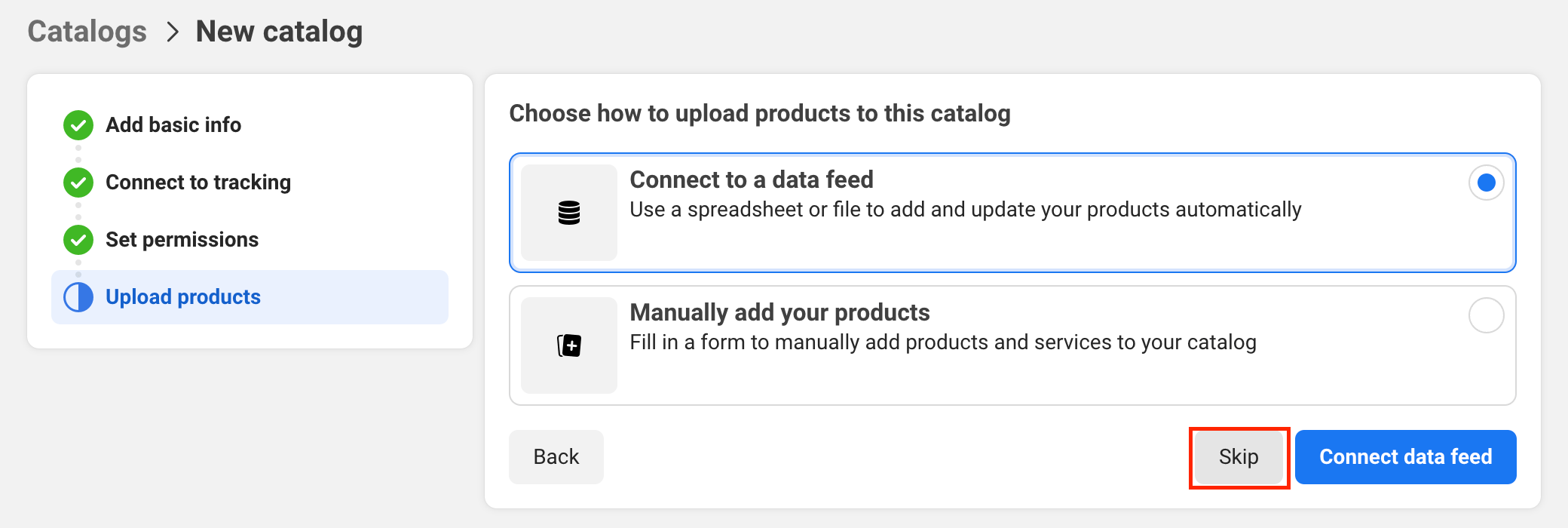
Since we offer automatic sync to your Shop-Integration and manual upload through Chatarmin, you can skip the next step:
<img src="https://mintcdn.com/chatarmin-help-center/cCC7f96yUQwfA_7X/images/331ca779-ba85-4c46-b203-499387dffb2f/019b9c80-a366-710c-a552-2e625405a299.png?fit=max&auto=format&n=cCC7f96yUQwfA_7X&q=85&s=c9409ec15c6e1a82f5506d19631188e5" alt="Chatarmin help center image" width="2080" height="700" data-path="images/331ca779-ba85-4c46-b203-499387dffb2f/019b9c80-a366-710c-a552-2e625405a299.png" />

Perfect! Now you have created your first Catalog.

# Connect Catalog to Chatarmin/WhatsApp

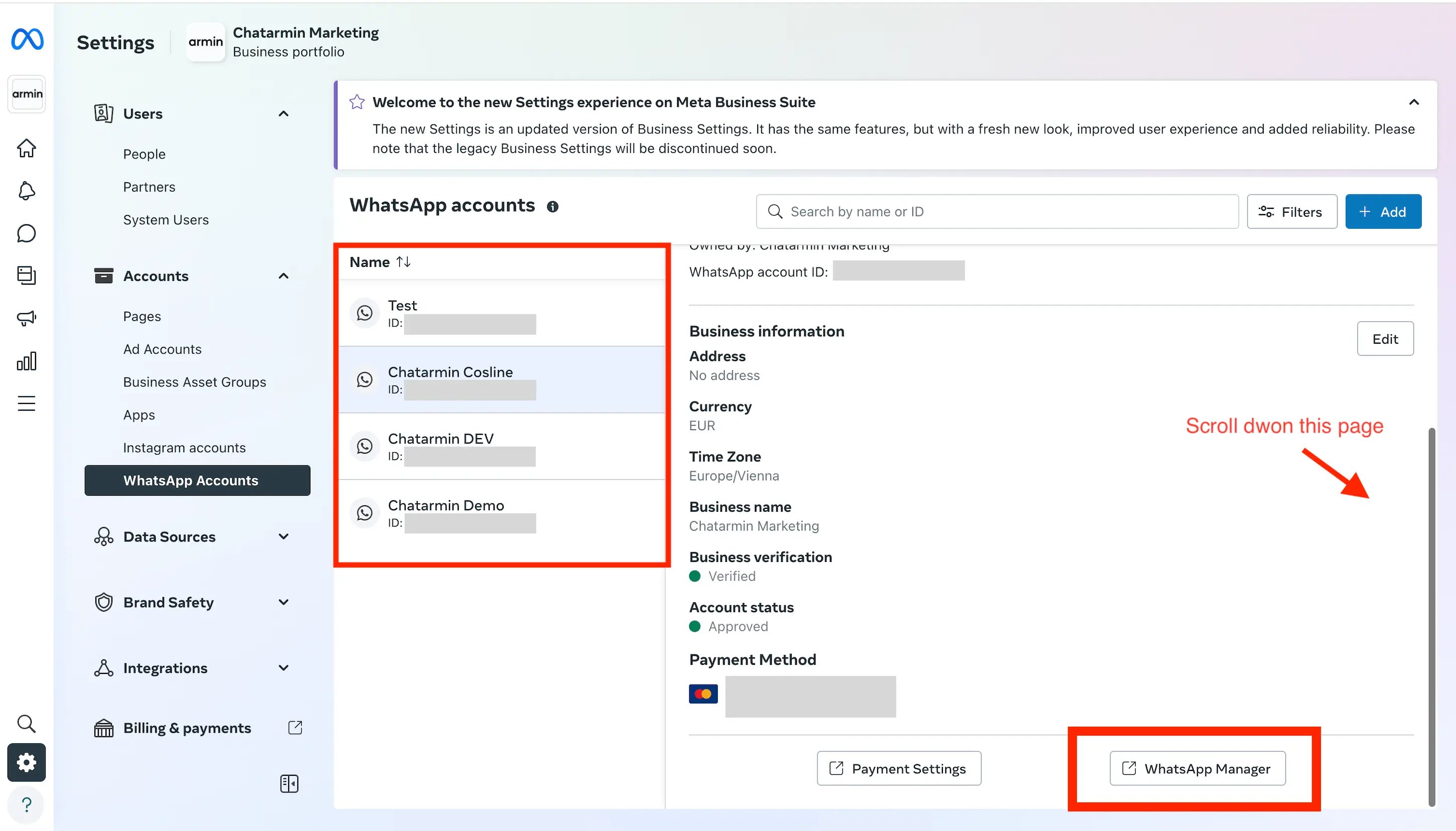
Next, go to [WhatsApp Accounts](https://business.facebook.com/latest/settings/whatsapp_account) → **Select WhatsApp Account** → Click on **WhatsApp Manager**
<img src="https://mintcdn.com/chatarmin-help-center/cCC7f96yUQwfA_7X/images/331ca779-ba85-4c46-b203-499387dffb2f/019b9c80-a394-728f-a238-eea863984ec5.png?fit=max&auto=format&n=cCC7f96yUQwfA_7X&q=85&s=74d58ecd81520c6def9b5463c41cb408" alt="Chatarmin help center image" width="2900" height="1656" data-path="images/331ca779-ba85-4c46-b203-499387dffb2f/019b9c80-a394-728f-a238-eea863984ec5.png" />

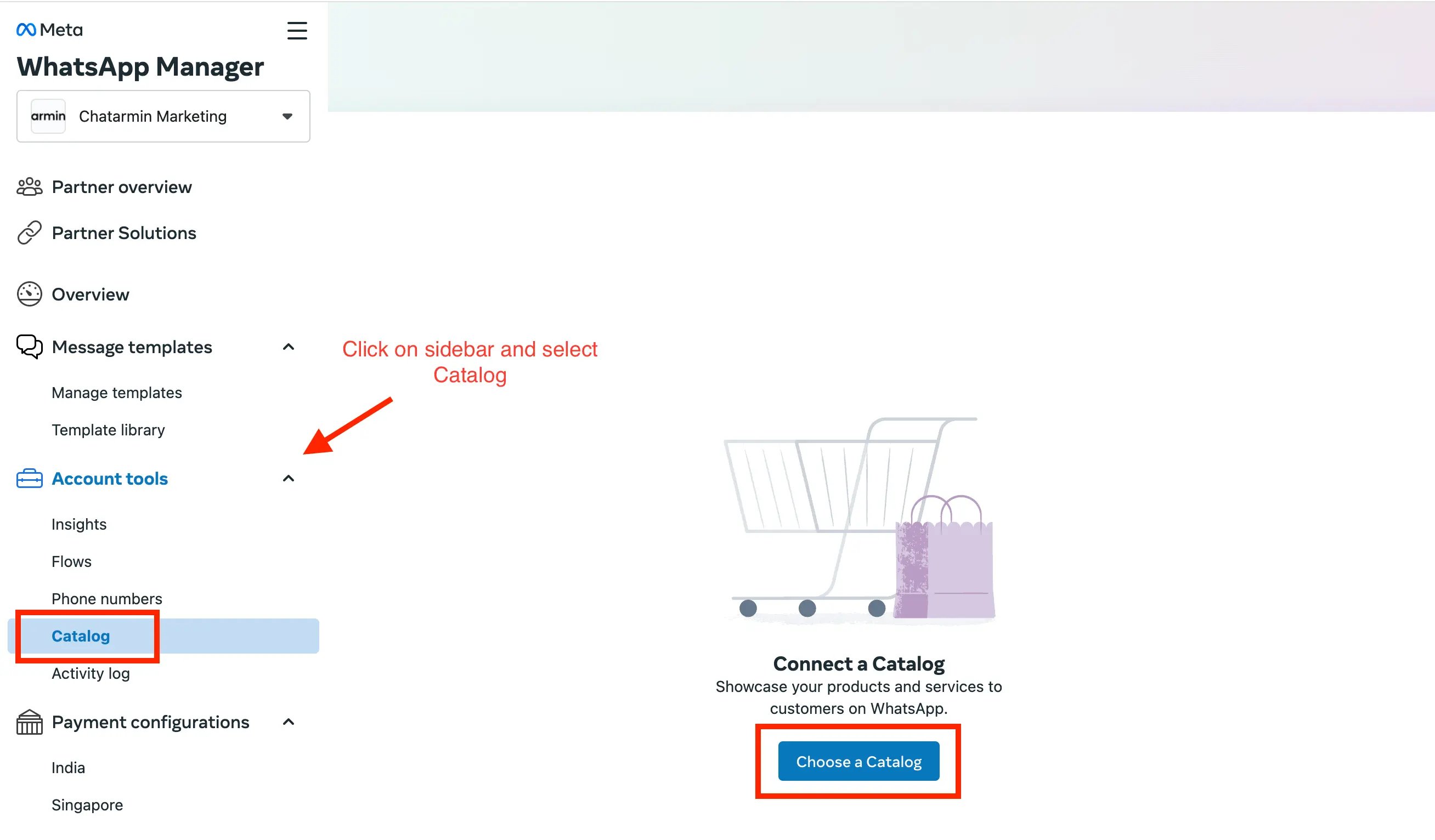
Select **catalog** from left sidebar → Click on **Choose a Catalog**
<img src="https://mintcdn.com/chatarmin-help-center/cCC7f96yUQwfA_7X/images/331ca779-ba85-4c46-b203-499387dffb2f/019b9c80-a37a-730b-9d5b-cf4037a77a80.png?fit=max&auto=format&n=cCC7f96yUQwfA_7X&q=85&s=d2bb4e61fc491503d61e482a25dbccd1" alt="Chatarmin help center image" width="2616" height="1532" data-path="images/331ca779-ba85-4c46-b203-499387dffb2f/019b9c80-a37a-730b-9d5b-cf4037a77a80.png" />

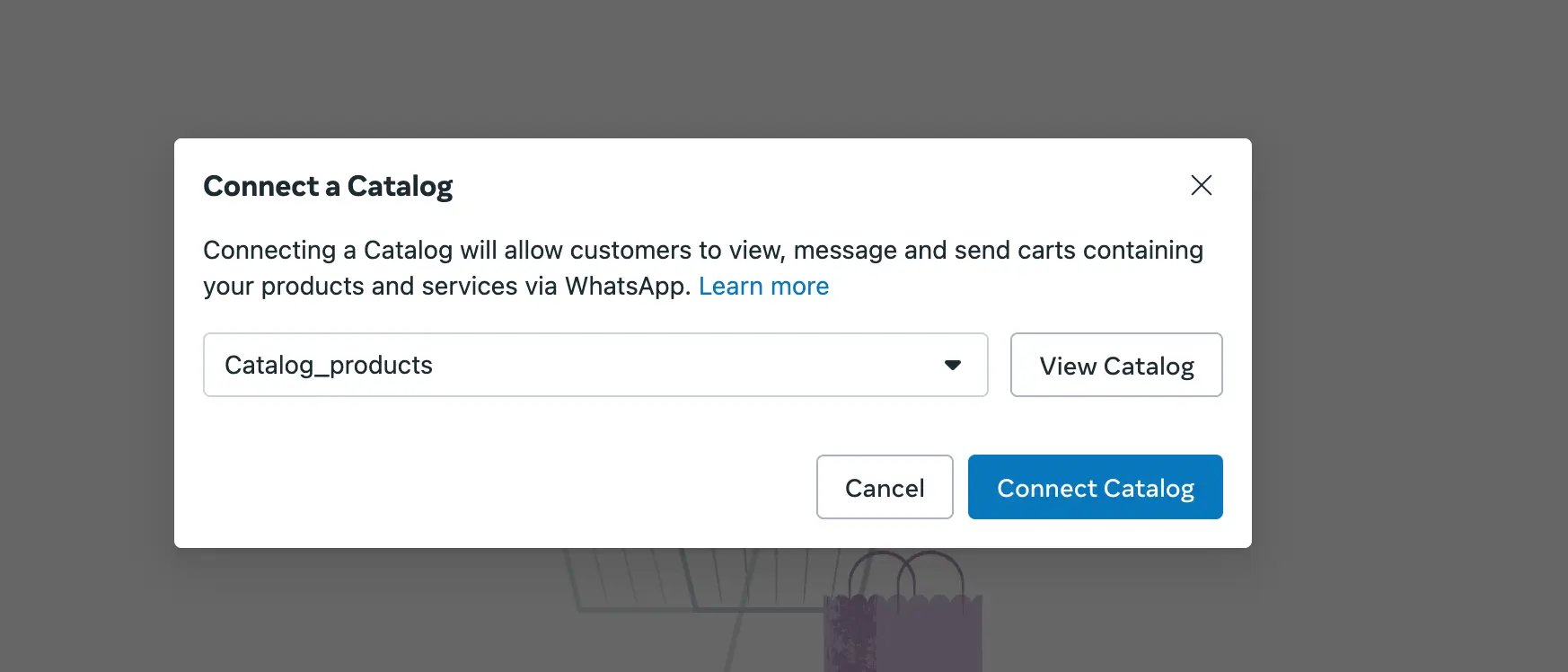
Select catalog from dropdown → Click on **Connect Catalog**
<img src="https://mintcdn.com/chatarmin-help-center/cCC7f96yUQwfA_7X/images/331ca779-ba85-4c46-b203-499387dffb2f/019b9c80-a421-7317-b727-bbd0ca5514ce.png?fit=max&auto=format&n=cCC7f96yUQwfA_7X&q=85&s=5dda31de20ca0a08e3bc3b2c72f0660a" alt="Chatarmin help center image" width="1746" height="748" data-path="images/331ca779-ba85-4c46-b203-499387dffb2f/019b9c80-a421-7317-b727-bbd0ca5514ce.png" />

# Configure Catalog in Chatarmin

Next we can go to **Chatarmin** -> **Settings** -> **WhatsApp Catalog**

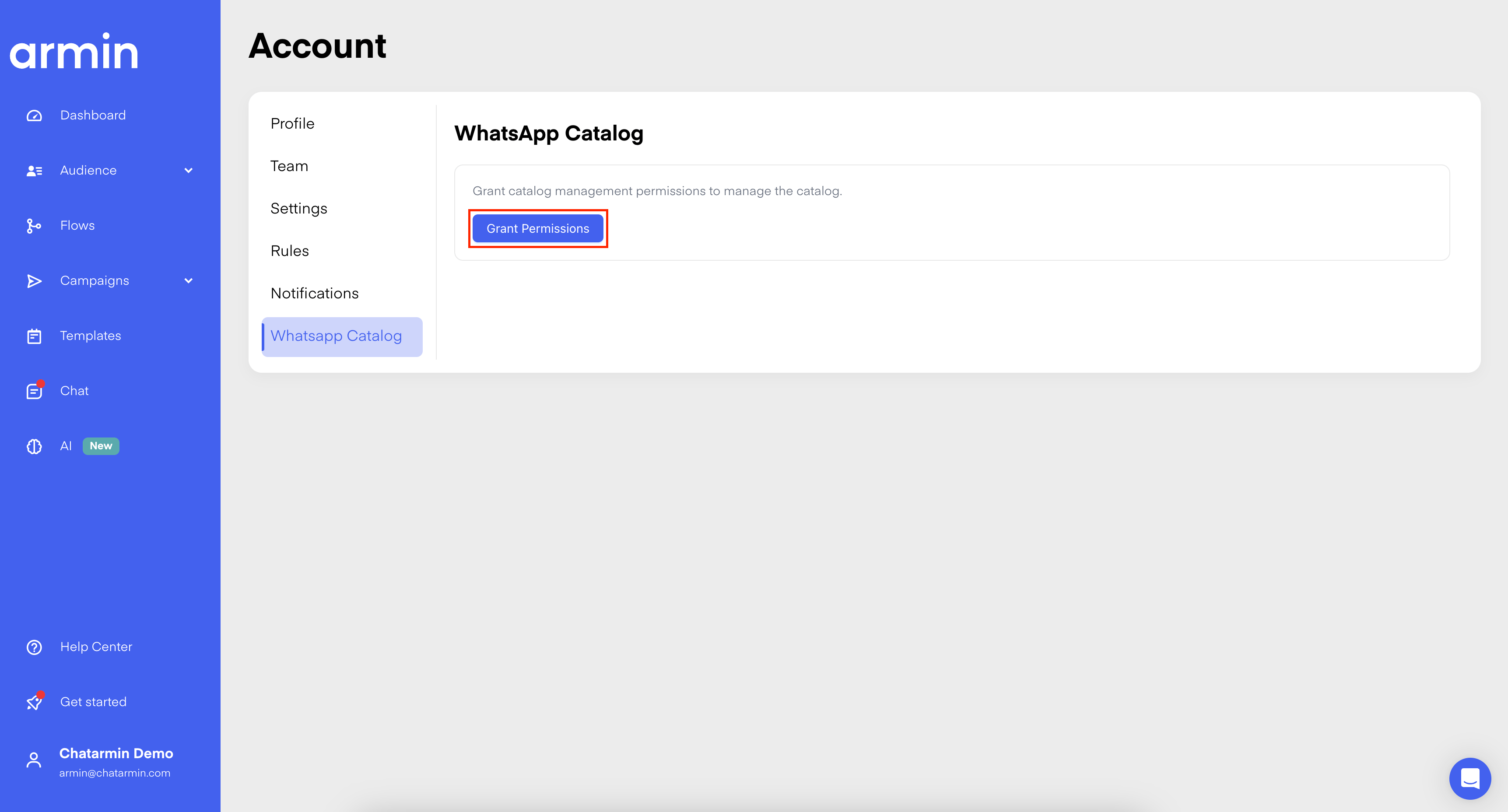
## Grant permissions

If you haven't granted permissions yet, please follow this step to do so. Unless you already did, you can skip that step:
<img src="https://mintcdn.com/chatarmin-help-center/cCC7f96yUQwfA_7X/images/331ca779-ba85-4c46-b203-499387dffb2f/019b9c80-a42a-70ef-87df-725f03d3b66b.png?fit=max&auto=format&n=cCC7f96yUQwfA_7X&q=85&s=f74f4196a755b2918fe3222f8c6e858b" alt="Chatarmin help center image" width="3446" height="1856" data-path="images/331ca779-ba85-4c46-b203-499387dffb2f/019b9c80-a42a-70ef-87df-725f03d3b66b.png" />

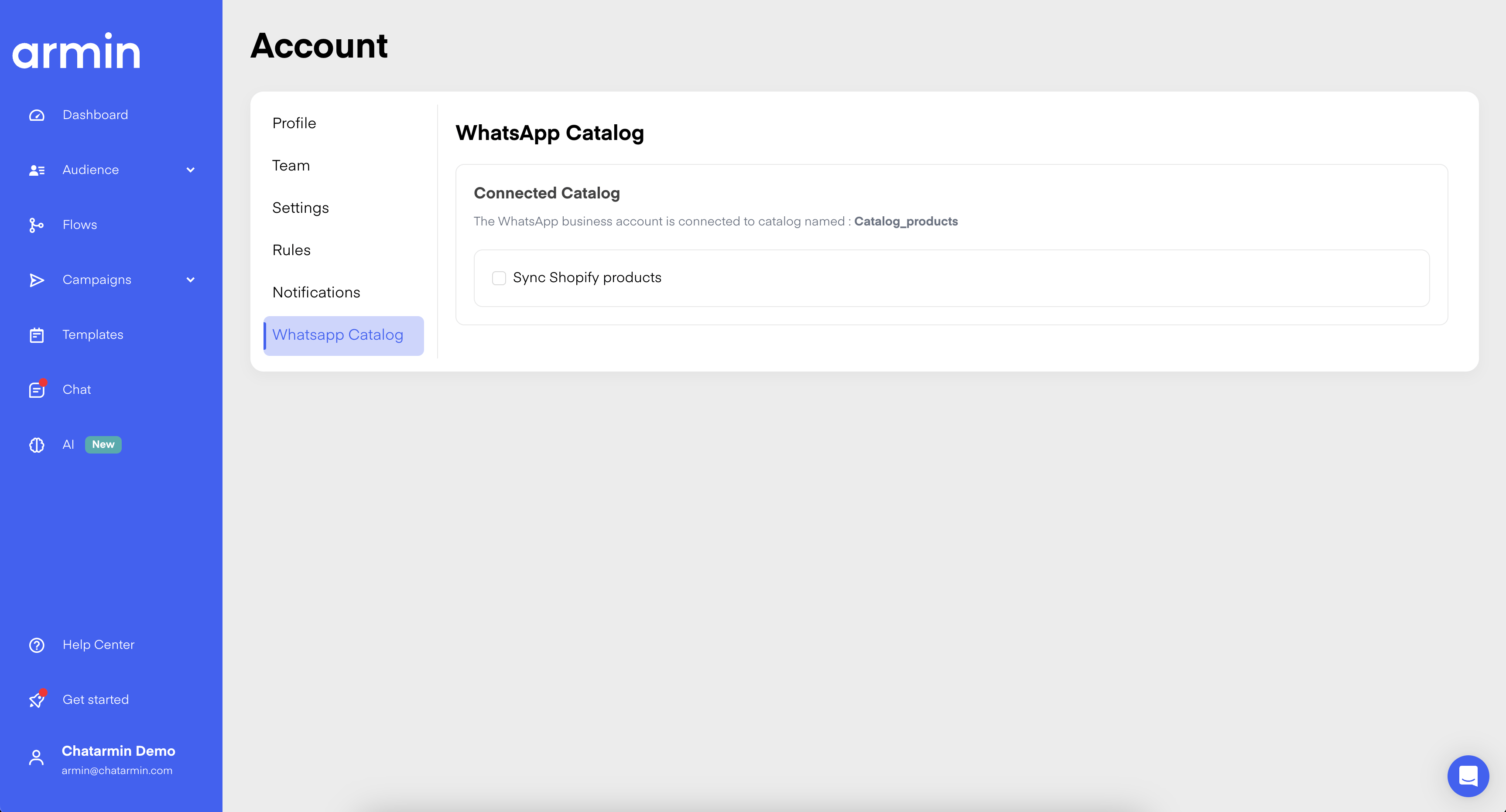
## Sync Catalog with Shop-Integration

When connected, you should now have the possibility to sync the Catalog with your Shop-Integration:
<img src="https://mintcdn.com/chatarmin-help-center/cCC7f96yUQwfA_7X/images/331ca779-ba85-4c46-b203-499387dffb2f/019b9c80-a442-755d-987b-bbb53f5cf48f.png?fit=max&auto=format&n=cCC7f96yUQwfA_7X&q=85&s=ed45e63b182b6b1302847f9c1d5832f3" alt="Chatarmin help center image" width="3452" height="1862" data-path="images/331ca779-ba85-4c46-b203-499387dffb2f/019b9c80-a442-755d-987b-bbb53f5cf48f.png" />

# Usage of the Catalog in Chatarmin

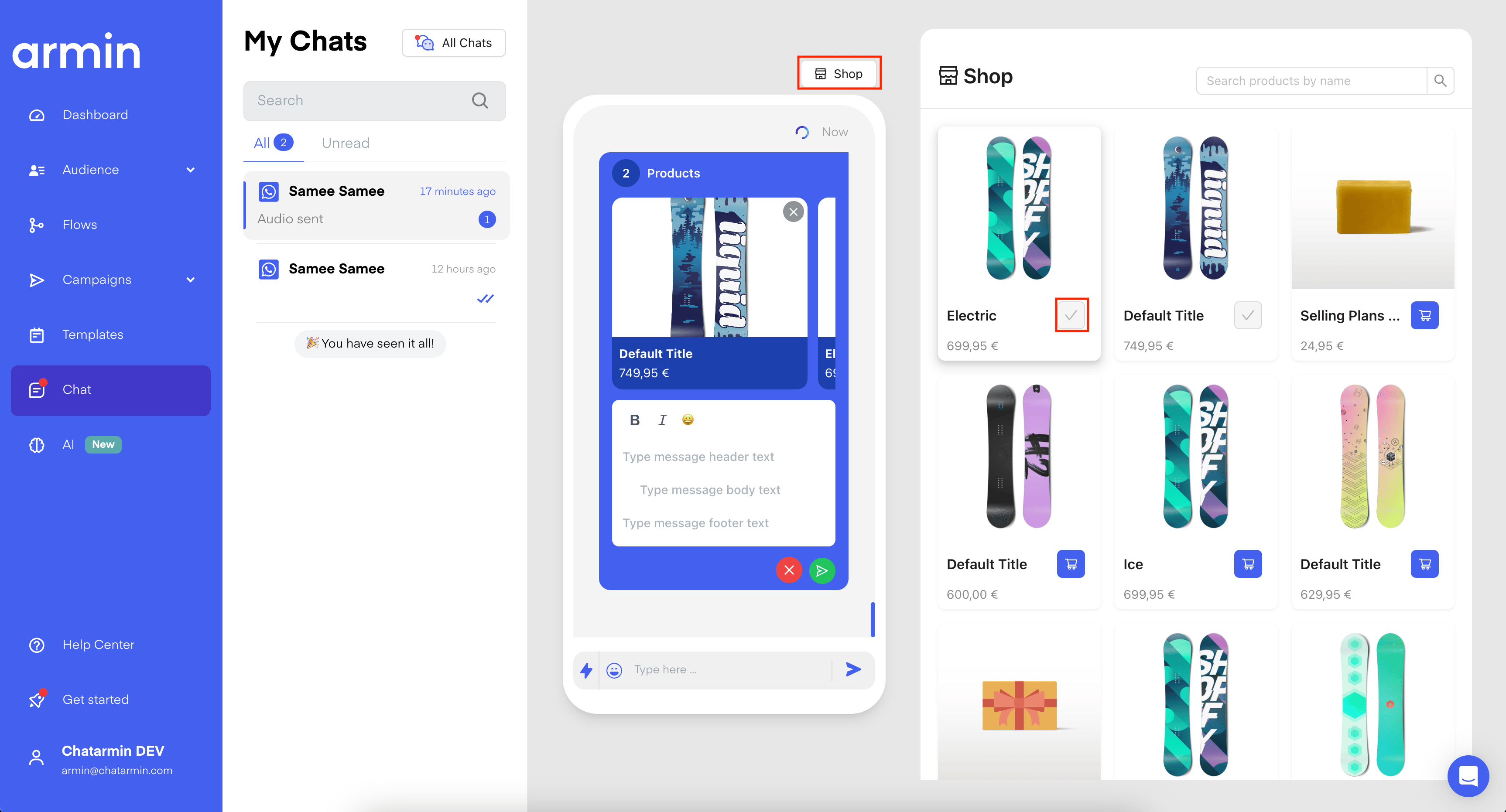
## In-Chat Selling

Now, you can use, so called "Product-Messages", to send your customers a cart of products:
<img src="https://mintcdn.com/chatarmin-help-center/cCC7f96yUQwfA_7X/images/331ca779-ba85-4c46-b203-499387dffb2f/019b9c80-a4b9-72c3-a9dc-cbd2896ce298.png?fit=max&auto=format&n=cCC7f96yUQwfA_7X&q=85&s=1d45efc13b75356ec01d27284d6d7ba2" alt="Chatarmin help center image" width="3452" height="1862" data-path="images/331ca779-ba85-4c46-b203-499387dffb2f/019b9c80-a4b9-72c3-a9dc-cbd2896ce298.png" />

## React to an Order, placed by a customer

Example of an order placed by the order:
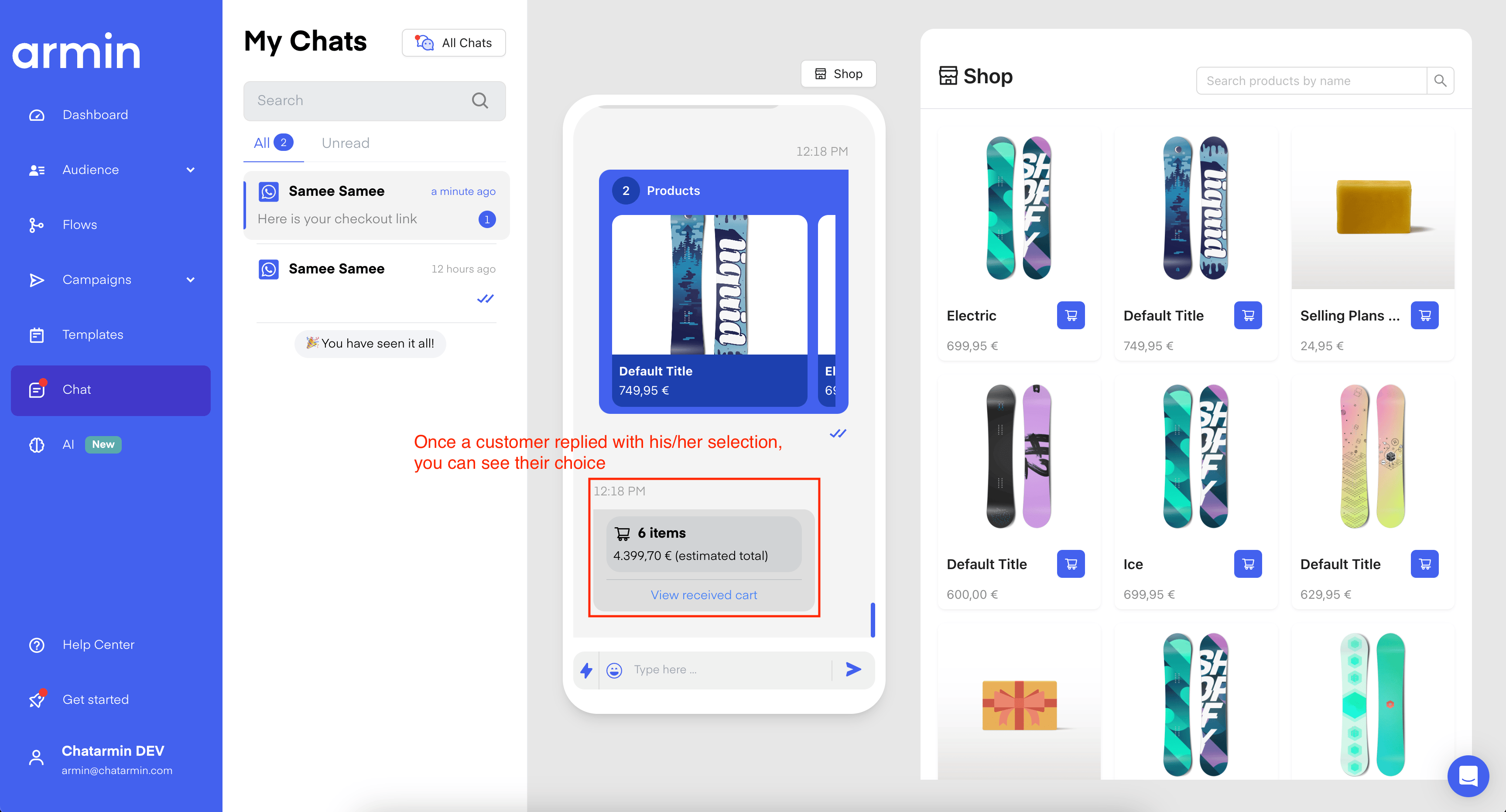
<img src="https://mintcdn.com/chatarmin-help-center/cCC7f96yUQwfA_7X/images/331ca779-ba85-4c46-b203-499387dffb2f/019b9c80-a490-7300-860c-dad53b0c9018.png?fit=max&auto=format&n=cCC7f96yUQwfA_7X&q=85&s=f1a9fb4b0e228f087d4d6b1e0386c4c8" alt="Chatarmin help center image" width="3452" height="1862" data-path="images/331ca779-ba85-4c46-b203-499387dffb2f/019b9c80-a490-7300-860c-dad53b0c9018.png" />

## Automatically answer with Flows

When a customer select their products in WhatsApp, we can use a new Flow-Trigger, to react to those Messages and send an "**instant Checkout-Link**". This Flow would look like the following:
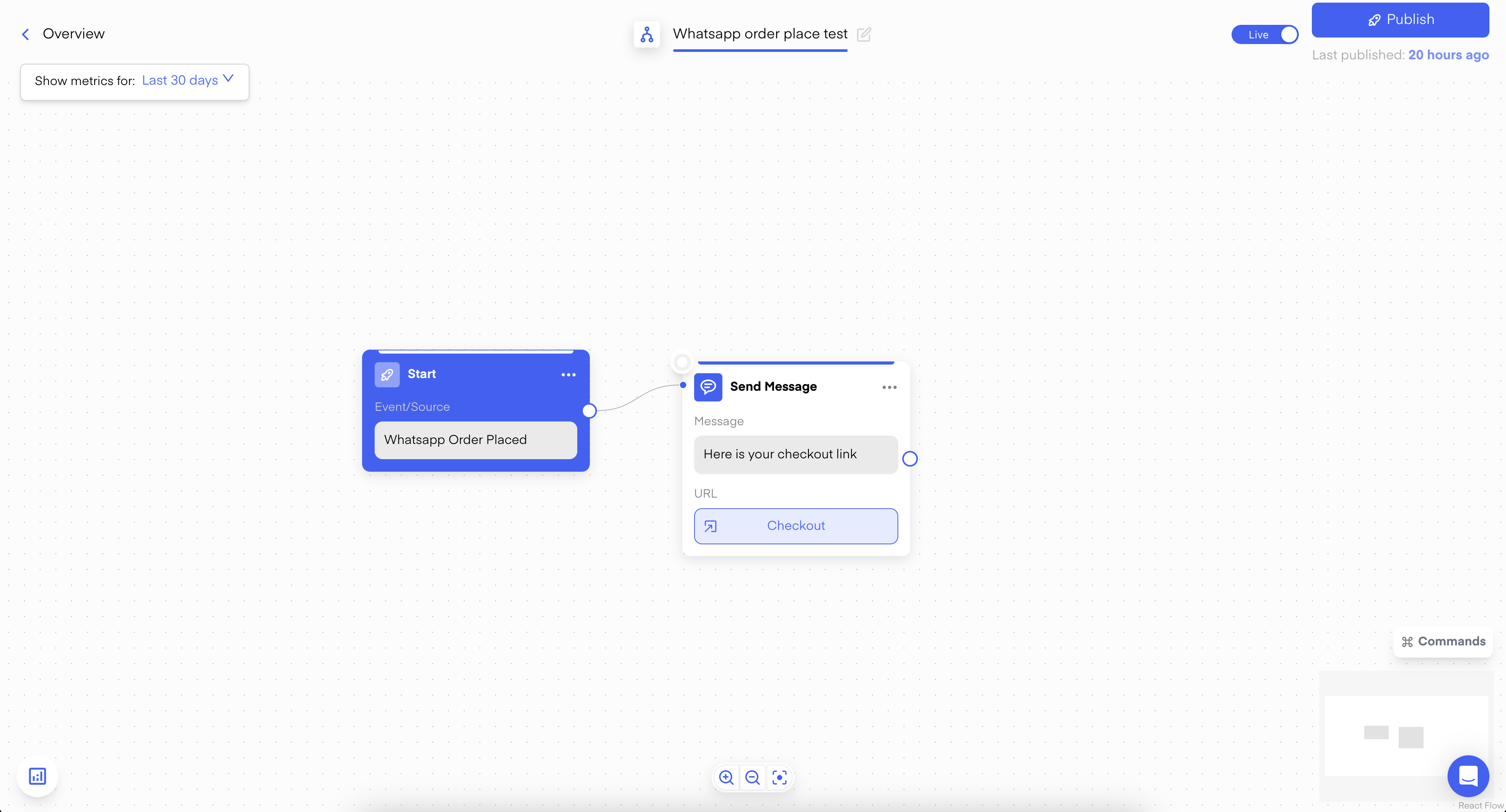
<img src="https://mintcdn.com/chatarmin-help-center/cCC7f96yUQwfA_7X/images/331ca779-ba85-4c46-b203-499387dffb2f/019b9c80-a427-746b-b695-0cc7fbe6894d.png?fit=max&auto=format&n=cCC7f96yUQwfA_7X&q=85&s=a62fd78fa13c9b39aac5b03d69979432" alt="Chatarmin help center image" width="3452" height="1862" data-path="images/331ca779-ba85-4c46-b203-499387dffb2f/019b9c80-a427-746b-b695-0cc7fbe6894d.png" />

🚨 *Cannot see the trigger? You need to be connected to a Shop-Integration to use it.*

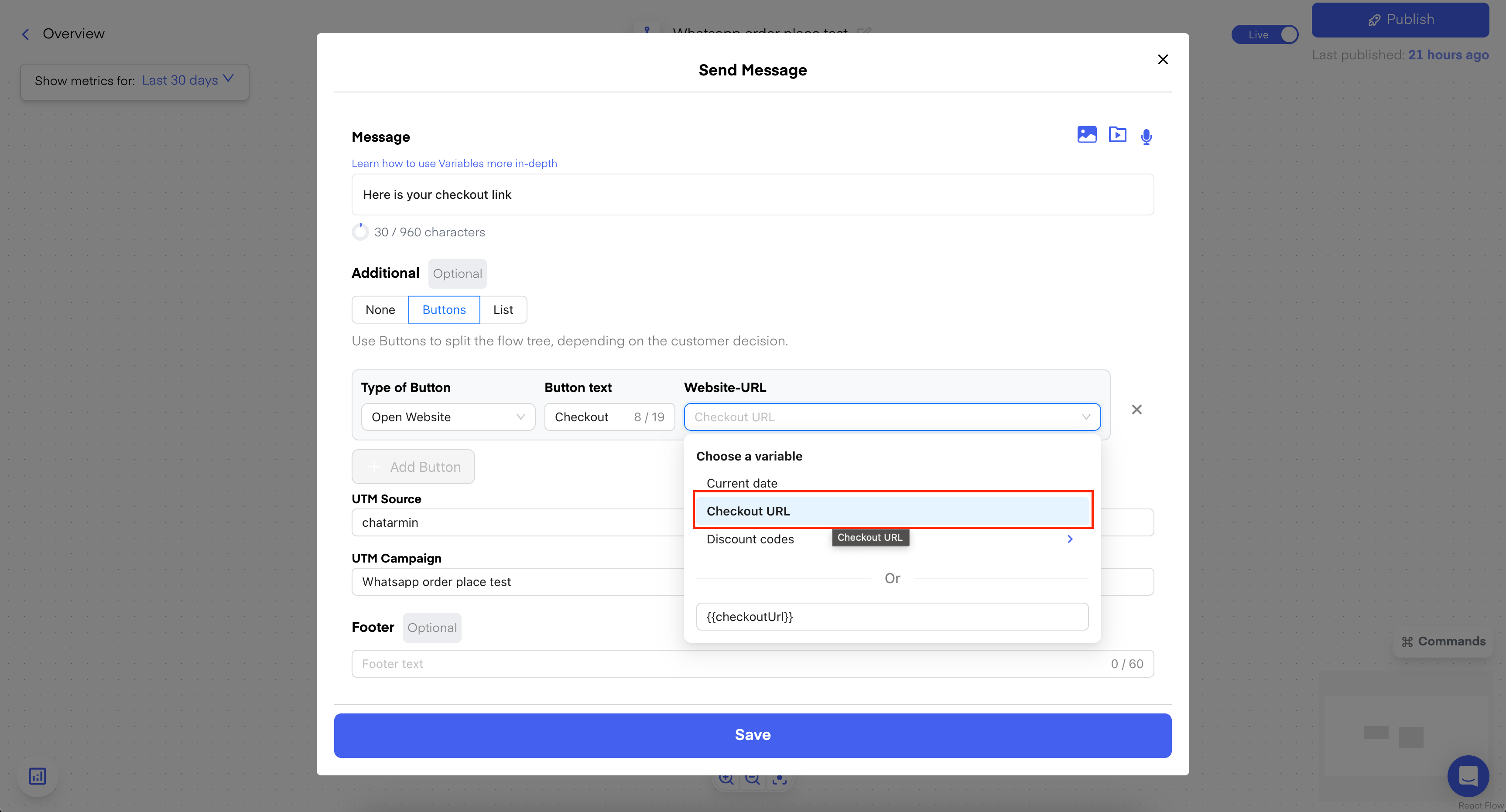
The "Checkout Link" is created/usable when you select that Flow-Trigger and can be used in "**Send Campaign**" & "**Send message**" like the following:
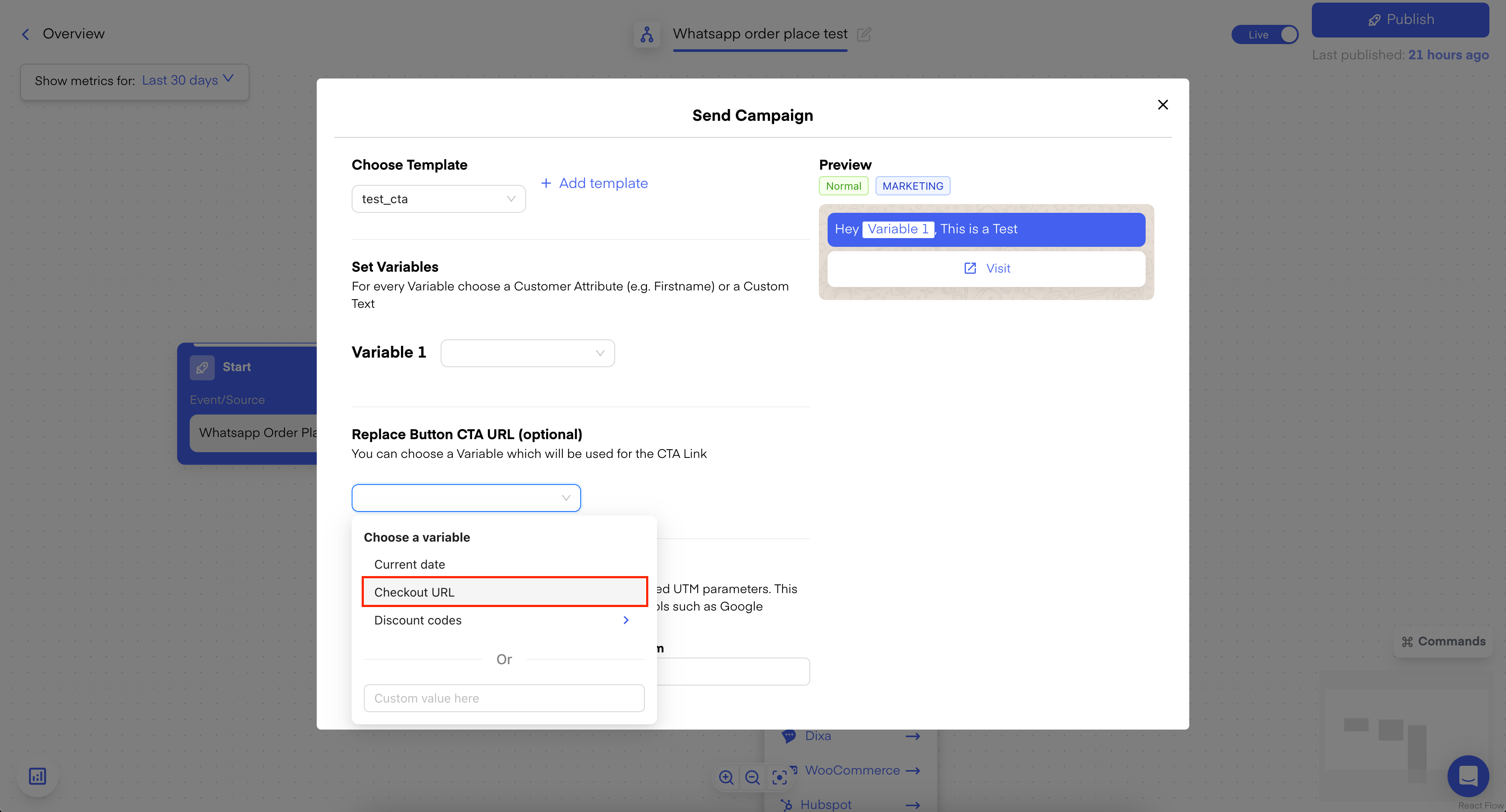
<img src="https://mintcdn.com/chatarmin-help-center/cCC7f96yUQwfA_7X/images/331ca779-ba85-4c46-b203-499387dffb2f/019b9c80-a45e-752e-a33b-b8d12c2057aa.png?fit=max&auto=format&n=cCC7f96yUQwfA_7X&q=85&s=742f73b7fe72abc77cda1fe1900caa3c" alt="Chatarmin help center image" width="3452" height="1862" data-path="images/331ca779-ba85-4c46-b203-499387dffb2f/019b9c80-a45e-752e-a33b-b8d12c2057aa.png" />

<img src="https://mintcdn.com/chatarmin-help-center/cCC7f96yUQwfA_7X/images/331ca779-ba85-4c46-b203-499387dffb2f/019b9c80-a44a-71b8-a770-663f5c20448a.png?fit=max&auto=format&n=cCC7f96yUQwfA_7X&q=85&s=411f1a15c2056adffd2a97d98f2c22e3" alt="Chatarmin help center image" width="3452" height="1862" data-path="images/331ca779-ba85-4c46-b203-499387dffb2f/019b9c80-a44a-71b8-a770-663f5c20448a.png" />

##

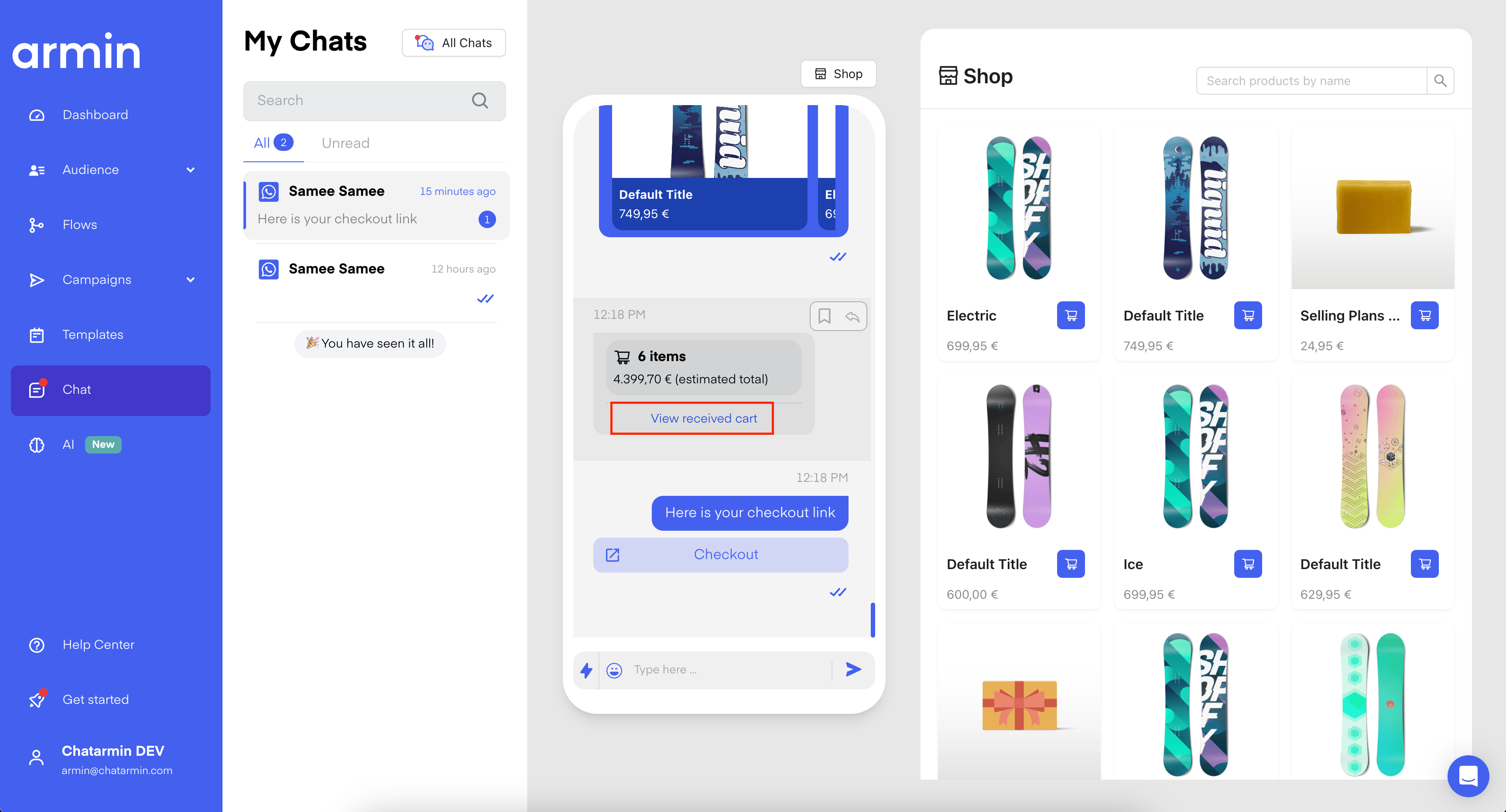
## Manually send in-Chat

You can also send the Checkout-Link manually, by clicking **"View received cart":**
<img src="https://mintcdn.com/chatarmin-help-center/cCC7f96yUQwfA_7X/images/331ca779-ba85-4c46-b203-499387dffb2f/019b9c80-a4bf-739a-84d6-002ec3d95952.png?fit=max&auto=format&n=cCC7f96yUQwfA_7X&q=85&s=b3698501dc46fb2f4446200ecd18507a" alt="Chatarmin help center image" width="3452" height="1862" data-path="images/331ca779-ba85-4c46-b203-499387dffb2f/019b9c80-a4bf-739a-84d6-002ec3d95952.png" />

<img src="https://mintcdn.com/chatarmin-help-center/cCC7f96yUQwfA_7X/images/331ca779-ba85-4c46-b203-499387dffb2f/019b9c80-a44d-7133-9d64-5f9ce7d33f96.png?fit=max&auto=format&n=cCC7f96yUQwfA_7X&q=85&s=b6e1acc5d528b3cb79abc9bf2a412110" alt="Chatarmin help center image" width="3436" height="1862" data-path="images/331ca779-ba85-4c46-b203-499387dffb2f/019b9c80-a44d-7133-9d64-5f9ce7d33f96.png" />

## Use the Product Catalog in combination with Chatarmin's AI!

<iframe src="https://www.loom.com/embed/bbd86f9c97664a3cb45c3aa2062c01a8" title="Loom video" width="100%" height="420" allowFullScreen />

##