> ## Documentation Index
> Fetch the complete documentation index at: https://help.chatarmin.com/llms.txt
> Use this file to discover all available pages before exploring further.
# Chat - Explained
> Chatarmin guide: Chat - Explained
***
# Chat
***
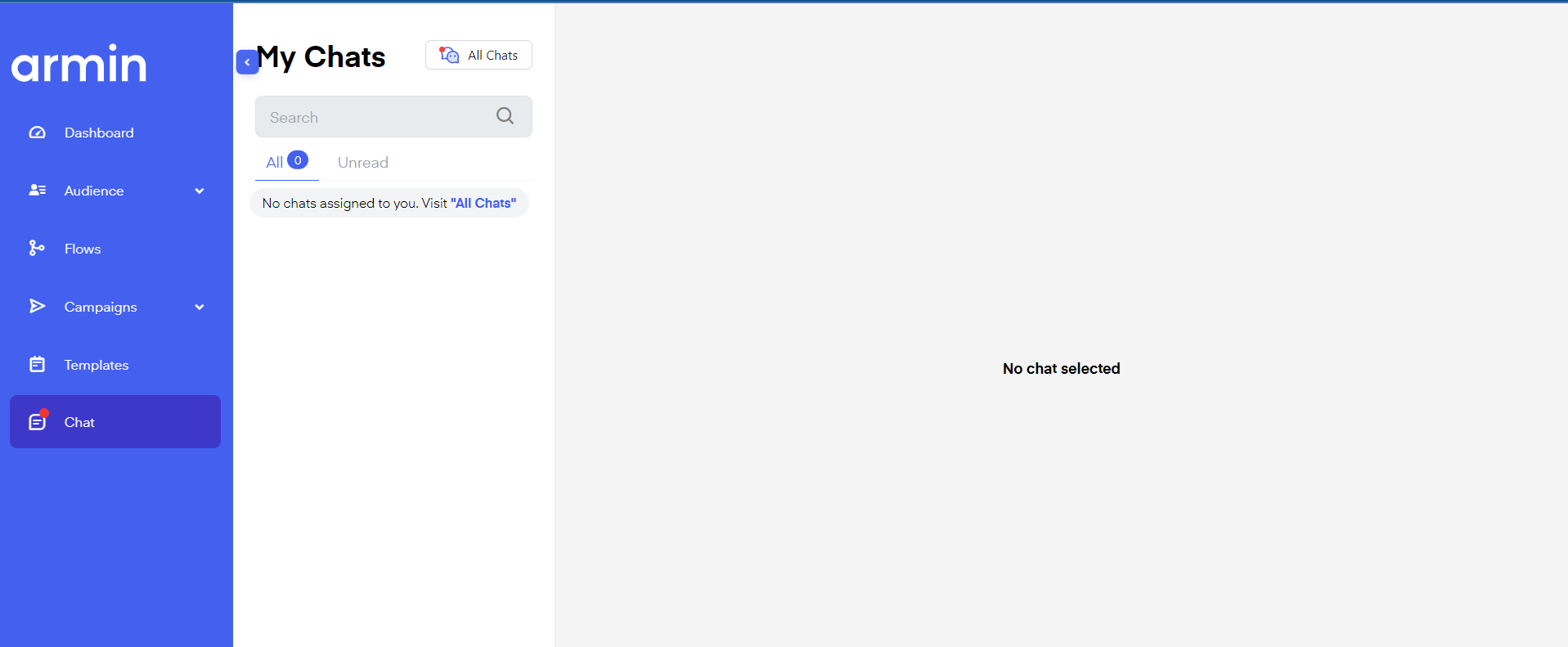
In the sidebar, you can see a red dot icon if you have unread chats. A **"Chat"** is unread if your lead has written a personalized message - so sent messages by clicking buttons will not be marked as unread. A chat is marked as read once you **reply to the client** or **manually mark the conversation as read**.
 ***
## My chats
***
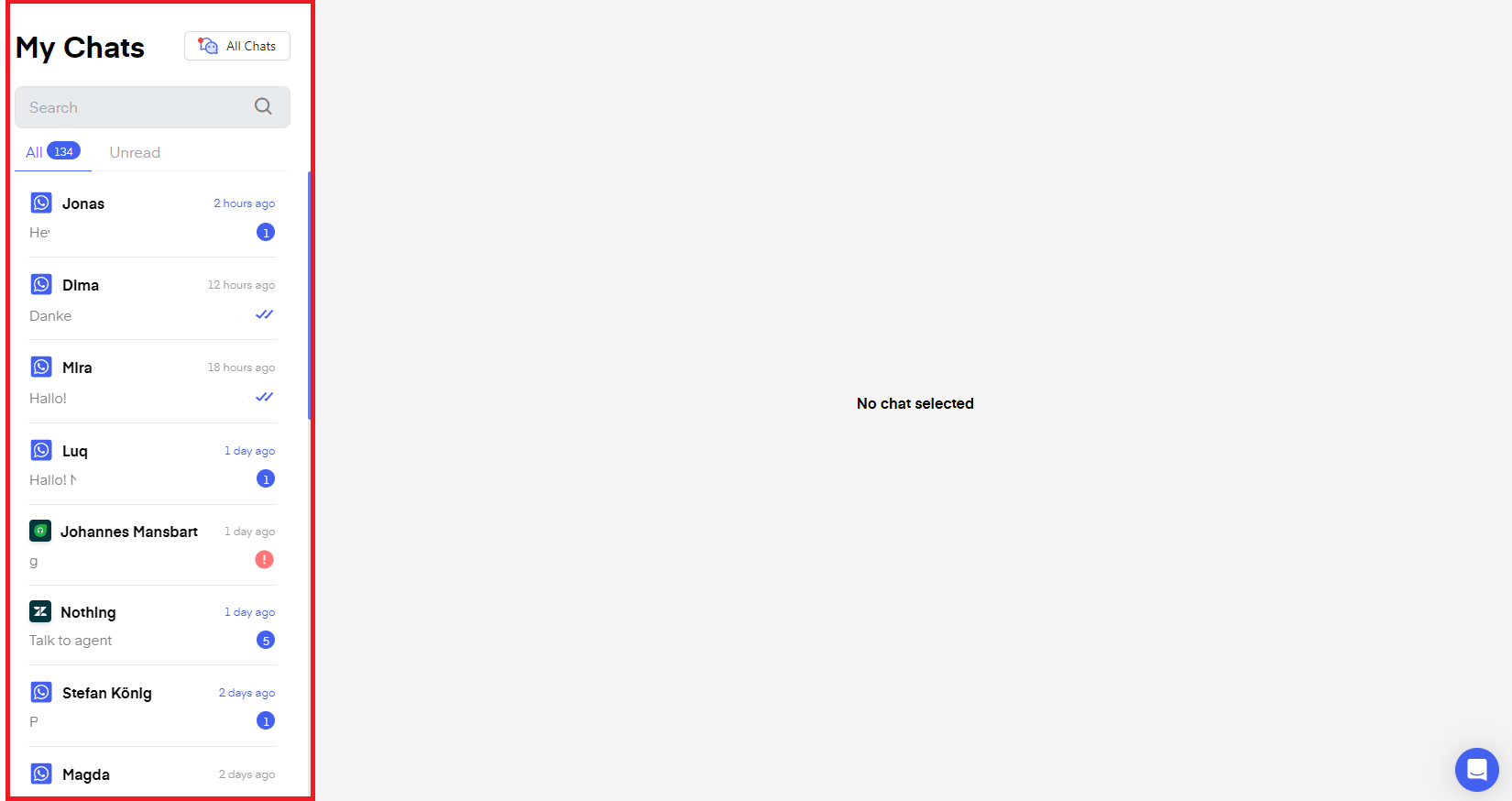
Under [**"My chats**"](https://chatarmin.com/dashboard/chat) you will only see chats specifically assigned to your login user. An account can have unlimited users of your company working on it. To see **"All Chats"** click on the icon next to my chats, there you will be able to see chats not assigned to your login/agent.
***
## My chats
***
Under [**"My chats**"](https://chatarmin.com/dashboard/chat) you will only see chats specifically assigned to your login user. An account can have unlimited users of your company working on it. To see **"All Chats"** click on the icon next to my chats, there you will be able to see chats not assigned to your login/agent.
 ***
## All Chats
***
***
## All Chats
***
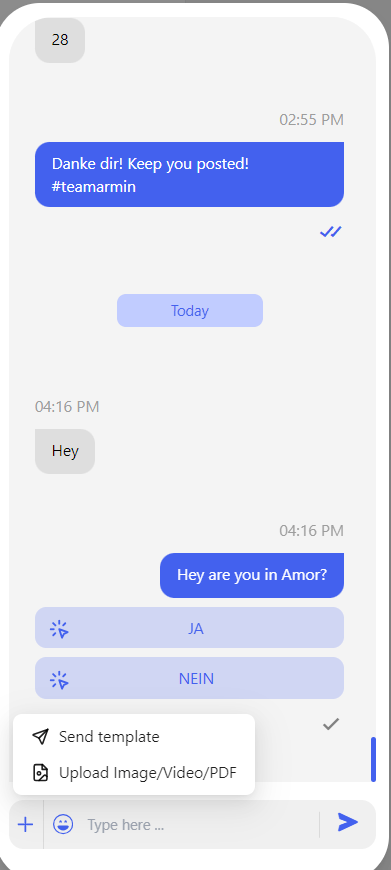
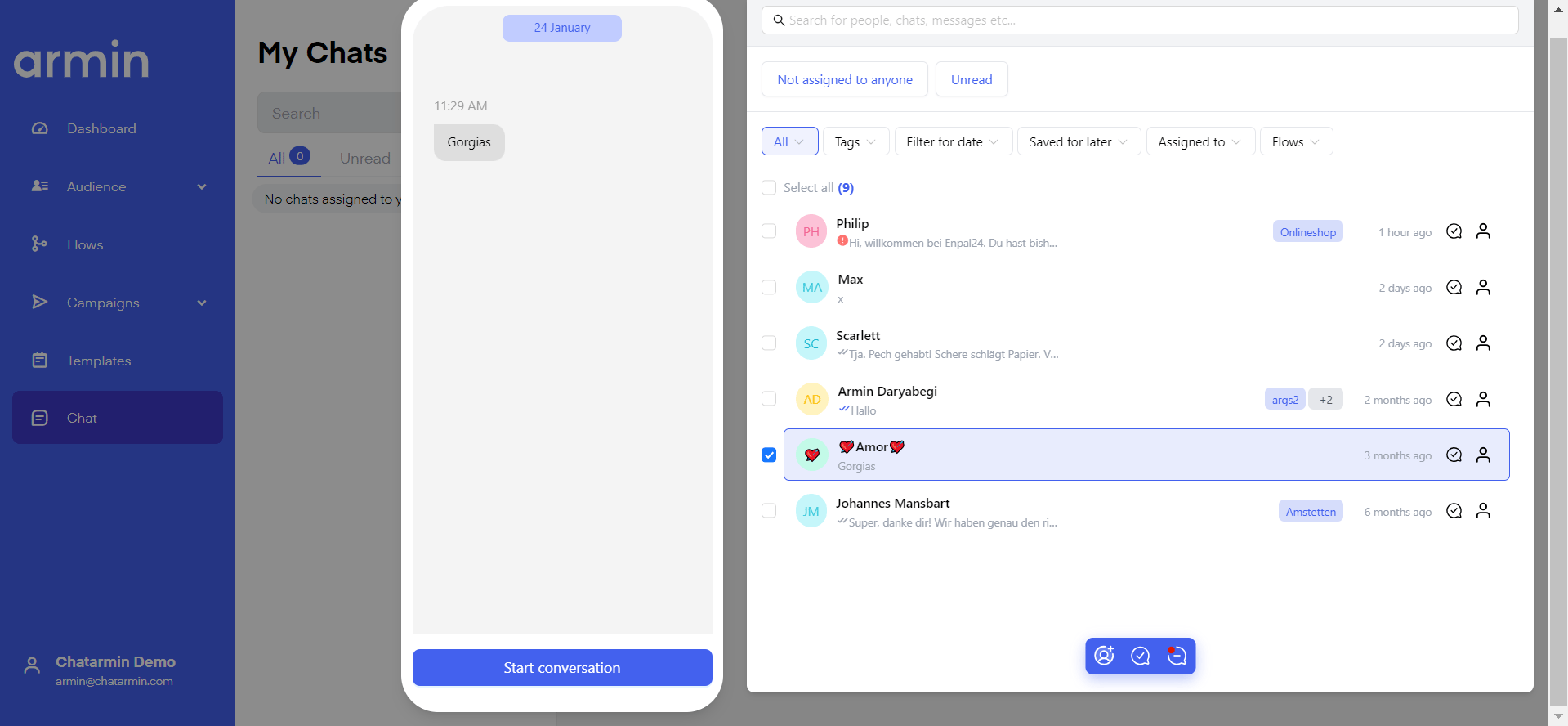 By clicking **"All chats"** a pop-up will appear showing you all chats. As you can see in the picture above you can only reply by clicking **"Start a conversation"** here due to the chat [being older than 24 hours, this is due to META restrictions](/billing/meta-pricing)**.** This means you can **only reply** by **"Template"** and not by **"Send Message"** and thus have to start a **new conversation** window. If the chat was started less than 24 hours ago you can reply as usual as seen in the image below, you can also send **images, video, or PDF** files directly via the chat feature.
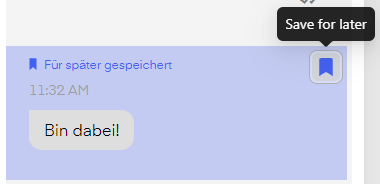
 You can save messages for later by clicking on the **"Save for later"** icon next to an incoming message.
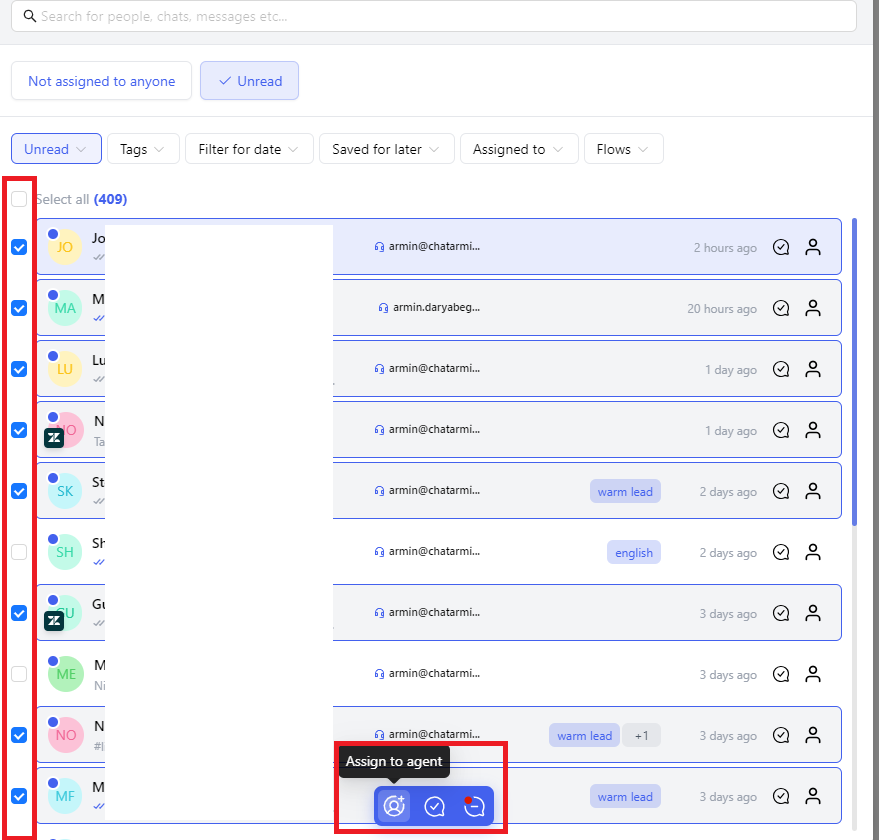
 Select a user via the white checkmark box next to the user name and then **"Assign to Agent"**, **"Mark as read"** or **"Mark as unread"**.
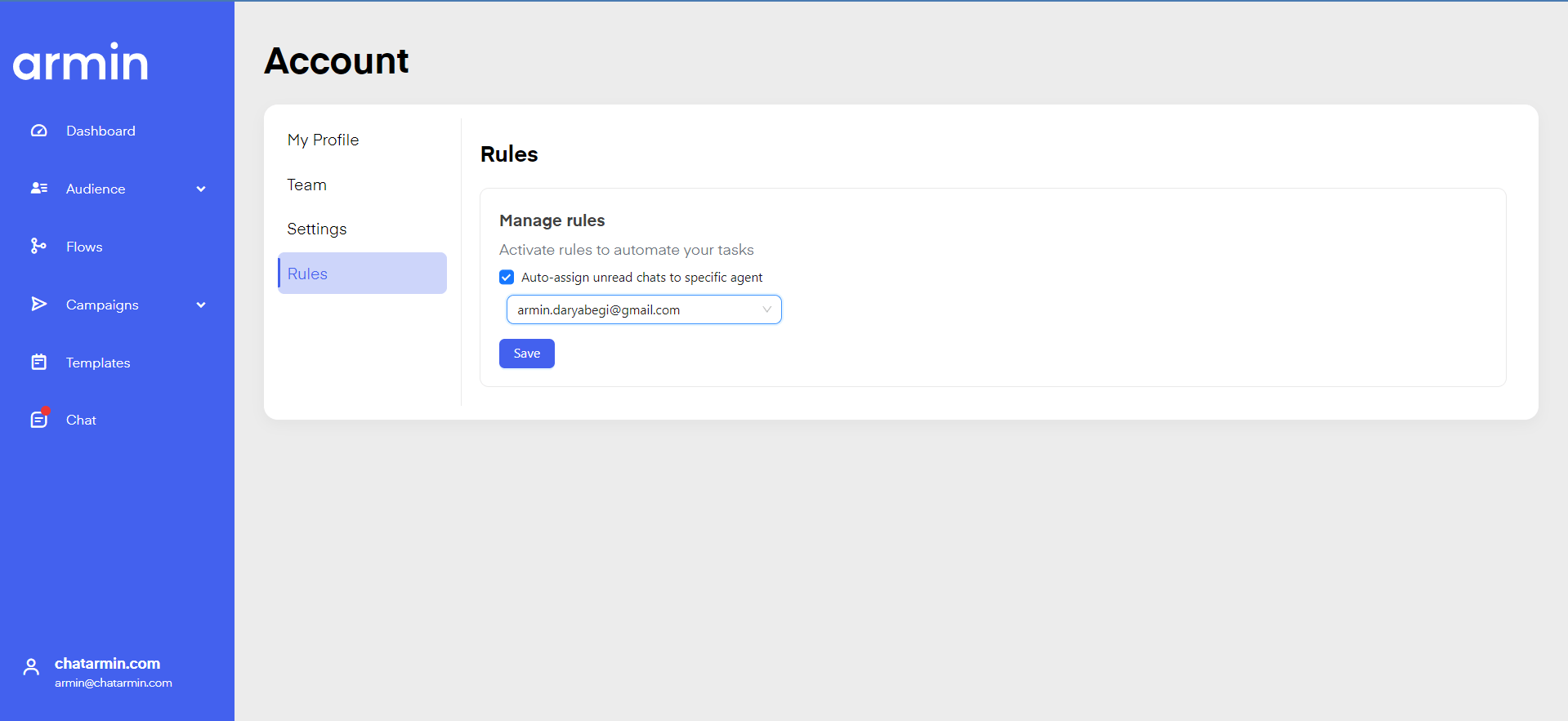
 You can automatically assign all incoming messages to a user by clicking on your Profile on the bottom left, clicking **"Team"** and clicking **"Rules"**. You can then click the checkmark **"Auto-assign unread chats to specific agent"** and choose a user you want to auto-assign all incoming messages.
 ***
## Chat: Filter
***
On the top you have various filters you can use to find specific chats such as:
***
## Chat: Filter
***
On the top you have various filters you can use to find specific chats such as:
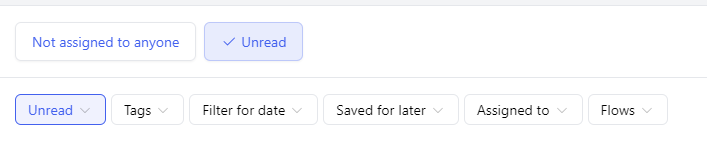 **Unread**
**Tags**
**Filter for date**
**Saved for later**
**Assigned to**
**Flows**
Use these or the search bar to find the conversations you are looking for.
**Unread**
**Tags**
**Filter for date**
**Saved for later**
**Assigned to**
**Flows**
Use these or the search bar to find the conversations you are looking for.
 ***
## Advanced Filters: Decentralised Support Features
***
Watch this video to understand how you can
* enable your POS retail stores and partners to use WhatsApp-support locally
* enable your multiple countries to scale on WhatsApp, all from one number
* enable support & sales to do dezentralised support & marketing campaigns to their dedicated audience
* integrate with all our system partners like HubSpot, Salesforce, zendesk, Gorgias, Freshdesk, Intercom, Ominsend, Shopify, Shopware, WooCommerce and many, many more.
* and much, much more..
\*Source: Chatarmin, Q2 2024\
\*
Pair this with your integrations and Chatarmin's AI and use the most professional WhatsApp Franchise Setup in the world.
***
## Customer Support: Trigger flows manually out of chats
***
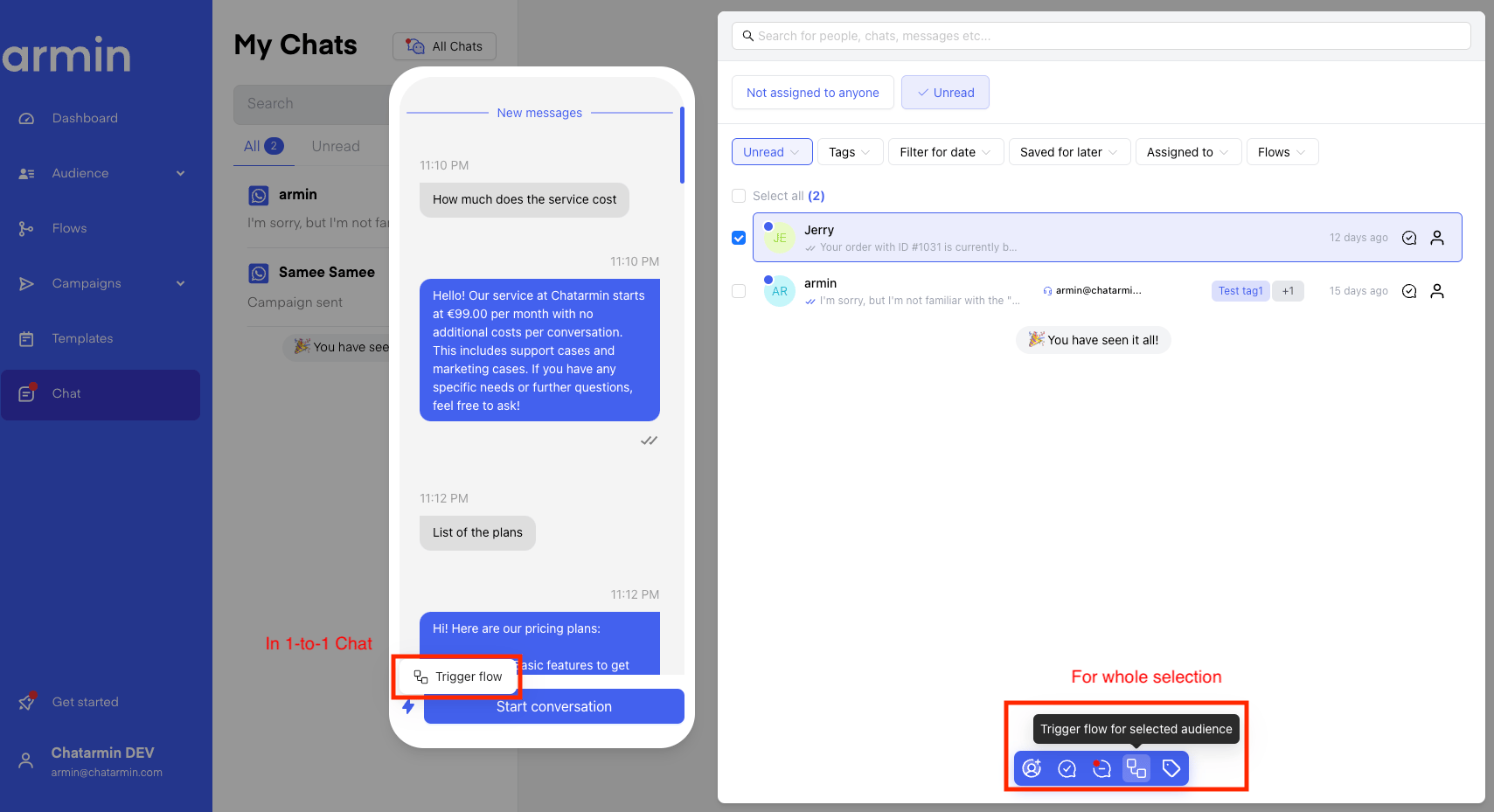
It is possible to manually trigger flows for individual users, when in chat. This is sometimes useful, if you want to send users into:
* AI-chat
* dedicated user-journeys
* more sophisticated flows
* multi-day-user-journeys
* standardized lead-enrichment-flows
Here's what it looks like to trigger flows manually from chat from a chat-perspective:
***
## Advanced Filters: Decentralised Support Features
***
Watch this video to understand how you can
* enable your POS retail stores and partners to use WhatsApp-support locally
* enable your multiple countries to scale on WhatsApp, all from one number
* enable support & sales to do dezentralised support & marketing campaigns to their dedicated audience
* integrate with all our system partners like HubSpot, Salesforce, zendesk, Gorgias, Freshdesk, Intercom, Ominsend, Shopify, Shopware, WooCommerce and many, many more.
* and much, much more..
\*Source: Chatarmin, Q2 2024\
\*
Pair this with your integrations and Chatarmin's AI and use the most professional WhatsApp Franchise Setup in the world.
***
## Customer Support: Trigger flows manually out of chats
***
It is possible to manually trigger flows for individual users, when in chat. This is sometimes useful, if you want to send users into:
* AI-chat
* dedicated user-journeys
* more sophisticated flows
* multi-day-user-journeys
* standardized lead-enrichment-flows
Here's what it looks like to trigger flows manually from chat from a chat-perspective:
 *Source: Chatarmin, Q3 2024*
***
## Flows: Trigger flows out of other flows
***
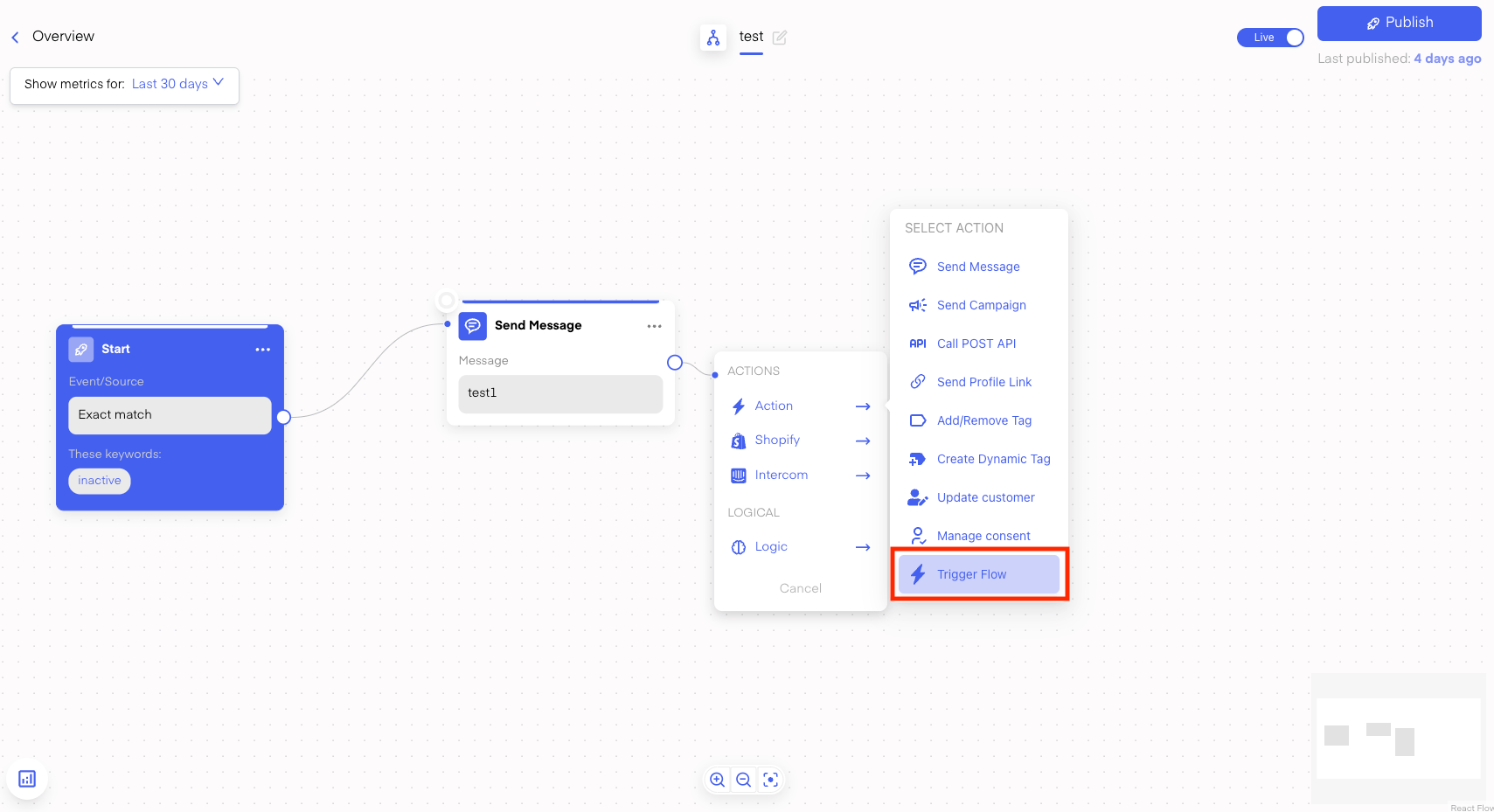
Here's what it looks like to trigger flows from within flows:
*Source: Chatarmin, Q3 2024*
***
## Flows: Trigger flows out of other flows
***
Here's what it looks like to trigger flows from within flows:
 *Source: Chatarmin, Q3 2024*
This makes sense, if you
* don't always wanna work with buzzwords to enter flows
* build multiple flows for the same user journey
* don't wanna work with multiple flows to achieve the same
* don't wanna use separate flows to guide the user in the same automation
*Source: Chatarmin, Q3 2024*
This makes sense, if you
* don't always wanna work with buzzwords to enter flows
* build multiple flows for the same user journey
* don't wanna work with multiple flows to achieve the same
* don't wanna use separate flows to guide the user in the same automation