> ## Documentation Index
> Fetch the complete documentation index at: https://help.chatarmin.com/llms.txt
> Use this file to discover all available pages before exploring further.
# Chatarmin MCP
> Connect AI assistants to your Chatarmin organization with the Model Context Protocol (MCP).
Chatarmin MCP lets you connect an AI assistant to your organization so it can read campaigns, contacts, flows, chats, and analytics—and run approved actions like sending messages or publishing flows—through natural language.
## When to use it
Use Chatarmin MCP when you want an AI assistant (Cursor, Claude, ChatGPT, VS Code, or similar) to work with your live Chatarmin data without copying exports or switching between tools.
OAuth is the recommended connection method. You sign in to Chatarmin once and approve access—no manual API token setup required.
## What changed
Chatarmin now ships a dedicated **MCP** area in your account:
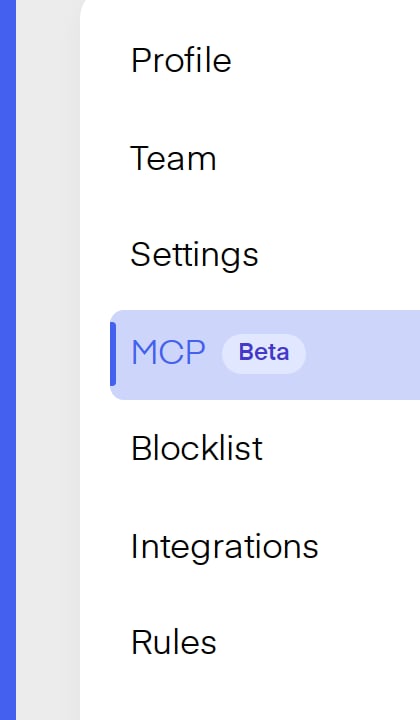
* **Profile → MCP** shows your MCP endpoint URL, OAuth configuration, and what your assistant can do.
* **OAuth consent screen** — when you click **Connect** in your AI client, you sign in to Chatarmin and approve access for that client (for example Cursor or Claude).
* **Static Bearer token (advanced)** — for clients that do not support OAuth, you can use the same API token from **Profile → Settings → API token**.
 The MCP server endpoint is:
```
https://api.chatarmin.com/api/mcp
```
## What your assistant can do
Tools are scoped to your Chatarmin organization. Capabilities include:
List campaigns, inspect metrics, preview audience size, create or pause campaigns, read WhatsApp chats, send messages, and trigger flows.
Search contacts, view audience stats, list tags and segments with live counts, create tags, and preview segment sizes.
Create and update flow drafts, publish flows, read analytics and run traces, and draft or submit WhatsApp templates for Meta approval.
Pull dashboard KPIs, campaign performance metrics, and search attributed orders by campaign, flow, or contact.
Write actions (send message, publish flow, create campaign, and similar) run when the assistant calls a tool. Review prompts carefully and confirm destructive actions in your AI client before approving.
## Set it up
## Watch the walkthrough
The MCP server endpoint is:
```
https://api.chatarmin.com/api/mcp
```
## What your assistant can do
Tools are scoped to your Chatarmin organization. Capabilities include:
List campaigns, inspect metrics, preview audience size, create or pause campaigns, read WhatsApp chats, send messages, and trigger flows.
Search contacts, view audience stats, list tags and segments with live counts, create tags, and preview segment sizes.
Create and update flow drafts, publish flows, read analytics and run traces, and draft or submit WhatsApp templates for Meta approval.
Pull dashboard KPIs, campaign performance metrics, and search attributed orders by campaign, flow, or contact.
Write actions (send message, publish flow, create campaign, and similar) run when the assistant calls a tool. Review prompts carefully and confirm destructive actions in your AI client before approving.
## Set it up
## Watch the walkthrough
 In [Chatarmin](https://app.chatarmin.com/), go to **Profile → MCP**.
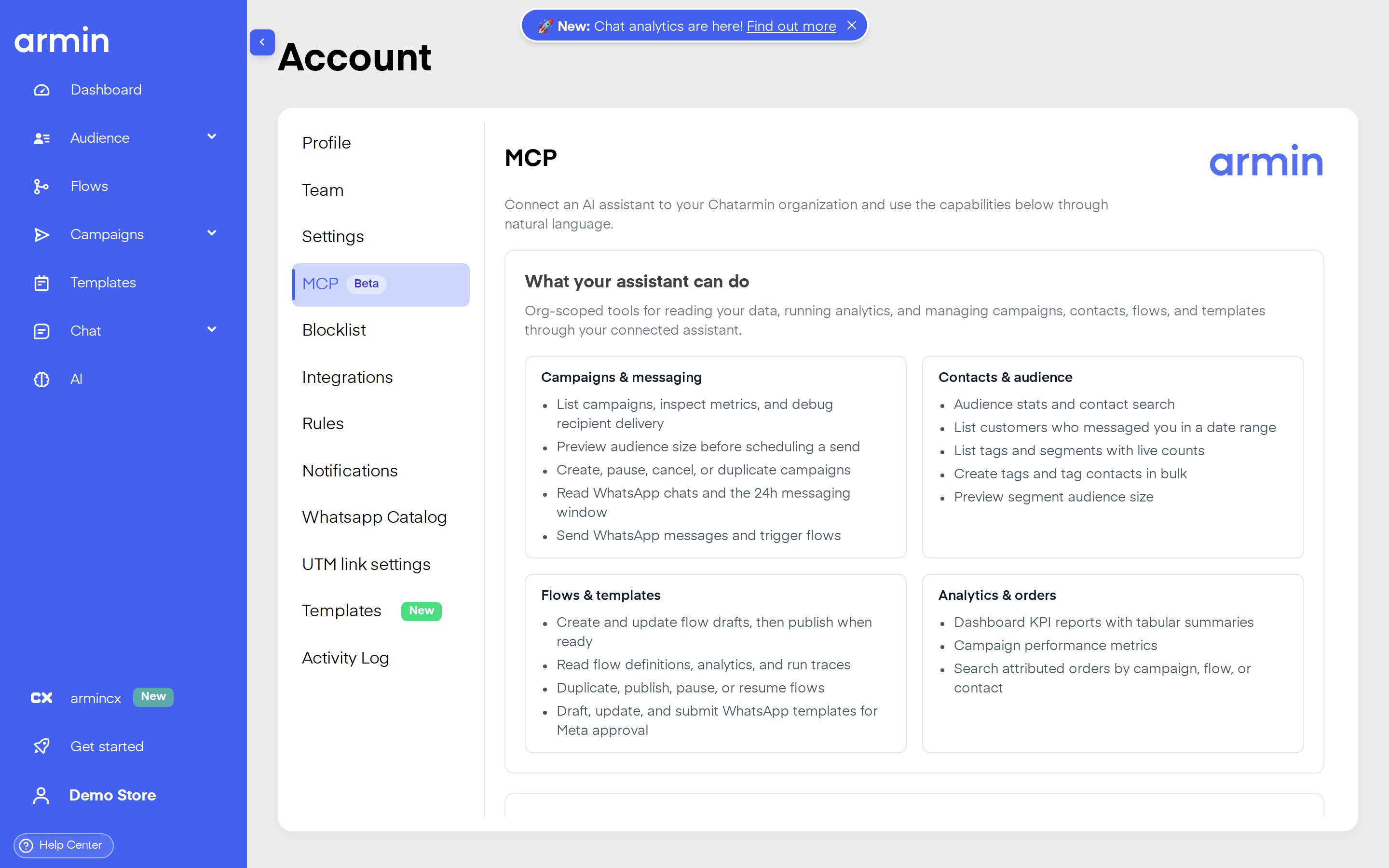 Copy the **MCP endpoint URL** or the **OAuth config** JSON from that page.
Follow the connection guide for your tool:
* [Connect Chatarmin MCP to AI tools](/api-documentation/connect-chatarmin-mcp-to-ai-tools)
In your AI client, click **Connect** (or equivalent). Your browser opens the Chatarmin consent screen.
Copy the **MCP endpoint URL** or the **OAuth config** JSON from that page.
Follow the connection guide for your tool:
* [Connect Chatarmin MCP to AI tools](/api-documentation/connect-chatarmin-mcp-to-ai-tools)
In your AI client, click **Connect** (or equivalent). Your browser opens the Chatarmin consent screen.
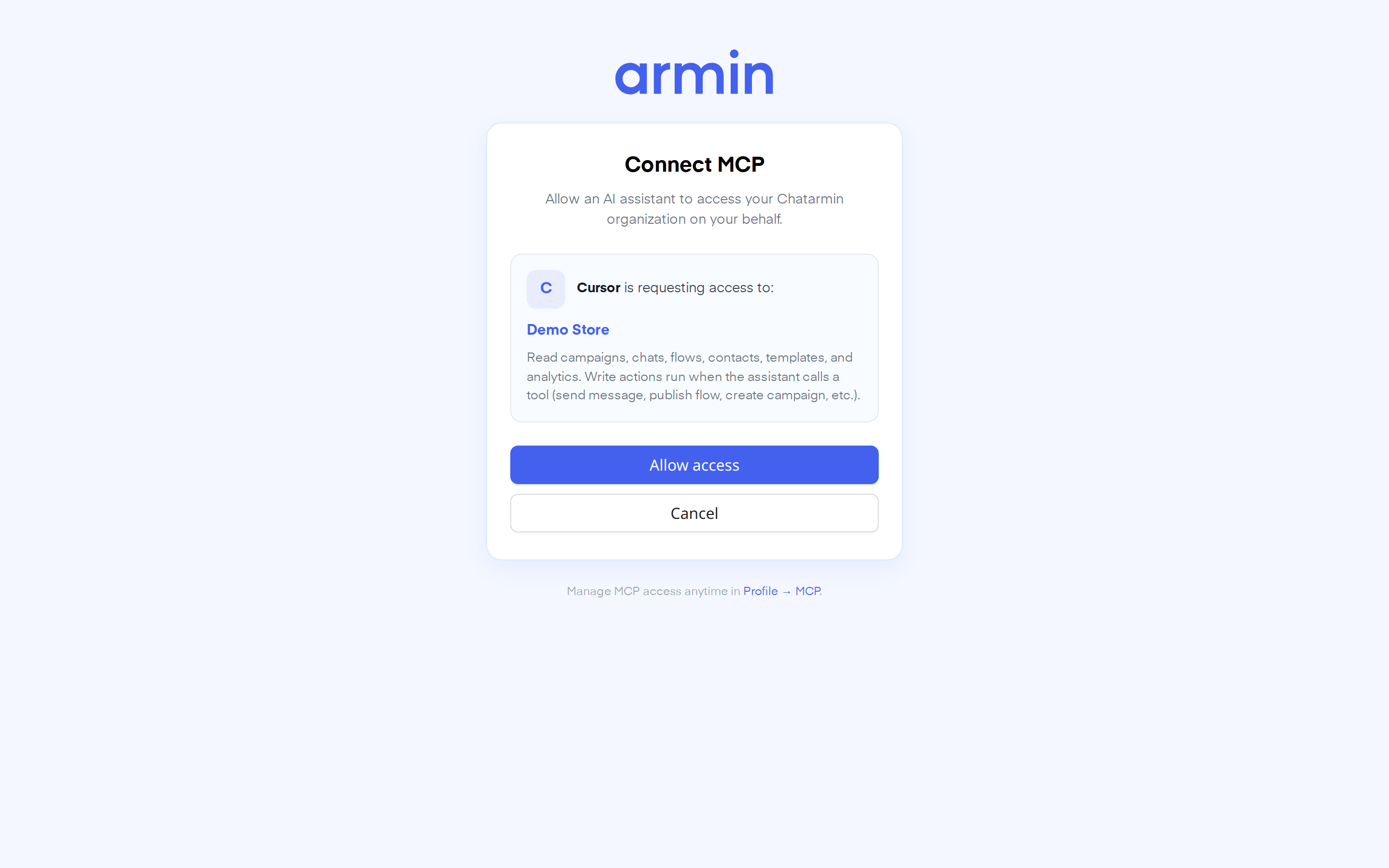 Sign in if needed, review the permissions, and click **Allow access**.
After authorization, Chatarmin tools appear in your assistant. Ask questions like “How did last week’s campaign perform?” or “List contacts who messaged us in the last 7 days.”
## Advanced: static Bearer token
Only use this if your AI client does not support OAuth **Connect**.
1. Open **Profile → Settings** and copy your **API token**.
2. Add the MCP URL with an `Authorization` header in your client config:
```json theme={null}
{
"mcpServers": {
"chatarmin": {
"url": "https://api.chatarmin.com/api/mcp",
"headers": {
"Authorization": "Bearer YOUR_API_TOKEN"
}
}
}
}
```
Replace `YOUR_API_TOKEN` with your token. The same Bearer example is available on **Profile → MCP**.
## Troubleshooting
**Missing authorization state** — Start again from your AI client’s **Connect** button. Do not refresh the consent page manually.
**Authorization request expired** — OAuth states are short-lived. Click **Connect** in your AI client again.
**Session expired on consent screen** — Sign in to Chatarmin, then retry **Connect** from your AI client.
**Tools do not appear** — Confirm the MCP URL is exactly `https://api.chatarmin.com/api/mcp`, complete OAuth, and restart or reload MCP in your client.
Need help? Contact support through your [Chatarmin dashboard](https://app.chatarmin.com/) or see [Connect Chatarmin MCP to AI tools](/api-documentation/connect-chatarmin-mcp-to-ai-tools).
Sign in if needed, review the permissions, and click **Allow access**.
After authorization, Chatarmin tools appear in your assistant. Ask questions like “How did last week’s campaign perform?” or “List contacts who messaged us in the last 7 days.”
## Advanced: static Bearer token
Only use this if your AI client does not support OAuth **Connect**.
1. Open **Profile → Settings** and copy your **API token**.
2. Add the MCP URL with an `Authorization` header in your client config:
```json theme={null}
{
"mcpServers": {
"chatarmin": {
"url": "https://api.chatarmin.com/api/mcp",
"headers": {
"Authorization": "Bearer YOUR_API_TOKEN"
}
}
}
}
```
Replace `YOUR_API_TOKEN` with your token. The same Bearer example is available on **Profile → MCP**.
## Troubleshooting
**Missing authorization state** — Start again from your AI client’s **Connect** button. Do not refresh the consent page manually.
**Authorization request expired** — OAuth states are short-lived. Click **Connect** in your AI client again.
**Session expired on consent screen** — Sign in to Chatarmin, then retry **Connect** from your AI client.
**Tools do not appear** — Confirm the MCP URL is exactly `https://api.chatarmin.com/api/mcp`, complete OAuth, and restart or reload MCP in your client.
Need help? Contact support through your [Chatarmin dashboard](https://app.chatarmin.com/) or see [Connect Chatarmin MCP to AI tools](/api-documentation/connect-chatarmin-mcp-to-ai-tools).